Won (₩) is the official currency symbol of Korea. Though the currencies are different, same Won symbol is used in both North (KPW) and South Korea (KRW). The symbol features a distinctive combination of the letter “W” crossed by two horizontal lines in the middle. For frequent insertion of the Won symbol ₩ in financial / accounts documents or in other applications, here are the alt code shortcuts you can use.
| Symbol | ₩ |
|---|---|
| Name | Korean Won |
| Windows Shortcut | Alt + 8361 |
| Word Shortcut | 20A9 + Alt + X |
| Mac Shortcut | Option + 20A9 |
| HTML Entity Decimal | ₩ |
| HTML Entity Hexadecimal | ₩ |
| CSS Value | \20A9; |
| Decimal | 8361 |
| Hexadecimal | 20A9 |
| Unicode Point | U+20A9 |

1. Type Won Symbol in Windows
There are multiple options available:
1.1. Using Alt Code Shortcuts
- Hold one of the alt keys and type 8369 using number pad.
- On Microsoft Word documents, type 20A9 and then press alt + X keys together.
1.2. Using Character Map App
Press “Windows Logo + R” keys to open Run prompt. Type charmap and press “OK” button to open Character Map app and follow the below steps:
- Make sure to check the “Advanced view” option.
- Select “Unicode” for “Character set”.
- Type 20A9 in the “Go to Unicode” box and press enter.
- You will see the ₩ sign appears as a first symbol in the list.
- Click the “Select” button and then click “Copy” button.

Now, you can paste the copied Won sign any document or application from clipboard.
1.3. Using Emoji Keyboard
You have a new emoji keyboard available to insert symbols in Windows 10 version onwards.
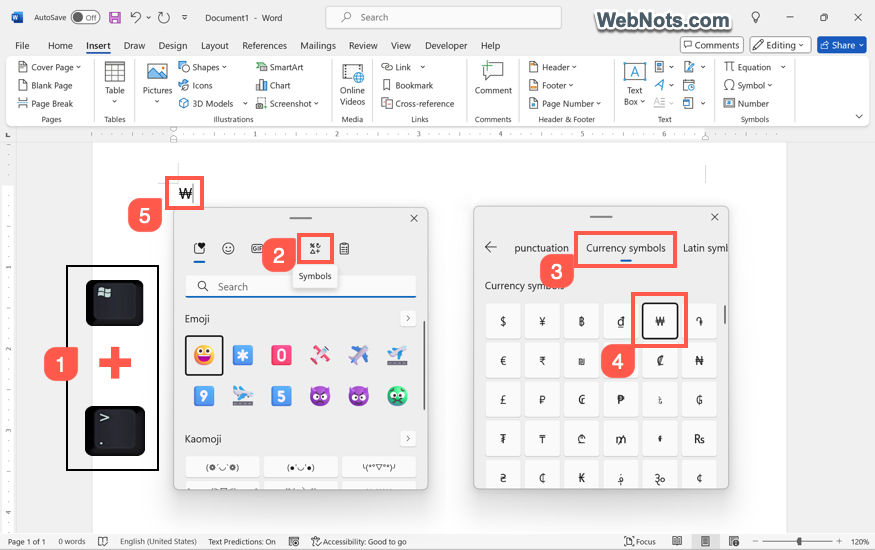
- Press “Windows Logo + Dot” keys to open emoji keyboard.
- Click the “Symbols” category and then select “Currency symbols” group.
- Find ₩ symbol and click on it to insert.
1.4. Using Symbol Utility in Microsoft Office Apps
Microsoft Office apps like Word, Excel and PowerPoint comes with an in-built “Symbol” utility which you can make use for this purpose.
- Open Word, Excel or PowerPoint app.
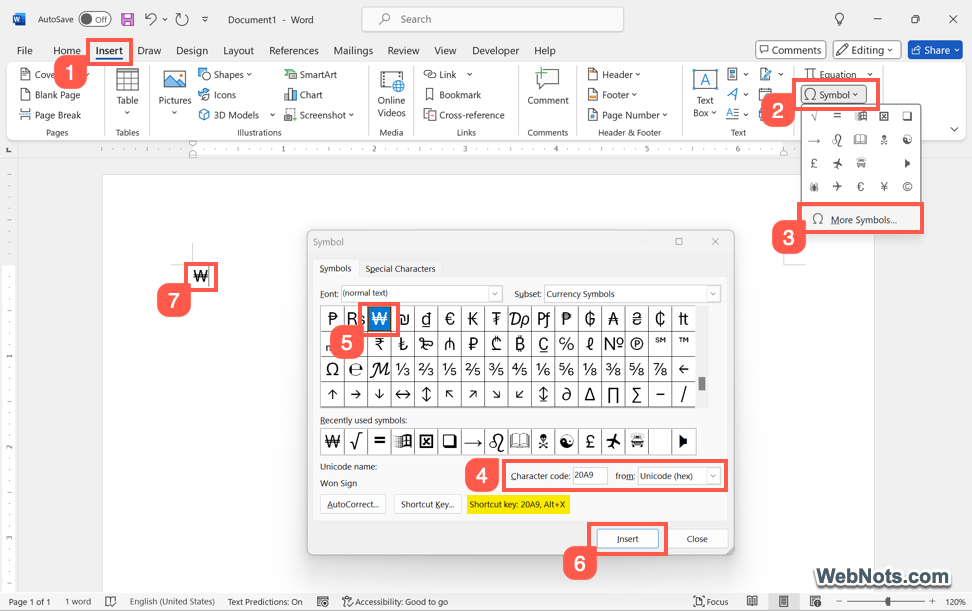
- Go to “Insert > Symbols > More Symbols” menu to open “Symbol” pop-up.
- Select “Unicode (hex)” value in “from” dropdown, type 20A9 in the “Character code” box and press enter.
- Find ₩ sign and click “Insert” button to add it in the document.
2. Insert Won Sign in Mac
You have two options in Mac.
2.1. Using Option Code Shortcut
- First, switch the input method to Unicode Hex Input.
- Now, hold option key and type 20A9.
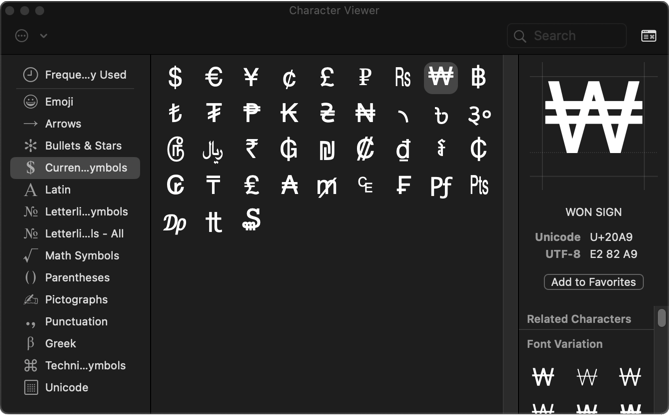
2.2. Use Character Viewer
Mac has a Character Viewer app which is something like a combination of Character Map and emoji keyboard in Windows.
- Open the app where you want to insert Won symbol.
- Go to “Edit > Emoji & Symbols” menu to open Character Viewer app.
- Type “won” in the search box or click the “Currency Symbols” category from the sidebar.
- Find ₩ sign and double click on it to insert in your document.
3. Add Won Sign in HTML and CSS
Use decimal format like ₩ ; or hexadecimal format like ₩ ; in HTML documents. You can use the hexadecimal code like content:\20A9; in any CSS style.
HTML Example:
<span>₩</span>
<span>₩</span>CSS Example:
span:before {
	content:\20A9;
	font-family:Arial;
}
Note: Fullwidth Won sign is another Unicode symbol that you can type using Alt + 65510 in Windows and Option + FFE6 in Mac.
Won Symbol Display
Below is the display of Won sign and fullwidth Won sign respectively.
₩
₩
Note: Some browsers show the symbol with single horizontal line while the correct representation is with two lines.