You can use the touchpad or mouse to perform right-click and left-click functions easily in Windows PC. However, using right-click is tricky whether you are using a MacBook with Trackpad or an iMac with Magic Mouse. Clicking or pressing on the right side of the mouse or Trackpad will still perform the left-click action. This may be frustrating especially if you are frequently using right-click context menu in apps and on desktop. However, macOS has an option which you can manually change to enable right-click function on your Mac or iMac.
Default Gesture and Shortcut
By default, Mac works with the following settings:
- Trackpad – use two fingers to tap or click. Alternatively, hold “Control” key and press or tap on Trackpad.
- Magic Mouse – press “Control” key and click mouse button to open the right-click context menu. Since Magic Mouse does not have separate left and right buttons, you can click anywhere on the front.
In most Mac documents, you can find “Control-click” is used as equivalent for right-click.
Enable Right-Click in Magic Mouse
- Click the Apple logo showing on top left corner of the screen.
- Select “System Settings…” from the menu (“System Preferences…” in old macOS).

- Navigate to “Mouse” section.
- Go to “Point & Click” tab.
- Click the dropdown against “Secondary click” option.
- Select “Click Right Side” from the list.
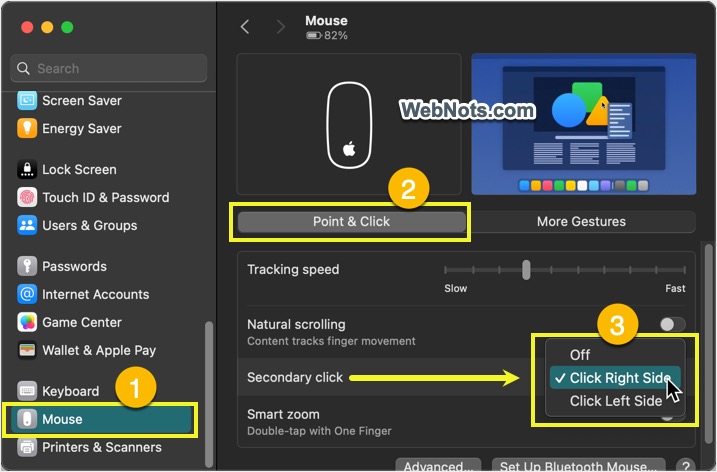
Close the Settings / Preferences and you are ready to use right-click with your mouse.
Enable Right-Click in Trackpad
- Click the Apple logo and select “System Settings…” or “System Preferences…” menu.
- Open “Trackpad” option.
- Go to “Point & Click” tab and click the “Secondary click” dropdown.
- Select “Click in bottom right corner” option.

Close the Settings or Preferences and you can press the right bottom of the Trackpad for seeing the right-click context menu in all the apps. If you are still using the old macOS (Monterey or earlier), then the Trackpad preferences will look like below:

Final Words
As mentioned, using double finger tap or holding Control key is inconvenient. The best option is to enable right-click in Settings / Preferences as explained above. Otherwise, you can purchase a two-button mouse typically used with Windows PC to have the same experience on Mac.