WordPress is available in more than 200 locales and you can download the regional version from corresponding WordPress.org site. This includes the emoji translation version. However, in many cases you need to use WordPress dashboard in multiple languages like English and also in your native language. This may be required to allow contributors or author across the globe to participate in publishing content right from your admin dashboard. In this article, we will explain how to translate WordPress admin dashboard and add language switcher in the login page.
Installing Additional Language for WordPress Admin
You can translate WordPress admin without any third-party plugin.
- Login to your WordPress admin panel.
- Navigate to “Settings > General” section.
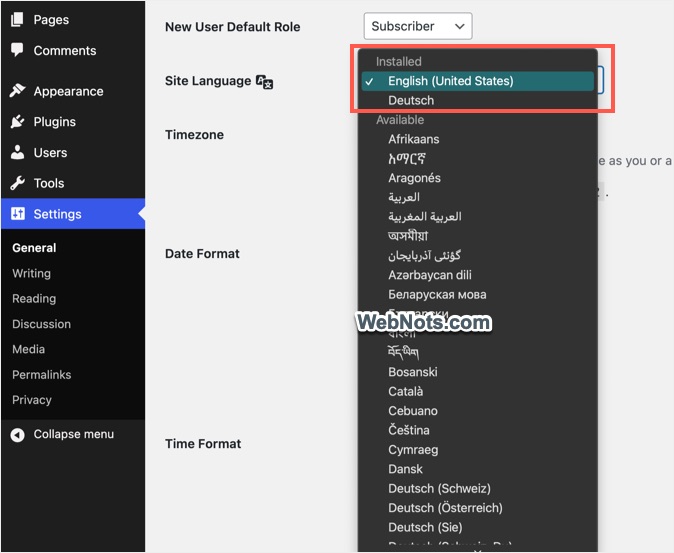
- Scroll down and find “Site Language” option.

- Click the dropdown and select additional language to install.

- Scroll down to bottom and click “Save Settings” button.
- WordPress will install the selected language and switch your interface instantly.
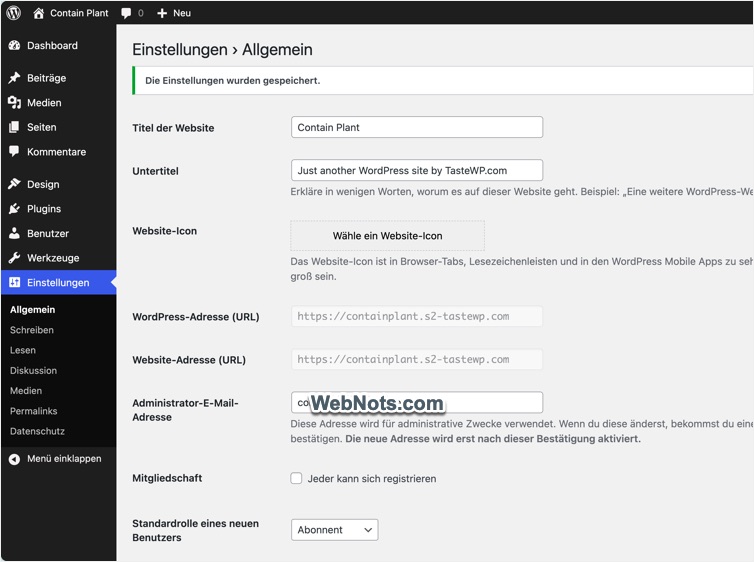
You can click the “Site Language” dropdown to see the list of languages showing under “Installed” category indicating they can be used on the interface. As mentioned, you have more than 200 languages to choose from.
Using Language Switcher to Change Language
By default, WordPress admin login page does not have any language switcher option.
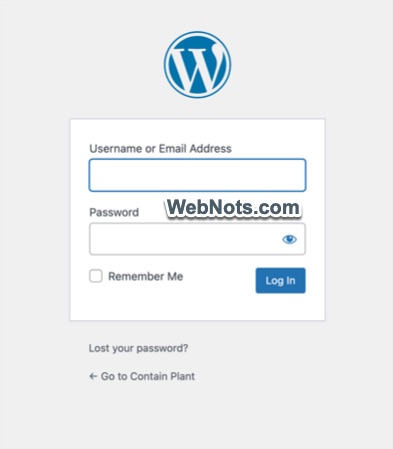
After you install an additional language, log out of your dashboard and open the login page again. You should see a language switcher dropdown showing at the bottom of login form.
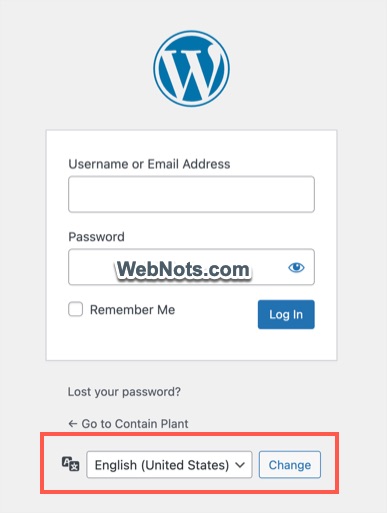
Click the dropdown and select an installed language from the list. Click “Change” button to switch the login page language. When you login, the interface also will be in the selected language.
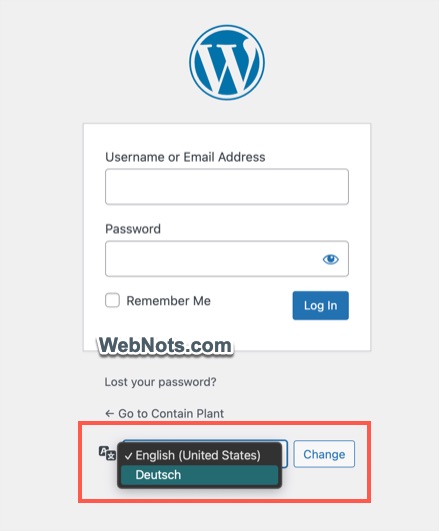
Note: There are no default options in WordPress to uninstall a language and remove the language switcher from login page. You can remove the language switcher by manually adding a function in your theme.
Do Not Use Translation Plugins
There are also many translation plugins available to convert your site into a multilanguage supported site. These plugins will also add the language switcher in your login page based on your setup. Because the moment you install an additional language, WordPress will start showing the language switcher in the login page. However, these plugins are meant for changing site language by translating content and adding HTML language parameter to each page and not for adding language switcher. For example, using plugins like Polylang, you can translate the entire site into a different language.
So, unless you need to translate the page content or have custom requirements, default WordPress language switcher is more than sufficient for using admin interface in any of your favorite language.
Note: Though there are 208 locales available, not all of them are completely translated 100% for the latest WordPress versions. You can check the status in official Translate WordPress page. If you do not see your favorite language translate is complete, the best thing you can do is to contribute and help them to finish the translation (you need WordPress.org account).