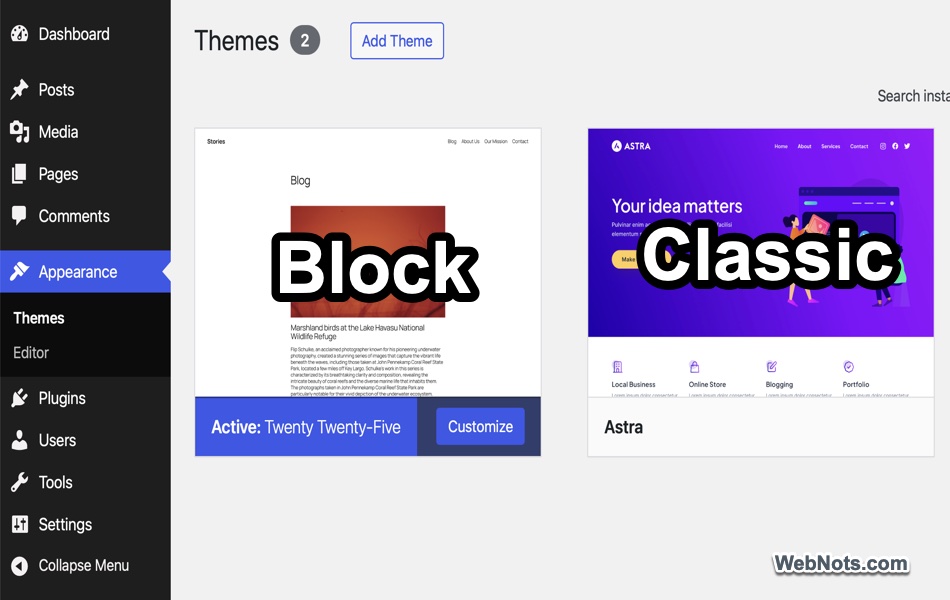
If you’re new to the idea of creating a website, the technical side of things can feel overwhelming. You might have heard terms like HTML, CSS, hosting, DNS, and content management systems, and wondered if building a site requires a computer science degree. Thanks to the website builders, today anyone can have a professional-looking website up and running in an afternoon. But what exactly is a website builder, and how does it turn your clicks and text into a live website? Let’s explore these details in this article.
1. What is a Website Builder?
At its simplest, a website builder is a software tool that lets you create a website without writing code. Instead of typing out HTML or CSS instructions line by line, you use a visual, drag-and-drop interface similar to designing a document in Microsoft Word or a slide in PowerPoint, but specifically built for the web.
Most website builders are all-in-one platforms, meaning they bundle together everything you need:
- Design tools (templates, drag-and-drop editors).
- Hosting (the servers where your website lives).
- Domain name registration (your site’s address, like www.yourbusiness.com).
- Security features (SSL certificates, backups).
Popular examples you’ve probably heard of include Wix, Squarespace, Weebly, and GoDaddy’s Website Builder. Some platforms, like WordPress.com (the hosted version), also fall into this category, though WordPress is a broader content management system.
In short, a website builder is an accessible tool for creating a website without technical expertise.
2. How Do Website Builders Actually Work?
It helps to understand what happens behind the scenes when you use a website builder. While the process feels magical like you drag a picture, type some text, and suddenly it’s online, it relies on a few core principles.
2.1. Templates are the Starting Point
When you sign up for a website builder, the first thing you’ll usually do is choose a template (sometimes called a theme). Think of a template as a pre-designed blueprint. It already has:
- A layout for your header, footer, and main content area.
- Styling choices like fonts, colors, and button styles
- Placeholders for images, text, and other elements.

Templates are designed by professionals to look good on both desktop and mobile screens. You don’t have to start from a blank page; you simply customize a template to fit your brand.
2.2. Drag-and-Drop Editors Translate Visual Actions into Code
This is where the “magic” happens. A drag-and-drop editor lets you click, drag, and rearrange elements like text boxes, images, videos, maps, and buttons directly on the screen. Behind the scenes, the website builder is doing three things simultaneously:
- Generating the underlying code (HTML, CSS, JavaScript) based on where you place elements.
- Storing your content (the text you typed, the images you uploaded) in a database or file system.
- Making the layout responsive so it adjusts automatically to different screen sizes.
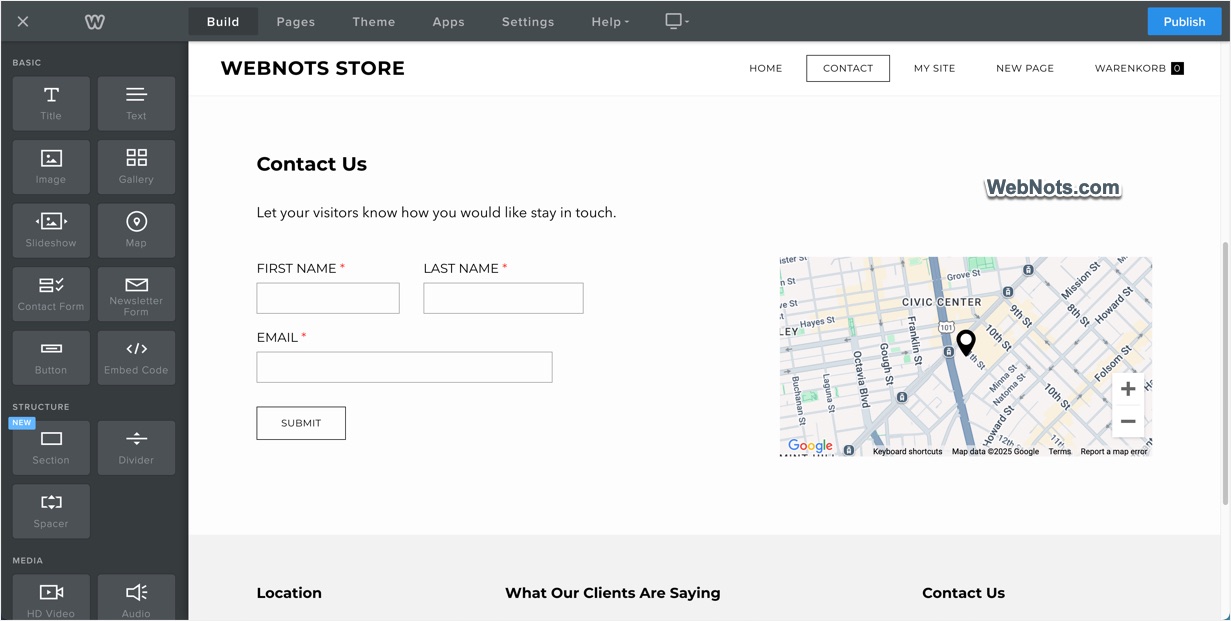
When you click “save” or “publish”, the builder takes all of that code and content and deploys it to its hosting servers.
2.3. AI-Powered Website Builders: The Next Generation
In recent years, many website builders have integrated artificial intelligence to simplify the process even further. Instead of manually choosing templates, dragging elements, and tweaking layouts, AI builders ask you a few questions about your business or project like your industry, preferred colors, and goals, and then generate a complete, customized website in minutes. These AI tools analyze your inputs and automatically select layouts, color schemes, fonts, and even placeholder content that aligns with your brand.
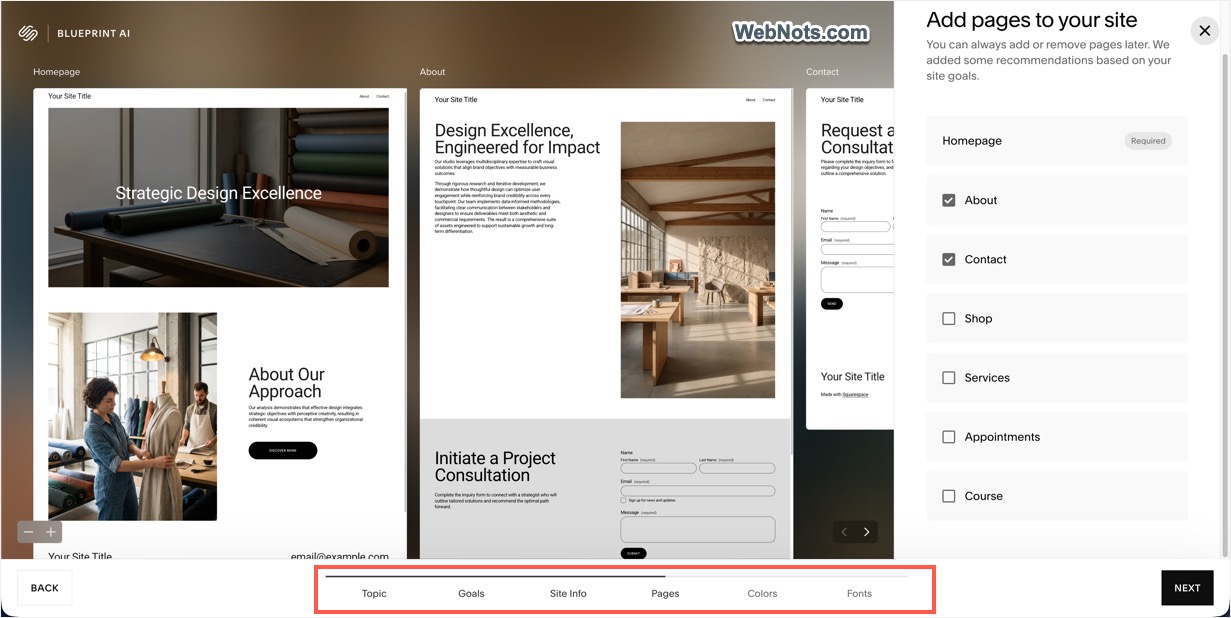
Platforms like Wix, Squarespace, and SITE123 all offer AI-driven options. The result is a fully functional site that you can still edit manually if desired. This is ideal for absolute beginners who want a professional-looking site with minimal effort without spending hours on design decisions. However, the trade-off is less creative control compared to manual drag-and-drop builders, as the AI makes many design choices for you.
2.4. Hosting is Included (So You Don’t Have to Think About It)
One of the biggest headaches of traditional website creation is hosting. To be visible on the internet, your website’s files need to live on a server that is always connected to the web. With a website builder, hosting is part of the package.
- The company that provides the builder (like Wix or Weebly) also runs the servers.
- When you publish your site, it’s automatically loaded onto their infrastructure.
- They handle uptime, security, backups, and performance tasks that would otherwise require technical expertise or hiring a specialist.
2.5. The Backend: Where You Manage Everything
Most website builders provide a backend dashboard (also called administrator panel), which is a private area where you manage your site. From here you can:
- Edit pages and blog posts on your site.
- View analytics (how many visitors you get).
- Configure settings like SEO (search engine optimization), domain name, and ecommerce features.
- Install additional features (like social sharing) via integrations or apps.

The backend is designed to be intuitive, often resembling a simple settings panel rather than a technical control center.
3. Different Types of Website Builders
Not all website builders are identical. There are two main types, and understanding the difference will help you pick the right one.
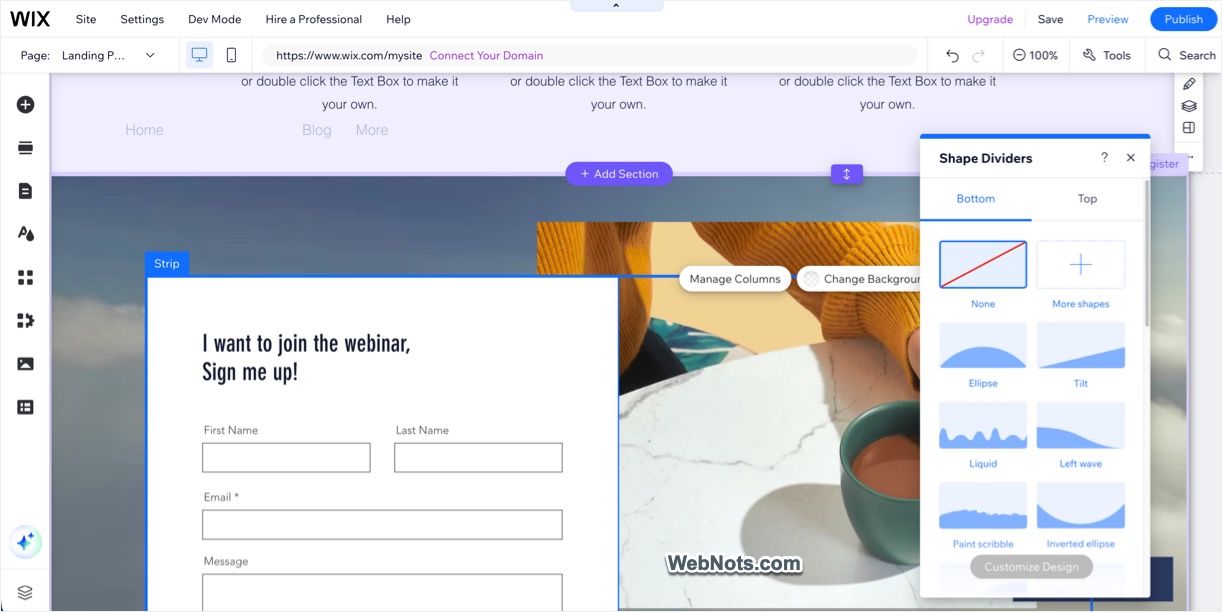
3.1. Drag-and-Drop (Unstructured) Builders
These are the most flexible and visual. They let you place any element anywhere on the page, almost like arranging sticky notes on a whiteboard. Wix and Weebly are classic examples.
Pros:
- Maximum design freedom
- Intuitive for creative people
- Usually no learning curve
Cons:
- Can become messy if you’re not design-savvy
- Difficult to integrate custom features (like a forum)
3.2. Structured (Grid-Based) Builders
These use a more rigid grid or “section-based” approach. Squarespace is the prime example using Fluid Engine Grid-Based editor. Instead of placing elements pixel by pixel, you add pre-built blocks or sections that automatically align to a clean grid.
Pros:
- Designs look polished and consistent
- Mobile optimization is often built-in seamlessly
- Typically, better for clean portfolios and businesses
Cons:
- Less flexibility for unconventional layouts
- Slightly steeper learning curve than pure drag-and-drop
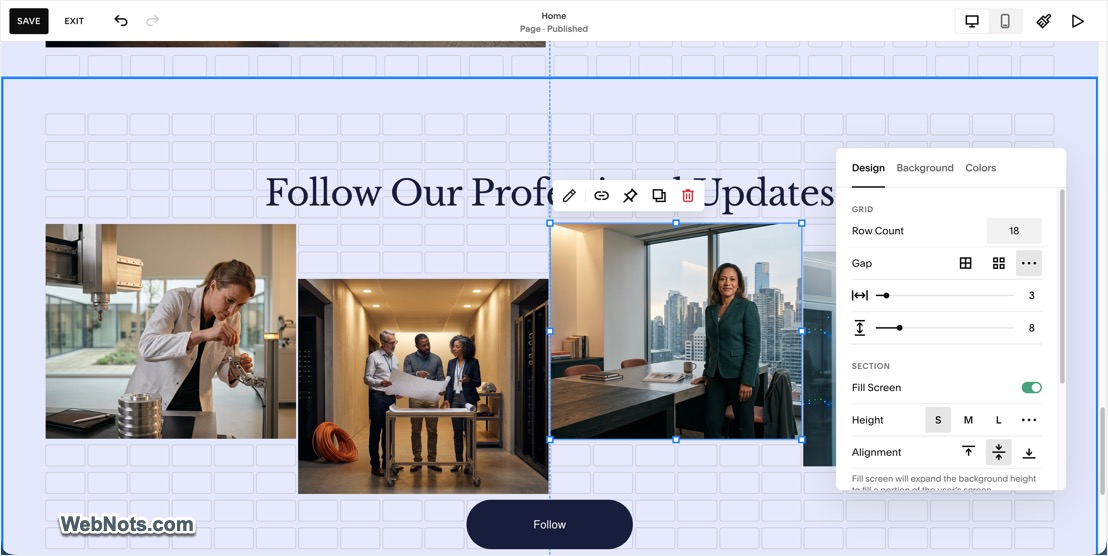
Both types achieve the same end result (a live website) but they cater to different comfort levels and design needs.
4. Why Use a Website Builder? (The Benefits)
For beginners, website builders offer several clear advantages over coding a site from scratch or hiring a developer.
- No Coding Required: You don’t need to know HTML, CSS, or JavaScript. The builder handles all the technical translation.
- Speed: A functional website can be built in a few hours, not weeks. You can launch fast, test ideas quickly, and make changes instantly.
- All-in-One Simplicity: Domain name, hosting, security, backups, and technical maintenance are included. There’s no need to coordinate separate services.
- Built-In Features: Most builders include blogging tools, ecommerce capabilities (for selling products), contact forms, SEO settings, and analytics without requiring plugins or add-ons (though some advanced features may cost extra).
- Customer Support: Since you’re using a single platform, you have a dedicated support team to help if something goes wrong. You won’t get this kind of support when you’re piecing together separate hosting, code, and domains.
5. What Website Builders Are NOT Good At (Honest Limitations)
It’s also important to know where website builders fall short, so you can decide if they’re the right fit for your long-term goals.
- Extreme Customization: If you need a highly custom web application (like a complex booking system or a custom-built user dashboard), a website builder may feel limiting. You can often add such functionality through third-party integrations, but it may not be as seamless as custom development.
- Site Migration: Most website builders do not let you easily export your site and move it to another platform. If you start with Wix and later want to switch to WordPress (self-hosted), you may need to rebuild your site from scratch.
- Long-Term Costs: While builders appear affordable initially (often $30/month), costs can add up over time. Premium features, ecommerce transaction fees, and higher-tier plans can make a builder more expensive than self-hosted alternatives in the long run.
- Ownership: When you use an all-in-one builder, you are renting space on the platform. Your site exists within their ecosystem. If you violate their terms of service or they shut down (unlikely for major players, but possible for niche builders), you could lose access to your site. With a self-hosted solution like WordPress.org, you own everything.
6. How to Choose Your First Website Builder?
If you’re ready to try one, here’s a simple decision framework:
| If you want… | Consider… |
|---|---|
| Maximum creative freedom and design flexibility | Wix |
| Beautiful, polished designs with reliable ecommerce | Squarespace |
| Simple, no-fuss setup with built-in AI assistance | GoDaddy Website Builder |
| A free option to test the waters | Weebly (free tier available) or Wix free plan |
| To eventually move to a more powerful platform later | Start with a builder that allows easy content export (few do; be aware) |
Most builders offer a free trial or a free plan with branding. It’s worth spending a weekend trying out two or three to see which interface feels most natural to you.
7. Getting Started: A 5-Step Roadmap
Once you’ve picked a builder, here’s how to go from zero to live:
- Sign up and choose a template: Pick one that closely matches your vision as you can always customize it heavily or use to generate a custom layout.
- Set up your pages: Start with the essentials like Home, About, Services/Products, Contact.
- Customize: Replace placeholder text and images with your own. Adjust colors and fonts to match your brand.
- Connect a custom domain: Instead of using the free subdomain (like yoursite.wixsite.com), purchase or connect a domain like yourbusiness.com for a professional touch.
- Preview, test, and publish: Check how your site looks on both desktop and mobile. Make sure links work, then hit publish, and your site is live.
8. Final Thoughts
Website builders have democratized the web. They allow anyone like entrepreneurs, artists, small business owners, and hobbyists to establish an online presence without needing to become developers. While they aren’t the right fit for every complex project, they are often the perfect starting point and sometimes the perfect permanent home for the vast majority of websites (especially for small businesses). The key is understanding that a website builder is a tool. Like any tool, it works best when you choose the one that matches your skill level, goals, and willingness to trade a little flexibility for a lot of convenience.
Now that you know what they are and how they actually work, the only thing left to do is pick one and start building your website.