
Typing fast is important in today’s fast-paced digital world, and knowing keyboard shortcuts can save time while maintaining the speed. For Apple users, one of the most convenient typing shortcuts is inserting a period (dot) by double-pressing the spacebar. This feature is simple to use, but it’s often overlooked and not used by many users. Whether you are using an iPhone or a Mac, here is how to enable and make the most of this handy feature. If you are also using iPad, follow the same steps for iPhone.
Double-Space Shortcut
The double-space shortcut automatically inserts a period followed by a single space whenever you quickly press the spacebar twice. In this way:
- You can avoid manually inserting a period at the end of each sentence when typing.
- Respond quickly in chats and emails.
- Reducing errors caused by manual punctuation.
This feature should be enabled by default on all Apple devices and follow the below steps if it is not working or accidentally disabled.
Enable Double-Space for Period on iPhone
- Open the “Settings” app and go to “General” section.
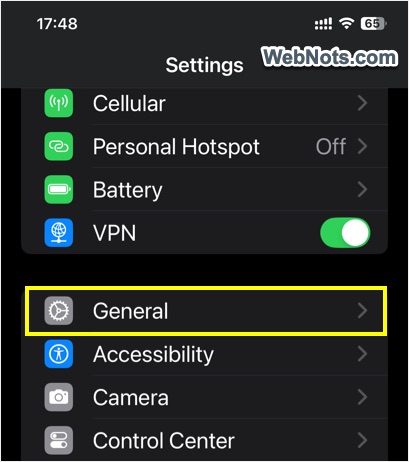
- Scroll down and select “Keyboard” option.
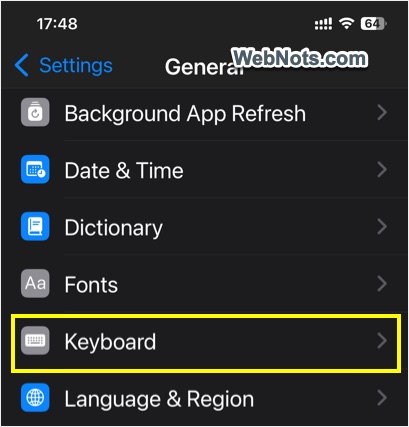
- Look for the option labeled “.” Shortcut under “All Keyboard” section.
- Toggle the switch to the on position.
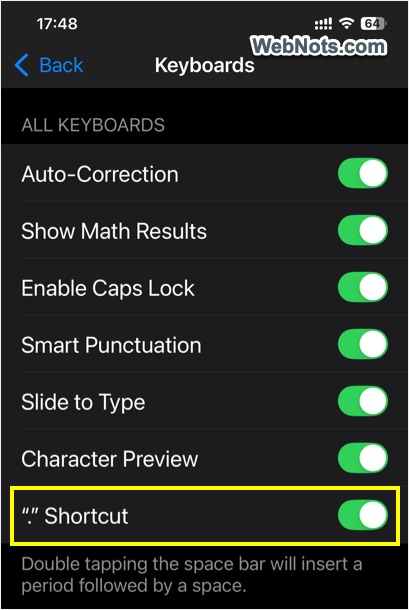
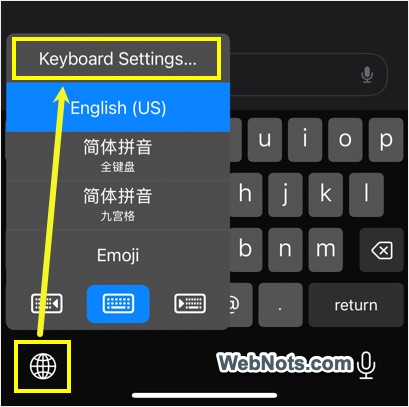
There is also an alternate option to access keyboard settings page. While typing in any app (like Messages), tap on the globe or emoji icon and select “Keyboard Settings…” option. This will open the same settings page as shown above where you can enable the “.” Shortcut option.
Enable Double-Space for Period on Mac
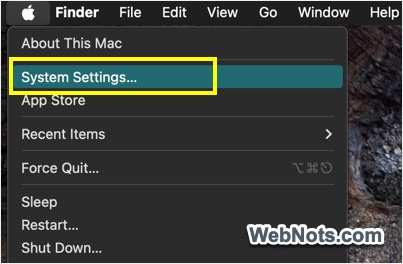
- Click the Apple menu in the top-left corner and choose “System Settings…” menu.
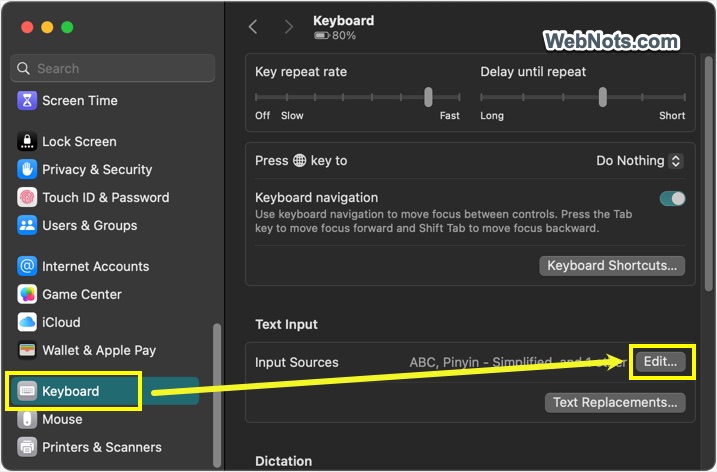
- Go to “Keyboard” section and find “Text Input” section.
- Click the “Edit” button showing against “Input Sources” option.
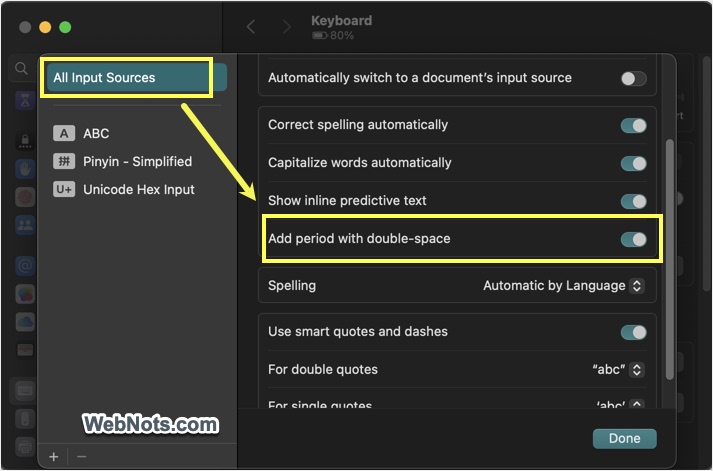
- Find “Add period with double-space” option and turn it on.
- Click “Done” button to save your changes.
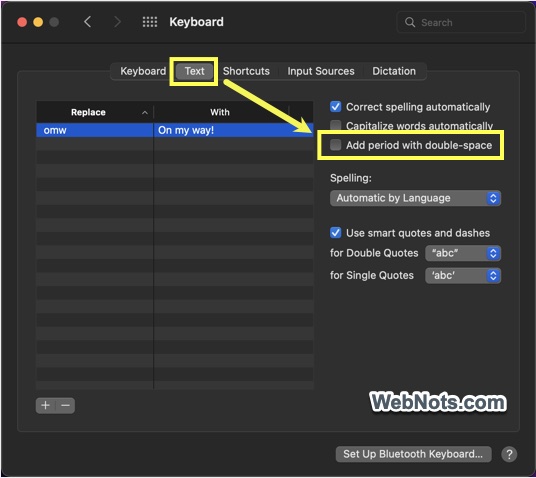
If you are using older macOS versions, then go to “Apple menu > System Preferences… > Keyboard > Text” section and check “Add period with double-space” option.
Testing the Setup
Open any text field, such as in Messages, Notes, or Pages. Type a sentence, and when you are ready for a period, double-tap the spacebar quickly. The period and an additional space should be inserted automatically.
This feature works with all keyboard layouts and should function across all apps, including Microsoft Word. If it does not work, try disabling any third-party keyboard layouts on your iPhone. Similarly, if you are using an external keyboard on Mac, consider using the Apple Magic Keyboard, as some third-party keyboards may not support this shortcut.
Additional Tips for Efficient Typing on Apple Devices
You can enable (or disable) few additional settings under “Keyboard” section on Mac and iPhone to improve your typing skill:
- Auto-Correction or correct spelling automatically.
- Text Replacement to add text shortcuts to insert long sentences (for example – type omg to insert Oh! My God!).
- Show inline predictions to suggest words when you type to avoid spelling mistakes. You can also enable “Check Spelling” on iPhone and “Correct spelling mistakes” option on Mac.
- Enable auto-capitalization to automatically capitalize the first letter of the sentences.


