Apple introduced lot of new features in macOS 15 version called Sequoia. Besides improvements in Safari, Maps and other apps, Notes app got a notable feature. Now, you can record audio in Notes app and then convert the audio to text transcript. So, if you are frequently recording audio in Mac, you can do it right inside Notes app without any third-party apps.
Recording Audio in Notes App
- Open Notes app and create a new note or new quick note.
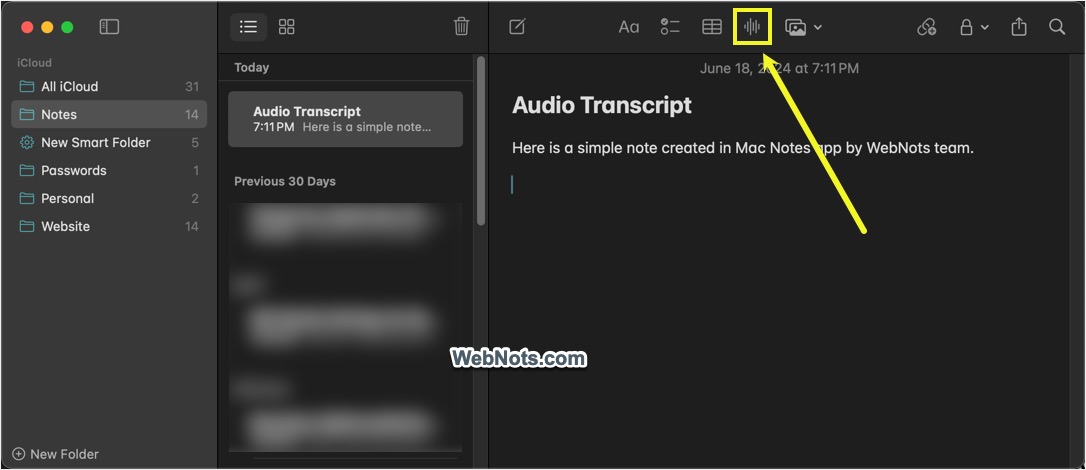
- When you want to record the audio, click the “Record Audio” icon on top toolbar. Alternatively, go to “Edit > Record Audio” menu.
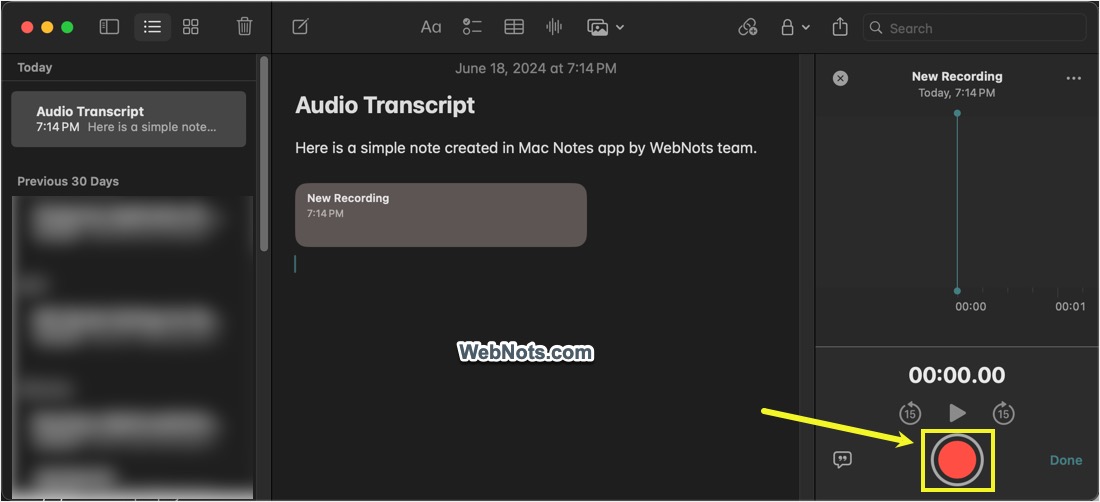
- Notes app will insert a new recording in the content area and show a new recording pane at the right section. Click on the red record button showing on the bottom.
- Start talking or record any other voice input and press the pause button when you are done. You can resume any time or stop the recording to finish.

Converting Audio to Transcript
When you press the stop button, Mac will automatically convert recorded audio to text transcript and show below the inserted recording. You can also click the “Transcript” button to show the text in the right pane.

Using Recorded Audio
Click the “Play” button on the inserted audio or click on the transcript on right pane to start listening to the audio. You can do the followings with the transcript or audio.
- Click the three dots showing next to “New Recording” heading and select “Add Transcript to Note”. This will insert the converted transcript as a separate text in your note. If the transcript is not correct, you can use this feature to fix the mistakes in text.

- From the menu item, you can rename the audio, copy transcript and share or save the audio as .m4a file.
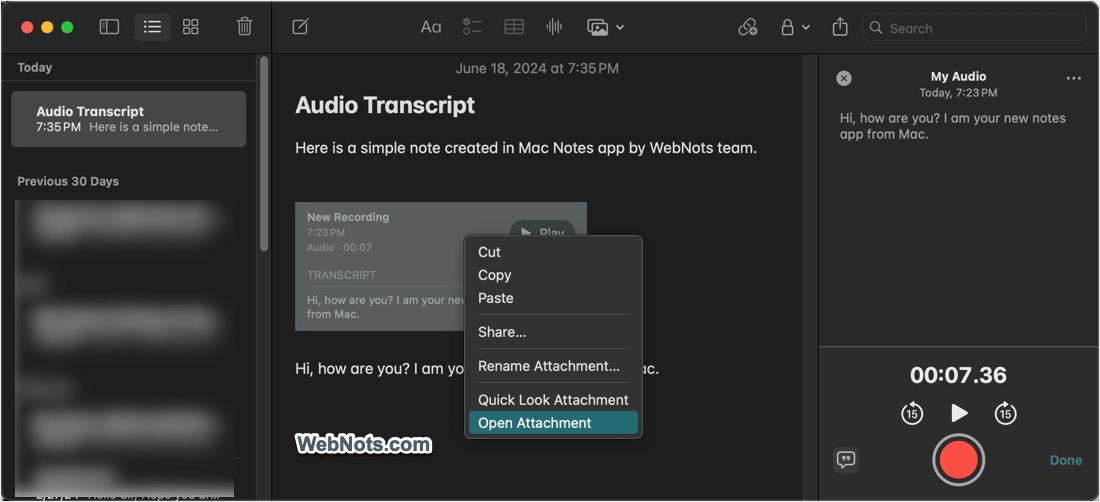
- Control-click or right-click on the inserted recording and select “Open Attachment” option to listen the audio in Music app.
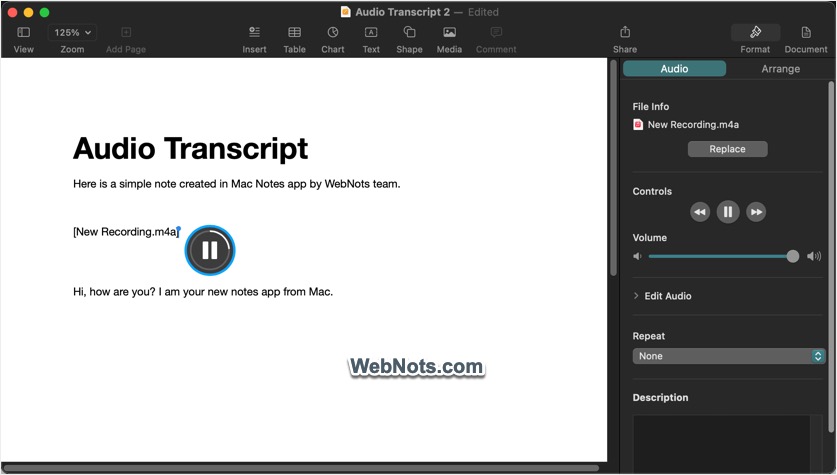
- Good thing is that you can send the entire note to Pages app or share with someone including the audio and transcript. The audio will be saved as an attachment in Pages app and you can play it within the app.
Limitations of Audio Recording in Notes App
Since conversion is done within your Mac, no data is sent to Apple. Though audio recording and converting to text transcript is useful feature in Notes, here are the limitations at this point:
- Need macOS version 15 or later.
- It works only in English language.
- Works only on Mac with Apple silicon chip.
- If there are mistakes in the conversion, you can’t correct the audio or the original transcript. As mentioned, you need to correct the transcript by inserting it in your note.
Note: You can also do audio recording and transcript conversion in iPhone and iPad Notes app as explained above. However, it needs iOS 18 and iPadOS 18 respectively.