If you regularly use Firefox, your browser can quickly become a mix of different accounts, cookies, and browsing sessions. While Firefox includes several privacy features to help protect your data, Container Tabs are one of its most useful features for keeping different browsing activities separate. They let you isolate work, personal, shopping, and other accounts without opening multiple browser windows or repeatedly signing in and out of websites. Container Tabs are not enabled by default, so in this article, we will show you how to enable and use them effectively.
What are Firefox Container Tabs?
Firefox Container Tabs allow you to create separate browsing environments within the same window.
- For example, you could create containers called Work, Personal, Shopping, Banking, Social Media, etc.
- Each container maintains its own cookies and website storage. This means that signing into a website in one container does not automatically sign you into the same account in another container.
- The containers are identified by different colors and labels, making it easier to see which browsing environment a tab belongs to.
- Anytime you can move a tab from one container to another.
There are two ways to use Container Tabs in Firefox.
- Using the in-built feature.
- Using the full Multi-Account Containers add-on.
We will explain the in-built feature in detail and briefly touch upon the add-on’s function.
1. Using In-Built Container Tabs in Firefox
There are multiple steps to use this feature.
1.1. Enable Container Tabs
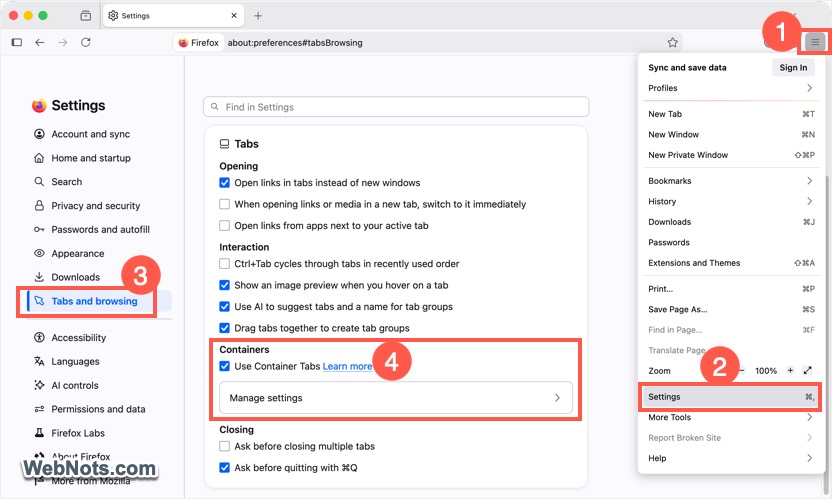
- Open Firefox, click the application menu (three-lines on top right corner), and select “Settings”.
- Go to “Tabs and browsing” section, scroll on the right pane and find “Tabs” section.
- Under “Containers” heading, check “Use Container Tabs” option.
1.2. Creating New Containers
- Once enabled, click the “Manage settings” option.
- You will see a list of existing containers such as Personal, Work, Banking, and Shopping.
- Click “Add Container” button for creating a new item.

- Provide a unique name, select the color, and icon for your container.
- Click “Done” to add the container name to the list.

Optionally, check “Select a container for each tab” option to force Firefox to open all new tabs in a separate container (you can choose). You can anytime disable this option, delete the containers, or completely disable the feature.
1.3. Creating Tabs in Containers
Clicking the new tab (+) icon in the title bar will open a tab in normal mode. To use container:
- Right-click on the + icon or click and hold on it. If you have checked “Select a container for each tab” option, simply click the + icon.
- You will see a list and select the container name.

- Firefox will highlight the tab with the color you have selected when creating the container. You will all see the container’s name in the right end of the address bar.

- For switching the tab’s container, simply right-click on the tab’s title bar and go to “Open in New Container Tab”. Now, select another container’s name to duplicate the tab in that container.

Using Firefox Multi-Account Containers Add-on
- Go to Mozilla add-ons site for Firefox.
- Search and install the official Firefox Multi-Account Containers add-on.
- Click the Multi-Account Containers icon in the Firefox toolbar and select “Manage Containers”.
- Choose the option to create a new container. Give the container a name such as Work, Personal, Shopping, or Banking.
- Choose a color, icon, and save the container.
- Now, click the Containers icon in the toolbar and select the container you want to use. Firefox will open a new tab using that container.
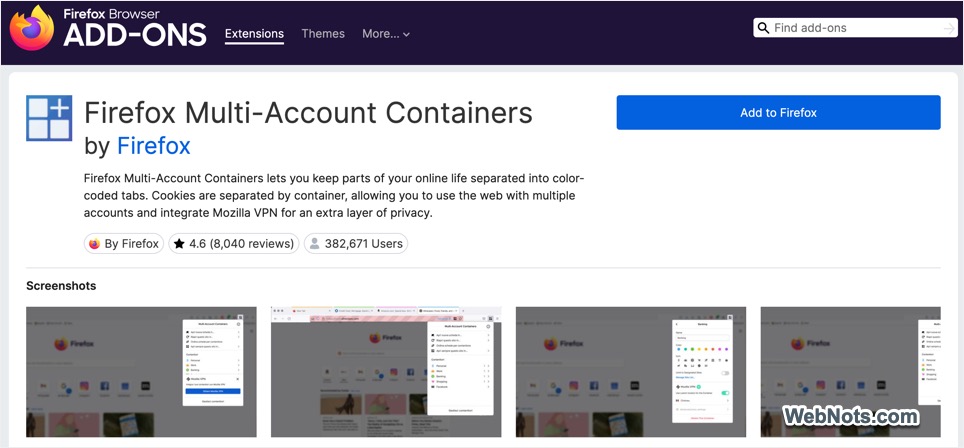
As you can see, the add-on works exactly the same way as the default feature. However, you have some additional options like assigning frequently used websites to a specific container so Firefox can automatically open them in the correct browsing environment. For example, your company’s website can always open in the Work container. Also, if you have a Mozilla VPN subscription, Multi-Account Containers add-on can be integrated to use the desired VPN servers for your containers.
Container Tabs vs Private Browsing vs Profiles
Firefox offers several ways to separate your browsing activities with Container Tabs, Private Browsing, and Profiles. However, they serve different purposes as shown in the below table.
| Feature | Container Tabs | Private Browsing | Firefox Profiles |
|---|---|---|---|
| Main purpose | Separate website sessions and accounts | Temporary private browsing session | Create completely separate Firefox environments |
| Multiple accounts on the same website | Yes | No | Need to switch profile |
| Keeps cookies separate | Yes, between containers | Temporary | Yes, between profiles |
| Saves browsing history | Yes | No, after the private session ends | Yes, unless configured otherwise |
| Extensions | Shared Firefox installation, with container-specific behavior where supported | Uses the browser’s private-window extension permissions | Can have separate extensions and settings |
| Bookmarks | Shared | Shared | Separate |
| Browser settings | Shared | Mostly shared | Separate |
Container Tabs are best when you want to separate different accounts or types of browsing within the same browser window. Regardless of whether you use the add-on or the in-built feature, you do not need dozens of containers. A small setup is usually easier to manage.
What Container Tabs Do Not Do?
Containers provide session and storage separation, but they are not a complete privacy or security solution.
- They do not make you anonymous on the internet.
- Websites can still identify you through other signals, such as information you voluntarily provide, browser characteristics, IP addresses, or accounts you use.
- They also do not replace good security practices such as using unique passwords, enabling multifactor authentication, keeping Firefox updated, and avoiding suspicious websites.
Think of Container Tabs primarily as a way to separate your browser sessions and online identities and not for anonymous browsing.