
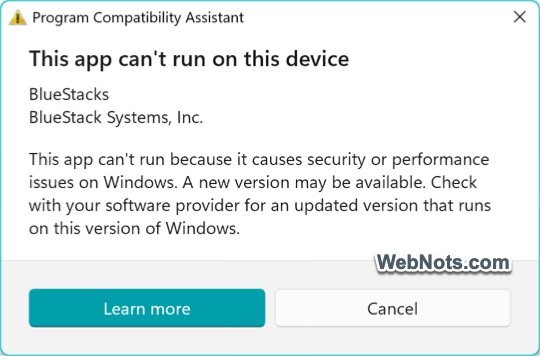
The “This app can’t run on this device” message is generated by Windows Program Compatibility Assistant when an application violates compatibility, security, or system policy constraints. It is not a random error and is a deliberate block enforced by the OS based on known incompatibilities or risk signals. This article explains the underlying causes, systematic fixes, and the scenarios where resolution is not technically possible.
Why This Error Appears?
Windows performs validation checks before allowing the execution of an installer or an app file. The error is triggered when one or more of the following conditions are detected:
- Architecture mismatch between the app and the system (x86, x64, ARM). For example, you are trying to install a x86 based app on ARM processor.
- The application targets deprecated Windows APIs or legacy subsystems
- The executable is flagged by SmartScreen, Defender, or Smart App Control for a malicious behavior.
- Required drivers are unsigned or incompatible with kernel security policies.
- The app (lime an emulator) conflicts with enabled system features such as virtualization.
- The installer or binary is corrupted or tampered with, triggering Windows security protection.
- Enterprise or local policies explicitly block execution
The message mentioning “security or performance issues” indicates Windows has identified the app as unsafe or incompatible with the current OS configuration.
1. Reliable Methods to Fix the Error
Most applications require administrative access to run the installer or launch the app. Simply right-click on the file and select “Run as administrator” option. This bypasses permission-related execution blocks. Before taking action, it’s a good idea to check the root cause in the Event Viewer.
- Search for and open the Event Viewer app immediately after seeing the “This App Can’t Run on This Device” error message.
- Navigate to “Windows Logs > Application” section and sort with the “Date and Time” to easily find the error log.
- Select the error tied to the app, which often specifies a .NET runtime error, blocked driver, missing dependency, or security enforcement reason.

This is the most accurate way to identify the exact cause and take the appropriate action. If you cannot find the exact reason, follow the below suggestions to fix the issue.
1.1. Install Latest App Version
Outdated builds are frequently blocked because they rely on older frameworks or drivers. So, download the latest version from the official developer’s site. Avoid using archived installers (which you have downloaded years ago) or from unofficial third-party sources.
1.2. Verify System Architecture Compatibility
Applications will run only on the correct CPU and OS architecture. First, check your Windows system architecture:
- Press Windows Logo + I keys and open the Settings app.
- Navigate to “System > About” section.
- Scroll down and expand “Device info” to find “System type” detail.
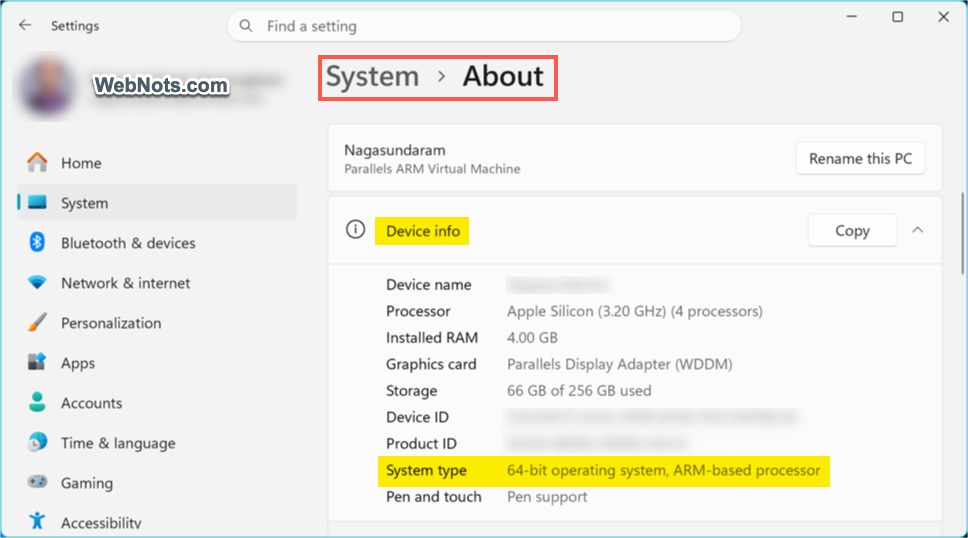
After that, check your app’s compatibility on the developer’s site. Common failure cases include installing a 64-bit app on 32-bit Windows or an x64 app on ARM without emulation support. If incompatible, the only fix is to use a compatible build.
1.3. Use Compatibility Mode for Legacy Apps
Sometimes, you might be able to install the app but can’t launch it, or an app that was previously working may stop after an update. In such cases, try running the executable file in compatibility mode.
- Locate the executable file, right-click on it and select “Properties”.
- Go to “Compatibility” tab and check “Run this program in compatibility mode for:” option under “Compatibility mode” heading.
- Select an older Windows version (7 or 8) from the dropdown.
- Check “Run this program as an administrator” under “Settings” section.
- If you are using Windows ARM, click “Change emulation settings” button under “Windows on ARM” section and adjust the settings as needed.

This helps when the app depends on legacy APIs.
1.4. Temporarily Adjust Windows Security Controls
Windows security layers may block execution of unsigned or unknown apps. If you trust the file, you can test it by temporarily disabling security measures.
- Search and open the Windows Security app.
- Navigate to “App & browser control” tab and click “Smart App Control settings” link under “Smart App Control” section.
- Turn the settings off.

You can also check “Protection History” tab for blocked items and act accordingly. Make sure to restore the protections afterward.
1.5. Check and Adjust Windows Features
Some applications require or conflict with system components. For example, emulator apps may conflict with Windows virtualization features.
- Search for “Windows Features” and open “Turn Windows features on or off” Control Panel setting.
- Depending on the app, you may need to disable “Hyper-V” or virtualization features like Windows Sandbox or Virtual Machine Platform.
- Enable “.NET Framework 3.5 (includes .NET 2.0 and 3.0)” or other legacy components.
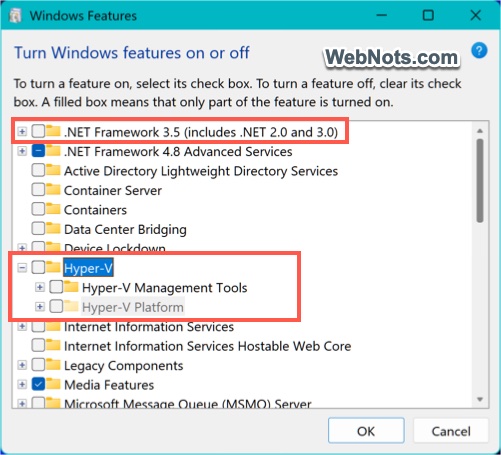
Restart the PC after making changes and check whether the executable file opens.
1.6. Reinstall the App
Corrupt installations can cause validation failure. In this case, the app may install successfully but fail to launch showing “This app can’t run on this device” error message.
- Go to “Settings > Apps > Installed apps” and uninstall the app.
- Check and remove leftover directories from Program Files and AppData folders.
- Restart the system and then reinstall the app using a fresh installer file.

1.7. Update Windows
Windows frequently updates the compatibility databases and security rules. So, running outdated Windows version increases false positives.
- Go to “Settings > Windows Update” section.
- Click the “Check for updates” button and install the available updates.

2. Cases Where the Error Can’t be Fixed
Some conditions are inherent limitations rather than misconfigurations and you can’t fix the issue in such cases.
2.1. Incompatible and Obsolete Apps
If the app is built for a different CPU architecture and no compatible version exists, it cannot run. For example, trying to install an x86-only app on unsupported ARM systems without emulation will fail. Similarly, modern Windows versions no longer support obsolete or unsupported apps relying on 16-bit subsystems, deprecated kernel drivers, or removed Windows components. The only workaround in this case is to run an older OS in a virtual machine.
2.2. Strict Security Enforcement
Windows intentionally block, if it flags an app due to malware signatures, high-risk behavior, or unsigned kernel-level drivers. Bypassing it is not advisable and often not possible without compromising system integrity.
2.3. Organizational restrictions
Group Policy, AppLocker, or Windows Defender Application Control (WDAC) can prevent execution regardless of local settings on organization managed devices. You will need to request your IT administrator to allow the app to install and run on your computer.
2.4. Feature Conflicts
Some applications require system configurations that conflict with others. For example, security features like Memory Integrity may block older drivers. In such cases, you must choose between features or applications.
2.5. Hardware Limitations
Applications that require specific CPU instructions, GPU support, or virtualization capabilities will fail if the hardware does not meet requirements.
2.6. Corrupted or Modified Binaries
If the executable fails integrity checks, Windows will block it. This cannot be fixed without obtaining a clean, verified installer.
3. Final Words
Unfortunately, “This App Can’t Run on This Device” error does not provide the correct root cause. So, it can’t be resolved by a single universal fix. You need to identify whether the issue is due to compatibility mismatch, security enforcement, system configuration conflict, or hardware limitation. If none of the above suggestions worked for you, contact the app developer for further assistance.


