It’s always recommended to install apps from Microsoft Store to protect your system from malware and viruses. However, most developers offer apps through their own or third-party websites and you have no options other than downloading from those websites. To protect you from installing an untrusted or malicious app, Windows 11 has a Smart App Control feature as part of Windows Security app. But you may find it is disabled and cannot be turned on manually. In this article, we will explain what Smart App Control is, how it works, and the main reasons why it may be disabled on your device.
What is Smart App Control?
It’s an additional security feature in Windows 11 aiming to stop malicious apps from running on your computer. Open Windows Security app and navigate to “App & browser control” section. Click the “Smart App Control” link and check whether the feature is turned on, off, or in evaluation mode.


- Smart App Control verifies the app has a valid digital signature (as part of Microsoft’s Trusted Root Program).
- If the certificate is not valid o trusted, it will block the app from running on your device.
Good thing is that it works automatically without needing any inputs from your side. However, it may block legitimate apps with no option to exclude from the protection. So, to avoid unnecessary blocking, Microsoft evaluates your Windows setup and enable or disable the Smart App Control based on your behavior. Here are the reasons why it might have been disabled on your computer and how to enable the option.
1. Sharing Optional Diagnostics Data
As mentioned, Microsoft needs your system usage details to decide whether to activate or deactivate Smart App Control on your device.
- Press Windows + I keys and open Settings app.
- Navigate to “Privacy & security” section.
- Expand “Diagnostic data” panel and check “Send optional diagnostics data” option.
- Smart App Control will be disabled if optional diagnostics data is turned off.
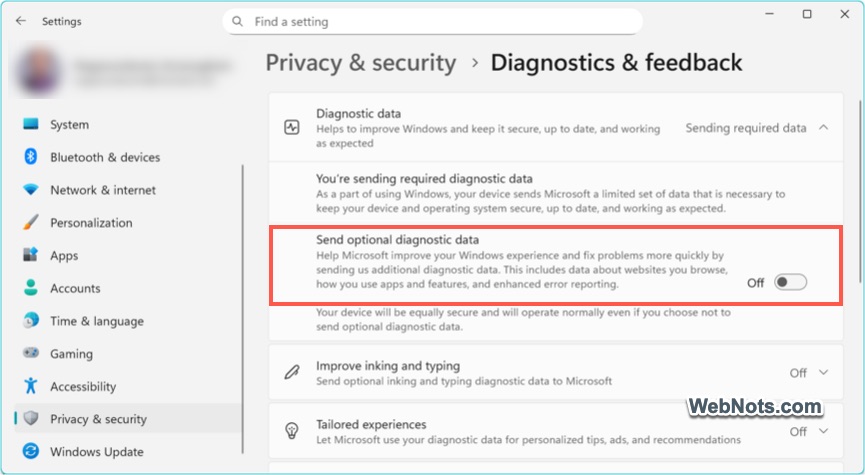
Turn the option on to send data to Microsoft and enable the Smart App Control feature.
2. Using Windows 11 Clean Installation
Microsoft offers Smart App Control only for clean Windows 11 installation. App. So, it will be turned off in the following situations:
- You have upgraded from an older version of Windows (like Windows 10 to Windows 11).
- You are using Windows ARM or S mode.
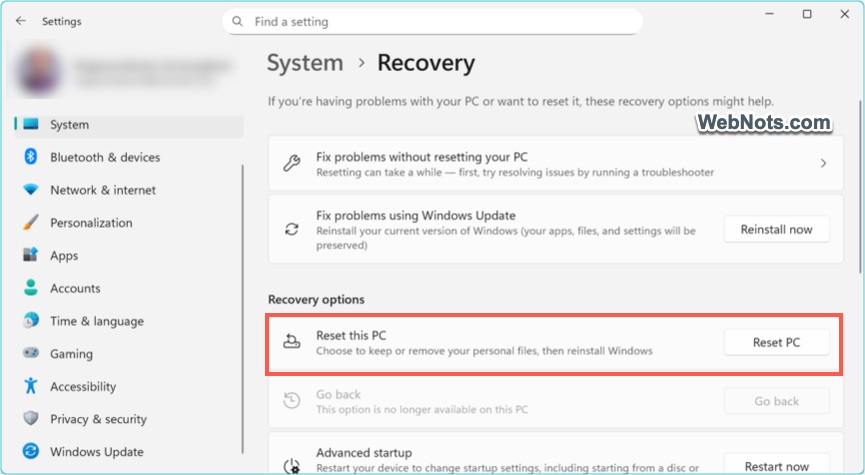
Go to “Settings > System > Recovery > Reset PC” and click the “Reset PC” button. Select “Keep my files” option and follow the prompts to reset your computer with clean Windows install. After the installation, you can check the Smart App Control is enabled in Windows Security app.
3. Turned Off Smart App Control Manually
If you have mistakenly turned off Smart App Control in Windows Security, the option will be grayed out and there are no possibilities to enable it again with the current installation. Windows will show a warning about this when you select the “Off” option. Since Smart App Control is designed to protect your system from the initial Windows installation phase, turning it off and on is not allowed to prevent you from installing unsecured apps in-between.
In this case, you can reset your PC as explained above and start using Smart App Control from the beginning.
4. Microsoft’s Automatic Evaluation
As you can see, Smart App Control offers three modes – on, off, and evaluation. In most cases, after a clean Windows install (by resetting your PC), Smart App Control will run on “Evaluation” mode. As the name indicates, Microsoft will analyze your system usage data and decides to change the status to on or off accordingly.
So, the decision is made by Microsoft based on your usage to turn off Smart App Control, you can’t enable it back without reinstalling Windows.
5. Device Managed by Organization
You may be using an organizational device and the security features are disabled by your IT admin. Perhaps this is done to ensure the internal apps can run smoothly without blocked by Smart App Control.
Should You Enable it Manually?
Smart App Control is just an additional layer especially if you want to stick to trusted apps. The only option to manually enable is to clean install Windows, which will start the evaluation mode, and then you can turn it on if needed. We strongly recommend not to enable it manually if you frequently install third-party apps. You can just understand the reason(s) why it is disabled and stop worrying about that as other Windows features like firewall, Defender Antivirus and SmartScreen continue to protect your system.
Allowing Apps Only from Microsoft Store
Beside Smart App Control, Windows has an in-built option to prevent app installation from unknown sources.
- Press Windows + I keys or right-click on the Start icon and select “Settings” menu.
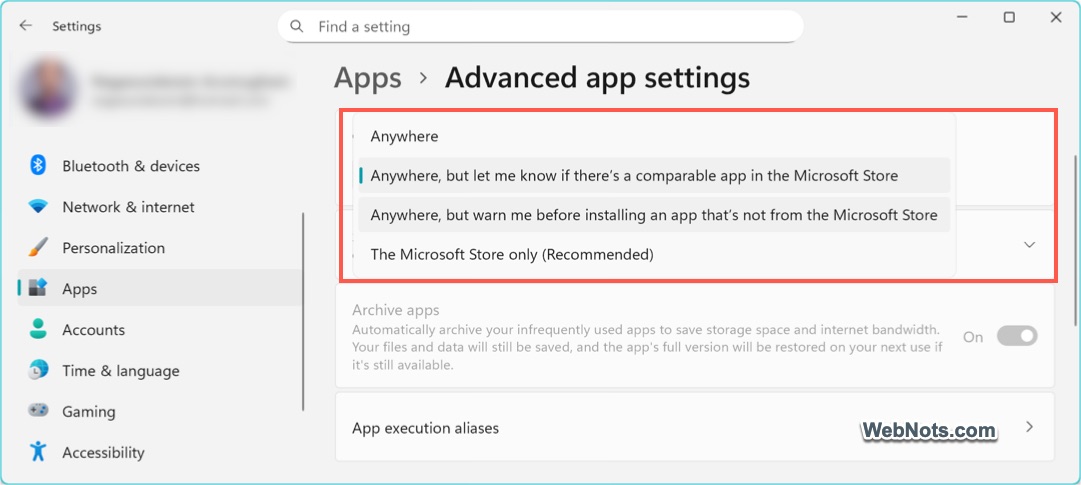
- Navigate to “Apps > Advanced app settings” section in the Settings app.
- Click the dropdown below “Where to get apps” and select “The Microsoft Store only (Recommended)” option.
- Otherwise, select the warning option to get an alert whenever you try to install apps from third-parties.