It can be confusing when the Mail app on your iPhone shows a badge count of 10 unread emails, but when you open the app, there are actually 20 unread messages across your inboxes. This mismatch usually isn’t a bug as the Mail app doesn’t always count every unread email by default. It’s often caused by how notifications and unread messages are configured in iOS. Below are the most common reasons this happens and the steps you can take to fix it.
1. Turn On Count for All Unread Messages
The Mail app can automatically group emails into categories such as Primary, Transactions, Updates, and Promotions. If your notification settings are limited to the Primary category, the badge count will only reflect unread emails in that section. This means emails sitting unread in other categories won’t be included in the badge count, even though they are still unread.
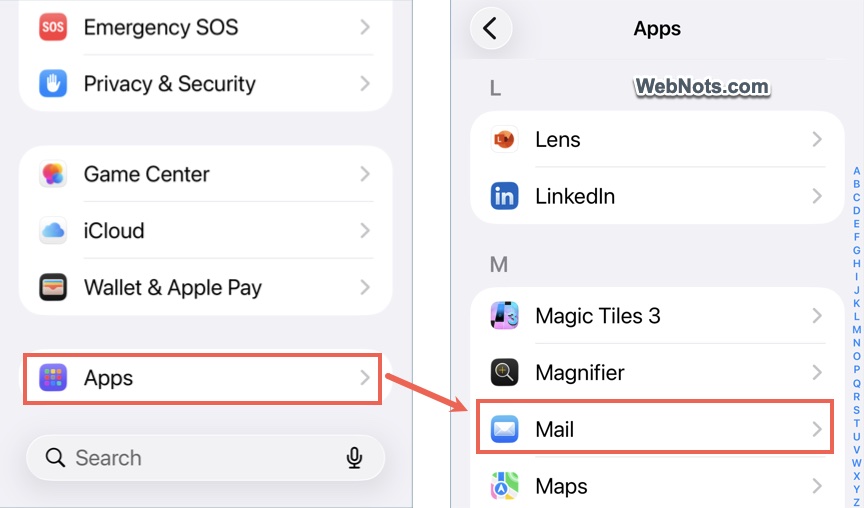
- Open iPhone “Settings” app from the Home Screen.
- Scroll down to bottom and tap on “Apps”.
- You’ll find the apps are listed alphabetically. Search and open “Mail” app from the list.
- Tap “Notifications” on the Mail app’s settings page.
- Scroll down to bottom and tap “Customize Notifications” option.

- Under “Badge Count”, select “All Unread Messages” option.

If “Unread Messages in Primary” is selected instead, the Mail app icon will only show unread emails from primary inboxes, which causes the mismatch.
2. Check Scheduled Summary vs Immediate Delivery
If you’re using “Scheduled Summary” for notifications, Mail notifications may not be delivered as soon as emails arrive. While the messages are still unread in the inbox, the badge count may not update correctly until the scheduled time. This can make it look like the Mail app is missing unread messages.
- Open “Settings” app.
- Go to “Apps > Mail > Notifications” section.
- Under “Notification Delivery”, select “Immediate Delivery” option.
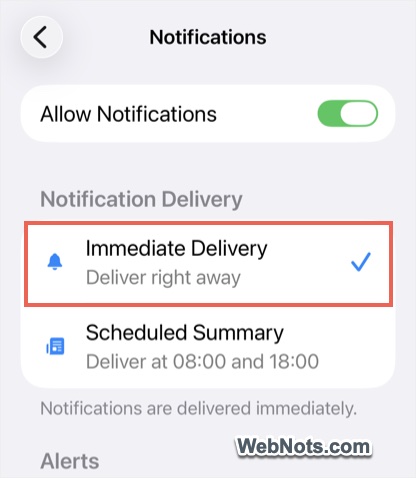
Once enabled, new emails will update the badge count as soon as they arrive.
3. Fetch Messages Frequently
Sometimes the issue is as simple as the Mail app not syncing properly. In this case, you may not see the badge count at all as the emails are not downloaded from the server at all.
- Open “Settings” app and go to “Apps > Mail > Mail Accounts” section.
- Tap “Fetch New Data” option showing on the bottom of the screen.
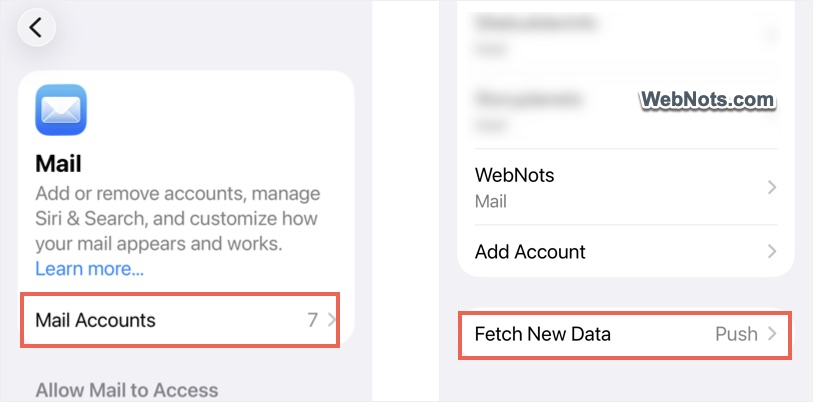
- Make sure “Push” is enabled, which works only for the supported services like Apple’s iCloud.
- Tap the email accounts one by one and select the schedule as “Fetch” (instead of “Manual”).
- Scroll down to bottom on the “Fetch New Data” screen and select the fetch schedule as “Automatically”. You can also select 10 or 30 minutes to save the battery.

This force the iPhone to fetch your emails from the servers automatically, which will fix the badge count issue.
4. Check Remind Me Settings
If badge is not showing at all on the Mail app icon, then you might have mistakenly disabled the setting for “Remind Me” option.
- Go to “Settings > Apps > Mail > Notifications > Customize Notifications” section.
- Scroll down below all your email accounts and tap on “Remind Me” option.
- Turn on “Badges” option.

Remind Me settings will supersede all other individual email account notification settings in iPhone.
5. Restart Your iPhone
A temporary system glitch can also cause incorrect badge count.
- Go to “Settings > General” section.
- Scroll down to bottom and tap “Shut Down”.
- After the phone shuts down, long press the side power button to restart your iPhone.
- Check if the badge count updates correctly on Mail app icon.

This simple step often fixes minor syncing and notification issues.
6. Re-enable Mail Notifications
If the badge count still doesn’t match:
- Go to “Settings > Apps > Mail > Notifications” section.
- Turn off “Allow Notifications” option.
- Restart your iPhone and then turn notifications back on.
- Make sure to turn on “Badge” option.

This refreshes Mail’s notification system and can correct badge display problems.
Final Words
An incorrect badge count in the iPhone Mail app is usually tied to notification settings rather than missing emails. In most cases, the above suggestions help to bring the badge count back in sync with your inbox. If the problem persists after trying these steps, updating iOS to the latest version is also worth checking, as Apple often fixes notification-related issues in software updates.