
If you are using Gmail, you will be familiar with email categorization. Gmail will automatically group the received emails into primary and promotional categories to focus on important items. While Apple’s Mail app on iPhone supports Gmail and other accounts, it previously lacked a similar categorization feature. However, Apple has now introduced email categorization in the Mail app. This feature works across all email accounts and even allows you to reassign categories for specific senders. In this article, we will explain how to use email categorization on iPhone and discuss whether it is a useful addition.
Using Email Categorization in Mail App
The feature is added in 18.2 and is not available on earlier versions. So, make sure to update your iPhone to iOS 18.2 or later version.
- Launch your Mail app and open any of your previously added email account.
- You will see the filter for categorizations showing on top row.
- The emails are automatically categorized and shown in the corresponding group without any manual action needed.

Available Categories
Here are the default categories offered at this point of time:
- Primary – important emails generally received from individual or official email addresses.
- Transactions – shipping, delivery and any other money related emails. For example, a tax invoice from your bank will go into this category.
- Updates – emails related to newsletter subscriptions, social and news.
- Promotions – offer and deals.
Though the categorizations are clear, sometimes you will find the primary emails are moved into other categories just because the content has an amount or deal.
Changing the View
If you do not like the categorized view, simply tap on the action icon (three dots in a circle) showing on top right corner when you are in the inbox. Select the “List View” to show all emails in a list like before. Anytime you can switch to “Categories” option to group the emails again.
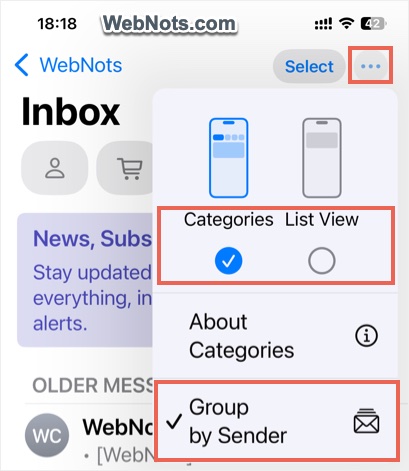
You will also see an additional option to “Group by Sender” when in other categories (except “Primary”).
Using Manual Categorization
At this point, there are no options for manually creating categories and grouping emails. However, what you can do is to reassign particular sender to one of the existing categories. For example, you can change the auto categorization of emails received from your bank going to “Primary” instead of they go to “Transactions” group.
- Open a specific email from “Transactions”, “Updates” or “Promotions” group.
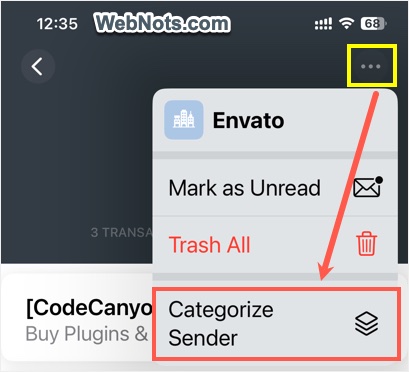
- Tap on the action icon (three dots inside circle) and select “Categorize” sender option.
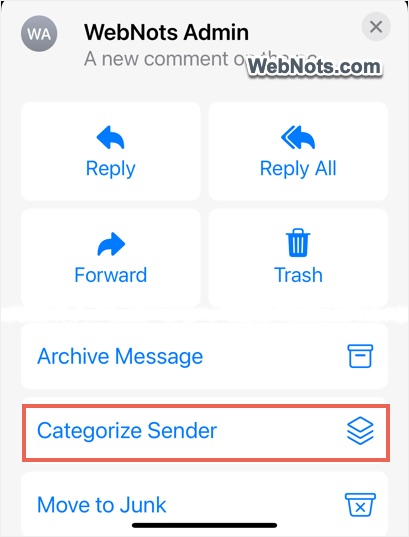
- Alternatively, tap on the “Reply” icon from bottom and then select “Categorize Sender” option.
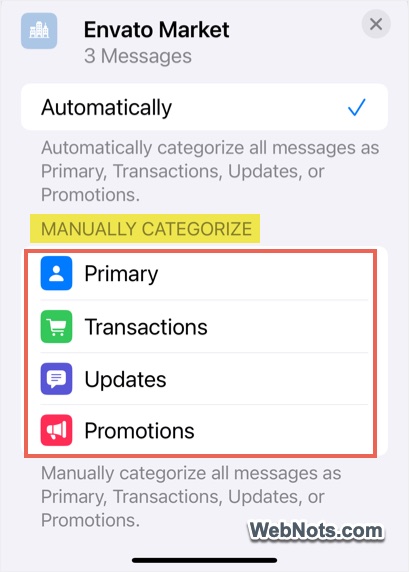
- Select one of the options available under “Manually Categorize” section.
- You will be prompted with a notification to confirm all the messages from the sender will be moved to the new category. Tap on “Continue” button to finish the reassignment.
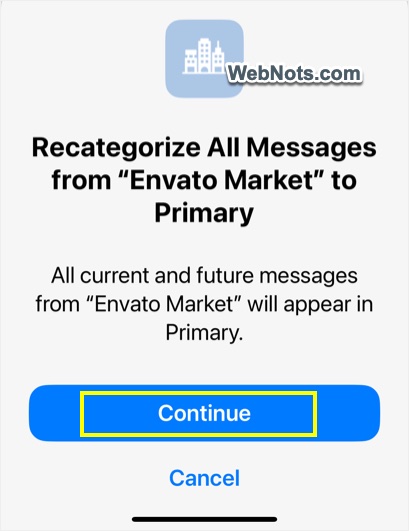
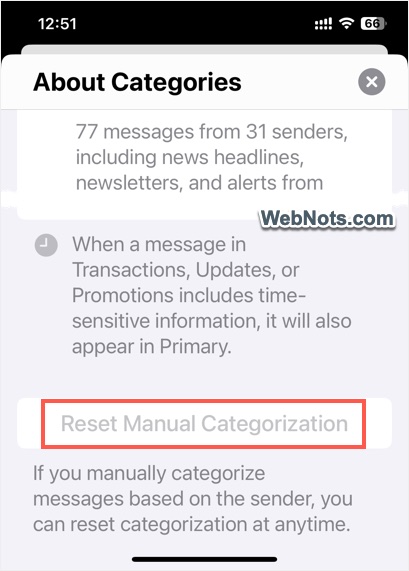
You cannot change the assignment of emails in the “Primary” category, as there is no categorization option available for them. However, you can move emails from categories like “Transactions,” “Updates,” or “Promotions” to any other category, including “Primary”. If you later decide to stop using custom categorization, open your inbox and tap the three-dot icon. Scroll down and select the “Reset Manual Categorization” button. This will restore the default email categorization set by your iPhone.
Other Features with Categorization
There are also additional things you can do or available automatically:
- Time-sensitive emails like one-time login code will be shown in “Primary” in addition to other possible categories.
- You can open an email from a sender in other categories (except “Primary”) and filter to view all emails from that sender from all categories. After filtering, you can tap on the action icon and trash all emails with a single tap.

- As mentioned, it is possible to group emails by sender in other categories (except “Primary”).
Will This Be Useful?
The email categorization feature is a handy tool for automatically filtering promotional and newsletter emails, helping you save time. However, it may introduce an extra step or distraction when viewing important transaction or update emails, as they are grouped separately. Additionally, the limited preset categories without manual customization can restrict its usefulness. The unread email count is only displayed for the “Primary” group, which could cause you to miss emails in other categories. If you find this feature unsatisfactory, you can easily switch back to the traditional list view without categorizing your emails.


