
It’s common to see a webpage with a broken layout, perhaps an old image, outdated styles, or a form that just won’t work. This is especially a problem when you modify the styles (CSS) on a live server, which never reflects due to the cached content in the browser. Unfortunately, pressing F5 or Control + R to do a normal refresh doesn’t fix this kind of problem and what you need is a hard refresh. In this article, we’ll explain the difference between a standard refresh and a hard refresh, along with various methods to hard refresh a webpage in Microsoft Edge.
Refresh vs. Hard Refresh: What’s the Difference?
Whenever you visit a webpage, the browser cache stores things like images, CSS, and JavaScript so the page loads faster next time. A normal refresh tells the browser to simply reload the page using the same saved files from the cache. The problem is obvious that if a website has updated those files on the origin server, your browser might keep using the old, cached versions, leading to glitches.
On the other hand, a hard refresh tells the browser to ignore the locally cached files completely and download everything afresh from the server. This forces the browser to grab the latest version of every resource (CSS, JS, images, and other files), fixing most display, style, and functionality issues caused by outdated files.
Edge offers various methods to hard refresh as explained below and choose the one that fits your workflow.
1. Keyboard Shortcuts
Press any of the following key combinations while on the page you want to reload:
- Control + F5
- Shift + F5
- Control + Shift + R
All three do exactly the same thing: bypass the cached content and hard refresh.
2. Shift + Click on Refresh Button
Simply pressing the refresh icon (located to the left of the address bar) will reload a webpage. However, holding the Shift key and then clicking the refresh icon will hard refresh the page.
3. Using Edge DevTools
As mentioned, a hard refresh will bypass the existing cached content but will not delete it. There is a hidden option to force Edge to delete the cached content and then fetch the page from the origin server. However, you need to use the Developer Tools for this purpose.
- Press F12, or right‑click anywhere on the page and select “Inspect” to open Edge DevTools (Developer Tools).
- Right‑click on the refresh icon to the left of the address bar.
- Choose “Hard Refresh” to bypass the local cache, or “Empty cache and hard refresh” to delete the cache and fetch the page from the server.

Note that right‑clicking on the refresh icon will work only when DevTools is open. It is also possible to temporarily disable the cache by checking the “Disable cache” option under the “Network” tab in DevTools.
Final Words
Most users simply press Control + Shift + Delete, select “Cached images and files,” and delete the browser cache whenever there is a problem.
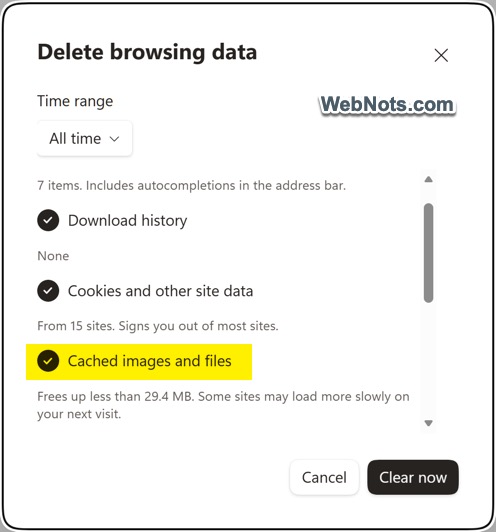
Though this is easier, it deletes the cached content of all webpages, which is not ideal for reloading a single page. So, next time you see a broken layout or your own page doesn’t reflect the styles properly, you’ll know exactly how to fix that particular webpage with a hard refresh.


