In our earlier article, we’ve explained the features of Microsoft Copilot in Word app. Though this AI assistant is integrated within Word (all Microsoft 365 apps), sometimes it won’t work or provide the result. If you find that Copilot is not working in your Microsoft Word desktop app (Windows or Mac), here is how you can troubleshoot and resolve the problem.
Copilot in Microsoft Word
A Copilot Pro subscription is required for using AI with Microsoft 365 desktop apps. The same subscription works on all Microsoft software like Windows 11, Edge, Bing, Online editor, and mobile apps. This article deals with Copilot Pro version in Word desktop app. If you’re looking for Windows Copilot, checkout the beginners guide on how to use Windows Copilot and troubleshoot the issue if it’s not working.
You may face different type of problems:
- Copilot is not showing in Word.
- It’s not generating response and show an error.
- Ends the response in the middle.

The solution may vary depending upon the issue. Make sure you’ve a stable internet connection and follow the below suggestions to fix and restore Copilot.
1. Verify Your Microsoft Account
As mentioned, Copilot Pro subscription is connected to your Microsoft account (regardless of whether you purchase it from mobile App Store or Microsoft Store). After purchasing a subscription, you should immediately find a Copilot icon at the right end of ribbon under “Home” tab. If you don’t find it, make sure that you are signed into Word using the correct account.
- On Windows – Go to “File > Account” within Word and confirm the account email address is correct.

- One Mac – Go to “Word > About Microsoft Word” and confirm that you’ve both Microsoft 365 and Copilot Pro subscription against “License” heading.

If the account is correct, simply restart Word app to check it resolves the problem. On Mac, you should go to “Word > Quit Word” to close the app (simply clicking on the close button will not close the app).
2. Update Your License
Sometimes Word app will not get the feature for your license immediately. This is especially the case if you purchase Copilot Pro from your Microsoft account but purchased Microsoft 365 from Apple or Google store.
- On Windows – Go to “File > Account” and click on the “Update License” button. Login with the correct Microsoft account and update the license.

- On Mac – Go to “Word > About Microsoft Word” and click on the “More Info…” button. Click the “Refresh License” button in the slide out that appears.

Now, you should be able to see the Copilot icon if the license was the problem.
3. Update Microsoft Word and Office Suite
Outdated software can lead to compatibility issues. However, you can only update Microsoft 365 as a whole, not just the Word app.
- On Windows – Navigate to “File > Account” section. click the “Update Options” button and select “Update Now” option. Follow the prompts to install the latest updates.

- On Mac – Go to Mac App Store and get the latest updates if you’ve purchased it from Apple. Otherwise, go to “Help > Check for Updates” to install the updates.
4. Missing Copilot Icon in Ribbon
Earlier there was an option to enable or disable Copilot in Word (to remove the icon from ribbon). However, that’s no more the case with the latest Word app and you can’t remove Copilot. So, even if the ribbon icon is missing, you should be able to still see all AI options like the prompt on top in new documents, summarize, and Copilot icon in the text area.
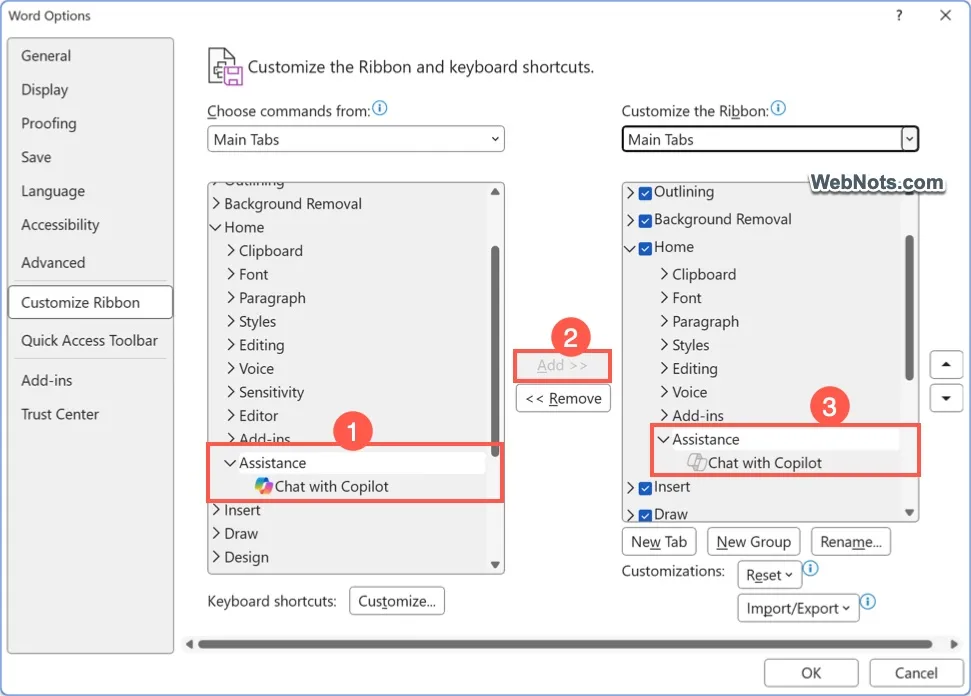
Ribbon icon is useful to open the chat box and you can add it by following the below steps in Windows:
- Right-click on the ribbon and select “Customize Ribbon…” option (or go to “File > Options”).
- Go to “Customize Ribbon” tab where you can find two columns.
- Select “Main Tabs” from the dropdowns above both the columns.
- Under first column, expand “Home” and select “Assistance” (which contains “Chat with Copilot” option).
- Click the “Add > >” button to add it on the second column.
- Click “OK” button and now you will see the icon appears under “Home” tab.
On Mac, go to “Word > Preferences… > Ribbon & Toolbar” and add the “Home > Assistance” section under “Ribbon” tab.

5. Terminated Response
AI has a limitation and works based on the predefined rule set. This may lead to terminate the response generation when the prompt contains a violation. Though it may be your genuine requirement, queries like surgeries or organs will abruptly stop the response generation. Unlike ChatGPT, Copilot will not show any clue about the policy violation and simply stop the response generation.

If you see “Please change your description……” in the warning, it’s an indication that Copilot can’t process the prompt due to violation. You can’t do much other than clicking the “Give feedback” and send your inputs to Microsoft.

Also, if the response is not finished and hanging, simply click on the “Stop” button or press escape key to manually terminate.

Note: You can use Copilot app to process the same query which means these interfaces are working indecently with different set of rules.
6. Enable Connected Experience
If privacy is your concern, you should never use Word in first place. Forget about the Copilot, Microsoft collects various diagnostics data through Word app. There is something called connected experience and disabling that option will not allow Copilot to work properly. In that case, you will not see the prompt or summarize option and clicking on the Copilot icon will show a message like below.

- On Windows – Go to “File > Account” and click on the “Manage Settings” button showing under “Account Privacy” heading. Turn on all connected experiences related settings.

- On Mac – Go to “Word > Preferences… > Privacy” and click on the “Manage Connected Experience” button under “Connected Experiences” heading. Turn on all the options.

7. Clear Cache and Temporary Files in Windows
Corrupted cache files can hinder the performance of Microsoft Word and Copilot as well. To clear the cache:
- Close Word and all Microsoft Office applications.
- Use File Explorer to navigate to the temporary files folder (typically located in C:\Users\[Your Username]\AppData\Local\Temp).
- Delete unnecessary or outdated files in this folder.
After clearing the cache, restart your computer and relaunch Word.
8. Check for Conflicting Add-ins in Windows
If you’ve other AI related add-ins installed in Word (like ChatGPT related add-ins), they may conflict with Copilot. To identify and resolve conflicts:
- Go to “File > Options > Add-ins” section.
- Click the “Go…” button against “Manage > COM Add-ins”.
- Disable all add-ins by unchecking their boxes (you don’t need to remove them).
- Restart Word and test Copilot. Gradually re-enable add-ins one by one to identify the source of the conflict.

9. Reinstall Microsoft Word
If none of the above steps work, a fresh installation of Microsoft Word may resolve deeper issues. To reinstall:
- Uninstall Microsoft Word via the Settings app on Windows or the Applications folder on macOS.
- Visit the Microsoft 365 website or the App Store and download the latest version of Word.
- Install Word and sign in with your Microsoft account.
On Windows, you do have an option for repairing Word. Go to “Windows Settings > Apps > Installed app” section. Find Microsoft 365 app and click on the “More options” icon (three dots at the end). Select “Modify” and follow the prompts to do quick or online repair options.


10. Contact Microsoft Support
If Copilot still does not work, it’s time to reach out to Microsoft Support:
- Go to “Help > Contact Support” in Word app.
- Enter your query in the chat box and find suggestions.
- Ignore the suggestions and click on the “Contact Support” button or “Contact with support agent” link.
- Provide details about your system, subscription, and troubleshooting steps already taken.
- Follow the guidance provided by the support team for additional solutions.

Conclusion
As mentioned, fixing Copilot issues in Microsoft Word might require a combination of the above steps, depending on the underlying cause. From simple checks like verifying your subscription to more in-depth solutions like reinstalling the application, this guide covers everything you need to get Copilot working again. By following these troubleshooting steps, you can restore functionality and benefit from the powerful features of Microsoft Copilot to enhance your productivity.