I have used various models of Mac for almost a decade but never got a hand on Apple iWork apps like Pages, Numbers and Keynote. It’s always Microsoft Office (now called Microsoft 365) that comes to the rescue whether I need a text document, slide or spreadsheet. However, using Microsoft 365 apps in Mac can easily confuse you as subscription can be purchased from Apple as well Microsoft. If you notice your Microsoft 365 Office apps are not getting update, here are some suggestions to fix the issue.
Checking Office App Versions
First thing is to check your app version and compare it with Microsoft release history to confirm whether your apps are in latest version or not. Note that all Microsoft 365 apps will be on same version as Microsoft releases updates for the package. Here, I will explain with Microsoft Word for Mac, you can follow the same in any other apps like Excel or PowerPoint.
Open Word, click on “Microsoft Word” and select “About Microsoft Word” menu.
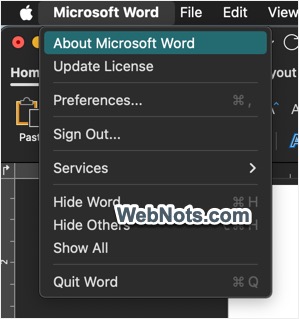
This will show a pop-up with app version, license and other details. As you can see in the below screenshot, the version is 16.80 (23121017).

Now, go to Microsoft Office update history page and check the latest Mac version. You can find this under “Most current packages for Office for Mac” heading from “Office for Mac > Update history (Microsoft 365, 2021)” section. The version here is also showing 16.80 (23121017) same as the app version installed on my Mac. That means, the apps are updated to their latest versions (automatically in my case).

When the update history shows higher version number than your apps, then your Office apps are not getting updates from Microsoft. For example, below screenshot is from my MacBook Pro old laptop and the app version is still stuck at 16.75 (23070901).

In such a case, check the below suggestions to fix the issue.
1. Using Standalone Office 2021 Apps
App updates are only applicable for Microsoft 365 (2021) version and not for the standalone Office 2021 apps like Word, Excel or PowerPoint for Mac 2021. These standalone apps will not have any advanced features like Editor or web access and you will not get feature updates as Microsoft only releases security updates for standalone purchased apps. So, if you are checking some online screenshots or feel your app is missing a functionality, make sure you are not using the old standalone app. Learn more about the feature and price differences between standalone one-time purchase and Microsoft 365 subscription.

2. Apps Installed from Mac App Store
As mentioned, there are two possible ways to purchase Microsoft 365 subscription on Mac. You can do this either through App Store or directly from Microsoft website. The update process works differently in these two cases. If your App Store purchased apps are not getting updates, check the followings.
2.1. Check App Updates are Not Disabled
- Click on Apple menu and go to “System Settings…”.

- Navigate to “General” section and click on “Software Update” option.

- Click the information icon showing at the end of “Automatic Updates” item.

- On the pop-up, turn on “Install application updates from the App Store” option.

- Click “Done” button to close the pop-up and close the Settings app.
Now, your Office apps should get automatic updates whenever available in Mac Store. However, enabling this setting will turn on automatic installation of all apps installed from Mac App Store and you do not have a specific option to only turn on Microsoft 365 Office apps. You might have disabled this setting purposely to save storage space occupied by app updates. In that case, you can manually update only Office apps from Mac App Store as explained below.
2.1. Manually Update Office Apps
- Open Mac App Store and go to “Updates” section.
- First check whether there are any available updates for Office apps.

- Click the “more” link against each app to find the storage space required for that update. Generally, Microsoft 365 apps need around 1 GB space for each app update. As you can see, version 16.80 needs 1.1. GB only for Word app.

- Make sure you have sufficient storage space available and click on “Update” button for each app or click “Update All” link.
3. Office Apps Installed from Microsoft
If you have downloaded the installer package from Microsoft account, then the update works through a tool called Microsoft AutoUpdate (MAU). This tool should run in the background for checking, downloading and installing the latest version.
- Open Word and go to “Help > Check for Updates…” menu.
- This will launch the AutoUpdate tool and check for the updates.
- You can also manually click on the “Check for Updates” button to see any updates are available. Make sure “Automatically keep Microsoft apps up to date” option is enabled.

If you are not seeing the menu item or the tool is not launching, you might have disabled it running from background or deleted it by mistake.
3.1. Enable Update Check in Background
- Click the Apple logo icon and select “System Settings…” menu.
- Go to “General” section and open “Login Items” option.

- Scroll down to bottom and make sure “Microsoft AutoUpdate” and Microsoft Corporation” items are turned on.

This will allow the AutoUpdate tool to always run in background mode and update your Office apps automatically.
3.2. Reinstall AutoUpdate App
If you have deleted this tool when cleaning up your Mac, reinstall and check the app updates are working fine.
- Go to the MAU release history page and make sure you in “Office for Mac > MAU release history” section.
- Check the latest month’s release section and click the “Download Microsoft AutoUpdate x.xx Package” link.

- Open the package file and install the AutoUpdate tool.
- After that, open Word and go to “Help > Check for Updates” to trigger MAU tool and get the latest update.
5. Sign Out and Sign In
The last option is to sing out and sign in again. This helps if you have switched the account and wanted to link the app to different account for getting updates.
- Open Word and go to “Microsoft Word > Sign Out…” menu.
- Again, go to “Microsoft Word > Sign In” and login with the account which has valid Microsoft 365 subscription.
- Now, the app should get the updates from your account either through App Store or through Microsoft AutoUpdate tool depending upon your installation.
You can also sign out and sign in from the backstage screen when launching the app before opening a document.
4. Update License
App updates may not work if you have problem in connecting your subscription license with Microsoft account.
- Open Word and go to “Microsoft Word > Update License” menu.

- This will show a pop-up asking you to sign in for verification. Click the “Sign In” button and use the correct account to login again.
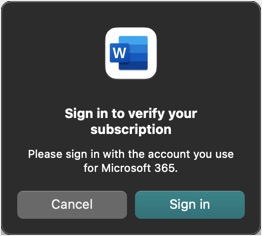
- You should see a “Success” pop-up if everything goes fine. In case of errors, read the instructions or get in touch with Microsoft support through chat to resolve your license issue.

Final Words
In most cases, Microsoft 365 Office apps do not get updates in Mac due to App Store settings or corrupted AutoUpdate tool. Adjust the settings or reinstall the tool to fix the issue. If you have changed the account, sign out and sign in again and update the license to get the latest app updates.