
Microsoft is pushing AI in every possible way and added Copilot in Windows 11 as a default feature. Copilot is an Artificial Intelligence (AI) based chatbot that combines the power of system’s Windows Search and online Bing Search functions in a conversational format. Previously known as Bing Chat, it’s now been renamed as Copilot and available as an app. All you need is to simply click the Copilot icon (from Taskbar or Start menu) and type or talk your question to get the answer. However, you may face lot of issues when working with Copilot and here is how to fix them.
Before Troubleshooting Copilot Issues
Here are some of the things you should understand before trying to use or fix Copilot.
- Copilot is available as part of Windows 11 and not on other editions.
- Though icon may be there in Taskbar, Copilot is not available in all the countries (like China).
- The response is generally slow which is not related to your computer or network.
- The chat conversation limit is set by Microsoft and you can’t change that within Windows 11. If you feel restricted, go for Copilot Pro with a monthly subscription of $20.
Note: Now, you will not see the “PRE” in Copilot app icon indicating it is out of Preview mode and available for anyone to install from Store app.
Fixing Copilot Issues in Windows 11
There could be various reasons for the AI chat issues.
1. Check Your Country
Microsoft claims Copilot is available over 160 regions and not available in few countries like China and Russia. In that case, you will see a message showing the service is not available in your region. Unfortunately, you can’t do much in this case other than using a VPN or proxy to change your geographical location.

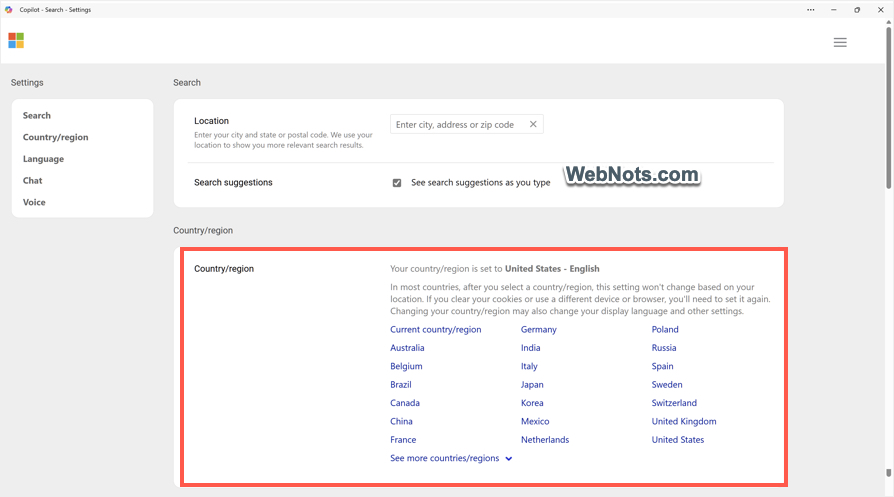
By default, Copilot will determine the country from your computer’s regional settings. However, you can manually change only in the app and try if that works for you.
- Open Copilot and click your profile icon showing on top right corner of the app.
- Expand “Settings” menu and check “Country/Region” option.

- Click on the “Country/Region” option to open Settings page.
- Select a different country from the list and check Copilot works with that country.
2. Check VPN and Network Connection
This issue is in contrast to the previous point – Copilot will not work with most of the free VPN and proxy networks. It seems Microsoft automatically blacklist the VPN servers due to illegal or large number of requests originated from the servers. In this case, Copilot will show “We’re sorry but we’re unable to connect to the service at this time. Please try again later or refresh”.

You can try reliable and premium services like ExpressVPN, choose one of the premium servers in USA and try to open Copilot again. Since premium servers are used by limited people, you will be able to connect to Copilot again.

3. Update Windows 11 OS
Microsoft is updating Copilot features in almost every Windows 11 updates. For example, the Preview version shows the Copilot icon at the right corner of the Taskbar while stable version shows along with other icons the middle section. So, if you are stuck with Copilot then check whether Microsoft released any Windows 11 updates.
- Press “Windows logo key + I” and open Settings app.
- Navigate to “Windows Update” section.
- Click the “Check for updates” button to download and install the latest available Windows 11 release.

After that, restart your computer and check if that helps to fix the issue.
4. Enable Missing Copilot icon in Taskbar (Retired)
If you are missing the Copilot icon in Taskbar, press “Windows logo key + C” to open the chat window on the right section. Alternatively, follow the below steps to add the icon in your Taskbar. Note that Microsoft removed this option in the latest Windows 11 version and now you can install or uninstall Copilot as an app as explained in point #5.
- Press “Windows logo key + I” and open Settings app.
- Go to “Personalization” section and open “Taskbar” settings.
- Expand “Taskbar items” section and turn on the switch against “Copilot (preview)” option.

This will enable Copilot icon in the Taskbar at the center or at the right corner.

5. Uninstall and Re-Install Copilot as an App
In our earlier article, we have explained how to install Copilot as an in Mac. Now that Microsoft also made the changes in Windows 11 to make Copilot as an independent app. With this change, you may not find Copilot icon in Taskbar if the app is not supported in your country (like China). However, you can manually install the app and use through VPN. In addition, you can also uninstall and reinstall the app to fix problems like frequent crashing.
For Uninstalling:
- Press “Windows Logo + I” keys to open Windows Settings app.
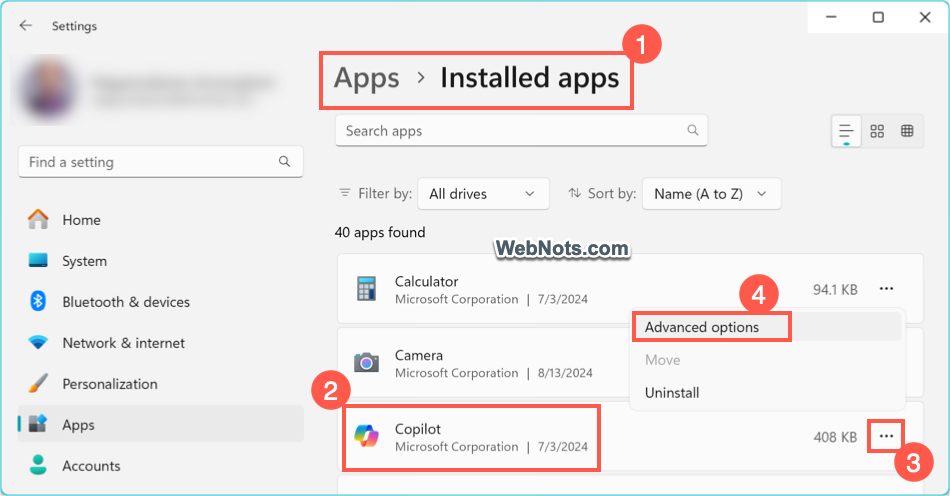
- Go to “Apps” section and select “Installed apps” option.
- Find Copilot app and click the three dots “More options” icon.
- Select “Uninstall” option and then confirm the pop-up again by pressing “Uninstall” button.

- Open Copilot app and click the three horizontal icons showing on top right corner (it will show as “Settings and more” when hovering and you can open the menu by pressing “Alt + F” keys.
- Select “App Settings” from the list of menu items.
For Installing:
- Open Store app and search for “copilot”.
- Find Microsoft Copilot app to download and install it on your PC.
- If required, you can pin the app to Taskbar and Start menu like any other app.

6. Repair or Reset the App
Instead of uninstalling and reinstalling, you can also repair or reset the app. Go to “Settings > Apps > Installed apps” section. Click the three dots icon showing against Copilot app and select “Advanced options” menu.
Scroll down to “Reset” section and click on “Repair” or “Reset” button as you need. Repairing will NOT delete any data in the app while resetting will delete all app data.

7. Copilot in Edge Vs Windows 11
At this point, you may get confused with different options available in Windows 11 to access Copilot. Microsoft is removing the “Bing AI” name and branding it as “Copilot” in all occurrences.
- Windows 11 Copilot icon from Taskbar.
- Edge browser Copilot showing on top of Edge Sidebar.
- Copilot icon showing in Windows Search top right corner.
Copilot icon in Windows Search will take you to the website and you can remove that from settings if you do not like it. Though Edge Copilot and Windows Copilot are having similar features, Edge has additional options for composing articles and emails which is not available in Windows 11 Copilot. You can also disable Edge Copilot and use only Windows 11 Copilot to avoid any confusion.

8. Check Copilot Permissions to Access Edge Tabs
If Copilot is having problem with summarizing pages in Edge tabs, then click on the Copilot icon showing on top of the Edge sidebar. Click the three vertical dots (More options) and select “Notification and app settings” menu. Turn on “Allow Copilot to read context clues on the web” option to allow Windows Copilot to use Edge tabs.

You can also click the “Permission and privacy” option to go to your Microsoft account and manage Copilot’s permission from your account.
9. Turn Off Personalization and Disable Chat History
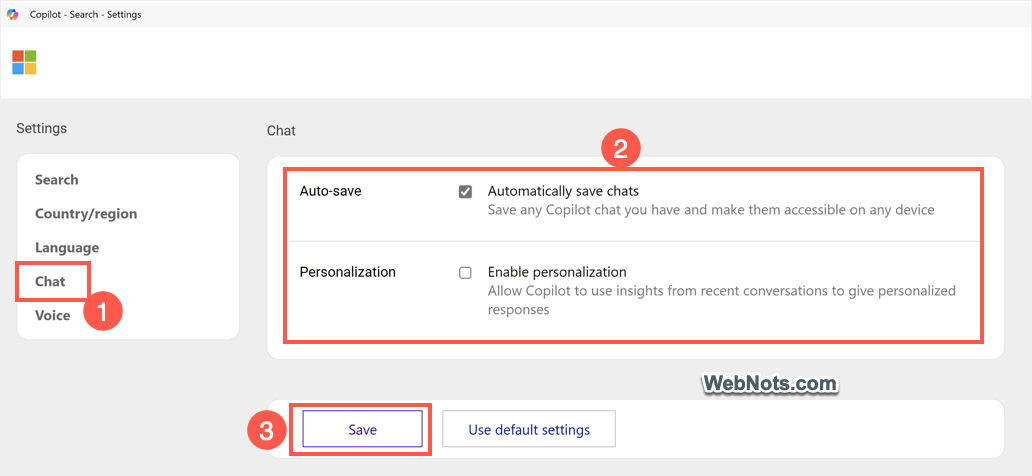
Copilot needs you to login with Microsoft account so that it can save all your conversational history. Sometimes, keeping too many history items in the sidebar can make the app slower and crashing as the content needs to synchronized with your Microsoft account. Though you can delete one by one history items by clicking the three dots icon against an item and selecting “Delete” option, you can also completely disable storing chats in history. In addition, Copilot also offers personalization based on your account which you can disable to speed up the app.
- Click your profile icon in Copilot app, expand “Settings” menu and select “More” option.
- When you are in the Settings page, go to “Chat” section.
- Uncheck “Automatically save chats” and “Enable personalization” options.
10. Check Your Antivirus and Firewall
Since Copilot needs internet connection to work, sometimes your antivirus or Firewall setting may prevent it from working properly. Follow the below instructions for Windows Security app which comes default with Windows 11. If you are using a third-party app or service, make sure to disable it temporarily and check if that fixes Copilot issues.
- Search and open Windows Security app.
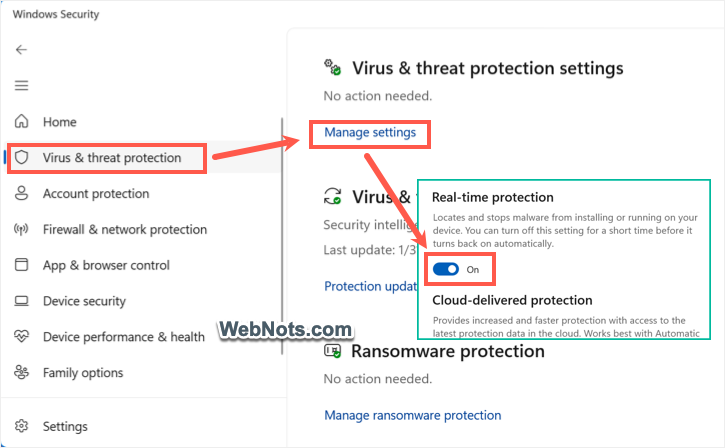
- Navigate to “Virus & threat protection” section and click the “Manage settings” link showing below “Virus & threat protection settings” heading.
- Turn off “Real-time protection” and all other options on the screen including “Tamper Protection”.
- After that go to “Firewall & network protection” section and click your active network (private or public).
- On the next screen, you can turn off “Microsoft Defender Firewall” option and make sure incoming connections are allowed.

Check Copilot works fine, otherwise, you can enable the settings back in Windows Security app. If firewall settings are causing issue, you can reset the settings to default under “Firewall & network protection” section.
11. Update Drivers
You can feel the Copilot responds faster for most text-based queries. However, you can easily notice the performance problems when asking it to draw a picture or create complex tables. Since, DALL-E image creation and Copilot itself needs latest hardware, make sure to update all your drivers.
- Search and open “Device Manager” app.
- Select your device like graphics card.
- Right-click and select “Update driver” option.
- Locate your driver file or allow system to search and update it from online.

Caution: Note that driver update from online may damage your system. Therefore, make sure to create restore point or take a backup before doing this activity.
12. Run System File Checker (SFC)
The final option is to check if your system has corrupted files which affects the Copilot to work properly.
- Right-click on “Start” menu icon and select “Terminal (Admin)” option.
- It should open Command Prompt in administrator mode. If you see PowerShell, press “Control + Shift + 2” keys to open a Command Prompt tab.
- Type
sfc /scannowand press enter key to start the system scanning process. - It will take long time to scan and check all the files on your system and wait for 100% completion.
- If there are corrupted files, you will see a message showing that “Windows Resource Protection found corrupt files and successfully repaired them”.

Now, restart the system to open Copilot and check if it works properly.
Conclusion
At this moment, Microsoft is not limiting the number of iterations for each chat conversation. You may notice a slow response when stretching the discussion to longer iterations. In such a case, it is better to start a new discussion and get a fresh answer. Other than that, you can follow the above-mentioned suggestions to fix Copilot issues in Windows 11 and work productively.


