Microsoft Word is the first choice for creating documentation whether it is for personal or organizational purposes. It will be annoying and frustrating if you are not able to open a Word document, especially when it contains important information. Good thing is that there are different methods fix a corrupted Word document and recover your data. In this guide, we will explore the reasons why Word document gets corrupted, prevention tips, and effective methods to fix them.
Why Word Document Gets Corrupted?
Before diving into solutions, it’s helpful to understand why your Word document is corrupted. Because this will help to choose the method for fixing the issue.
- Word offers different formats to save your document which includes .docx, .doc, and .dot. Generally, old documents (.doc) will open in a compatibility mode with the latest Microsoft 365 Word version. There are possibilities the file gets corrupted when converting to different formats (old to new or vice versa).
- Using different applications to process the same file can easily corrupt the data. This situation happens in organizations that people edit a file using different operating systems or apps.
- Unexpected scenarios like sudden power loss, Word crashed while working on a document, abruptly terminated file transfers or virus can lead to file corruption.
- Your file may not open if it contains unsupported content like characters with different encoding.
If you are looking for recovering unsaved document, check our article on how to retrieve unsaved Office documents.
Fixes for a Corrupted Word Document
Before trying to fix the issue, duplicate the file and keep a copy for safety. Sometimes after showing the corruption message, Word allows the document to open, but errors prevent full functionality. If this happens, the first thing you should do is to copy the uncorrupted content, paste it into a new document and save it. After keeping a copy, follow the below suggestions.
1. Disable Add-ins
If you are using third-party add-ins, disable all of them as they could prevent some documents like Macro enabled Word files from opening.
- Open Word app and go to “File > Options” menu.
- Navigate to “Add-ins” section to view the list of add-ins.
- You can select an add-in to find if it has any compatibility issue.
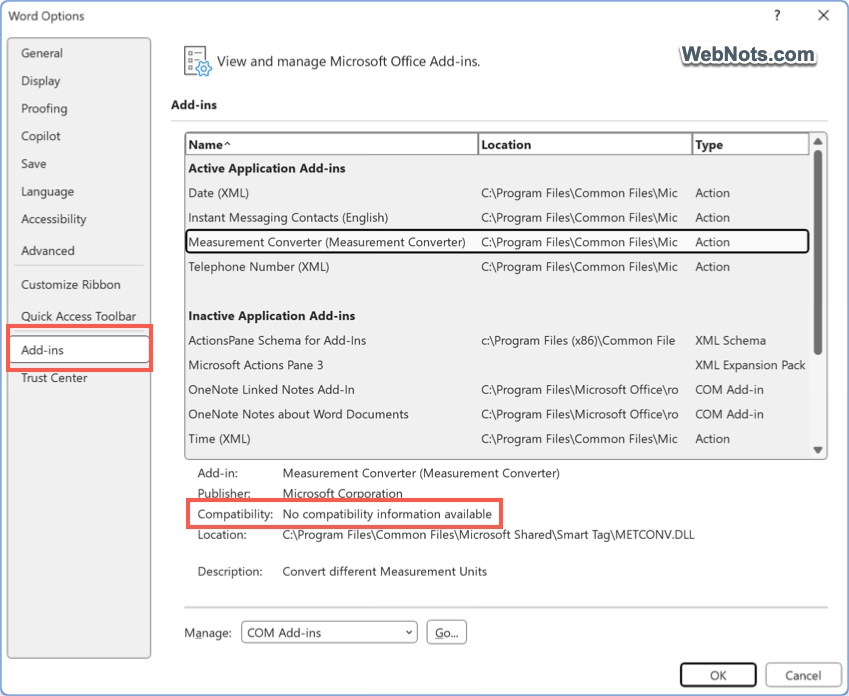
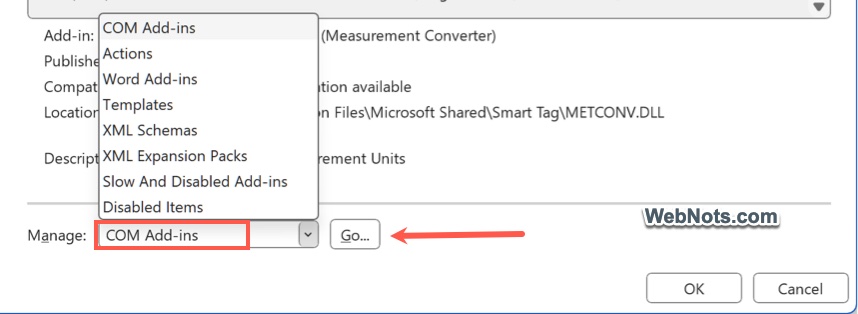
- Select “COM Add-ins” and click “Go…” button.
- Uncheck the items you do not need or select and remove them completely.
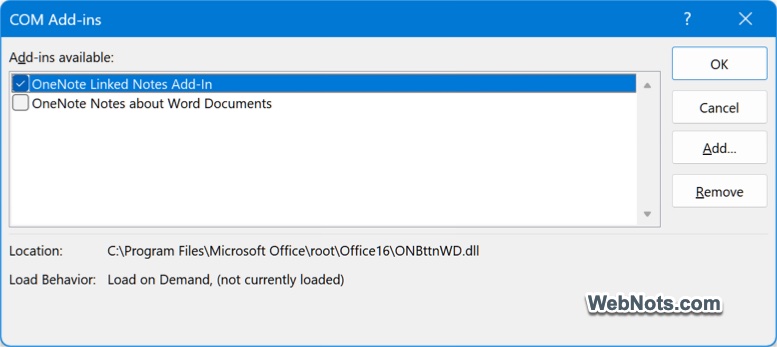
If this resolves your problem, enable the add-ins one-by-one to find the one causing trouble and get rid of it.
Note that Word will automatically disable the add-ins that cause problems like slowness. You can find them under “Slow And Disabled Add-ins” and “Disabled Items” sections.
2. Open Word in Safe Mode
There is also a quick option to disable all add-ins by opening Word in Safe Mode.
- Press “Windows Logo + R” keys to open Run prompt.
- Type winword /safe and press enter to open Word in Safe Mode.
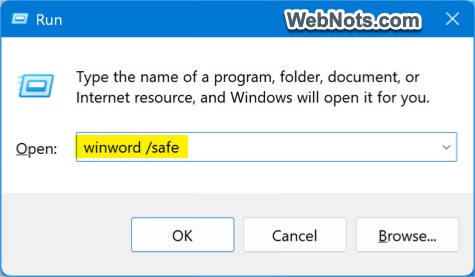
- Now, go to “File > Open” menu and open the corrupted file in Safe Mode.
- If it opens, save the file as a new document.

- Restart Word in normal mode and check if the issue is resolved.
3. Open Word with Default Settings
This is another option to disable add-ins and the default blank template (Normal.dotm). So, this will be useful if the file’s template is corrupted.
- Press “Windows Logo + R” to open Run prompt.
- Type winword /a and press enter.
- This will open Word with default settings.
- Now, try to open the corrupted file and checks if it works.
Note that unlike Safe Mode showing in title, you will not see any indication that Word is opened in default mode.
4. Use Word’s Built-in Repair Feature
Microsoft Word includes a repair tool that can recover corrupted files.
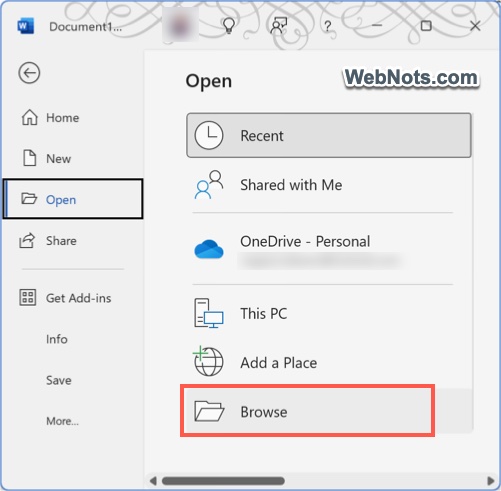
- Open Word and go to “File > Open > Browse”.
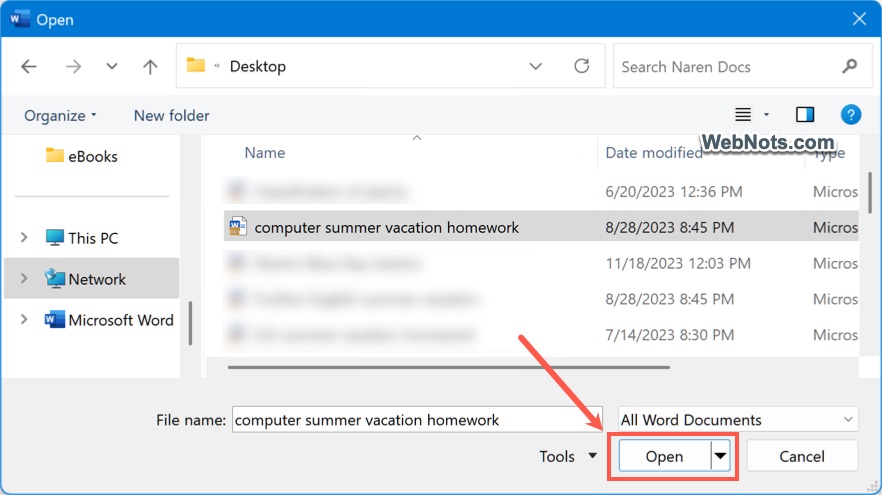
- Navigate to the corrupted document.
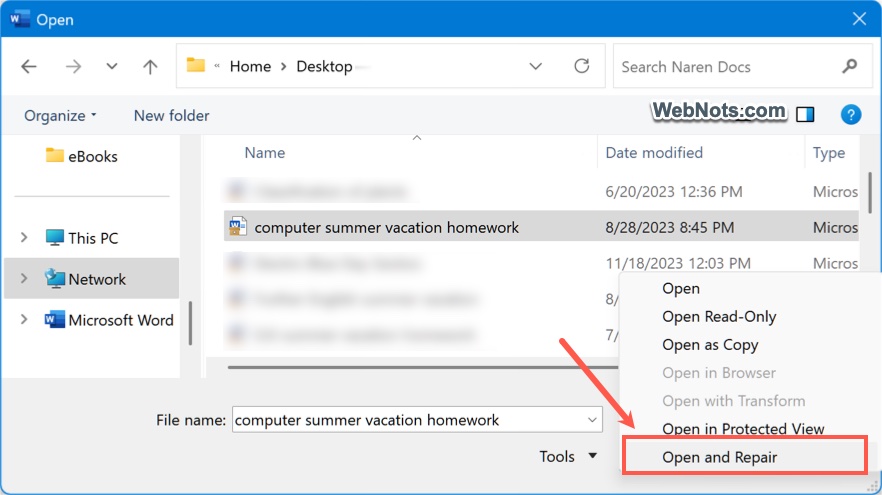
- Click the arrow next to the “Open” button.
- Select “Open and Repair” menu, Word will attempt to fix and open the document.
5. Recover Plain Text from Word File
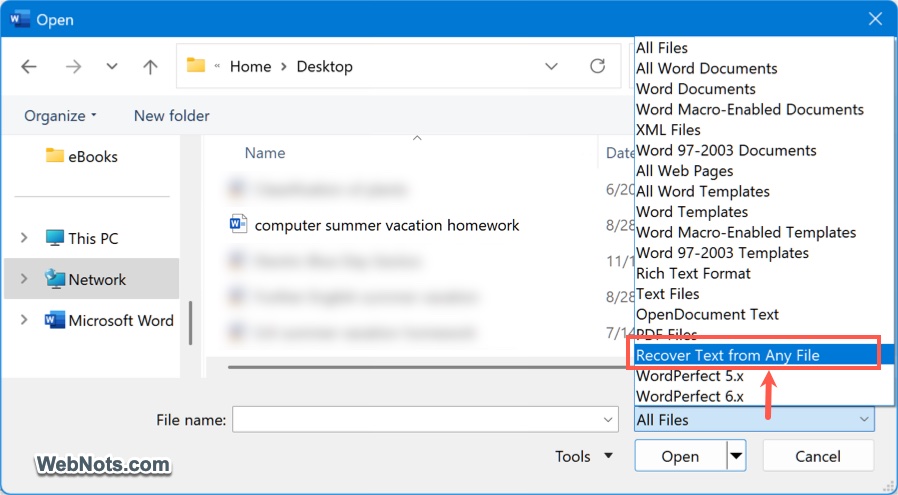
If Word’s repair feature fails, you can try the “Recover Text from Any File” option. As the name indicates, this may help to recover only plain text content by removing all formatting and non-text elements (like embedded images) from the file.
- Open Word and go to “File > Open > Browse”.
- You will see a file type dropdown (generally shows “All Files”) next to the “File name”.
- Click on it and select “Recover Text from Any File” option.
- Choose the corrupted file and open it.
You can also use plain text editor apps like Notepad or Notepad++ and try to recover the raw text from your corrupted Word file.
6. Check for Temporary Files
Word creates temporary files as backups while editing. Sometimes, you can recover your work from this temporary file though the main file is corrupted.
- Go to the folder where the document was saved.
- Look for files with a .tmp or .asd extension and try opening it in Word. Generally, the backup file starts with ~$ or ~$w.
- If it does not open, rename it to include .docx extension and then try to open again.
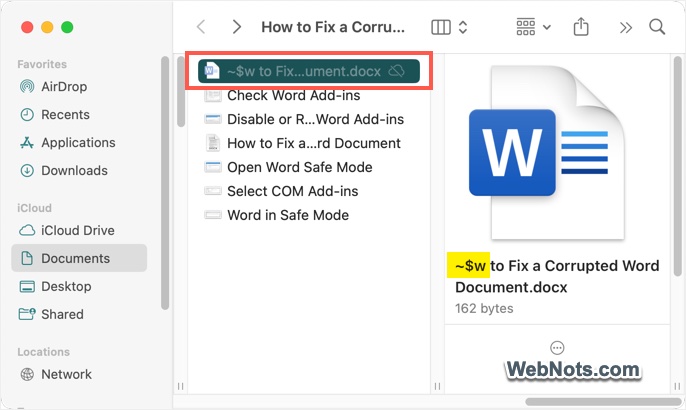
Note: Temporary files maybe hidden from viewing. Learn how to view hidden files in Windows File Explorer and Mac Finder.
Final Words
If the document can’t be repaired using the above methods, you can consider using third-party data recovery tools, especially if the content is not confidential. These tools are specialized in reconstructing damaged Word files and may recover more data than Word’s built-in options. Since prevention is always better than cure, here are some of the options to avoid file corruption or data loss.
- Enable AutoSave to periodically save the file in OneDrive with version history.
- Always make sure to properly close Word app, shutdown your computer and remove eject external devices (like USB) before removing.
- Schedule regular antivirus scans to prevent file corruption caused by malware.
- Disable automatic format conversion in Word by going to “File > Options > Advanced > General” and uncheck “Confirm file format conversation on open” option.