Mac comes with free Pages app for rich text processing and documentation purposes. Though Pages is a free app, it is common to use premium Word for Mac (either with subscription or standalone) as it is more powerful and convenient than Pages. Whenever you change the primary language in Mac, Word will replace the Normal.dotm template with a new file and remove all your customizations. This will be annoying if you have simply changed the language and reverted again. Instead of redoing all your customizations, here is how you can recover and restore Normal.dotm file in Word for Mac.
Recover Normal.dotm File in Word for Mac
Whenever the preferred language or region is changed, Word will show a pop-up message at the launch.

Unfortunately, you will not have any option in the pop-up to restore the previous template file. Simply click “OK” button and follow the below steps to recover the original Normal.dotm file.
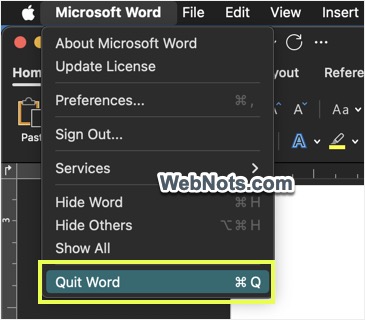
- First, close the Word app by going to “Microsoft Word > Quit Word” or by pressing “Command + Q” shortcut keys. Remember that just clicking on the close button will NOT close the app like in Windows.
- Press “Command + Space” or click the lens icon in top bar and open Spotlight Search.
- Type “normal.dotm” and you will see two files are shown in the result. Normal.dotm is the new file Word generated for the changed language and Normal.dotm with numbers prefix is the original blank document template file backed up by Word.

- Both files will be in the same location. So, use the down arrow key to highlight one of the files and press “Command” key. This will show the exact file path and double click on the file to open it in Finder.

- Control-click or right-click on Normal.dotm file and select “Move to Trash” option to delete the auto generated file.

- Select the file with numbers prefix and press enter key for changing its name.
- Rename the file as Normal.dotm by removing the prefixed numbers and hyphen.
- Mac will ask you to confirm the changes and click on “Use .dotm” button.

- Now, close Finder and relaunch Word app. You should see most of your previous customizations are loaded in blank template as Word uses original Normal.dotm file.
Note that you may lose some of the language specific customizations if you have really changed the preferred language. In this case, you need to redo the same and save in the template as explained below.
Points to Note
Here are two points to understand about normal document template in Word and changing preferred language in Mac.
Normal.dotm
This is a template file for keeping all your customizations done on a blank template. For example, you might have changed the text size, formatting and styles and saved in Normal.dotm template. To save your font customizations in Normal.dotm template:
- Press “Command + D” and open “Font” dialog box.
- After making necessary changes, click on “Default” button and select “All documents based on Normal template?” option.
- Click “OK” to save your changes to change the blank template.

Similarly, you can change save the styles and other parameters in template to launch the blank document as per your need.
Changing Preferred Language in Mac
- Go to Apple menu and select “System Settings…” option.
- Navigate to “General” section and click “Language & Region” option.

- Here, you can add multiple languages and drag any language to first position to make that as your preferred language. System interface and all apps on your Mac (like Word) will use the preferred language for displaying menu items. Sometimes, changing the “Region” will also have an impact on app’s language.