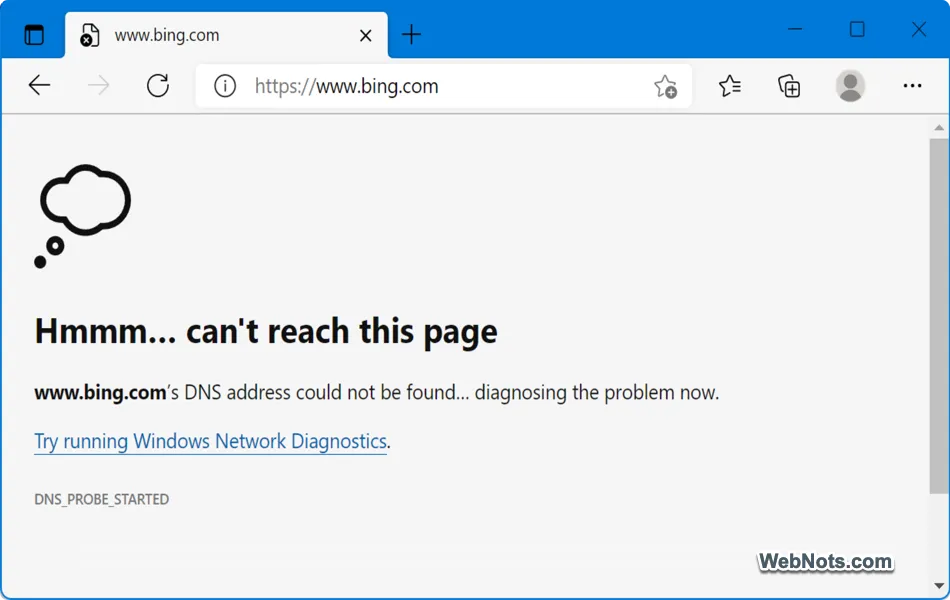
It will be frustrating to see an error on the browser when you need to quickly access a website. Some browser errors are easy to understand when they show the three digit number called HTTP status code. For example, 500 – server error indicates the web server is not accessible and 404 – page not found indicates the page you are looking for is deleted from the website. Unfortunately, most of the time you will not see the HTTP status code and browsers like Edge will show their own error descriptions like “Hmmm… can’t reach this page”. If you are frequently seeing this error in Edge, here are some suggestions to resolve the issue effectively.
“Hmmm… Can’t Reach This Page” Error
You will see this error message when Edge cannot establish a connection to the website you’re trying to visit. The issue could be with your internet connection, browser settings, or the website itself. Check the details showing below the “Hmmm… can’t reach this page” error to get some clue. Though it may not be the root cause, you can start the troubleshooting process from there.
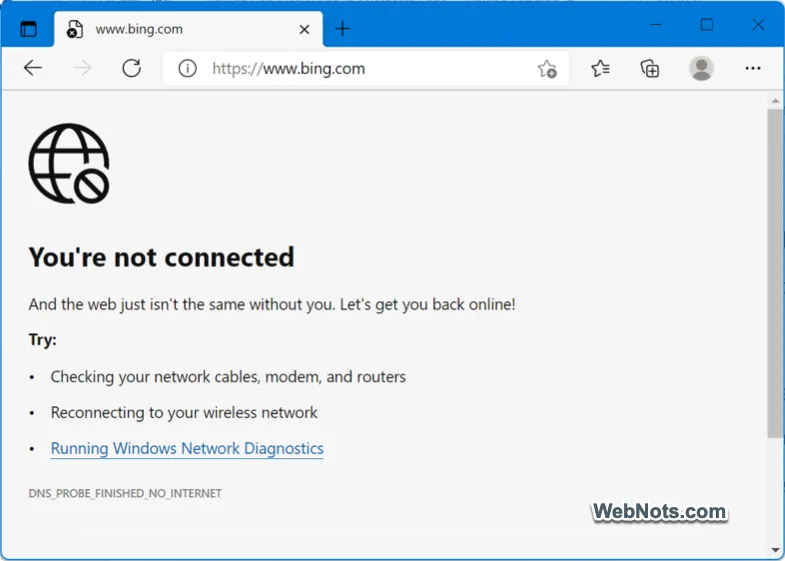
Before diving into technical fixes, ensure that your internet connection is working. Try to access the site from another device or network to confirm your modem / router and the internet connection are working fine. You may see an error like “You’re not connected”, if there are any internet connection issue. Follow the steps in our article to fix internet connection related issues in Windows PC.
Testing on multiple devices and networks also help to confirm the website is accessible and not down. If the site is not opening on multiple devices or networks, use a tool like site up or down to check the website’s server is up
After confirming your internet connection is working and the site is up, follow the below troubleshooting suggestions.
1. Run Network Troubleshooter or Network Diagnostics
As you can see in the above screenshots, regardless of the error message there is a link for “Try running Windows Network Diagnostics” and click on it. This will run the network diagnostics tool and show detected issues with the root cause. For example, it shows “Your DNS server might be unavailable” in our case. Click on the “View detailed information” link showing at the bottom.

It shows “Contact your network administrator or Internet Service Provider” to fix the DNS issue. We will explain DNS related solutions in point #5. If you see any other errors in your case, follow the recommendations to fix them and connect to the network.

If you do not see any link below the error message, then follow the below steps to run network troubleshooter.
- Open Windows Settings app and go to “System > Troubleshoot > Other troubleshooter” section.
- Click the “Run” button against “Network and Internet” option.
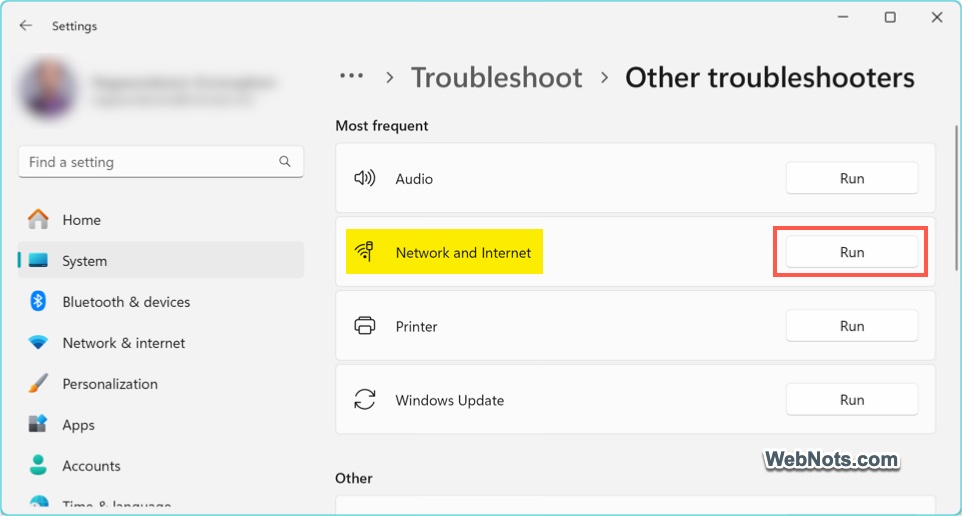
- This will run the diagnostics tool and show whether your network is working properly. Good thing is that you can also find additional recommendations to follow and fix the issue.

2. Disable Extensions in Edge
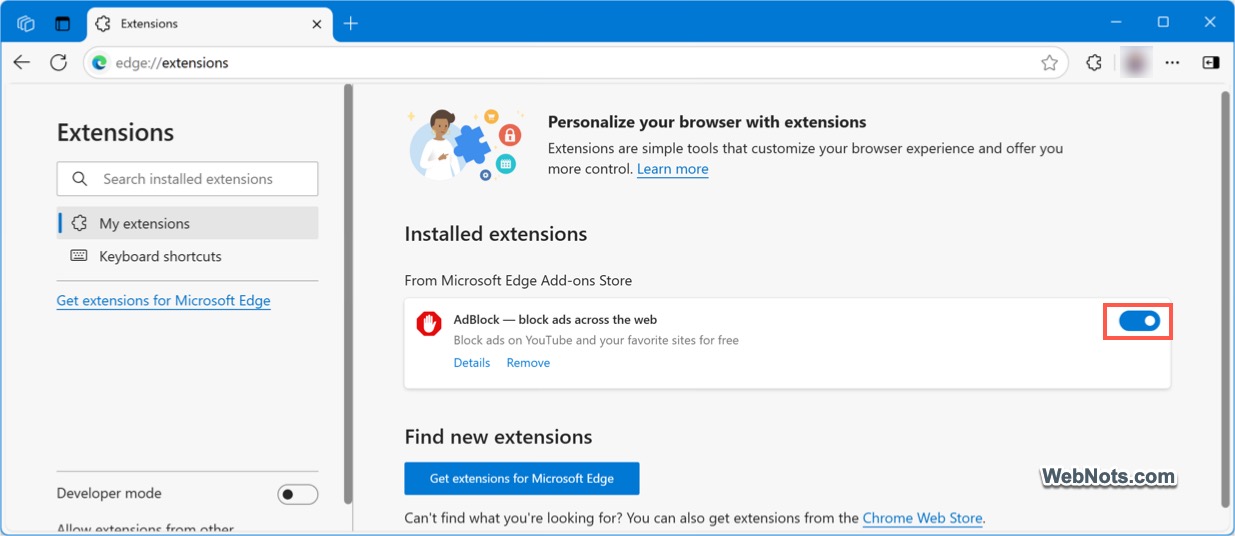
Some browser extensions can interfere with loading of webpages. If you have too many extensions (especially Ad Blocker), disable them to check if that helps.
- Open edge://extensions page in Edge to view all installed extensions.
- Disable all extensions by toggling them off.
- Restart Edge and try accessing the website again.
- If it works, enable the extensions one-by-one to find the item causing trouble.
Note: You can also try accessing the website in Edge’s InPrivate mode (use “Control + Shift + N” keys) to test the website by disabling all extensions. However, if you have allowed any extension to work on InPrivate mode, you should disable that in extension’s settings page.
3. Clear Edge Browser Cache and Cookies
Corrupted cache files can cause errors and prevent the latest webpage from loading properly. For example, the website owner may have updated the IP address to point to a new server, but Edge might still try to load the page from the old server because of cached data. You can clear the stored data in Edge to ensure a fresh start:
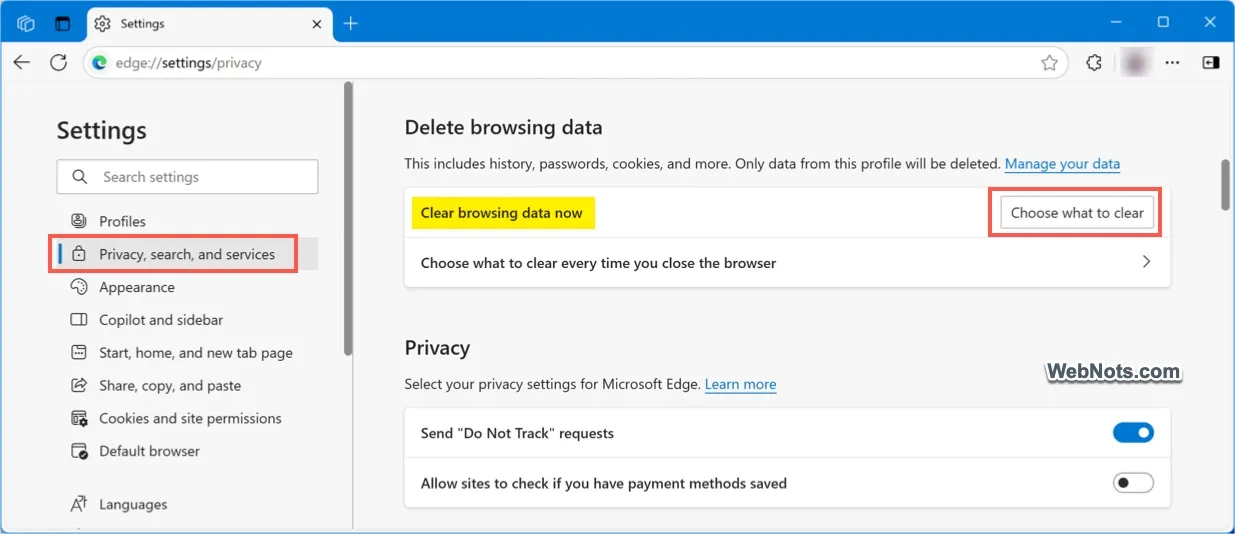
- Open Edge and click the three-dot menu (or press “Alt + F” keys).
- Go to “Privacy, search, and services” section and click on the “Choose what to clear” under “Clear browsing data” option.
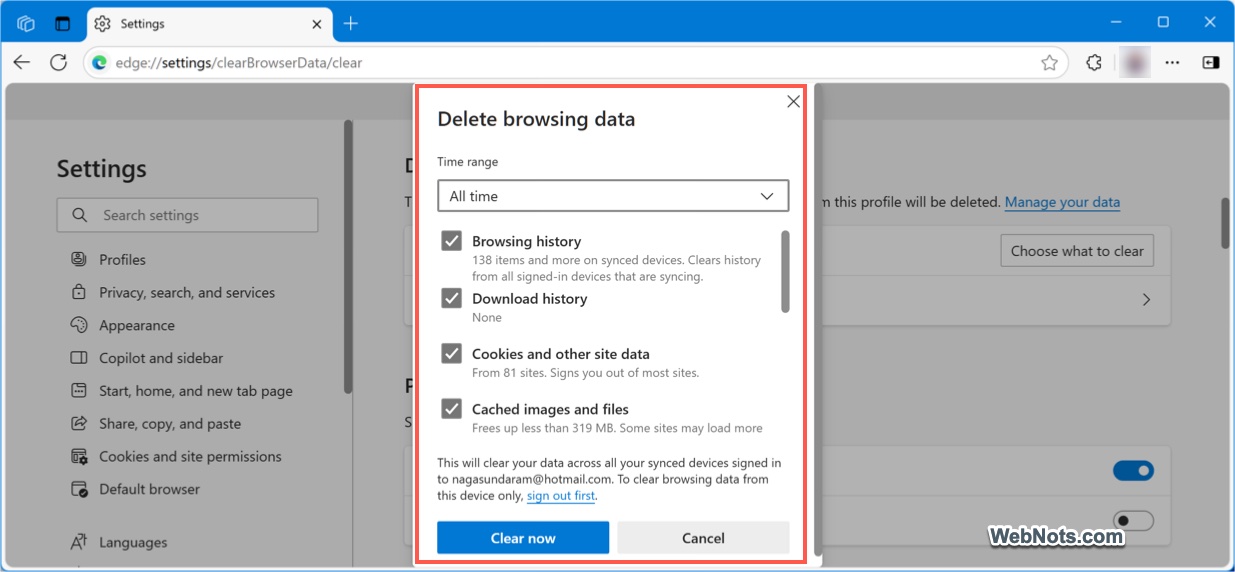
- Select “All time” as time range and check “Browsing history”, “Cookies and other site data” and “Cached images and files” options.
- Click “Clear now” button and restart the browser.
4. Check DNS Settings
DNS (Domain Name System) translates domain names into IP addresses. Incorrect DNS settings can lead to errors and follow the below steps to fix this:
- Open Edge and go to edge://settings/privacy page.
- Scroll down to “Security” section to find and turn on “Use secure DNS to specify how to lookup the network address for websites” option.
- Select “Choose a service provider” option and choose Google’s Public DNS.
- Restart your browser and check if the website works properly.
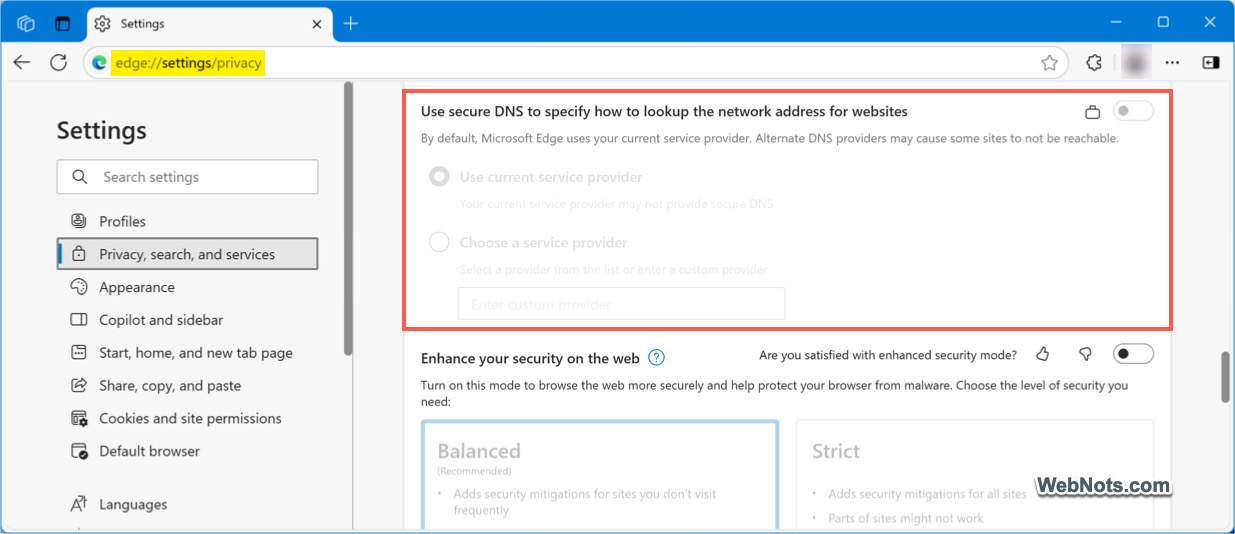
Note: As you can see in the above screenshot, secure DNS option is grayed out and locked in Edge. This is because the settings are managed by administrator and you will also see a message on top saying “Your browser is managed by your organization”. In this case, you should contact your IT administrator to seek assistance in changing the setting.
5. Disable Proxy Settings
Proxy settings can sometimes block website access, especially when using free or unauthorized server / script.
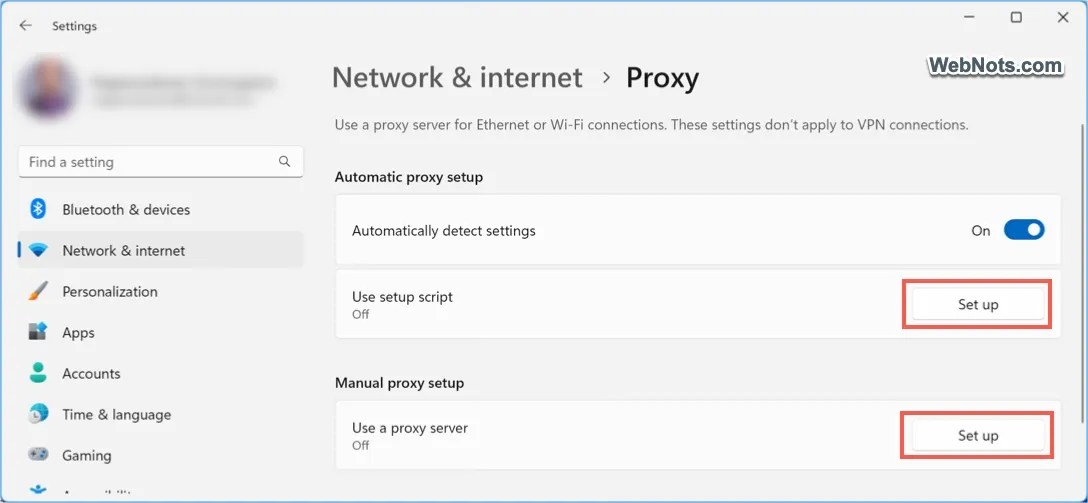
- Open Windows Settings app and go to “Network & Internet > Proxy” section.
- Click “Set up” buttons against “Automatic proxy setup > Use setup script” and “Manual proxy setup > Use a proxy server” options.
- Toggle off these options.
6. Reset Edge Settings
If the issue persists, resetting Edge can resolve any misconfigured settings:
- Open Edge and go to edge://settings/reset page.
- Select “Restore settings to their default values” option.
- Confirm the action and restart Edge.

7. Check Firewall and Antivirus Settings
Firewall or antivirus software might block Edge from accessing websites. Temporarily disable them to check if they’re causing the issue.
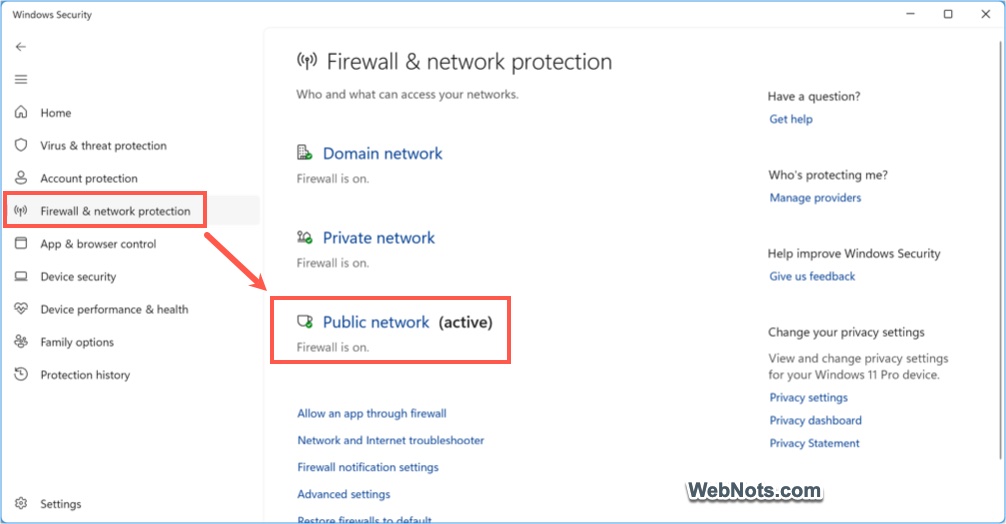
- Open Windows Security app and go to “Firewall & network protection” section.
- Click your active network, generally it will be a “Public network (active)”.
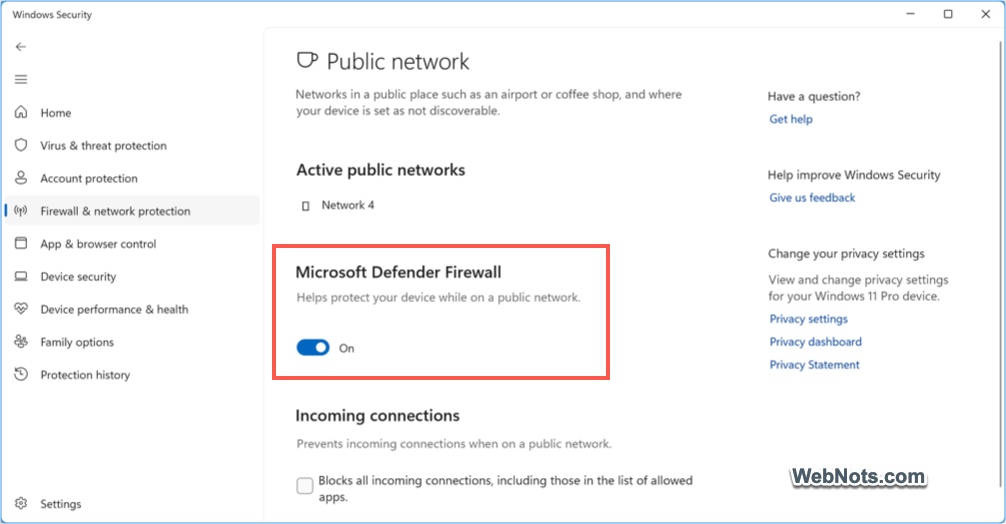
- Turn off “Windows Defender Firewall” option.
Similarly, if you have any antivirus app installed, disable it temporarily and test the website is opening in Edge.
8. Update Microsoft Edge
An outdated or corrupt Edge installation can lead to errors. By default, Edge will be automatically updated to the latest version. You can also manually update by navigating to edge://settings/help page in Edge. Edge will start downloading and install the available updates. Make sure the status shows as “Microsoft Edge is up to date”.

9. Repair Edge
Unfortunately, you can’t uninstall Edge app as it is part of Windows OS. However, you can repair the browser app if it persistently shows errors like “Hmmm… Can’t reach this page”.
- Press “Windows Logo + I” keys and open Windows Settings app.
- Navigate to “Apps > Installed apps” section.
- Find “Microsoft Edge app in the list, click the “More options” (three-dots icon) and select “Modify” option.
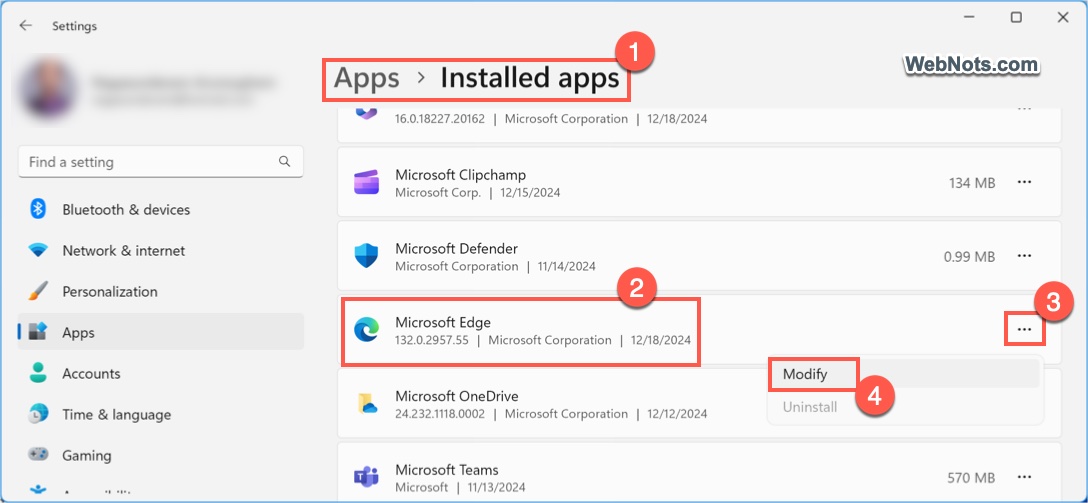
- Confirm user action control if prompted and then click “Repair” button.

10. Flush the DNS Cache
Even you select public DNS as explained in point #5, there are possibilities that previously accumulated cache on your device may prevent loading certain webpages. Flushing the DNS cache can resolve corrupted DNS-related errors arising from your device:
Open Command Prompt app, type the following command and press enter.
ipconfig /flushdnsRestart your computer and check the page works properly in Edge.
11. Use a VPN
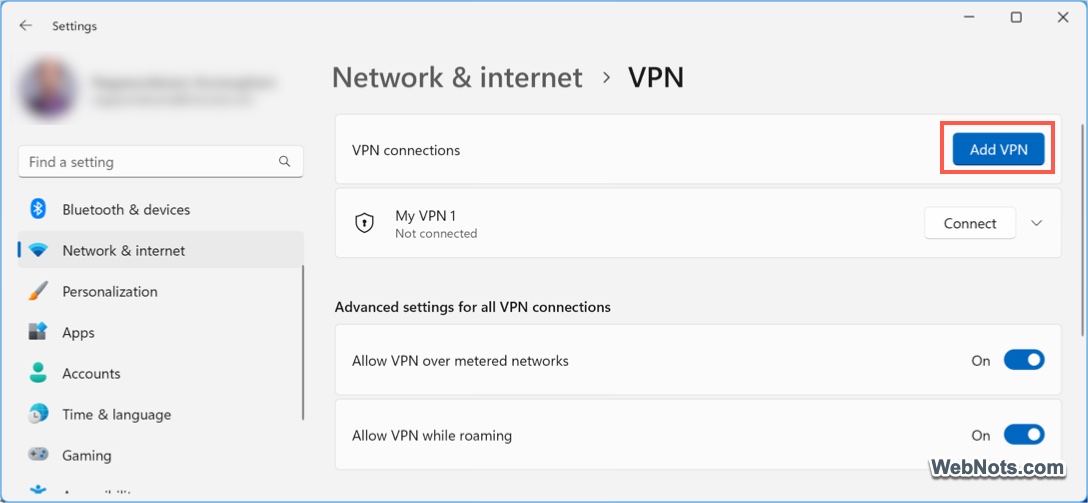
Similar to proxy setup, it is also not recommended to use free VPN apps. Many website owners simply block VPN servers IP addresses from accessing their sites. However, reliable premium VPN can help to bypass network restrictions or geo-blocking at country or ISP level. You can either use the app or add VPN configuration in Windows by navigating to “Windows Settings > Network & internet > VPN” section.
Conclusion
Though “can’t reach this page” error in Microsoft Edge can have various underlying causes, it generally happens due to network related issues. If none of the above solutions work, consider contacting your ISP or IT administrator for assistance. If they are not blocking the site, it is easy to get help from them.