The latest iPhone models come with minimum 256 GB storage size which is sufficient in most cases. In addition, you can make use of the free 5 GB iCloud storage or purchase additional cloud storage from Apple. However, keeping large number of media files like photos and videos can quickly clutter your iPhone’s storage. The problem comes when you have duplicate items, making it harder to find specific pictures and reducing available space for other files. Fortunately, iPhones offer various methods to identify and remove duplicate images, ensuring your photo library stays organized and efficient. Also, learn how to merge and delete duplicate contacts in iPhone.
1. Use the Built-In Photos App (iOS 16 and Later)
Apple introduced a “Duplicates” feature in the Photos app starting with iOS 16. This feature automatically detects duplicate photos and videos in your library.
- Go to the Photos app on your iPhone.
- Scroll down to the “Utilities” section and tap on “Duplicates”.

- The app will display a list of duplicate photos and videos and tap “Merge” against each item or group to combine the duplicates.
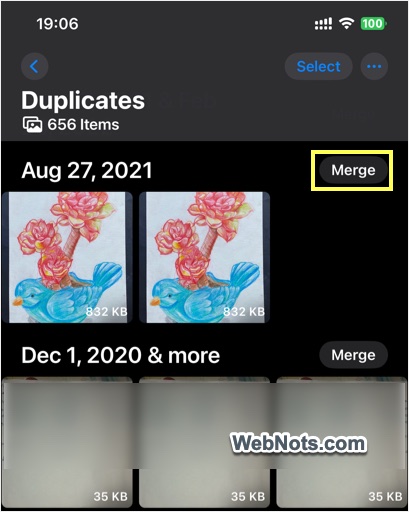
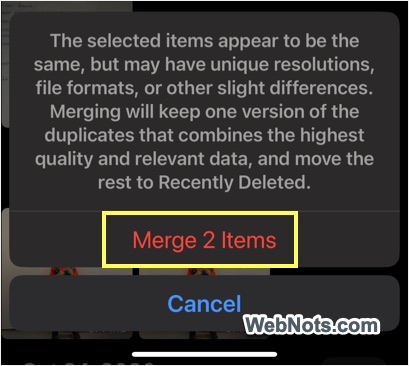
- As you can see in the notification, merging will keep the highest-quality version of photos while deleting the low quality versions. Confirm “Merge x Items” to merge the duplicates.
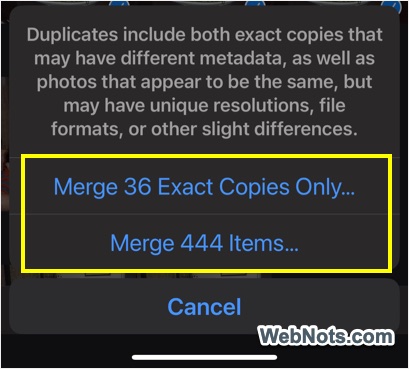
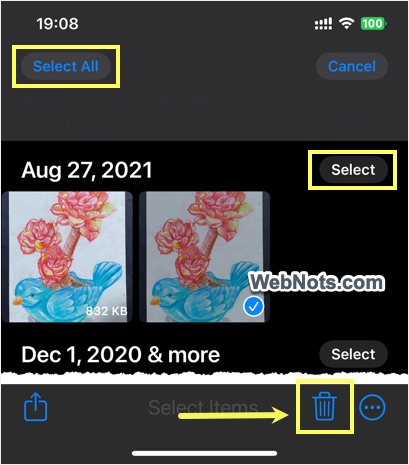
- For merging all the items, tap on “Select > Select All > Merge”. iPhone will show the number of exact matches and other items with deviations in resolutions, formats, etc. (though they look same). You can choose which items to merge to remove the duplicates.
- If you prefer manual deletion, tap on “Select” button and then on the duplicate pictures or tap “Select > Select All”. Now a trash icon will appear on the bottom, tap on it and confirm your action for deleting them.
2. Manually Review Photos
If you are not using iOS 16 (or later), you can manually check for duplicates. This is also an easy option when you want to filter and review only the latest pictures, videos or screenshots.
- Open the Photos app and go to “Library” section.
- Tap the sort icon on bottom left corner and you have options to sort photos by recently added or date captured.
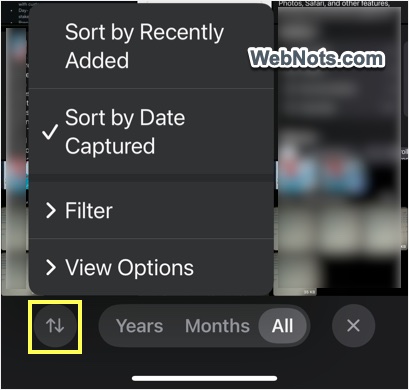
- It is possible to use “Filter” and “View Options” features for easier comparison. For example, you can filter only screenshots or favorites items by hiding other pictures.
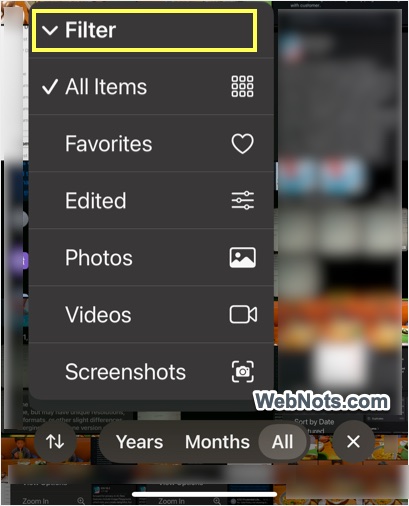
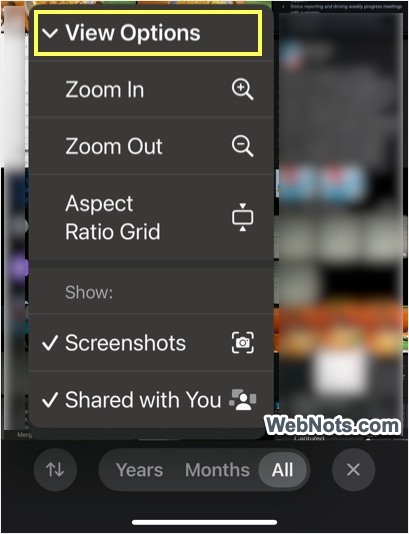
- After using appropriate filters, you can manually select the required items and delete the duplicate images.
3. Using iCloud Setting
If you sync and store large number of photos in iCloud, then iPhone allows you to clean up the duplicates easily from iCloud settings.
- Open Settings app, then tap on your Apple account name showing on top and select “iCloud” option.

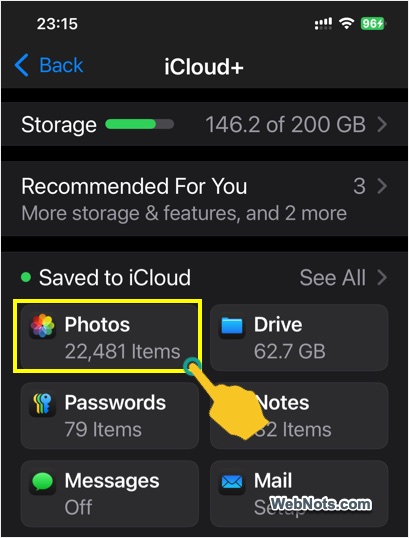
- Tap on “Photos” option showing under “Saved to iCloud” section.
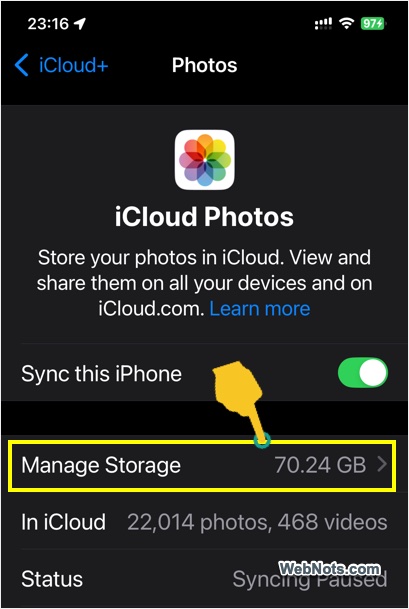
- Now, select “Manage Storage” option.
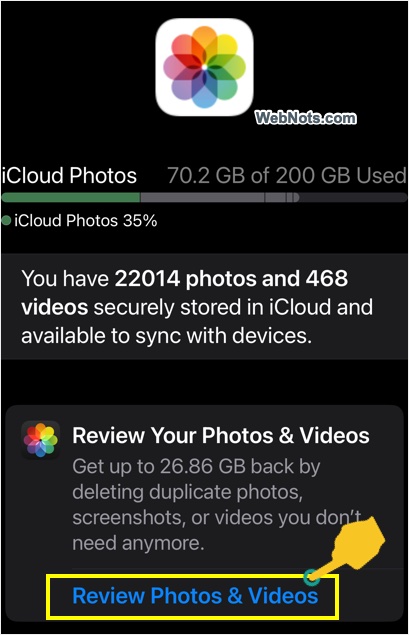
- You will see total iCloud usage along with an option to review your photos. Tap on the “Review Photos & Videos” link.
- Check the number of duplicate files along with the total size. If the size is too much and you want to clean them, tap on “Duplicates” option.
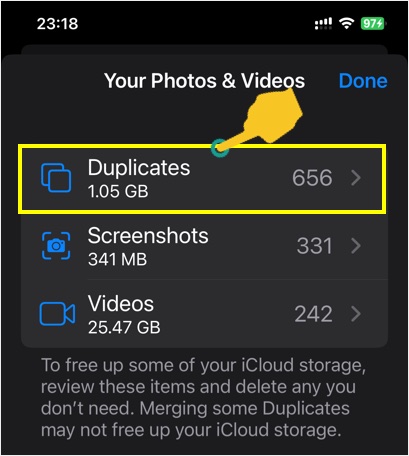
- Similar to Photos app, you can view duplicates sorted month wise and merge or delete them as you need.
4. Use Third-Party Apps for Advanced Options
Several third-party apps can help you find duplicate photos with more advanced features, such as comparing metadata or scanning for similar-looking images. For example, Gemini Photos is a powerful app that identifies duplicates, similar photos, and cluttered images like screenshots or blurred photos.
All you need is to simple download Gemini Photos from the App Store and provide the permission for the app to access your photo library. Now, you can review the duplicates it identifies and select which ones to delete.
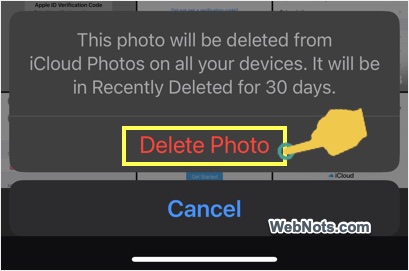
Note: All deleted items will be available in “Photos > Utilities > Recently Deleted” folder for 30 days before they are permanently deleted from your iCloud account and device.
Final Words
Duplicate photos and videos accumulate on iPhone primarily due to importing the same photos multiple times when syncing with a computer or another device. Fortunately, keeping your iPhone’s photo library organized doesn’t have to be overwhelming. You can either use the default Photos app’s option or a third-party app to delete the duplicates ensuring you have more storage space and a cleaner gallery.