You can press side and volume up buttons together to take screenshot in iPhone. All captured screenshots will be automatically saved in your camera roll which can be seen in Photos app. The problem is that all your screenshots will be mixed with personal pictures and videos. Though you can filter screenshots to view them, over period screenshots will start accumulating on your iPhone and occupy storage space. Good thing is that you can easily delete all the screenshots on your iPhone quickly without hassle.
Deleting All Screenshots
You can use either Photos app or from iCloud settings to select and delete all the screenshots on your iPhone.
1. Delete Screenshots from Photos App
This method is useful if you store all pictures only on your iPhone and not on iCloud.
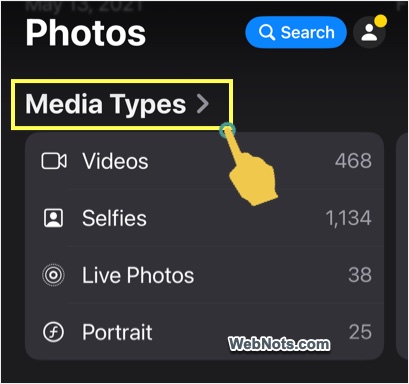
- Open Photos app, scroll down and tap on “Media Types” heading.
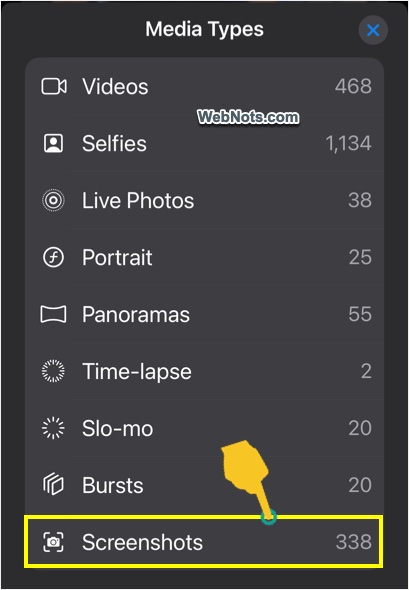
- You will see all types of pictures with the count and tap on “Screenshots”.
- On the next screen, tap on “Select” button.
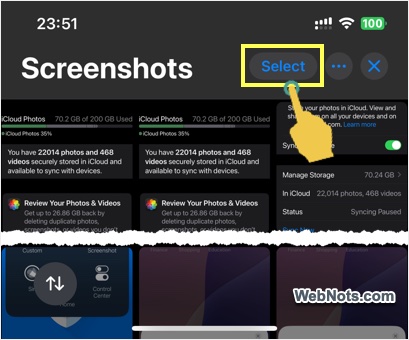
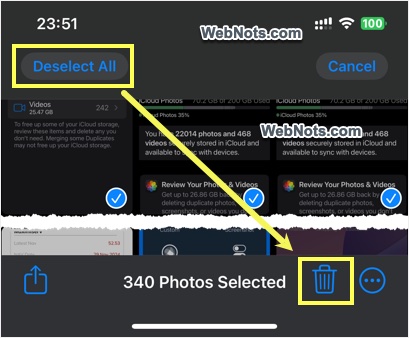
- Now, tap on “Select All” button on top left and then touch the Trash icon showing on bottom right.
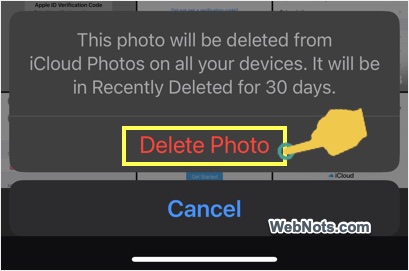
- Confirm your action by tapping on “Delete Photo(s)”.
2. Filter and Delete Screenshots from Photo Library
Photos app also allows you to filter all screenshots so that you can select them and delete or simply view them without other personal pictures.
- Open Photos app and scroll down a bit so that “Library” will be shown with bottom icons.
- Tap the two arrows icon showing on bottom left corner.
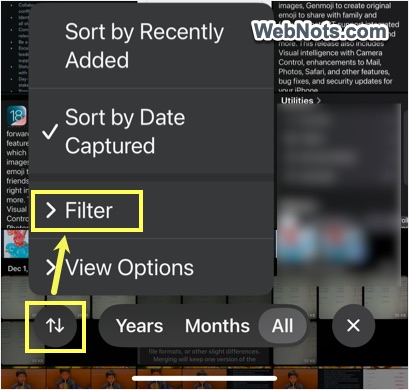
- Select “Filter” option and then tap on “Screenshots”.
- Now, you can select by tapping or swiping on the pictures and delete the unnecessary items from the list.
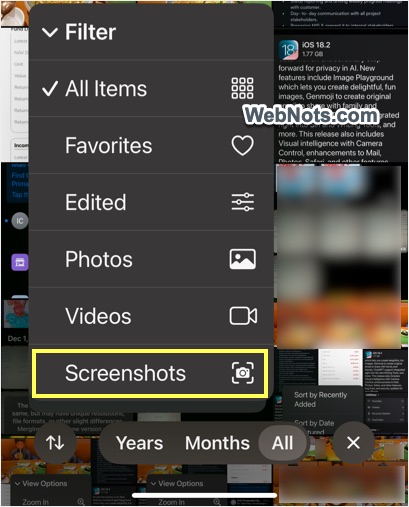
However, you need to manually select the pictures and there are no options to select all in this method.
3. Delete Screenshots from iCloud Settings
This method is useful when you sync photos with iCloud account to retrieve cloud storage space.
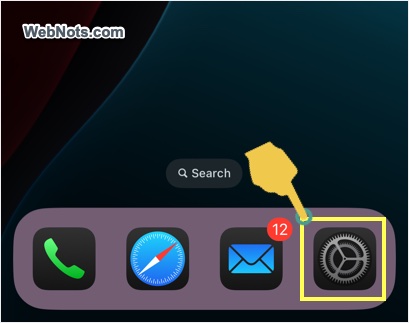
- Open Settings app and tap on your Apple account name showing on the top.
- Tap on the “iCloud” option on the next screen.

- Under “Saved to iCloud” section, tap on “Photos” option.
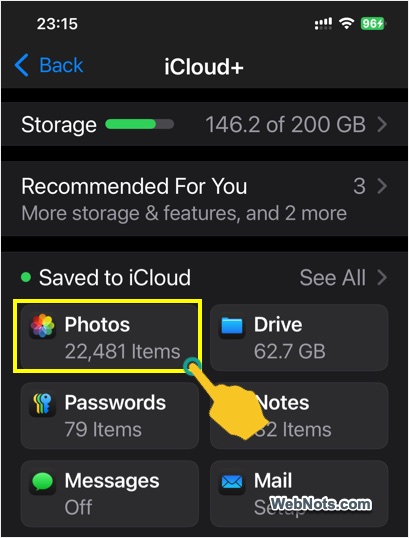
- You can see how much storage space is occupied by photos and tap on the “Manage Storage” option.
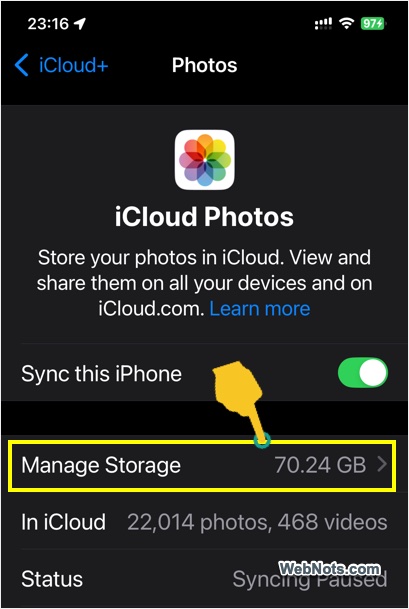
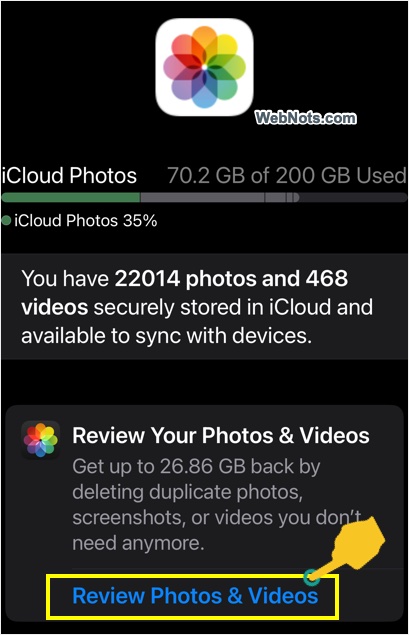
- On the next screen, iPhone will show a suggestion for reviewing and tap on “Review Photos & Videos” option.
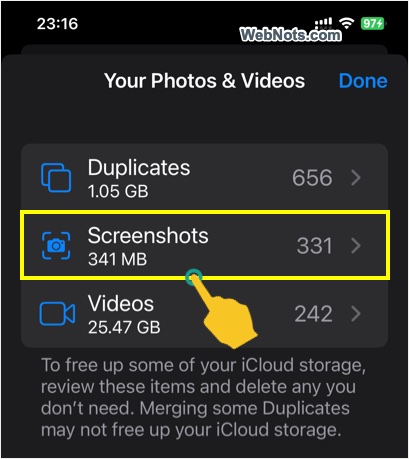
- This will show the total number of screenshots along with size and tap on that “Screenshots” option.
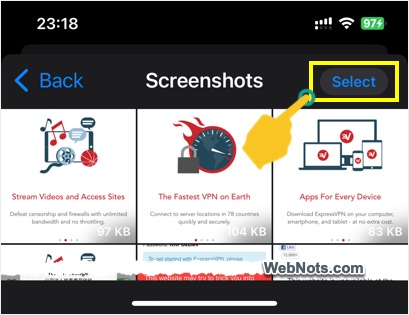
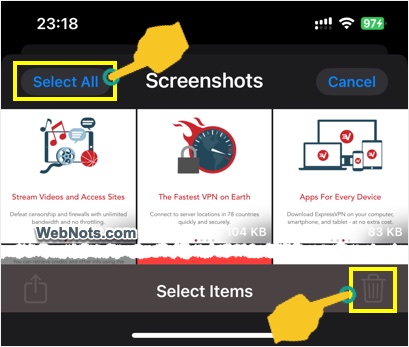
- Tap “Select” button and then “Select All” button. If required, you can also select individual screenshot images or swipe and select multiple items.
- Tap on the Trash icon showing on bottom right corner.
- Confirm your action by tapping on “Delete Photo(s)” button.
Permanently Deleting Screenshots
All deleted screenshots will be available in “Utilities > Recently Deleted” section for 30 days.
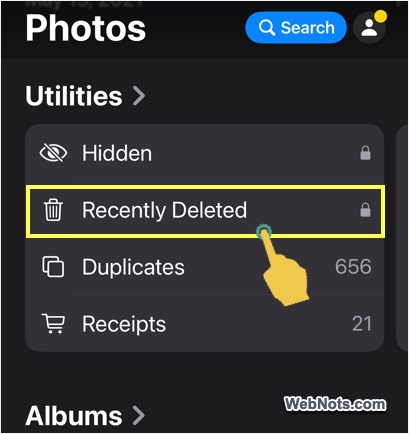
You can anytime restore the deleted items within that time frame. Otherwise, the screenshots will be permanently deleted from your device and iCloud account. You can also go to “Recently Deleted” folder and delete the screenshots to immediately clean up the storage space.
Hiding Screenshots from Photo Library
As mentioned, screenshots will be mixed with your personal pictures in the Photos Library section. If this is your only problem and you do not want to delete the screenshots, then you can hide them when viewing the Library.
- In Photos app, make sure you are in Library section (you can see the filter icons on bottom)
- Tap on the two arrows icon and select “View Options”.
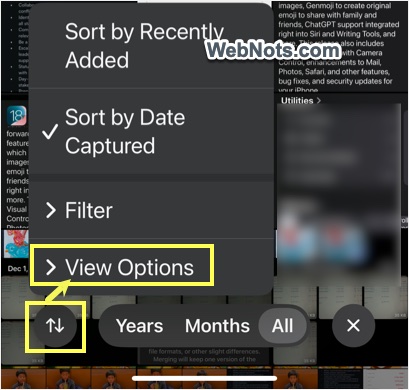
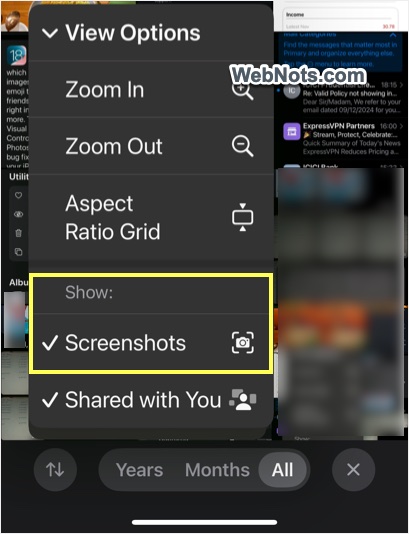
- Under “Show” section, tap on “Screenshots” to deselect.
- You may see a notification that screenshots will be hidden from Library (notification appears first time when you hide).
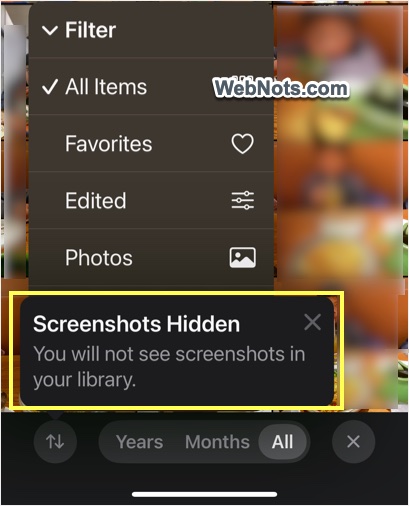
- Now, the “View Options” will show “Screenshots Hidden” and you can anytime unhide them in Library.
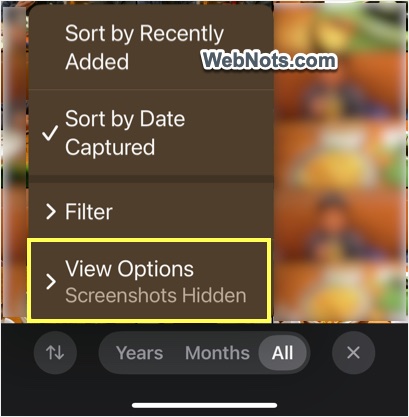
Good thing is that iPhone will remember your setting and show or hide screenshots accordingly whenever you open Photos app.