Windows offers a sandbox environment for testing and developing apps. However, there is also an option to use Developer Mode in Windows 11. This is a feature primarily intended for developers who need to test, build, and install third-party apps. Enabling Developer Mode gives users access to a variety of development tools and settings that are otherwise hidden in the standard user interface. Here is what it does and how to use it.
Enable Developer Mode in Windows 11
You can enable the option whenever needed by following the below steps:
- Press “Windows Logo + I” keys to open Settings app.
- Navigate to “System” section from the sidebar.
- Scroll down on the right pane and click on “For developers” option.
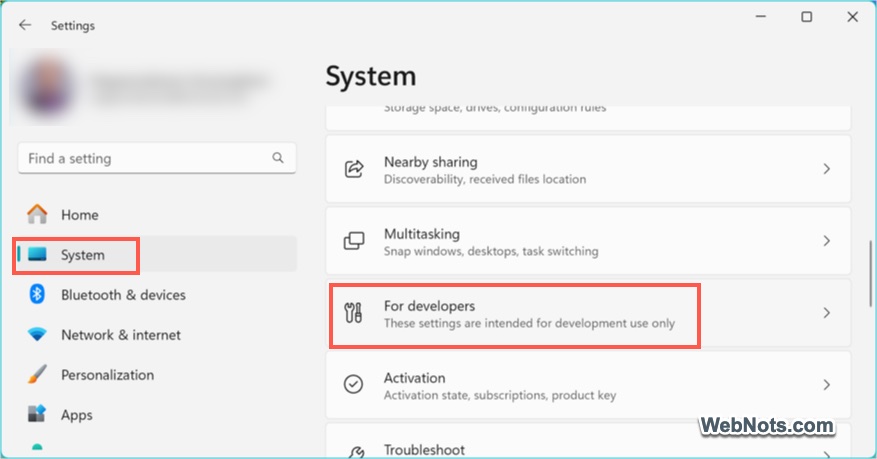
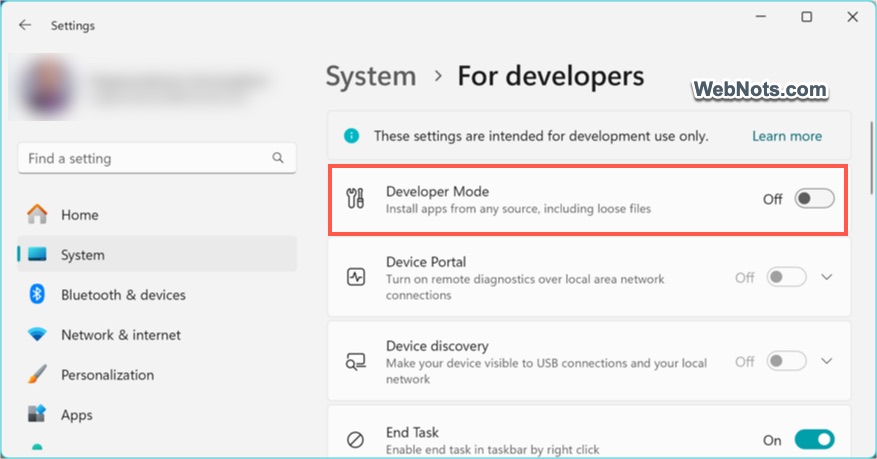
- You will see a notification saying that the settings are intended for developers only. Under the Developer Mode section, toggle the switch On.
- A warning will pop up showing the risks, click “Yes” to confirm.

Should You Enable Developer Mode?
Here is a summary when you should use Developer Mode:
| Use Case | Enable It? |
|---|---|
| You are a developer building and testing apps | ✅ Yes |
| You want to install apps from unofficial sources | ✅ Possibly |
| You are a regular user with no development tasks | ❌ No (not recommended) |
Turn Off Developer Mode
Good thing is that you can simply disable the Developer Mode anytime:
- Go back to “Settings > System > For developers”.
- Toggle Developer Mode to Off.
However, this will not uninstall the Developer Mode package which means you do not need to install the package when turning it on next time.
Core Developer Mode Features
You can use certain features like End Task, File Explorer, etc. under “For Developers” section without even turning on Developer Mode option. However, two important additional features will be enabled only if you enable Developer Mode option.
Device Portal
This allows to run system diagnostics remotely over local area network. Turning on this option will install Windows Developer Mode package allowing to enable other options. You can setup username / password for authenticating and restricting the remote connections.

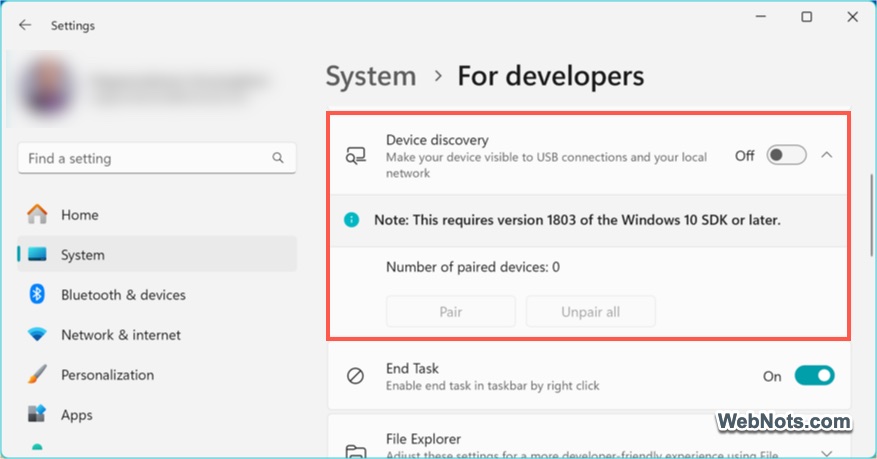
Device Discovery
Allows remote installation of apps over local network by enabling SSH server, useful for app development. Turning on this also will install Windows Developer Mode package. You can pair the device through network and deploy apps through Visual Studio.
Other Developer Features in Windows 11
As mentioned, you can use the below features intended for developers without turning on Developer Mode. You can find these features under the same “System > For Developers” settings page.

- End Task – Add an option in right-click menu in taskbar to terminate an app.
- File Explorer Enhancements – Shows hidden file types more easily, user switch option in Start and allows full file path in title bar.
- Remote Desktop – turn on to use Remote Desktop app.
- Terminal – set default command-line interface.
- PowerShell – Allow local PowerShell scripts to run without signing.
- Enable Sudo – Allow sudo command.
You can also create a separate Dev Drive on your hard disk with optimized performance for development tasks.