
Numbers are essential part of every document being it as a Word document, Excel sheet, Outlook email or a PowerPoint slide. All basic keyboards have numbers zero to nine as part of the default layout. Some longer keyboards may have additional numeric pad for entering numbers easily. This numeric pad along with alt key combination can do lot of tricks for you to insert numbers in different formats. On MacBook, you can use the alt or option key to insert shortcuts using keyboard.
What is Enclosed or Encircled Numbers?
The Unicode system has a category for enclosed alphanumeric containing 160 symbols between the code range 2460 to 24FF. In addition, there are also supplementary enclosed characters available in different code point ranges. When we consider only numbers, the enclosed or encircled has a meaning that the number is surrounded by a character. Below are different types of encircled numbers you can insert using keyboard shortcuts based on Unicode values.
- Encircled with white circle like ⑥, ③, ⑯
- Covered by black circle like ❿, ❻, ❷
- Covered by parenthesize like ⒀, ⒄, ⒇
- Encircled with double circle like ⓻, ⓹, ⓵
- Covered with black square like ㉉, ㉌, ㉈
- Included with comma like 🄂 🄇 🄊
- Included with dot like ⒑ ⒗ ⒛
You may wonder what are those encircled numbers with comma and dot, since you can easily type them with standard keys. When you type with keyboard keys, the number and comma/dot are considered as two characters. You can any time delete either comma/dot or the number independently. However, when using keyboard shortcut, you can’t delete the number or comma/dot separately. They two form a single character.
Alt Code Keyboard Shortcuts for Encircled Numbers
Below is the complete list of alt code keyboard shortcuts for encircled numbers.
| Number Symbol | Symbol Description | Windows Shortcut | Mac Shortcut | Word Shortcut |
|---|---|---|---|---|
| ❶ | Dingbat negative circled digit one | Alt + 10102 | Option + 2776 | 2776 + Alt + X |
| ❷ | Dingbat negative circled digit two | Alt + 10103 | Option + 2777 | 2777 + Alt + X |
| ❸ | Dingbat negative circled digit three | Alt + 10104 | Option + 2778 | 2778 + Alt + X |
| ❹ | Dingbat negative circled digit four | Alt + 10105 | Option + 2779 | 2779 + Alt + X |
| ❺ | Dingbat negative circled digit five | Alt + 10106 | Option + 277A | 277A + Alt + X |
| ❻ | Dingbat negative circled digit six | Alt + 10107 | Option + 277B | 277B + Alt + X |
| ❼ | Dingbat negative circled digit seven | Alt + 10108 | Option + 277C | 277C + Alt + X |
| ❽ | Dingbat negative circled digit eight | Alt + 10109 | Option + 277D | 277D + Alt + X |
| ❾ | Dingbat negative circled digit nine | Alt + 10110 | Option + 277E | 277E + Alt + X |
| ❿ | Dingbat negative circled number ten | Alt + 10111 | Option + 277F | 277F + Alt + X |
| ➀ | Dingbat circled sans-serif digit one | Alt + 10112 | Option + 2780 | 2780 + Alt + X |
| ➁ | Dingbat circled sans-serif digit two | Alt + 10113 | Option + 2781 | 2781 + Alt + X |
| ➂ | Dingbat circled sans-serif digit three | Alt + 10114 | Option + 2782 | 2782 + Alt + X |
| ➃ | Dingbat circled sans-serif digit four | Alt + 10115 | Option + 2783 | 2783 + Alt + X |
| ➄ | Dingbat circled sans-serif digit five | Alt + 10116 | Option + 2784 | 2784 + Alt + X |
| ➅ | Dingbat circled sans-serif digit six | Alt + 10117 | Option + 2785 | 2785 + Alt + X |
| ➆ | Dingbat circled sans-serif digit seven | Alt + 10118 | Option + 2786 | 2786 + Alt + X |
| ➇ | Dingbat circled sans-serif digit eight | Alt + 10119 | Option + 2787 | 2787 + Alt + X |
| ➈ | Dingbat circled sans-serif digit nine | Alt + 10120 | Option + 2788 | 2788 + Alt + X |
| ➉ | Dingbat circled sans-serif number ten | Alt + 10121 | Option + 2789 | 2789 + Alt + X |
| ⓪ | Circled number zero | Alt + 9450 | Option + 24EA | 24EA + Alt + X |
| ① | Circled number one | Alt + 9312 | Option + 2460 | 2460 + Alt + X |
| ② | Circled number two | Alt + 9313 | Option + 2461 | 2461 + Alt + X |
| ③ | Circled number three | Alt + 9314 | Option + 2462 | 2462 + Alt + X |
| ④ | Circled number four | Alt + 9315 | Option + 2463 | 2463 + Alt + X |
| ⑤ | Circled number five | Alt + 9316 | Option + 2464 | 2464 + Alt + X |
| ⑥ | Circled number six | Alt + 9317 | Option + 2465 | 2465 + Alt + X |
| ⑦ | Circled number seven | Alt + 9318 | Option + 2466 | 2466 + Alt + X |
| ⑧ | Circled number eight | Alt + 9319 | Option + 2467 | 2467 + Alt + X |
| ⑨ | Circled number nine | Alt + 9320 | Option + 2468 | 2468 + Alt + X |
| ⑩ | Circled number ten | Alt + 9321 | Option + 2469 | 2469 + Alt + X |
| ⑪ | Circled number eleven | Alt + 9322 | Option + 246A | 246A + Alt + X |
| ⑫ | Circled number twelve | Alt + 9323 | Option + 246B | 246B + Alt + X |
| ⑬ | Circled number thirteen | Alt + 9324 | Option + 246C | 246C + Alt + X |
| ⑭ | Circled number fourteen | Alt + 9325 | Option + 246D | 246D + Alt + X |
| ⑮ | Circled number fifteen | Alt + 9326 | Option + 246E | 246E + Alt + X |
| ⑯ | Circled number sixteen | Alt + 9327 | Option + 246F | 246F + Alt + X |
| ⑰ | Circled number seventeen | Alt + 9328 | Option + 2470 | 2470 + Alt + X |
| ⑱ | Circled number eighteen | Alt + 9329 | Option + 2471 | 2471 + Alt + X |
| ⑲ | Circled number nineteen | Alt + 9330 | Option + 2472 | 2472 + Alt + X |
| ⑳ | Circled number twenty | Alt + 9331 | Option + 2473 | 2473 + Alt + X |
| ⑴ | Parenthesized number one | Alt + 9332 | Option + 2474 | 2474 + Alt + X |
| ⑵ | Parenthesized number two | Alt + 9333 | Option + 2475 | 2475 + Alt + X |
| ⑶ | Parenthesized number three | Alt + 9334 | Option + 2476 | 2476 + Alt + X |
| ⑷ | Parenthesized number four | Alt + 9335 | Option + 2477 | 2477 + Alt + X |
| ⑸ | Parenthesized number five | Alt + 9336 | Option + 2478 | 2478 + Alt + X |
| ⑹ | Parenthesized number six | Alt + 9337 | Option + 2479 | 2479 + Alt + X |
| ⑺ | Parenthesized number seven | Alt + 9338 | Option + 247A | 247A + Alt + X |
| ⑻ | Parenthesized number eight | Alt + 9339 | Option + 247B | 247B + Alt + X |
| ⑼ | Parenthesized number nine | Alt + 9340 | Option + 247C | 247C + Alt + X |
| ⑽ | Parenthesized number ten | Alt + 9341 | Option + 247D | 247D + Alt + X |
| ⑾ | Parenthesized number eleven | Alt + 9342 | Option + 247E | 247E + Alt + X |
| ⑿ | Parenthesized number twelve | Alt + 9343 | Option + 247F | 247F + Alt + X |
| ⒀ | Parenthesized number thirteen | Alt + 9344 | Option + 2480 | 2480 + Alt + X |
| ⒁ | Parenthesized number fourteen | Alt + 9345 | Option + 2481 | 2481 + Alt + X |
| ⒂ | Parenthesized number fifteen | Alt + 9346 | Option + 2482 | 2482 + Alt + X |
| ⒃ | Parenthesized number sixteen | Alt + 9347 | Option + 2483 | 2483 + Alt + X |
| ⒄ | Parenthesized number seventeen | Alt + 9348 | Option + 2484 | 2484 + Alt + X |
| ⒅ | Parenthesized number eighteen | Alt + 9349 | Option + 2485 | 2485 + Alt + X |
| ⒆ | Parenthesized number nineteen | Alt + 9350 | Option + 2486 | 2486 + Alt + X |
| ⒇ | Parenthesized number twenty | Alt + 9351 | Option + 2487 | 2487 + Alt + X |
| ⒈ | Number one with full stop | Alt + 9352 | Option + 2488 | 2488 + Alt + X |
| ⒉ | Number two with full stop | Alt + 9353 | Option + 2489 | 2489 + Alt + X |
| ⒊ | Number three with full stop | Alt + 9354 | Option + 248A | 248A + Alt + X |
| ⒋ | Number four with full stop | Alt + 9355 | Option + 248B | 248B + Alt + X |
| ⒌ | Number five with full stop | Alt + 9356 | Option + 248C | 248C + Alt + X |
| ⒍ | Number six with full stop | Alt + 9357 | Option + 248D | 248D + Alt + X |
| ⒎ | Number seven with full stop | Alt + 9358 | Option + 248E | 248E + Alt + X |
| ⒏ | Number eight with full stop | Alt + 9359 | Option + 248F | 248F + Alt + X |
| ⒐ | Number nine with full stop | Alt + 9360 | Option + 2490 | 2490 + Alt + X |
| ⒑ | Number ten with full stop | Alt + 9361 | Option + 2491 | 2491 + Alt + X |
| ⒒ | Number eleven with full stop | Alt + 9362 | Option + 2492 | 2492 + Alt + X |
| ⒓ | Number twelve with full stop | Alt + 9363 | Option + 2493 | 2493 + Alt + X |
| ⒔ | Number thirteen with full stop | Alt + 9364 | Option + 2494 | 2494 + Alt + X |
| ⒕ | Number fourteen with full stop | Alt + 9365 | Option + 2495 | 2495 + Alt + X |
| ⒖ | Number fifteen with full stop | Alt + 9366 | Option + 2496 | 2496 + Alt + X |
| ⒗ | Number sixteen with full stop | Alt + 9367 | Option + 2497 | 2497 + Alt + X |
| ⒘ | Number seventeen with full stop | Alt + 9368 | Option + 2498 | 2498 + Alt + X |
| ⒙ | Number eighteen with full stop | Alt + 9369 | Option + 2499 | 2499 + Alt + X |
| ⒚ | Number nineteen with full stop | Alt + 9370 | Option + 249A | 249A + Alt + X |
| ⒛ | Number twenty with full stop | Alt + 9371 | Option + 249B | 249B + Alt + X |
| ⓿ | Negative or black circled number zero | Alt + 9471 | Option + 24FF | 24FF + Alt + X |
| ⓫ | Negative or black circled number eleven | Alt + 9451 | Option + 24EB | 24EB + Alt + X |
| ⓬ | Negative or black circled number twelve | Alt + 9452 | Option + 24EC | 24EC + Alt + X |
| ⓭ | Negative or black circled number thirteen | Alt + 9453 | Option + 24ED | 24ED + Alt + X |
| ⓮ | Negative or black circled number fourteen | Alt + 9454 | Option + 24EE | 24EE + Alt + X |
| ⓯ | Negative or black circled number fifteen | Alt + 9455 | Option + 24EF | 24EF + Alt + X |
| ⓰ | Negative or black circled number sixteen | Alt + 9456 | Option + 24F0 | 24F0 + Alt + X |
| ⓱ | Negative or black circled number seventeen | Alt + 9457 | Option + 24F1 | 24F1 + Alt + X |
| ⓲ | Negative or black circled number eighteen | Alt + 9458 | Option + 24F2 | 24F2 + Alt + X |
| ⓳ | Negative or black circled number nineteen | Alt + 9459 | Option + 24F3 | 24F3 + Alt + X |
| ⓴ | Negative or black circled number twenty | Alt + 9460 | Option + 24F4 | 24F4 + Alt + X |
| ⓵ | Double circled number one | Alt + 9461 | Option + 24F5 | 24F5 + Alt + X |
| ⓶ | Double circled number two | Alt + 9462 | Option + 24F6 | 24F6 + Alt + X |
| ⓷ | Double circled number three | Alt + 9463 | Option + 24F7 | 24F7 + Alt + X |
| ⓸ | Double circled number four | Alt + 9464 | Option + 24F8 | 24F8 + Alt + X |
| ⓹ | Double circled number five | Alt + 9465 | Option + 24F9 | 24F9 + Alt + X |
| ⓺ | Double circled number six | Alt + 9466 | Option + 24FA | 24FA + Alt + X |
| ⓻ | Double circled number seven | Alt + 9467 | Option + 24FB | 24FB + Alt + X |
| ⓼ | Double circled number eight | Alt + 9468 | Option + 24FC | 24FC + Alt + X |
| ⓽ | Double circled number nine | Alt + 9469 | Option + 24FD | 24FD + Alt + X |
| ⓾ | Double circled number ten | Alt + 9470 | Option + 24FE | 24FE + Alt + X |
| ㉈ | Circled number ten in black square | Alt + 12872 | Option + 3248 | 3248 + Alt + X |
| ㉉ | Circled number twenty in black square | Alt + 12873 | Option + 3249 | 3249 + Alt + X |
| ㉊ | Circled number thirty in black square | Alt + 12874 | Option + 324A | 324A + Alt + X |
| ㉋ | Circled number fourty in black square | Alt + 12875 | Option + 324B | 324B + Alt + X |
| ㉌ | Circled number fifty in black square | Alt + 12876 | Option + 324C | 324C + Alt + X |
| ㉍ | Circled number sixty in black square | Alt + 12877 | Option + 324D | 324D + Alt + X |
| ㉎ | Circled number seventy in black square | Alt + 12878 | Option + 324E | 324E + Alt + X |
| ㉏ | Circled number eighty in black square | Alt + 12879 | Option + 324F | 324F + Alt + X |
| ㉑ | Circled number twenty one | Alt + 12881 | Option + 3251 | 3251 + Alt + X |
| ㉒ | Circled number twenty two | Alt + 12882 | Option + 3252 | 3252 + Alt + X |
| ㉓ | Circled number twenty three | Alt + 12883 | Option + 3253 | 3253 + Alt + X |
| ㉔ | Circled number twenty four | Alt + 12884 | Option + 3254 | 3254 + Alt + X |
| ㉕ | Circled number twenty five | Alt + 12885 | Option + 3255 | 3255 + Alt + X |
| ㉖ | Circled number twenty six | Alt + 12886 | Option + 3256 | 3256 + Alt + X |
| ㉗ | Circled number twenty seven | Alt + 12887 | Option + 3257 | 3257 + Alt + X |
| ㉘ | Circled number twenty eight | Alt + 12888 | Option + 3258 | 3258 + Alt + X |
| ㉙ | Circled number twenty nine | Alt + 12889 | Option + 3259 | 3259 + Alt + X |
| ㉚ | Circled number thirty | Alt + 12890 | Option + 325A | 325A + Alt + X |
| ㉛ | Circled number thirty one | Alt + 12891 | Option + 325B | 325B + Alt + X |
| ㉜ | Circled number thirty two | Alt + 12892 | Option + 325C | 325C + Alt + X |
| ㉝ | Circled number thirty three | Alt + 12893 | Option + 325D | 325D + Alt + X |
| ㉞ | Circled number thirty four | Alt + 12894 | Option + 325E | 325E + Alt + X |
| ㉟ | Circled number thirty five | Alt + 12895 | Option + 325F | 325F + Alt + X |
| ㊱ | Circled number thirty six | Alt + 12977 | Option + 32B1 | 32B1 + Alt + X |
| ㊲ | Circled number thirty seven | Alt + 12978 | Option + 32B2 | 32B2 + Alt + X |
| ㊳ | Circled number thirty eight | Alt + 12979 | Option + 32B3 | 32B3 + Alt + X |
| ㊴ | Circled number thirty nine | Alt + 12980 | Option + 32B4 | 32B4 + Alt + X |
| ㊵ | Circled number fourty | Alt + 12981 | Option + 32B5 | 32B5 + Alt + X |
| ㊶ | Circled number fourty one | Alt + 12982 | Option + 32B6 | 32B6 + Alt + X |
| ㊷ | Circled number fourty two | Alt + 12983 | Option + 32B7 | 32B7 + Alt + X |
| ㊸ | Circled number fourty three | Alt + 12984 | Option + 32B8 | 32B8 + Alt + X |
| ㊹ | Circled number fourty four | Alt + 12985 | Option + 32B9 | 32B9 + Alt + X |
| ㊺ | Circled number fourty five | Alt + 12986 | Option + 32BA | 32BA + Alt + X |
| ㊻ | Circled number fourty six | Alt + 12987 | Option + 32BB | 32BB + Alt + X |
| ㊼ | Circled number fourty seven | Alt + 12988 | Option + 32BC | 32BC + Alt + X |
| ㊽ | Circled number fourty eight | Alt + 12989 | Option + 32BD | 32BD + Alt + X |
| ㊾ | Circled number fourty nine | Alt + 12990 | Option + 32BE | 32BE + Alt + X |
| ㊿ | Circled number fifty | Alt + 12991 | Option + 32BF | 32BF + Alt + X |
| ➊ | Dingbat negative circled sans-serif digit one | Alt + 10122 | Option + 278A | 278A + Alt + X |
| ➋ | Dingbat negative circled sans-serif digit two | Alt + 10123 | Option + 278B | 278B + Alt + X |
| ➌ | Dingbat negative circled sans-serif digit three | Alt + 10124 | Option + 278C | 278C + Alt + X |
| ➍ | Dingbat negative circled sans-serif digit four | Alt + 10125 | Option + 278D | 278D + Alt + X |
| ➎ | Dingbat negative circled sans-serif digit five | Alt + 10126 | Option + 278E | 278E + Alt + X |
| ➏ | Dingbat negative circled sans-serif digit six | Alt + 10127 | Option + 278F | 278F + Alt + X |
| ➐ | Dingbat negative circled sans-serif digit seven | Alt + 10128 | Option + 2790 | 2790 + Alt + X |
| ➑ | Dingbat negative circled sans-serif digit eight | Alt + 10129 | Option + 2791 | 2791 + Alt + X |
| ➒ | Dingbat negative circled sans-serif digit nine | Alt + 10130 | Option + 2792 | 2792 + Alt + X |
| ➓ | Dingbat negative circled sans-serif number ten | Alt + 10131 | Option + 2793 | 2793 + Alt + X |
| 🄀 | Number zero with full stop | Alt + 127232 | 1F100 + Alt + X | |
| 🄁 | Number zero with comma | Alt + 127233 | 1F101 + Alt + X | |
| 🄂 | Number one with comma | Alt + 127234 | 1F102 + Alt + X | |
| 🄃 | Number two with comma | Alt + 127235 | 1F103 + Alt + X | |
| 🄄 | Number three with comma | Alt + 127236 | 1F104 + Alt + X | |
| 🄅 | Number four with comma | Alt + 127237 | 1F105 + Alt + X | |
| 🄆 | Number five with comma | Alt + 127238 | 1F106 + Alt + X | |
| 🄇 | Number six with comma | Alt + 127239 | 1F107 + Alt + X | |
| 🄈 | Number seven with comma | Alt + 127240 | 1F108 + Alt + X | |
| 🄉 | Number eight with comma | Alt + 127241 | 1F109 + Alt + X | |
| 🄊 | Number nine with comma | Alt + 127242 | 1F10A + Alt + X |
If you are looking for inserting numbers on keycaps, learn how to make keycap emoji symbols. Also, check the list of alt code shortcuts for encircled letters.
1. Inserting Encircled Numbers in Windows
There are many ways you can insert circled numbers in Windows based documents.
1.1. Using Alt + Numbers Shortcuts Method
Press one of the alt keys and then enter the numbers one by one using numeric pad on your keyboard. It will work on all Microsoft documents like Word, Excel and PowerPoint. For example, pressing Alt and then 10102 keys on the numeric pad will produce the black circled number one symbol ❶. Use the first column in the above table for all alt code shortcuts for circled numbers. If you are looking for circle symbols without numbers, check out the list of alt code shortcuts for circle symbols.
1.2. Code + Alt + X Method for Word
If you don’t have a numeric pad, still you can insert numbers in different formats using Unicode hexadecimal value with “Alt + X” combination. But this will only work on Word documents and you should copy and paste in Excel or PowerPoint.
Use the third column in the above table, type the numbers one by one using regular number keys and then press one of the alt keys and X. For example, pressing 277a keys and then press Alt with X keys will produce the dark or negative circled number five symbol ❺.
1.3. Using Symbol Utility
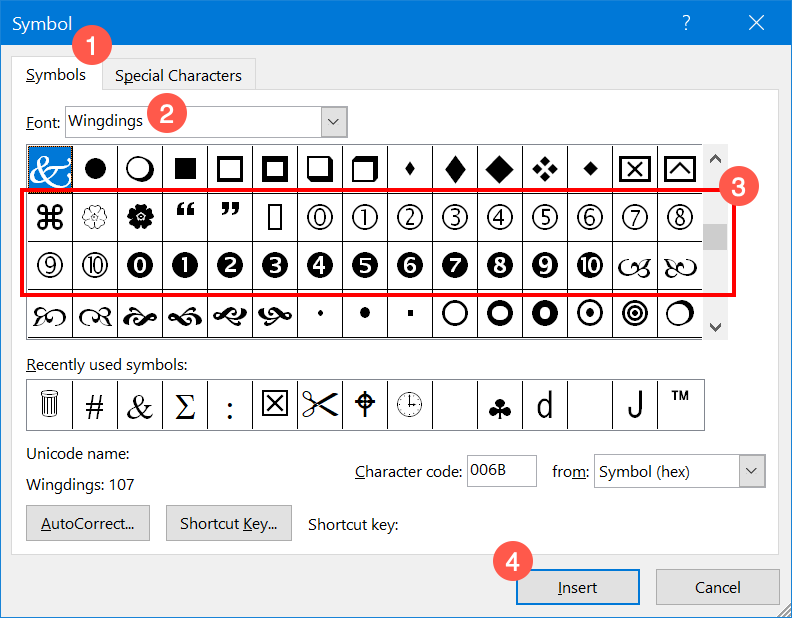
If the keyboard shortcut does not work, you can use alternate methods. One of the alternates is to pickup the circled number symbols from “Symbol” utility in Word or PowerPoint.
- Open Word document and navigate to “Insert” menu.
- Click on “Symbols” option and then choose “More Symbols” to open “Symbol” utility.
- Go to “Symbols” tab and choose the font as “Wingdings”.
- Scroll down and look for the circled number symbols.
- Choose one of the circled symbol and click on the “Insert” button to insert the symbol on your document.
1.4. Using Character Map
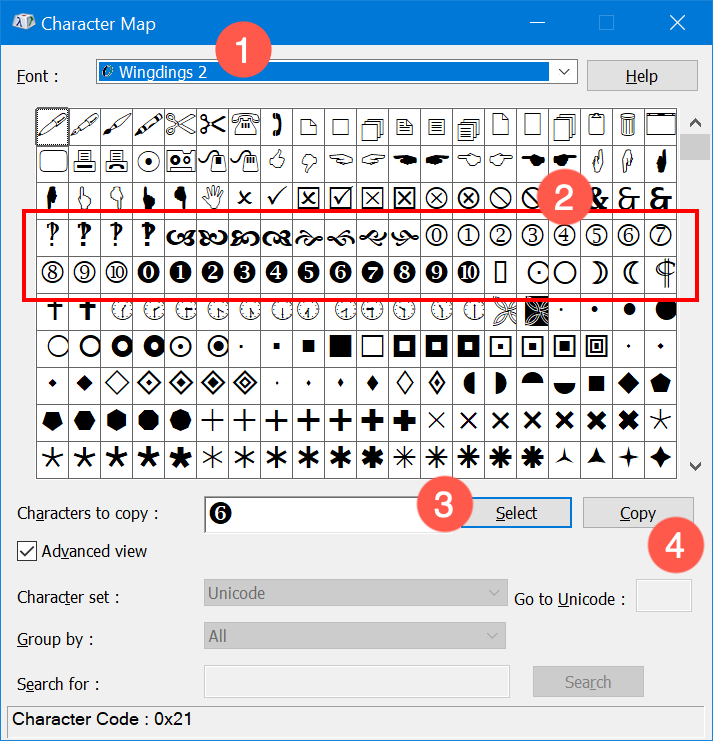
The second alternate method is to use Character Map app. The advantage is that you can use this app independently and copy/paste the symbols on any documents.
- Type “character map” in Windows Search box and open Character Map app.
- Choose the font as “Wingdings 2” and look for the circled number symbols.
- Double click on the symbol you want to insert, or select the symbol and click on “Select” button.
- Ensure that the number is showing in the “Characters to copy” text box and click on the “Copy” button.
- Now, you can paste the symbol using “Control + V” shortcuts anywhere on your documents.
1.5. Using Enclosed Characters in Microsoft Word and PowerPoint
The latest Microsoft 365 apps come with a default icon in the ribbon called “Enclosed Characters”. You can use this to easily insert circled numbers without any keyboard shortcut both in Windows and Mac versions.
- Open Word or PowerPoint, go to “Home” tab and click on “Enclosed Characters” icon.
- Select “Enlarge Style” and circle enclosure.
- Type your number in “Characters” box and click “OK” button.
- This will create a circle around the entered number and insert it in your document.

2. Inserting Circled Numbers on Mac
Similar to Windows, you can also insert circled number symbols on MacBook using different methods.
2.1. Option Code Shortcuts
Use the second column of the above table to insert the symbols on your Mac documents like Pages and Keynote.
- First, change the input method to Unicode Hex Input.
- Hold one of the option keys and type the code.
- It will produce the corresponding symbol. For example, option + 24F6 will produce the double circled number two symbol like ⓶.
- You can anytime change the input method to default ABC or your preferred method to type other content.
Option code shortcuts on Mac will only work for the four digit Unicode hexadecimal values. For the symbols having more than four digit code, use the next method.
2.2. Using Character Viewer App
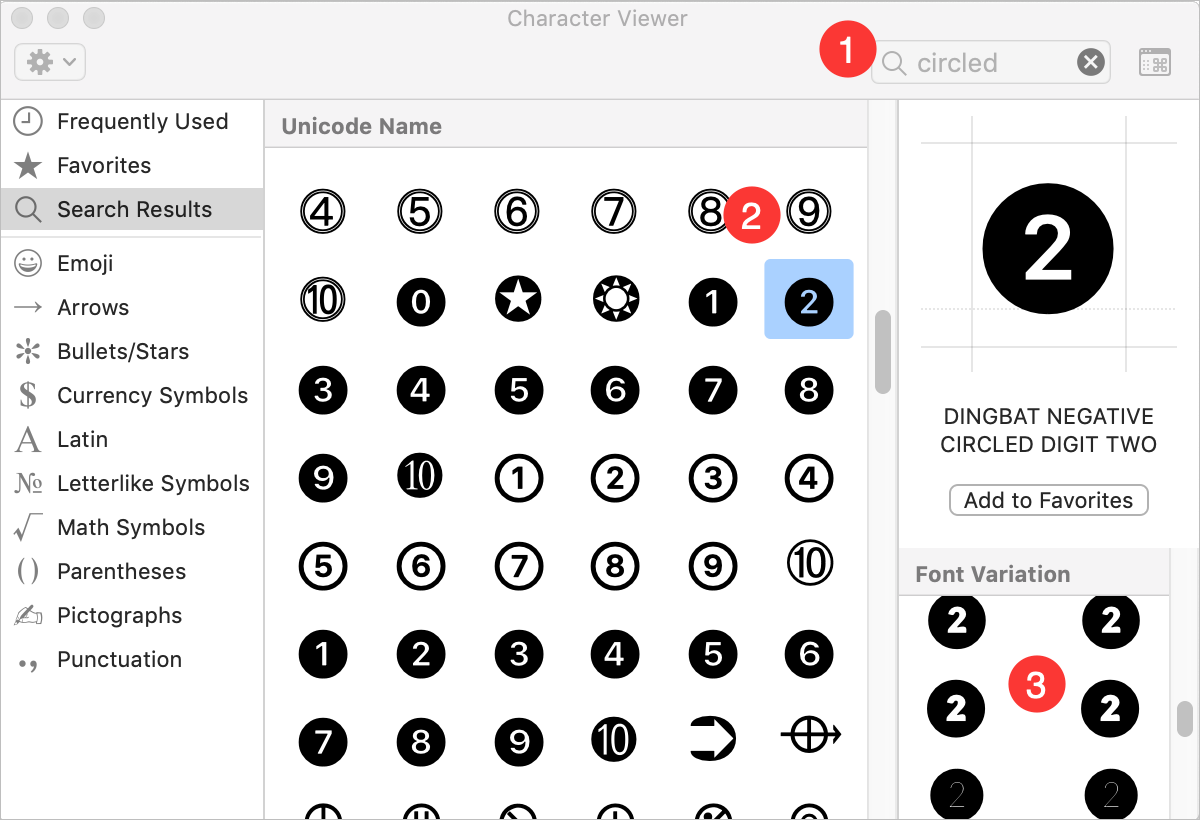
Character Viewer is an independent app you can find and insert symbols in Mac.
- Press “Control + Command + Space” to open Character Viewer app.
- Type “circle” in the search box to filter the symbols.
- Position the cursor on your document and double click on the symbol to insert it on your document.
- The advantage of using Character Viewer is that it has many font variations for each circled number symbol. You can easily pickup the different variation without customizing on your own.
Get the complete list of alt code shortcuts for MacBook.
3. Inserting Circled Numbers on Web Documents
- If you want to insert these symbols on HTML based web pages, either use the decimal code in the format &# 9461; or use the hexadecimal code in the format &x# 24F5;.
- On JavaScript documents you can use the hexadecimal escape string in the format \u24F1.
- Similarly, on CSS documents you can use the hexadecimal escape string in the format \24F8. Below is a CSS code example to insert circled digit nine as an unordered list.
li:before {
     content:\2468;
 }
Example Usage
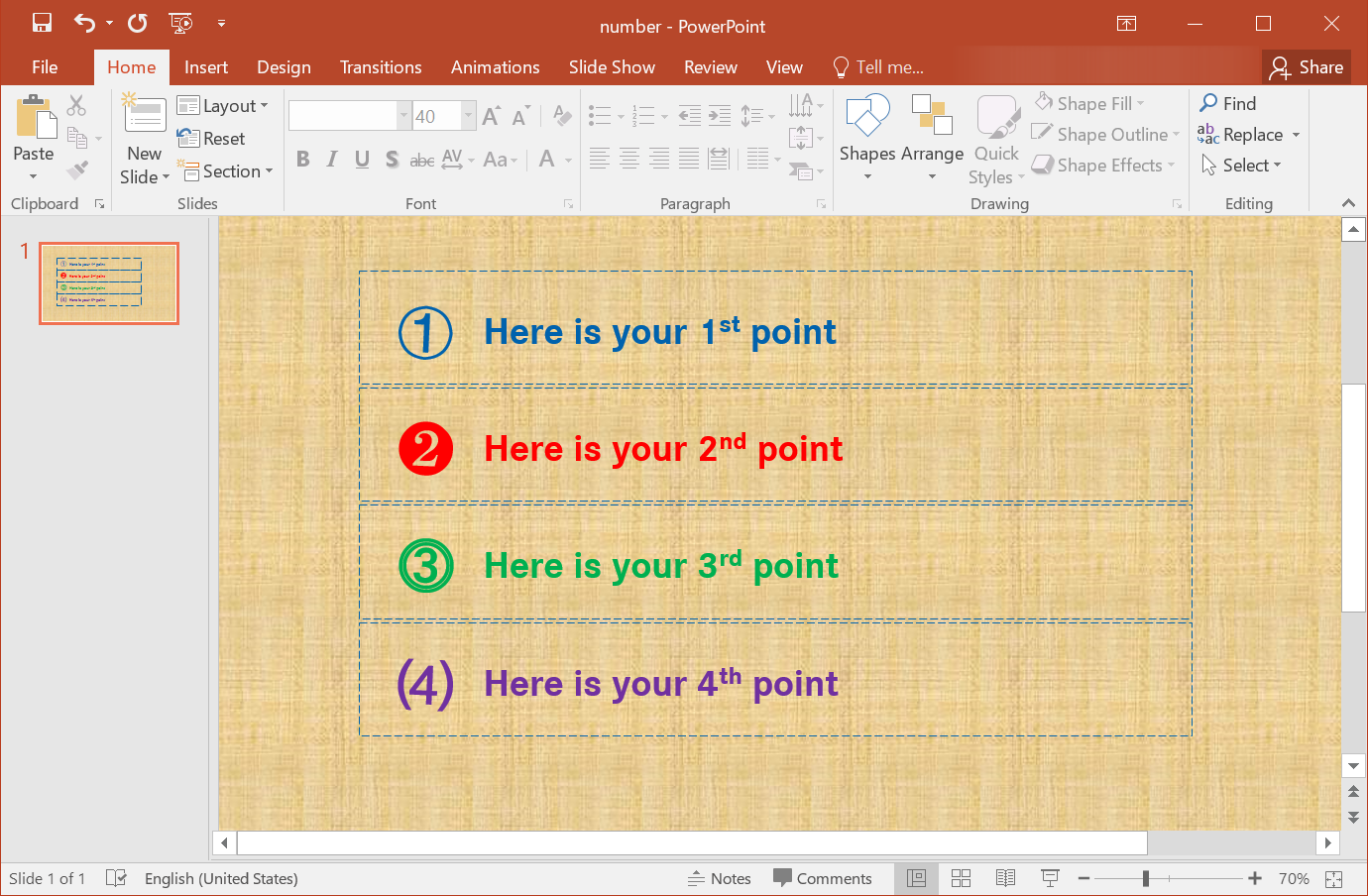
You can use the circled numbers in different formats. One of the beautiful usage is making bullet points in Outlook email or PowerPoint presentation. Below is an example PowerPoint slide showing four bullet points. We have used alt code shortcuts to type these numbers and used different styles for each circled number.
Font Variations
As mentioned above, on MacBook, you can easily choose the font variations from the Character Viewer app. it has large number of variations for each circled number symbol. However, on Windows documents, you need to manually customize the size, background and font family. Below are some of the variations with different colors and background.
⓷
⓰
➅
Note the below points when using circled numbers on your documents:
- Some circled numbers are by default in sans-serif font.
- Some are with smaller size, you can adjust the size to match your content on the document.
- you may see some symbols as square box on the browser. However, it will display properly on the documents.
- Font type will affect the display of symbols. If the symbol is not displayed then change your font and try again.





How can I use these numbers out of margins, etc. It doesn’t look like I can use any of the layout options to have them over screenshots, etc.
Thank you.
May I please have the MS Word keyboard shortcut for numbers 21 to 100 inside a black circle each? Thank you.
Table in the article is the collection of all circled numbers supported in Unicode. We do not see other numbers like 100 inside circle are available.
Thank you for this super great and accurate site.
Best regards
Thanks for the feedback and you are welcome.