There are plenty of options available for transferring files from mobile to desktop computer. Microsoft Edge browser also offers a feature called Drop to transfer text notes and files across your devices. Now, there is a new addition in Edge called “Mobile Upload” which allows to seamlessly transfer files from your mobile to PC and here is how you can use that.
Upload Files from Mobile to PC
For the explanation purpose, we will upload an image from iPhone to our website’s media folder opened in iMac.
- Open the website in Edge browser where you want to upload the file.
- Check on the bottom right-side section in “Open” dialog box and click the “Upload from mobile” button. This button will only appear when you use Edge browser.

- Edge will show a pop-up with the QR code. Open your phone and scan the QR code with the camera app.

- Some phones will directly open the linked Microsoft website from QR code, otherwise, tap on the link showing (that’s the case with iPhone).

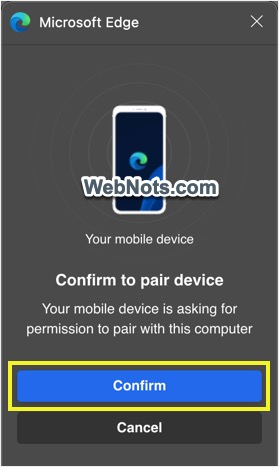
- You will be prompted to confirm the pairing of your mobile device on desktop.

- Click “Confirm” button on your desktop and you will see a “Pairing Successful” message.
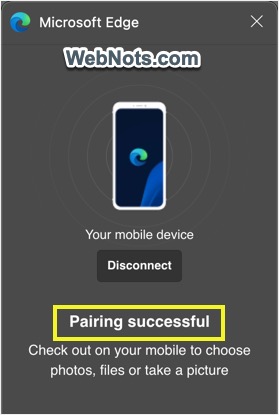
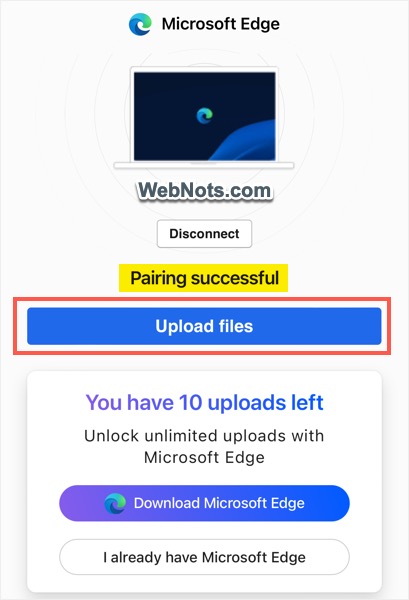
- On the mobile also, you will see “Pairing successful” message and tap on “Upload files” button. If you are not using Edge, there will be a count showing for upload limit.
- Select the source for choosing your files or images and upload them.

- Click “Confirm” button to receive the files on your desktop.

- The received files will be instantly uploaded on your site as you upload from computer.

- You will see “Upload successful” message on mobile and close that window.

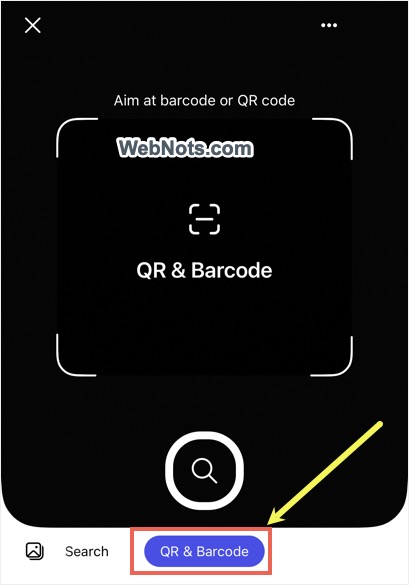
As you can see, it works perfectly between iMac and iPhone Safari browser to transfer files smoothly. If you are using Edge browser on mobile, you can directly scan the QR code from the browser (tap on camera icon in address bar and select “QR & Barcode” option from the bottom).
Edge Mobile Upload Requirements
This is a cool feature that does not need cloud storage. It allows you to directly upload files from phone to any website on the desktop like your email inbox. Below are the requirements to use this feature:
- You should use Edge on desktop, will work on PC as well as Mac.
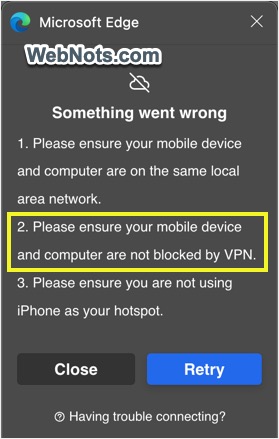
- Make sure the desktop and mobile devices are connected to the same Wi-Fi network. You need to disconnect VPN or proxy on both devices. Otherwise, pairing will fail and you will see “Something went wrong” error as shown below.
- You can transfer and upload any type of files like PDF, images, documents, etc.
- 1 GB is the file size limit with simultaneous upload of 10 files allowed.
- Works with any browser on mobile with 10 free trials. After that, you should install Edge to start using the feature without limitations.
- All uploaded files from mobile can be found in “Downloads > UploadFromMobile” folder in your desktop. You may need to delete them and cleanup if you do not need them.
So, this is an easy file upload option without cables or storage between your Android or iPhone and Windows or Mac desktop. All you need is the Edge browser app and you are good to go.