iPhone offers two modes for the appearance – light and dark. You can manually switch between light or dark modes or allow iPhone to switch the mode automatically. If your iPhone automatically switches between light and dark modes, then you can disable auto option and choose light or dark as per your convenient. In addition, the iOS 18 or later versions allow you to use dynamic wallpaper and dark app icons.
Switching Modes in iPhone
There are multiple ways to switch light and dark modes on your iPhone, making it easy to toggle based on your needs.
1. Using Control Center
Control Center provides a quick way to toggle the modes at any time. Apple also revamped the Control Center in iOS 18 with carousels which you should make use of by keeping quick controls.
- Swipe down from the upper-right corner of the screen to open the Control Center.
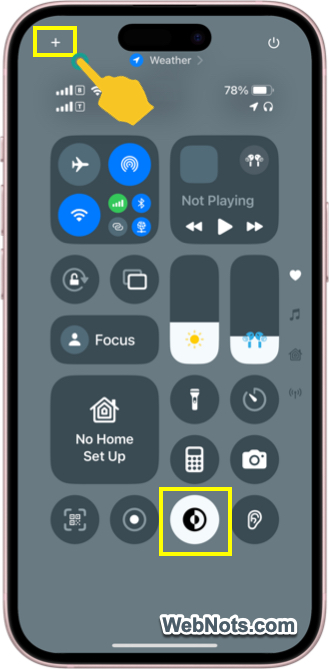
- By default, you should find the Dark Mode icon on the first carousel at the bottom. If you do not see it, tap on the + icon showing on top left corner of the screen.
- Now, tap on the “Add a Control” link showing at the bottom.
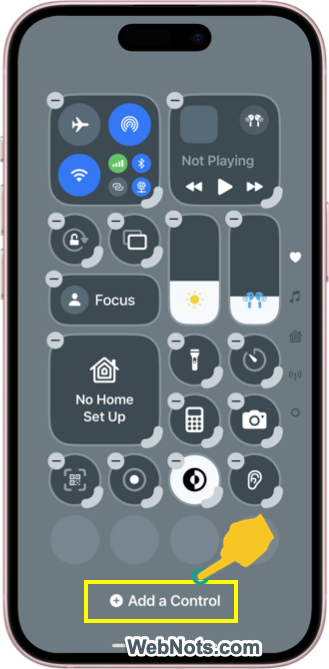
- Tap on “Dark Mode” icon to add it to your Control Center.
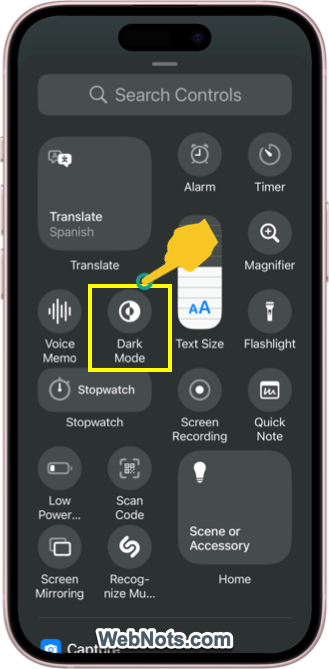
- Simply tap on the added icon to turn on or off the dark mode.
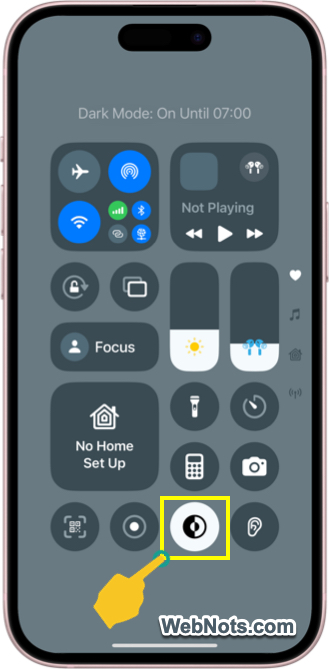
Note: On older iPhone models like iPhone SE and iPhone 8, swipe up from the bottom to open Control Center. Since these models do not support iOS 18 or if you are still using iOS 17 or lower, long-press the “Brightness” slider to expand, there you will see a “Dark Mode” toggle button.
2. Switch Modes from Settings
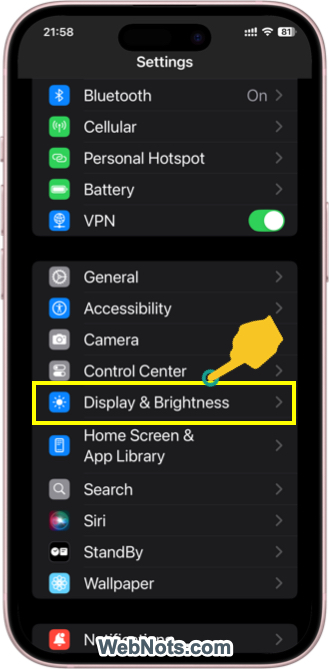
- Open Settings app in your iPhone.
- Go to “Display & Brightness” section.
- Select “Light” or “Dark” mode option.

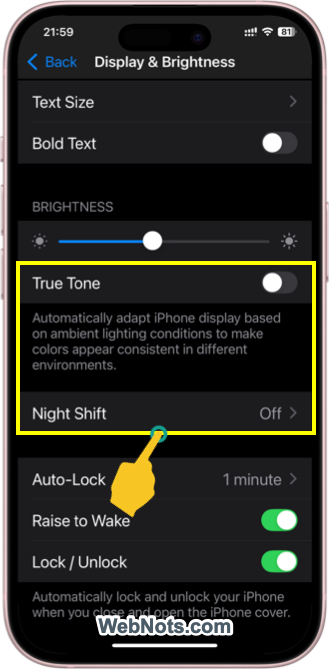
Note: You can also turn on night shift mode and “True Tone” options on the same “Display & Brightness” settings page to cool your eyes.
3. Automatically Scheduling Dark Mode
As mentioned, you can use the auto mode if you do not want to manually switch the modes.
- Open Settings app and go to “Display & Brightness” section.
- No matter whether you have selected “Light” or “Dark” mode, turn on the “Automatic” button showing below the modes.
- Now, you will see an item named “Options” appear below and tap on it.
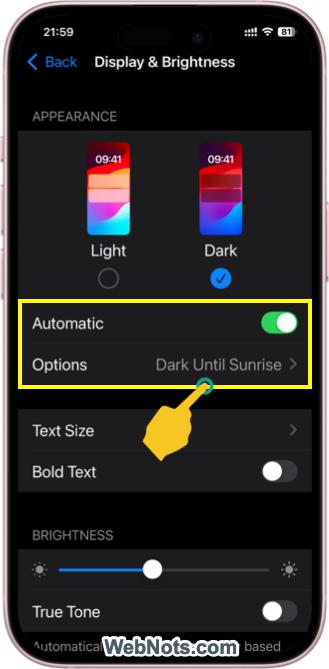
- Select “Sunset to Sunrise” if you want to toggle dark and light modes based the sun set or rise time as per your geographical location.
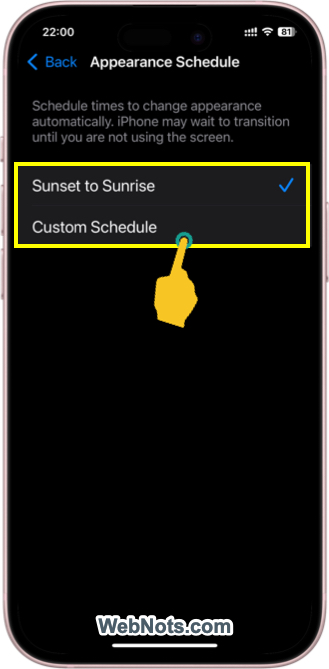
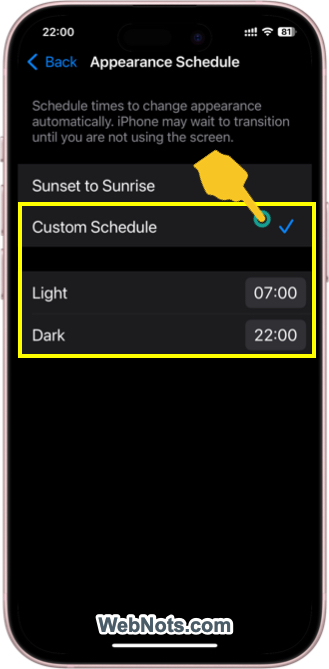
- Alternatively, select “Custom Schedule” option to manually set a specific time for the modes. You need enter the start time for light and dark modes so that the iPhone will automatically switch when the time reaches.
4. Using Dynamic Mode Wallpaper
iOS 18 and later versions (and supported iPhone models) have another method to use dark or light wallpaper without affecting other elements in the interface.
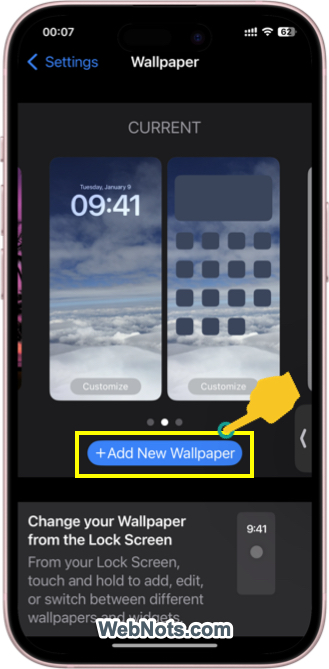
- Open Settings app and go to “Wallpaper” section.
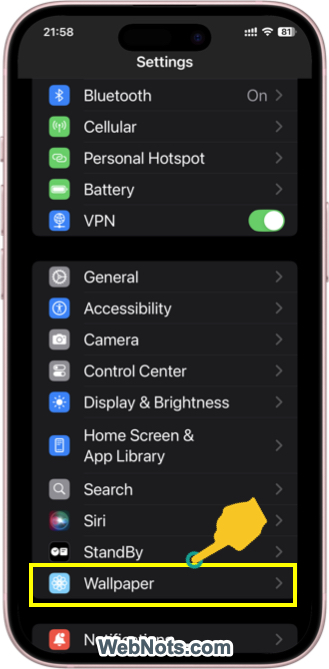
- Tap on “+ Add New Wallpaper” button and scroll down to the bottom.
- You can find iOS 18 and other new wallpapers that support mode change.
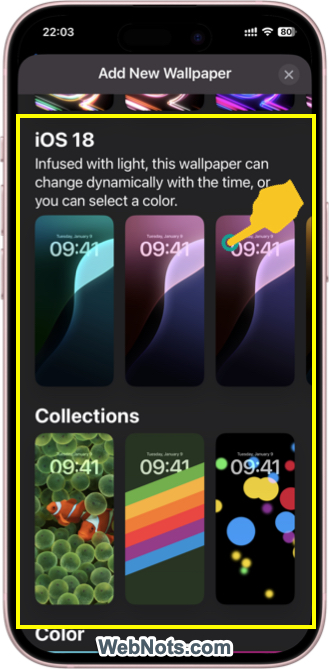
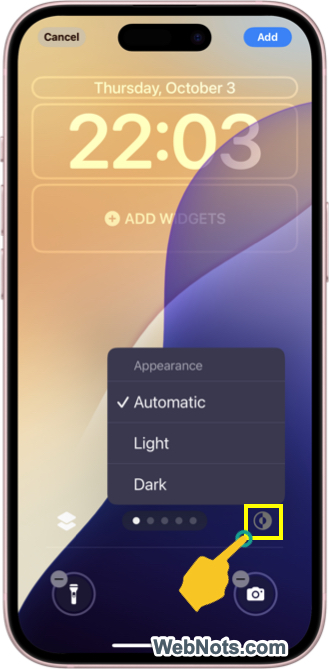
- Tap on any of the wallpaper and then tap on the dark mode icon.
- Select “Light”, “Dark” or “Automatic” option. The automatic option will dynamically change the wallpaper based on the time.
Note: You can also choose a wallpaper from the Lock Screen by long pressing and selecting “Customize” option. Remember that not all wallpapers support dynamic mode change features.
5. Light or Dark Mode in Individual Apps
The iOS level setting will affect all default and most of the third-party apps. However, some apps also provide a separate setting to switch mode regardless of the iOS setting. For example, you can switch the background color for the Notes app by following the below steps:
- Open Settings app, scroll down to bottom and tap on “Apps” section.
- Find Notes app and tap on it.
- Scroll down to “Viewing” section and tap on “Note Backgrounds” option.
- Select “Light” or ‘Dark” option as you need.
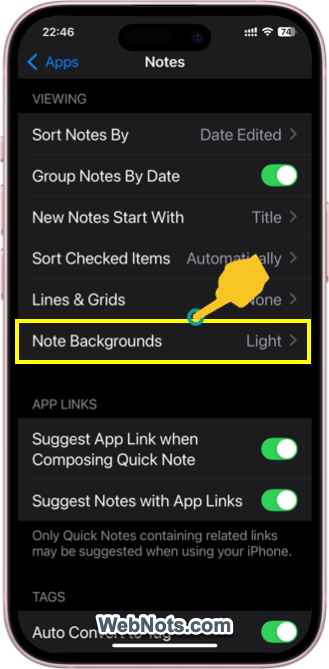
This will only change the background of your notes while keeping the app’s interface light or dark as per your iOS setting. On other hand, most browser apps like Google Chrome offer dark mode option within the app’s settings which will override the iOS setting.
6. Using Dark App Icons
Apple introduced another new feature in iOS to change the app icons color on home screens. Long press on the home screen and go to “Edit > Customize” to open an additional bottom section. Select “Light”, “Dark” or “Automatic” option to apply the mode only to app icons. You can also select “Tinted” option to apply custom colors.

Why to Use Dark Mode?
Though Light mode works well on most of the apps, here are some reasons why you should try dark mode:
- Stylish Look – you can enjoy the sleek look that dark mode brings to the user interface.
- Reduces Eye Strain – using dark background can help to reduce glaring and strain, especially in dim environments.
- Improves Battery Life – on iPhones with OLED screens (iPhone X and later models), dark mode can improve the battery usage since OLED technology only lights up the required pixels.