Using beautiful wallpaper can make you energetic whenever you look at the iPhone. You can set the same or different wallpaper for home screen and lock screen. Though iPhone offers lot of options for setting wallpapers like single photo, emoji, live photo, plain color, weather and astronomy, using photo shuffle is the cool way to rotate your favorite pictures on the screen with set interval.
Shuffle Photos in Wallpaper
There are two ways to set this – one is from Settings app and another is directly from your lock screen. You can use the suggested photos by iPhone or create your own custom pictures. If you want to use custom set of pictures, make sure to first create an album with the required photos so that you can assign the album’s name in wallpaper settings.
Using Photo Shuffle from iPhone Settings
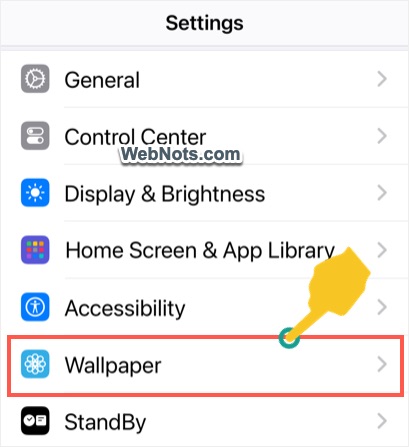
- Tap on “Settings” app in your home screen and navigate to “Wallpaper” section.
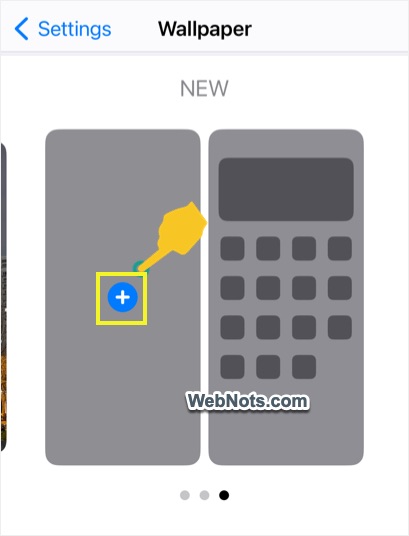
- Move the carousel to last item and tap on the + icon showing on the first image.
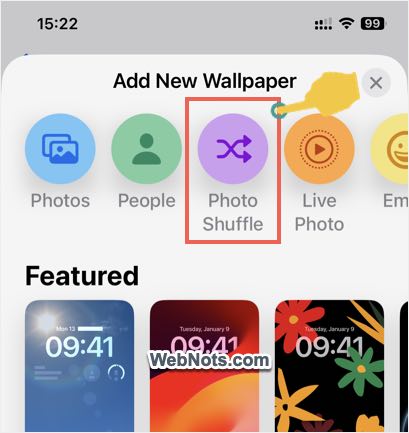
- On the next “Add New Wallpaper” screen, tap on “Photo Shuffle” option showing on top filters.
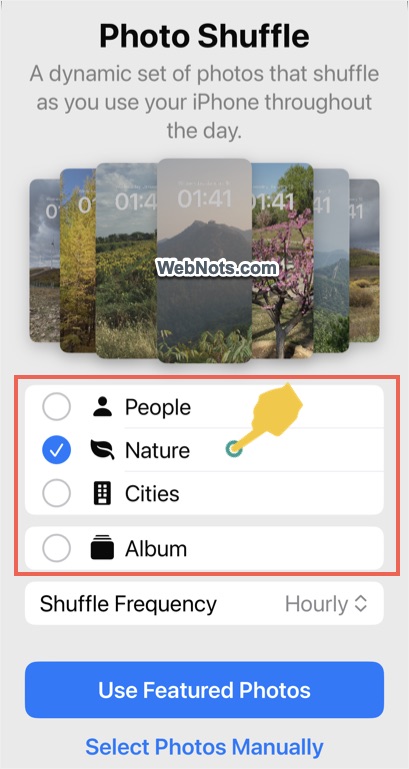
- Select photos source as People, Nature or Cities. You can also select multiple sources if needed. If you are using People, you will have an option to select the identified person’s name. For using custom set of photos, select “Album” and then select the folder you have created.
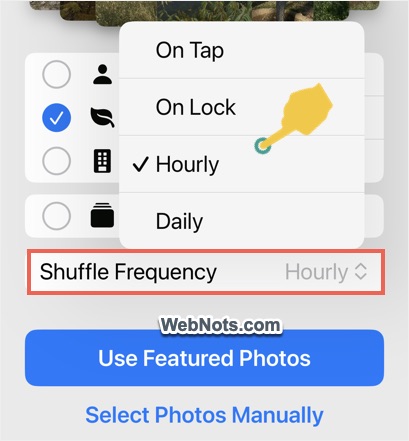
- Tap on “Shuffle Frequency” and select one of the options. You have On Tap, On Lock, Hourly and Daily option to rotate the pictures.
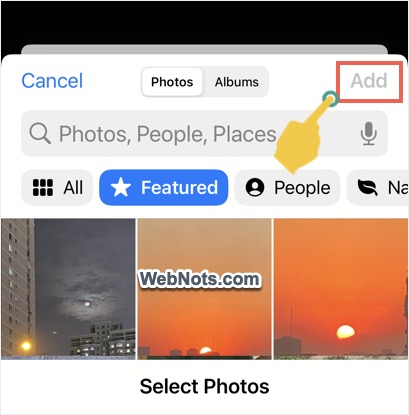
- Now, tap on the “Use Featured Photos” to use the automatically suggested images by your iPhone. Otherwise, tap on “Select Photos Manually”, select your favorite pictures manually and then tap “Add” link.
- This will show you the preview of the wallpaper and tap to test the shuffling. From the preview screen also, you can set photo effect (like Natural, Duotone, etc.), change the source category and frequency. If required, add additional widgets and customize the date and time display.
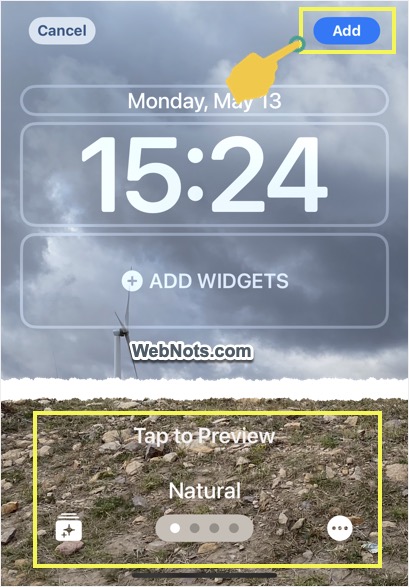
- Finally, tap on “Add” button showing on top right corner.
- You will see a prompt asking whether you want to use the same Photo Shuffle for home screen also. Tap on “Set as Wallpaper Pair” button to use the same settings for both lock and home screens.
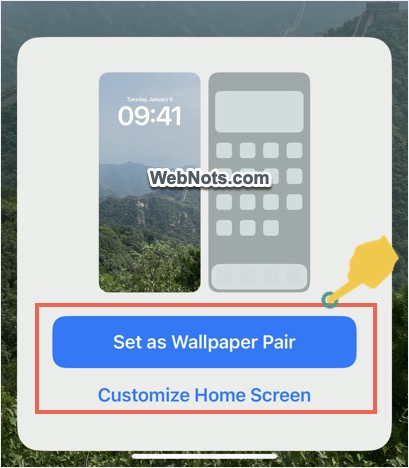
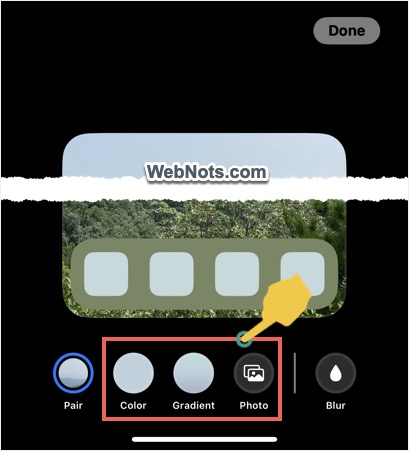
- Otherwise, tap on “Customize Home Screen” button and select different option like color, gradient or photo for using as home screen wallpaper.
- Now, you will see a new pair of wallpaper set is added in your “Wallpaper” settings section.
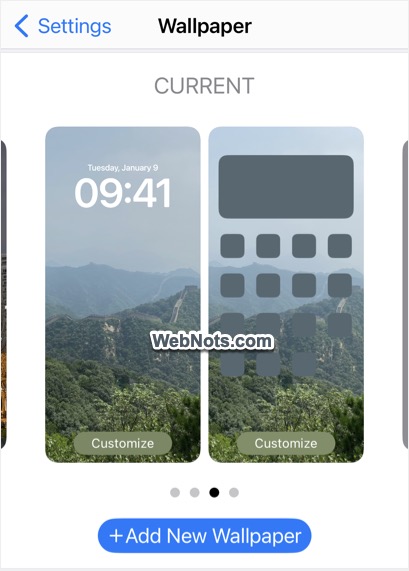
You can create as many as wallpaper pairs and switch them to show different set of photos according to your mood.
Use Photo Shuffle from Lock Screen
Follow the bellow steps to use Photo Shuffle from your iPhone’s lock screen.
- Press the right-side button to lock your iPhone.
- Tap on the screen and unlock it with your Face ID.
- Now, long press on the lock screen to view all your existing wallpaper pairs.
- Swipe left to the last item and tap on the + icon to create a new pair.
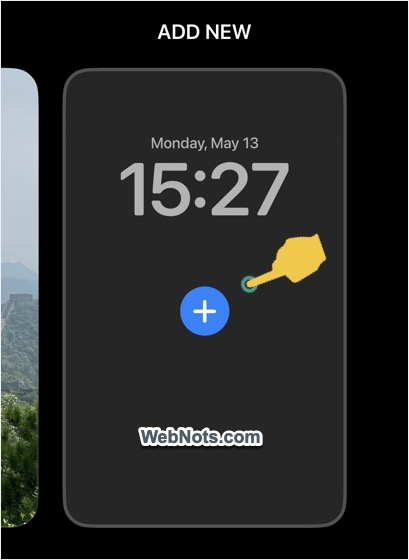
- Select “Photo Shuffle” filter from the top.
- Choose photos source category or set custom album as your source.
- Select the shuffling frequency as On Tap, On Lock, Hourly or Daily.
- Tap on “Use Featured Photos” button to use suggested pictures by iPhone or tap “Select Photos Manually” to choose the pictures for shuffling.
- Preview the wallpaper and tap on “Add” button.
- Select “Set as Wallpaper Pair” to use the same photo shuffling option for home screen also. Otherwise, tap on “Customize Home Screen” link and choose different option for your home screen wallpaper.
Remove Blurring on Home Screen Wallpaper
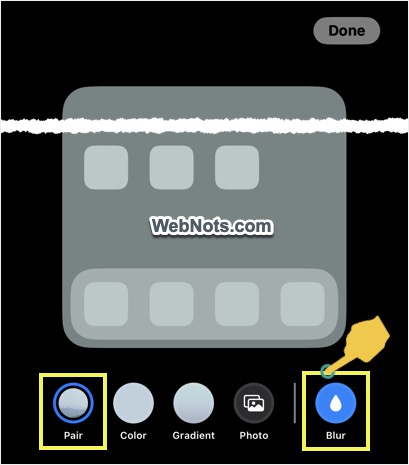
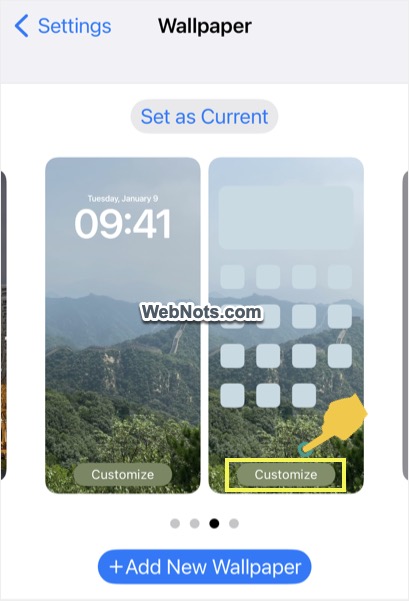
If you are seeing the home screen wallpaper is blurred, select your Home Screen” wallpaper from the pair. You can select it from “Settings > Wallpaper” section by tapping on the “Customize” button on the home screen wallpaper image.
Alternatively, tap on “Customize” button in lock screen for the wallpaper pair and then select “Home Screen” picture.
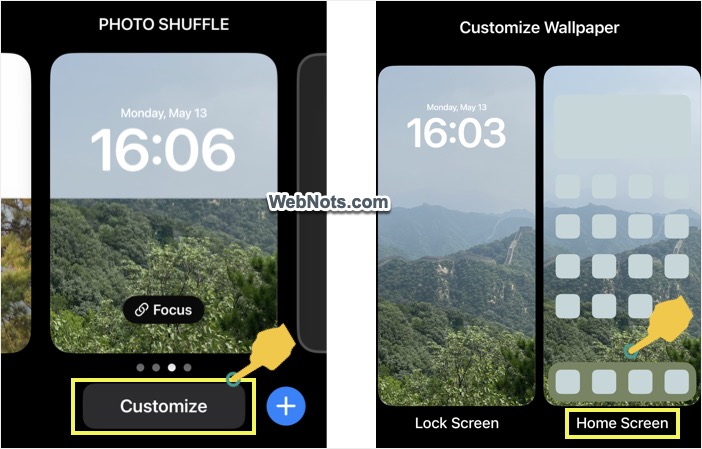
Make sure “Pair” is selected and tap on the “Blur” option to unselect it to view the wallpaper picture. Tap on “Done” button to apply your changes.