In our earlier article, we have explained how to fix VPN issues when accessing websites in Google Chrome browser. In most cases, VPN apps can be installed like any other app and work independent of the browsers. So, if your VPN app is very slow, dropping intermittently or not able to connect, here are some suggestions to troubleshoot and fix the issue.
Understanding VPN
Before trying to troubleshoot, it is important to understand the factors that can affect VPN connection. VPN app encrypts your data and route the connection through a remotely located server. In this way, you can sit in countries like China (where global sites are blocked) and access the blocked sites as if you are physically in USA. Below are some of the factors cause slower speed in this process:
- VPN Server Location – it’s simple: the farther you are from the server, the longer it takes for your data to travel back and forth.
- Server Load – If too many people are connected to the same server, it can get congested, reducing the speed for everyone.
- Encryption Overhead – Stronger encryption protocols may provide better security but can slow down your connection.
- ISP Throttling – Some Internet Service Providers (ISPs) may slow down your VPN traffic on purpose, especially if you’re consuming high amount of data.
- Internet Connection Quality – Your local internet speed can limit how fast your VPN connection will be.
Now that you understand some of the causes, let’s explore the troubleshooting options.
1. Select VPN Server Nearer to Your Location
Number of server locations is the primary selling point for most VPN companies. You can simply switch the server from the VPN app and connect through desired location. As mentioned, connecting to a server closer to your geographical location will reduce the network latency thus improve the connection performance.
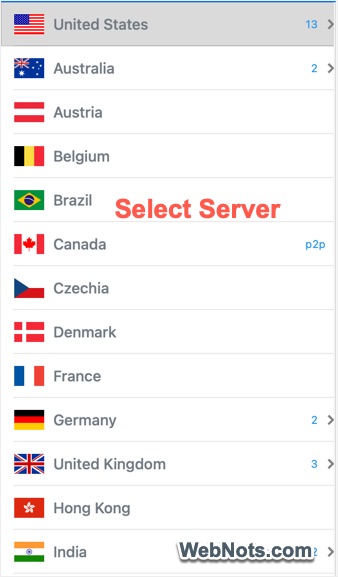
On other hand, complaining the speed of free VPN server is pointless. These free servers are generally overloaded and log your activities. So, avoid free VPN apps or select premium location if your app offers both free and paid service. Some apps also show the server’s load in a graphical chart which you can check and choose a faster server.
2. Selecting VPN Protocol
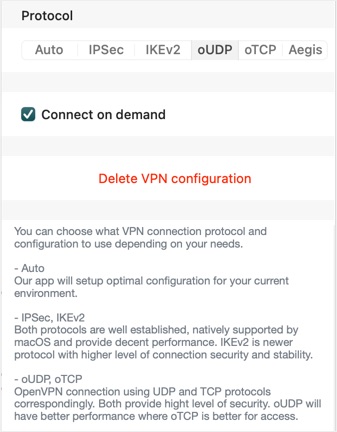
VPN apps use various methods (protocols) to encrypt and transmit your data. You can check the list of protocols offered in your VPN app and select the faster one to increase your connection speed significantly. OpenVPN (TCP/UDP), IKEv2/IPSec, L2TP/IPSec, PPTP, SSTP and WireGuard are some of the options offered by VPN companies.
- Most apps offer auto option to dynamically select the protocol. However, we recommend selecting manually after checking based on your situation instead of using auto option.
- The protocols may perform differently on different devices. This means you may need to select OpenVPN on your Mac but WireGuard on iPhone.
- Some countries and ISPs block popular protocols like OpenVPN and IKEv2. On other hand, companies like ExpressVPN do not offer SSTP, WireGuard and PPTP. So, you should check the offered protocols first before purchasing a VPN service.
3. Reduce Encryption Level
Generally, VPN services offer the highest level of 256-bit AES encryption. Though high security is good, it can slow down your connection. For example, you do not this high-level encryption for watching YouTube videos. So, if your VPN allows, reduce the encryption level to 128-bit to watch videos and switch back any time for normal browsing.
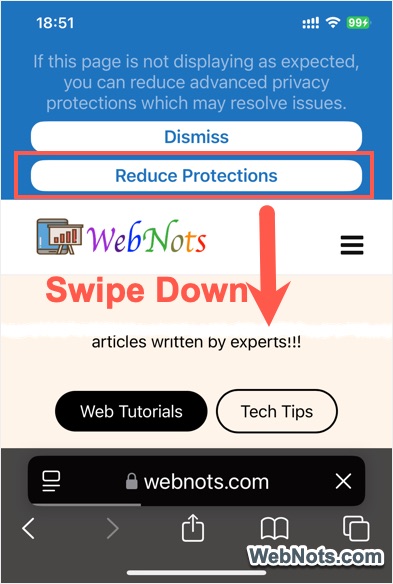
Also, your device’s privacy settings can impact the page loading speed in browsers. On devices like iPhone, you can simply swipe down (when the page is loading) on the Safari browser and select “Reduce Protections” option.
As mentioned, switch the protocol with less encryption to get higher speed.
4. Delete Configuration Profile and Reinstall
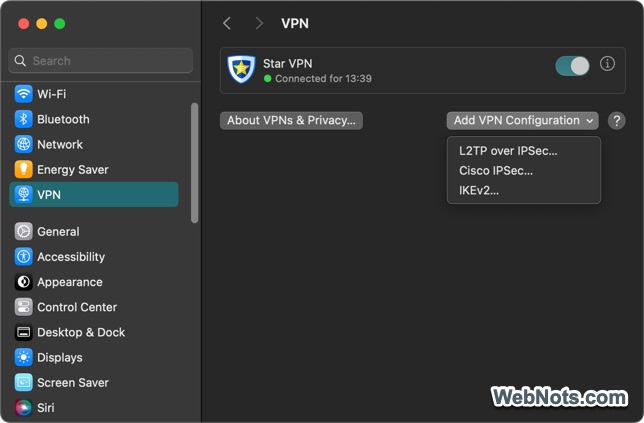
Whether you use the VPN app in desktop or mobile, it needs to install a configuration profile for routing the network. Sometimes, this profile can be corrupted due to app or OS updates. So, you can delete the configuration profile and reinstall it to check if that resolved your issue. You can also simply delete the app and reinstall if that is easier for you.
5. Use Split Tunneling
Split tunneling is the feature offered by some VPNs which allows you to choose apps that you want to use through VPN connection. Other network activities from the device will follow your default internet connection. You can turn on this split tunneling feature to increase the speed for important apps while allowing other apps to bypass the VPN.
6. Disable Resource Intensive Apps
This is a standard tip to improve any network connection including VPN. Simply check and close the background apps that use a lot of data, such as streaming services, large downloads or cloud backups. For example, you can stop the automatic updating of OS and apps and choose to update them manually without connecting to VPN.
7. Update Your VPN App
Nowadays, VPN network is consistently tracked and blocked by countries and corporates. For example, you will see the websites showing I’m not a robot captcha verification whenever you use VPN connection. To overcome this, VPN companies also continuously update patches and improve the protocols. Using outdated VPN app can result in slower speeds due to blocking and lack of support for new, faster protocols. So, make sure to update the VPN app to the latest version to ensure maximum performance.
8. Selecting a Correct VPN App
Temporarily using VPN within an institution or organization is completely different than relying on VPN to live in a country as an expat or foreigner. For example, once the popular VPNs like ExpressVPN, Astrill and NordVPN in China will no more work after crackdown from the government. Since it is common for countries and organizations to block VPN services when they become popular, make sure to check the latest status before traveling or purchasing a service.
As mentioned, always use premium service providers who offer better support, more server locations and faster protocols.
9. Check Your Internet Connection and Device Settings
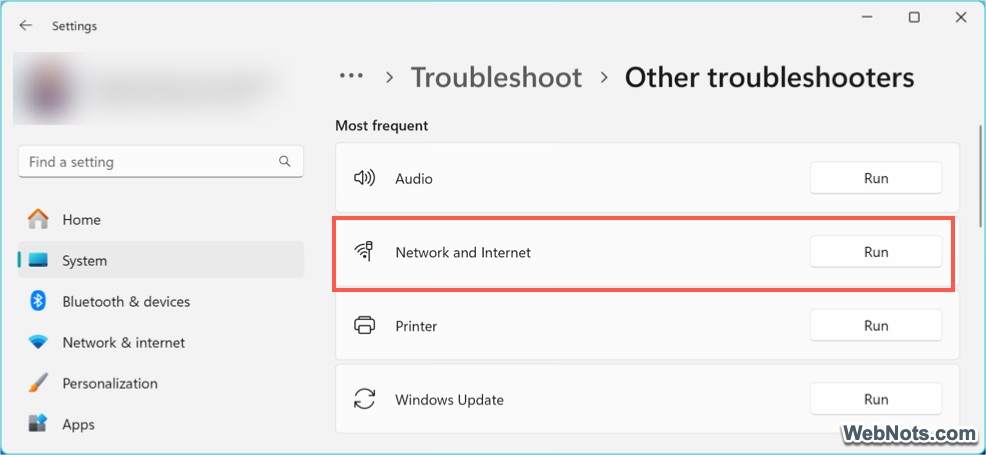
Sometimes, the issue may not be with your VPN but with your internet connection. If you have configured VPN on router / modem, disable that and start using on individual devices. This will help you to easily find the issue is with VPN or with your internet connection. For slower internet connection, you may need to check with your ISP for increasing the speed or check these guides for Windows, Mac, Android and iPhone. Windows also offers a network troubleshooter which you can use to diagnose and fix the problems.
On the device side, your desktop may have firewall and antivirus setups for scanning all incoming traffic. You can temporarily disable these setups and check if that helps to increase the speed. If you find a problem, probably you need to provide exception for traffic through VPN app.
10. Check for ISP Throttling
If you suspect the problem is due to the blocking from your Internet Service Provider (ISP), then try the followings:
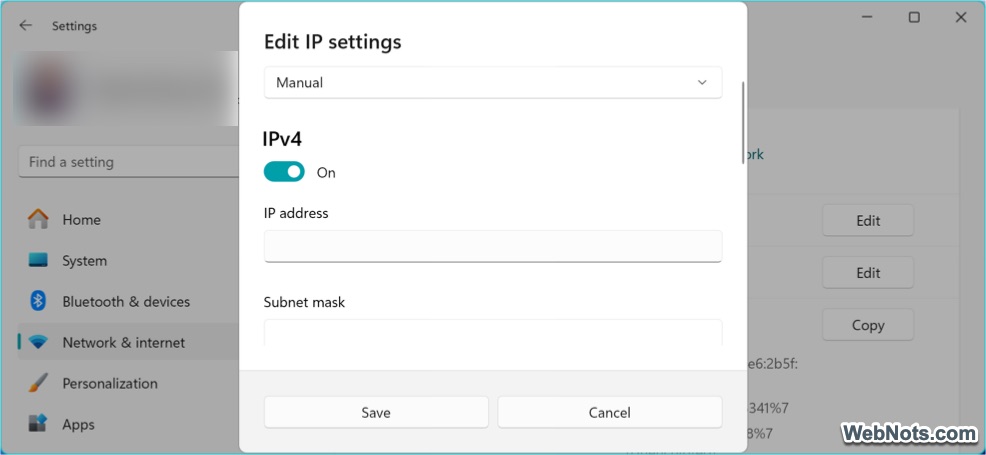
- Change the DNS to Google Public DNS or any other servers (other than your ISPs servers).
- Talk with your ISP to get a static IP address and test with that instead of dynamically assigned IP from them.
- Ask them to restart the service and you also restart your modem / router. Sometimes, they need to come to your house for checking this.
Remember, these activities depend on the country you live. For example, using VPN is illegal in China and ISP will obviously throttle your connection.
Conclusion
A slow VPN connection can be frustrating, but you should have correct expectations when using this type of service. From the troubleshooting perspective, start with simple solutions like changing servers, protocols, checking device settings, etc. If necessary, consider switching to another service or discuss with your ISP to understand the underlying cause for the slowness.