When Apple introduced the Dynamic Island with the iPhone 14 Pro, many dismissed it as just a fancy way to hide the camera cutouts. However, it is an interactive hub that keeps you connected while you can carry out other tasks or even when locked your iPhone. Here are ten powerful ways to put it to work.
For Using Dynamic Island
To get the most out of the below listed features, you need to know how to properly use the Dynamic Island area:
- Tap: Opens the relevant app.
- Long Press: Expands the Island into a larger widget with controls.
- Swipe Left/Right: Cycles through multiple active tasks.
- Swipe Inward from Edge: Removes an activity from the Island (hides it until it updates again).
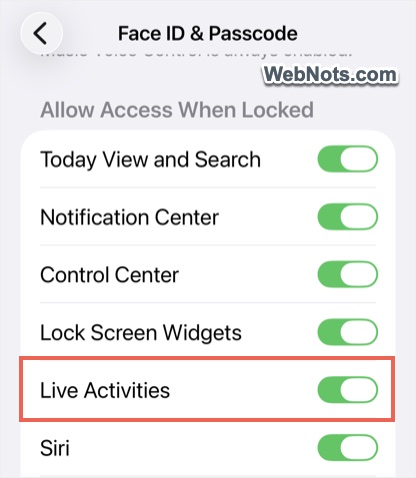
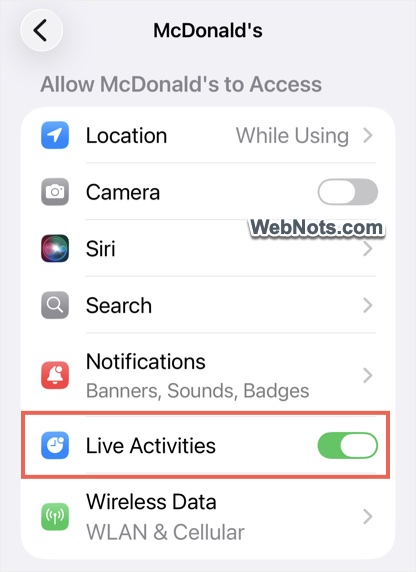
Since most of the things shown in Dynamic Island area are related to Live Activities, make sure to turn it on when the iPhone is locked and also in supported app’s settings.
- Enable on Lock Screen: Go to “Settings > Face ID & Passcode” and unlock the screen with your passcode. Scroll down to “Allow Access When Locked” section and turn on “Live Activities” option.
- Enable for Individual App: Go to “Settings > Apps > [App Name]” and turn on “Live Activities”.
1. Master Your Music and Podcasts Instantly
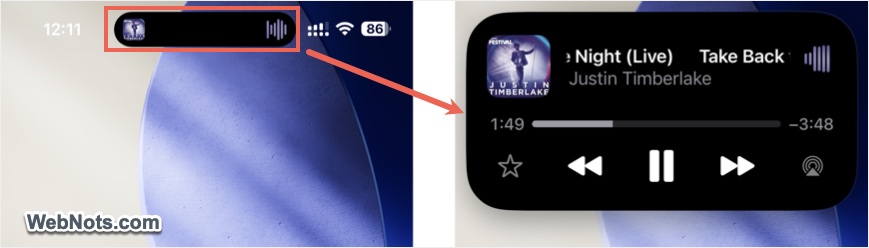
This is where the Dynamic Island shines brightest. When you’re playing media from apps like Apple Music, Videos (Apple TV), Spotify, or YouTube Music, simply (swipe up to) close the app and the media will nicely move into the Island. Press and hold the Island to expand into a mini-player showing track names, a volume slider, and playback controls. You can scrub through a podcast or skip a song without ever opening the app.
2. Never Miss a Turn with Maps Navigation
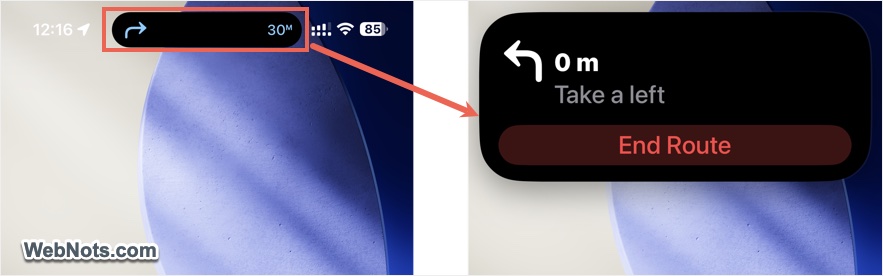
When you’re using the Maps app, Dynamic Island displays distance updates and announces upcoming turns, making navigation easier to follow without shifting your focus. If you need more detail, a long press expands the directions so you can view the route more clearly or exit navigation (End Route) quickly.
3. Track Your Food (or Ride) Like a Pro
Third-party apps have fully embraced the Island. If you order from Uber Eats or McDonalds, Dynamic Island will automatically show a live time tracker (you must have enabled Live Activities for the app). The best part is that most delivery apps have integrated Live Activities, meaning your driver’s proximity or your order status lives right in that top pill. You can glance to see whether your food is just few minutes away or the rider still not picked it from the restaurant.
4. Keep Live Sports Scores Out of Sight (But in Mind)
You don’t need to keep any sport app open to ruin your Monday morning productivity. Almost all sports apps on iPhone push live scores directly to the Dynamic Island. A long-press gives you a quick stat box. Also, it automatically vanishes when the game ends, so you don’t get bombarded with post-game analysis you didn’t ask for.
5. Turn the Island into a Flight Tracker
iPhone already allows to track the flights right from the apps like Notes. However, third-party flight tracking apps turn the Dynamic Island into your personal airport concierge. The app can show all the details like countdown to takeoff, gate numbers, and baggage claim details in real-time.
If you are a frequent traveler, you will sure love this as it stays visible while you check emails or scroll through social feeds. If a gate changes, the Island updates immediately, often before the airport intercom even announces it.
6. Use as a Privacy Tracker
The Dynamic Island also displays your privacy indicators. When an app is using the microphone, an orange dot appears, and when the camera is in use, a green dot shows up. These indicators sit within the Island, making it clear when system resources are being accessed. You can swipe down from the top-right corner to open Control Center and see which apps are currently using the microphone, camera, and your location.
7. Control Your Timers and Alarms
This is a classic use case, but it’s worth getting comfortable with. Set a timer in the Clock app, and when you leave the app, the Dynamic Island condenses the countdown into a small pill.
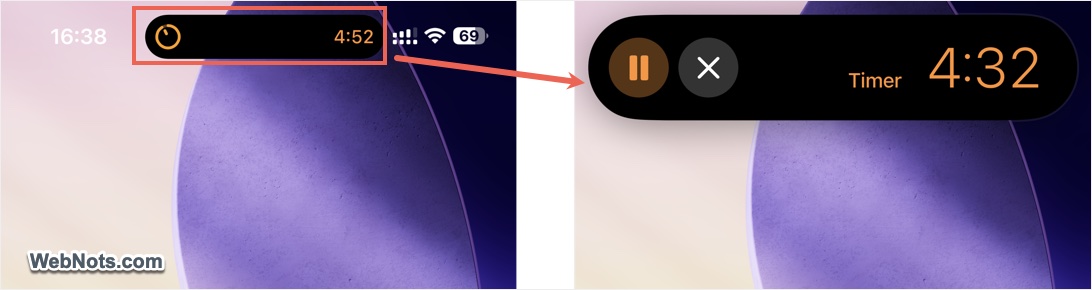
If you’re running multiple timers, it highlights the one that will finish next. A long press lets you pause or stop that timer, and once it ends, the next one automatically takes its place.
8. Manage Calls Discreetly
We’ve all been in meetings when a call comes in. The Dynamic Island handles incoming calls with a compact banner that doesn’t take over your entire screen.
During a call, if you return to the home screen, the Island displays a green waveform along with the call duration. Tap it to jump back to the dialer, or long press to access controls like mute, speaker, or end call. You can continue using apps like Instagram while the call remains easy to access without getting in the way.
9. Decorate the Dynamic Island Area
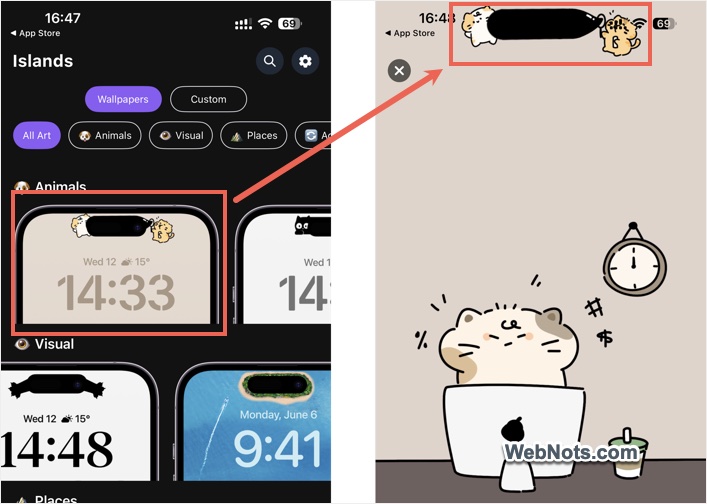
Not everything has to be productive. There are apps available to decorate the Island area with themes and styles. For example, Wallpapers for Dynamic Island app (freemium) allows you to decorate the Island area with animals, places, objects, and also apply wallpapers for the entire home / lock screens.
10. Pay Without Blinking
The Dynamic Island adds a polished, almost futuristic feel to payments. When you use Apple Pay at a store, the Island animates with a Face ID verification swirl, clearly indicating that authentication is in progress. Once verified through Face ID, it instantly transitions to a “Done” checkmark, confirming the transaction in a quick, visually intuitive way.
Final Words
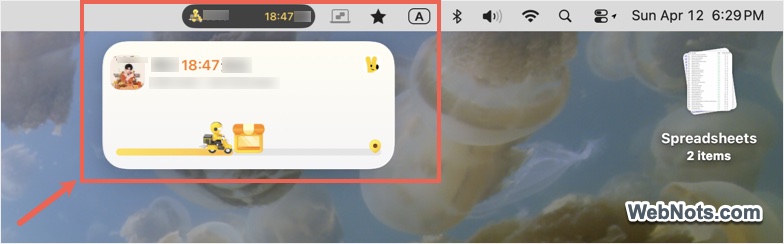
The Dynamic Island is a smart example of turning a hardware constraint into a genuinely useful feature. Whether you’re tracking a flight, managing a timer, or checking privacy indicators, it works quietly in the background and stays out of your way. The real strength is how effortless it feels to use and delivers what you need at the right moment without demanding your attention. The best part is that you can see your iPhone’s Dynamic Island activity on your Mac or other devices when you’re logged into the same iCloud account. Simply click on the Dynamic Island area shown in the top bar (on Mac) to expand it and view the details as shown below.