
Camera is one of the default apps come with iOS. Unlike other system apps like Notes and Reminders, you can’t delete the Camera app from iPhone. However, what you can do is to disable the Camera app so that it can’t be used in iPhone. This is useful when you feel addicted to taking too many selfies or you want to prevent your kids from using the camera.
Disable Camera App in iPhone
When you long press on the Camera app, you will see “Remove App” option. However, selecting that will only show an option to “Remove from Home Screen” and not the “Delete App” option to remove it from iPhone.

Good thing is that you can disable Camera app in iPhone from any of your devices like iPhone (same or another), iPad or Mac. In this article, we will explain with iPhone and Mac. There are two things you need for this:
- Enabled Screen Time on all your devices. If you do not know about Screen Time, learn more on how to setup Screen Time in iPhone and share across your devices.
- Use same Apple ID if you want to disable Camera from another device.
Disable iPhone Camera App from iPhone or iPad
Follow the below steps in same or another iPhone / iPad.
- Tap on the “Settings” app in your iPhone or iPad and go to “Screen Time” section.

- Scroll down and tap on “Content & Privacy Restrictions” option.

- On the next page, tap on “Allowed Apps” option.

- Type your four digit Screen Time passcode.

- Find “Camera” and turn off the button against it.

This will hide the Camera app from your iPhone / iPad. You will not be able to search and find it which means there will be no way to take a picture or use the app. Anytime, you can enable the app in Screen Time settings to bring it back on your home screen like before.
Disable iPhone Camera from Mac
This is a useful option when you are controlling kid’s iPhone through Screen Time setup from your Mac. However, the Camera app will be disabled on iPhone as well as on your Mac (and on any other devices connected to Screen Time with your Apple ID).
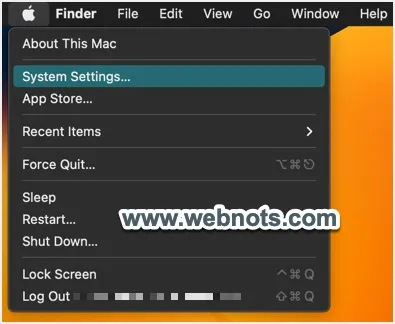
- In your Mac, click the Apple logo and select “System Settings…” menu.
- Go to “Screen Time” section in Settings app.
- Scroll on and select “Content & Privacy” option showing under “Restrictions” section.

- Select “App Restrictions” option on the next screen.

- Under “Allowed” section, turn off the switch against “Allow Camera” option.

- Type the Screen Time passcode to confirm your action and close the Settings app.

As mentioned, this will hide the Camera app from all your devices. Mac will show an error message when you try any camera related actions like recording a movie in QuickTime Player.

You can disable the apps like Safari available under “Allowed in iOS” section only on iPhone. Unfortunately, there are no options in Mac to disable Camera only on your iPhone.


