You will be browsing through hundreds of websites routinely regardless of whether you are a surfer, developer, marketer, or SEO professional. Sometimes you will be interested to know which platform (called Content Management System or CMS in short) a site uses. Identifying the CMS can help you tailor solutions, troubleshoot issues, or even draw inspiration for your own projects. In this tutorial, we’ll explain different methods to find out which CMS a website is built on.
Understand the Importance of a CMS
Before diving in, let’s quickly cover why knowing the CMS is useful.
- Help to identify potential security vulnerabilities.
- Offer clues about the type of plugins, themes, or modules being used.
- Give insight into the scalability or ease of future development for that website.
Popular CMS platforms include WordPress, Joomla, Drupal, Shopify, and Magento. Now, let’s get into the techniques for uncovering the CMS.
1. Check the Source Code
This method works if the site is using a CMS that you suspect is one of the well-known platforms.
- Open the website you want to analyze (any browser app will do).
- Right-click on the page and select “View Page Source” or “Show Page Source” or similar option.
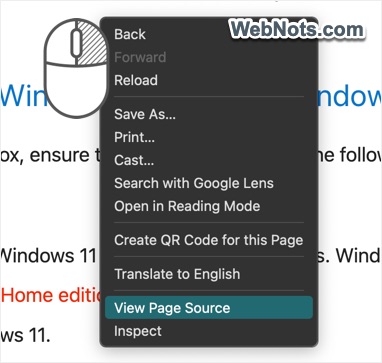
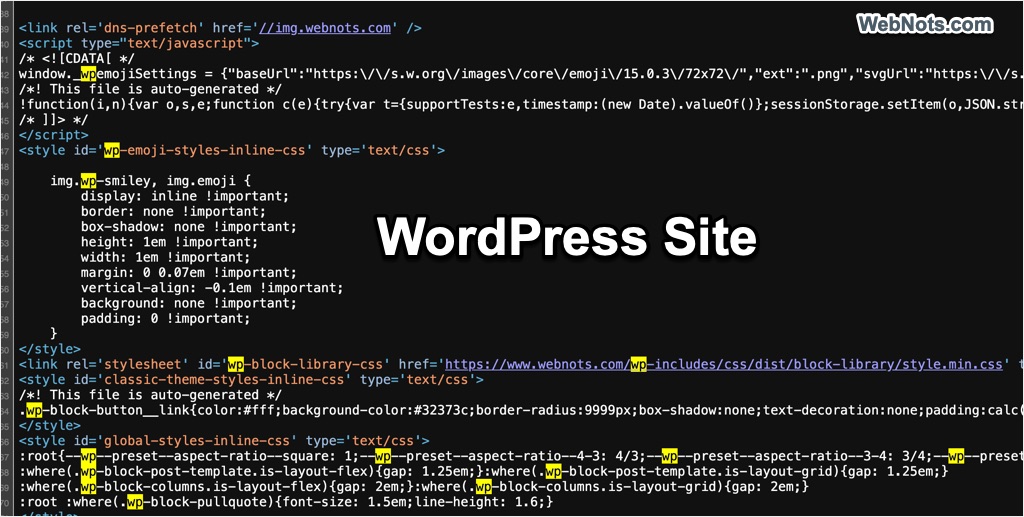
- Search for the name of CMS in the source HTML code. You may find the names like Drupal, WordPress, Weebly, etc. Note that some CMS like WordPress uses short form like WP instead of the full name.
WordPress themes and plugin directories typically start with /wp-content/themes/ or /wp-content/plugins/. Using these, you can easily confirm the site uses WordPress CMS.
2. Check Meta Tag
When checking the source code, you can check the meta tag generator tag between <head>…</head> section to recognize popular CMS setup. Below are some of the examples:
- WordPress: <meta name=”generator” content=”WordPress 6.x.x”>
- Joomla: <meta name=”generator” content=”Joomla! – Open Source Content Management”>
- Drupal: <meta name=”generator” content=”Drupal 9.x.x”>
3. Checking Known URLs for CMS
Popular Content Management Systems use few standard URLs regardless of the site’s content. Here are some of the examples:
- WordPress: URLs like /wp-admin/ or /wp-login.php/ indicate a WordPress site.
- Joomla: The presence of /administrator/ in the URL is a Joomla indicator.
- Drupal: URLs with /user/login/ or /node/ suggest Drupal.
- Ecommerce CMSs like Magento may reveal admin pages under /admin/ or /backend/.
Try entering these URLs directly in the browser to see if they lead to CMS login pages (with logo) or specific functionalities. For example, you can try https://www.example.com/wp-login.php to check if the site uses WordPress CMS.
If the site uses free hosting with free subdomain, you can easily find it from the website URL itself. For example, example.blogspot.com (Blogger), example.wordpress.com (WordPress.com) or example.weebly.com (Weebly).
4. Analyze HTTP Headers
Some CMSs add the name in HTTP header and follow the below steps to find that in Chrome. Other browsers like Edge also have similar setup.
- Right-click on the page and choose “Inspect” option to open Developer Tools section.
- Go to the “Network” tab and then reload the page.
- Select “All” option and then select the site / page name showing on top in the “Name” list.
- Select “Headers” and look for the “X-Powered-By” item to find CMS related information like the server software or CMS signature.

5. Use Online CMS Detection Tools
If you prefer a quicker, automated method, there are several websites available online that can detect the CMS for you. You can use sites like builtwith.com, wappalyzer.com, or whatcms.org. For example:
- Visit WhatCMS.org site.
- Type or paste the website URL and click “Detect CMS” button.
- The tool will scan the site and give you the CMS information in seconds.

6. Install Browser Extension for Quick Detection
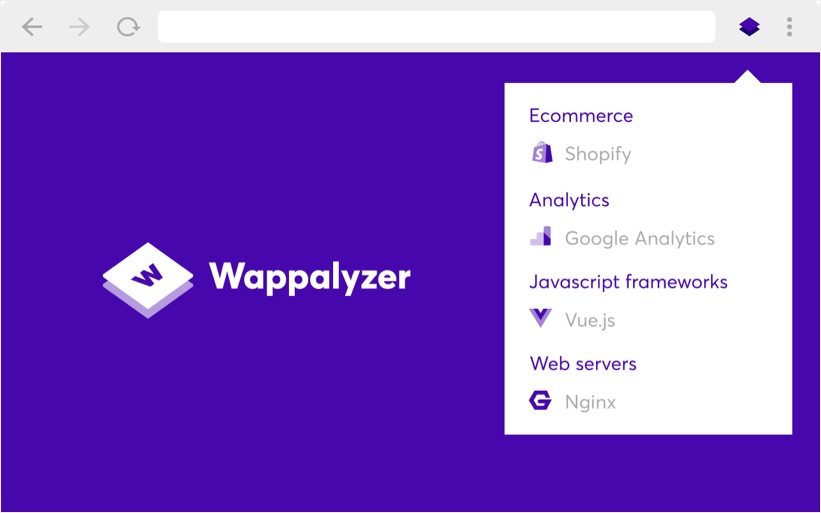
For frequent CMS identification, you can install Wappalyzer browser extension in Chrome that automatically detects the CMS of any website you visit.
- Go to the Chrome Web Store to find and install Wappalyzer – Technology Profiler extension.
- After installation, simply visit any website.
- Click the Wappalyzer extension icon to see a list of technologies the website is using, including the CMS or framework.
Why I Can’t Find the CMS?
If none of the above methods work, here are some of the reasons why the source code or detection tools can’t find the CMS:
- The website is using a custom / rare CMS or hide the CMS information. This is the case with most of the popular news and magazine sites – they all use custom CMS built by their own developers.
- Site owner removed the CMS information for security reasons. You can easily do this with a free plugin in CMSs like WordPress.
- Site uses CDN routing like Cloudflare which may hide the details.
In these cases, the best option is to drop an email to site owner and clarify the CMS technology behind the site.