Redlines help teams move faster, until versions pile up and comments scatter across email. This guide lays out a simple, repeatable workflow for track changes in Microsoft Word that keeps edits in one place, decisions clear, and final files clean. It’s written for people who write and review every week like project managers, marketers, policy owners, technical writers, and anyone who has to turn feedback into a sign-off.
A Short Case Study: Proposal Review in One Week
Let’s take an hypothetical example: A services firm needed to turn a 12-page proposal in five business days with input from sales, delivery, and legal.
- Day one produced a rough draft and a clear review plan: sales and delivery would make direct edits; legal would comment only. The owner kept one master file, enabled track changes, and invited reviewers to edit Word online because two approvers were traveling with only tablets.
- Day two focused on the executive summary and pricing narrative.
- Day three handled detailed scope and assumptions.
- Day four was legal questions and resolution.
- Day five merged final comments, accepted changes, ran a last pass for formatting, and exported a clean PDF.
The result was a signed deal with half the usual back-and-forth because everyone could see decisions in one place. Let’s break down this into a practical workflow.
1. Turn on Track Changes and Set Ground Rules
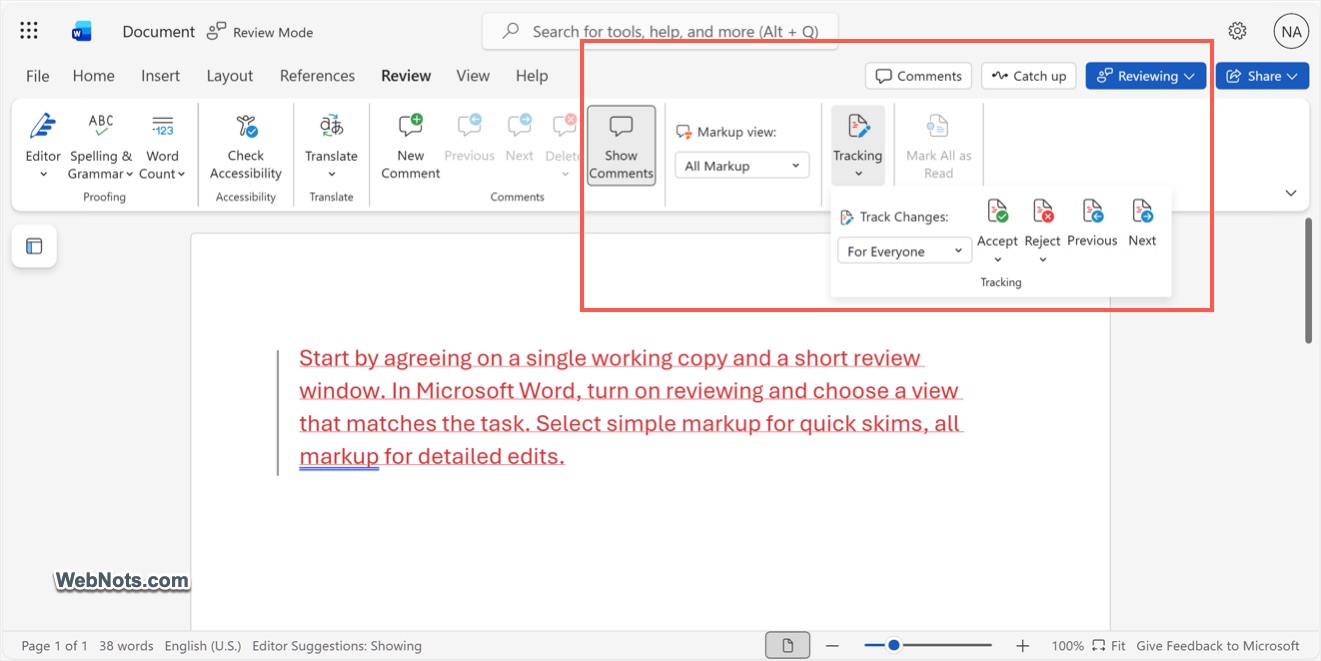
Start by agreeing on a single working copy and a short review window. In Microsoft Word, turn on “Track Changes” under “Review” tab and select “For Everyone”. You can choose the view that matches the task (Reviewing, Viewing, or Editing) and select “Simple Markup” for quick skims or “All Markup” for detailed edits.
Establish who can rewrite sentences versus who should leave comments, and ask reviewers to focus on the decision they want, not general preferences. Capture style exceptions in one note so later reviewers don’t undo settled choices.
2. Collaborate Without Version Chaos
Email attachments multiply quickly. When contributors don’t have desktop Word, a browser-based path reduces friction. Though Microsoft offers online cloud editor, teams that need an embedded browser workflow can use third-party tools to edit Word online, especially when your reviewers are distributed or on locked-down devices. This is an easy way to co-author, add comments, and keep one source of truth before exporting a final PDF.
For teams using Word desktop app, store the file where everyone can open the same copy (like OneDrive) and agree to comment in place rather than sending side versions. Show the reviewing pane when the goal is line-by-line edits, not just high-level comments, and keep tracking changes right from the first draft to final.
3. Write Like People Actually Read
Most stakeholders skim first. So, lead each comment with the decision you want, then provide context.
- Keep paragraphs short and front-load takeaways in section intros.
- Use descriptive headings and avoid decorative formatting that hides structure.
- If your draft will be read on screen for approval, clear contrast, readable font size, and consistent spacing help reviewers finish the job in one pass.
The goal is not to show everything you know; it’s to make the next action obvious.
4. Accept, Reject, and Move On
When the review window closes, one owner resolves the queue. Accept or reject edits in sequence and convert lingering comments into concrete actions. If two collaborators edited in parallel, merge them before the final pass. Check our guide on how to compare and combine document revisions to pull changes into a single file. Once decisions are applied, run a last sweep for tracked content, confirm there are no hidden balloons, and then save a clean, unmarked version as your official deliverable. If the document is external-facing, export a PDF so reviewers can’t add last-minute edits outside the process.
5. Keep Your Template Stable While You Iterate
Many “edits” are really style and template drift. Lock what should never change (like font size, headings, styles), so reviewers focus on substance. If your team regularly tweaks typography mid-review, reset defaults first. Our guide on changing the default font in Word helps you to start with the right baseline. When you need to restructure a draft, use built-in moves rather than copy-paste to avoid breaking references; refer our article on moving sections in a Word document, which covers safe options.
6. Handling Legal and Technical Redlines
Legal teams care about precision and history, so keep redlines visible until counsel signs off. When wording must change for risk reasons, echo the rationale in a short comment so business reviewers don’t reintroduce the old text later. Technical reviewers often prefer comments over rewrites; that preserves author voice while surfacing facts to correct. Where terminology is disputed, link to your glossary or style guide once, then resolve consistently across the file.
7. Accessibility and Privacy Checks Before Finalizing
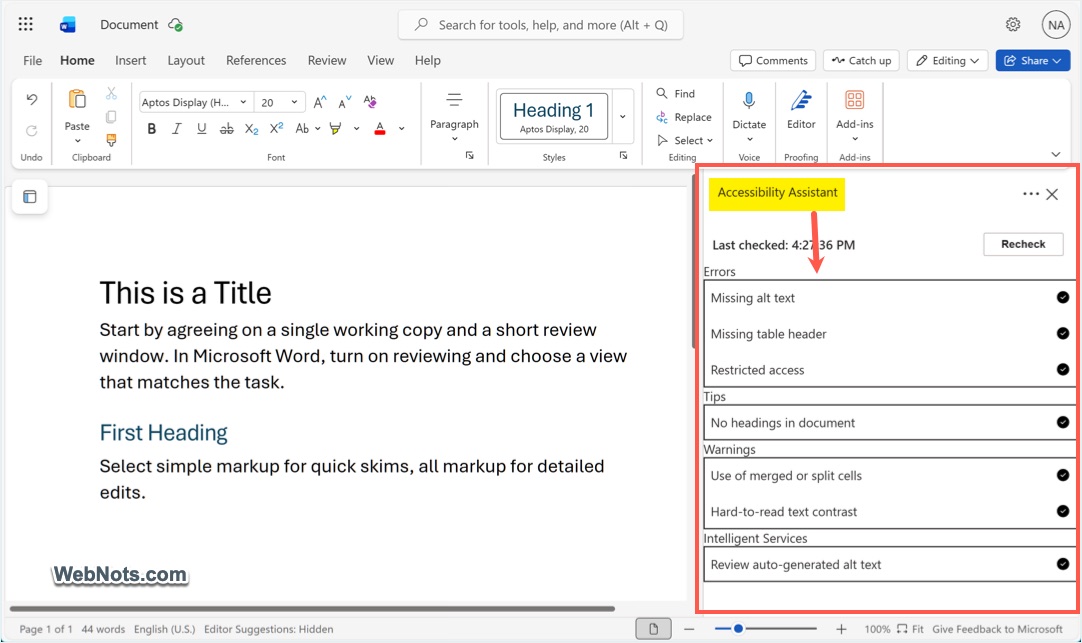
A tracked document can still fail if stakeholders can’t read it. Run a quick accessibility pass:
- Verify heading hierarchy.
- Add alt text to visual elements.
- Ensure sufficient color contrast in any callouts.
- Remove personal data that shouldn’t ship outside the company, including hidden comments or author info in the file properties.
- If you redact, do it in the final PDF rather than by hiding text in Word, and keep an internal copy of the unredacted source under access control.
8. Governance and Archiving that Won’t Slow You Down
Keep the process lightweight. Give your template a version number and maintain a short change log at the top or in document properties. Store three artifacts per deliverable: the marked-up review file, the clean final, and the change log noting who approved what and when. That’s enough history for audits without bloating storage. If you adopt a naming convention (like document title_version_date), you reduce “which file is the latest?” questions and make hand-offs smoother for operations.
9. Metrics to Improve Workflow
You can’t improve what you don’t measure. Track draft-to-send time, send-to-decision time, win rate or approval rate by document type, and the most common redlines. If delays cluster around one section (scope, for instance), clarify that part of the template and provide a one-paragraph explainer in an appendix. Over time, your redline count drops and cycle time improves because reviewers learn the pattern of the document.
10. A Month-One Rollout Plan
Pick one document type (say, a policy or proposal) and pilot the workflow.
- Week One: Define the review window, owner, and where the file lives.
- Week Two: Note recurring redlines and bake those fixes into the template.
- Week Three: Shift light contributors to a browser path and keep heavy editing in desktop Word.
- Week Four: Compare cycle times and comment counts to your baseline and decide what to standardize permanently.
Conclusion
You’ll get the most from track changes in Word when edits happen in one file, comments ask for specific decisions, and a single owner resolves the queue on time. Start with a simple checklist: scope confirmed, names and dates verified, figures labeled, and style consistent. Keep collaboration lightweight, format for skimming, respect legal and accessibility needs, and ship a clean final every time. With that structure, your track changes in Word workflow becomes a quiet advantage rather than a bottleneck, especially when teammates who don’t have desktop access can still edit Word online without breaking your process.