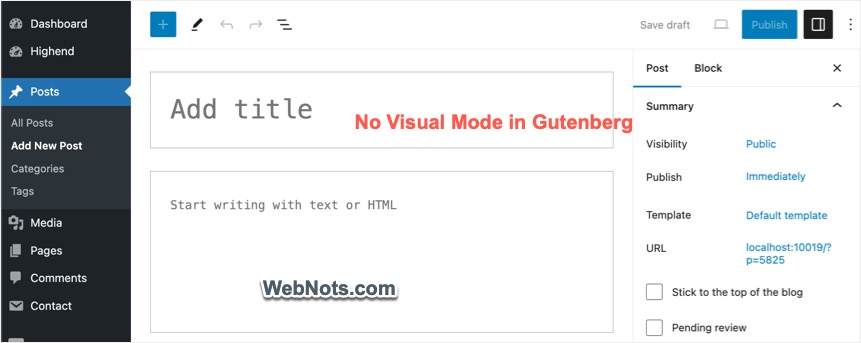
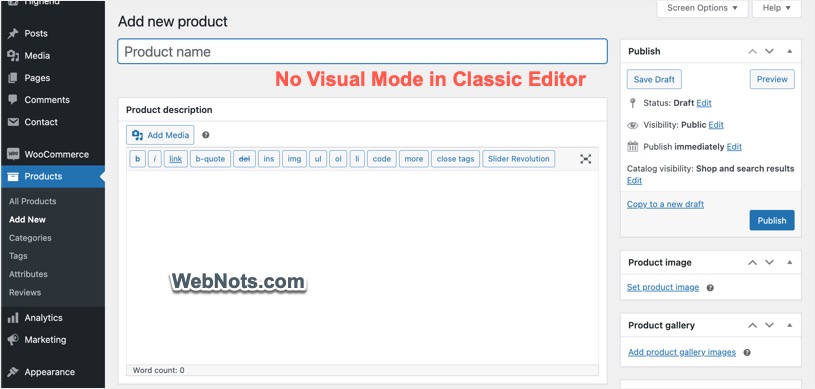
Whether you use Gutenberg or Classic Editor, WordPress offers two modes in the editor. One is a Visual mode and other is a Code or Text mode. You can visually edit the content using “Visual” editor which is the default mode when you open Gutenberg / Classic Editor. However, Code or Text mode allows to edit the source HTML code of the content. Sometimes, you need to access the editor in Code mode to edit HTML tags and add attributes. If you wonder how to do that, here is how to view Text or Code editor mode in WordPress.
Code Vs Text Editor Modes
As mentioned, Gutenberg calls it as Code Editor while Classic Editor refers it as a Text mode. Both are same and used interchangeably in WordPress.
View Text Mode in Classic Editor
Plugins like WooCommerce and bbPress still use Classic Editor for creating content. Many custom post type plugins also still use Classic Editor and here is how to access Text mode in Classic Editor.
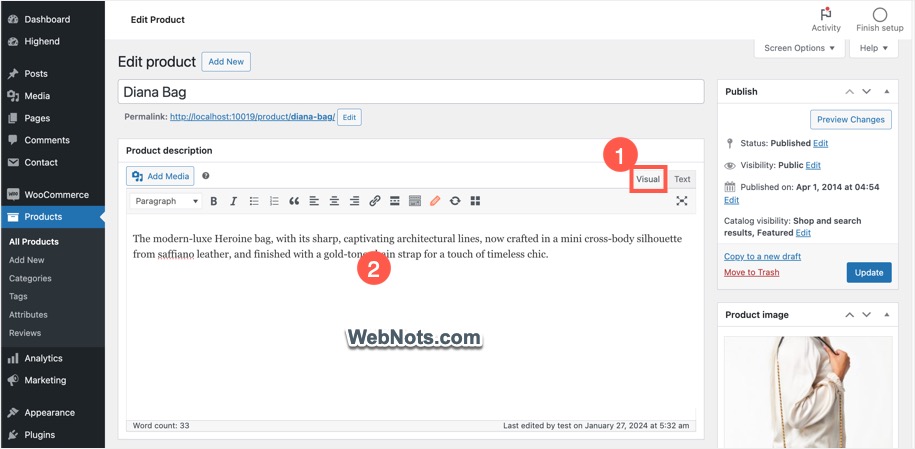
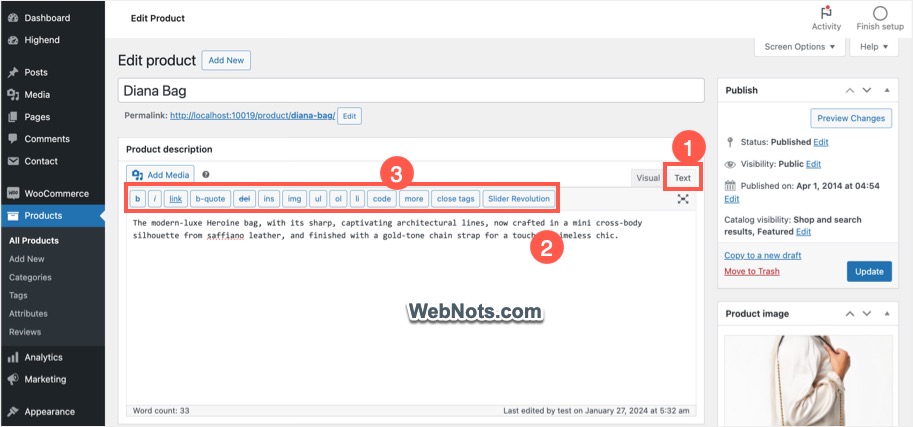
- Open or edit your page in Classic Editor.
- Click the “Text” tab to view the source content.
- You will see the HTML tag icons instead of visual tools.
- Anytime, click “Visual” tab to get back to normal mode.
View Code Editor in Gutenberg
Unlike Classic Editor, Gutenberg hides the Code Editor behind the menu items.
- Edit a page in Gutenberg editor.
- Click the three vertical dots icon showing on top right corner.
- Select “Code editor” option to view the source content.
- Again, go back to the menu and select “Visual editor” to switch the mode.

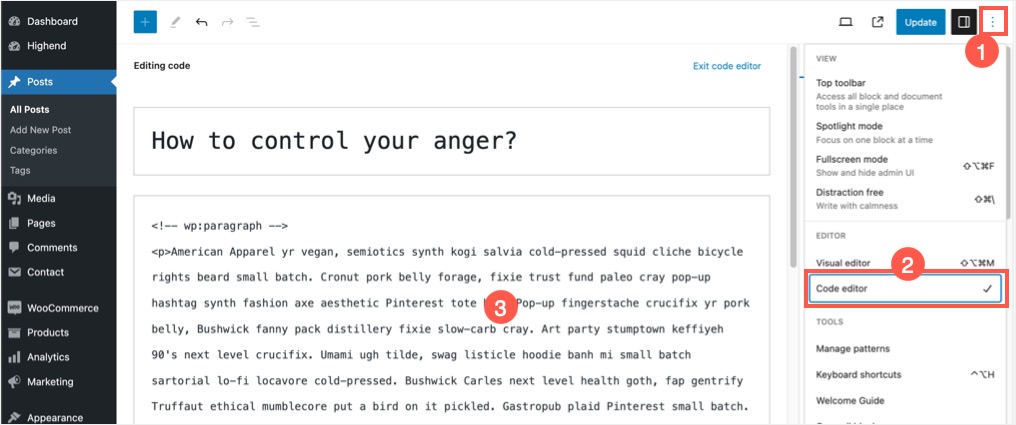
Alternatively, you can toggle Code and Visual modes using keyboard shortcuts “Shift + Option + Command + M” in Mac and “Control + Shift + Alt + M” in Windows.
Viewing Code for Single Block in Gutenberg
There is also an additional possibility in Gutenberg editor to edit the source code of individual block (instead of all block’s content together).
- When editing a post, select a block.
- Click on three vertical dots icon on the block’s toolbar.
- Select “Edit as HTML” option to view the block’s source content.
- Again, click the “Edit visually” button to get back to visual mode.


Disable Visual Mode in WordPress
Whether you use Gutenberg or Classic Editor, it is possible to completely disable the visual mode.
- When you are in admin panel, navigate to “Users > Profile” to open your user profile section.
- Uncheck “Disable the visual editor when writing” option against “Visual Editor” heading under “Personal Options” section.

After that create a new post or edit post in Gutenberg or Classic Editor. You will not see the visual mode and have the only possibility of using Text/Code mode. In this case, you need to only use text or HTML and all other options like blocks and tools will be removed from the editor.