There are many situations where you want to schedule posts in your editorial routine. It could be for a promotional event, a timely coupon code, or a breaking news article. You plan it in advance and have the content go live automatically at a future date/time without manual intervention. However, when that carefully planned post fails to publish and instead shows the dreaded red “Missed Schedule” notice, it can undermine your entire content strategy.
Understanding Missed Schedule Error in WordPress
This error usually isn’t caused by anything you did wrong in the editor. In almost every case, the culprit is a failure in WordPress’s background task scheduler called WP-Cron. To fix the problem, it helps to understand what’s going on under the hood. A background job scheduled on your server runs on a strict, time-based schedule independent of activities happening on your website. WP-Cron, unlike a server job, doesn’t run automatically at set intervals. Instead, it only checks for due tasks (like publishing a scheduled post) when someone visits your website.
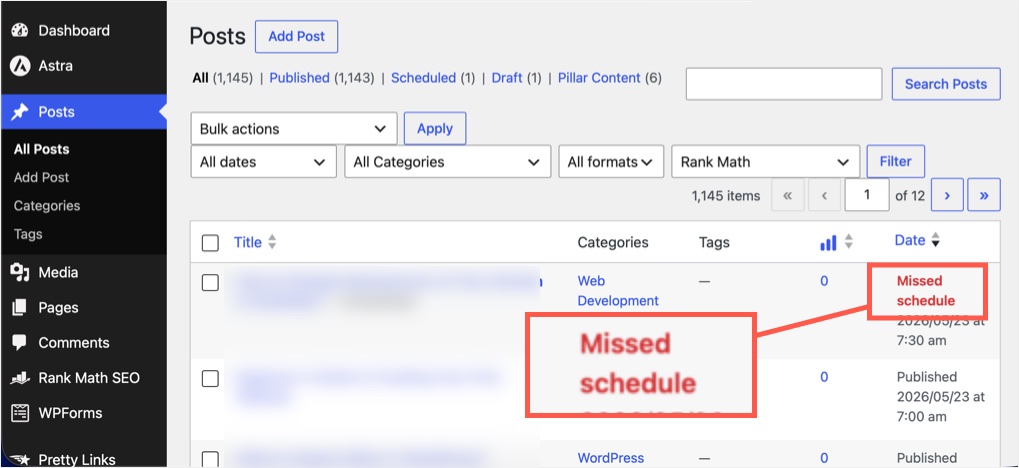
This design has an obvious problem: no visitors to your site means no cron execution. For example, if you schedule a post for 09:00 AM in your time zone and no one visits your site around that hour, the publishing task simply never fires. When traffic does eventually arrive hours later, WordPress discovers the overdue task and flags the post as “Missed Schedule”. You can view the problem by going to “Posts > All Posts” and checking under the “Date” column.
While low traffic is the most common trigger, other factors can also prevent WP-Cron from running like incorrect caching, blocking by security plugins or rules, theme/plugin conflicts, wrong timezone, limitations in server resources, or mistakenly disabling WP-Cron in the wp-config.php file without a proper server cron replacement.
1. Make Sure WP-Cron is Enabled
Many WordPress users disable the default WP-Cron job by adding the following line in the wp-config.php file to save server resources:
define('DISABLE_WP_CRON', true);This directive tells WordPress to stop triggering cron tasks on page loads. Even if you schedule a fixed cron job on your server as a replacement, it doesn’t always fit perfectly. Let’s look at an example:
- You have disabled WordPress cron.
- You schedule a server cron job to run every 30 minutes to save resources.
- A post is scheduled to publish at 2:20 PM.
- The server job runs at 2:00 PM and 2:30 PM – it will miss the 2:20 PM publish time.
This will happen even if you schedule the server job every 10 or 15 minutes, unless the interval exactly aligns with your publish time. Scheduling it to run every minute defeats the purpose of disabling WP-Cron in the first place. So, if you frequently schedule posts on your site, remove the above line of code from your wp-config.php file and ensure your site receives sufficient traffic.
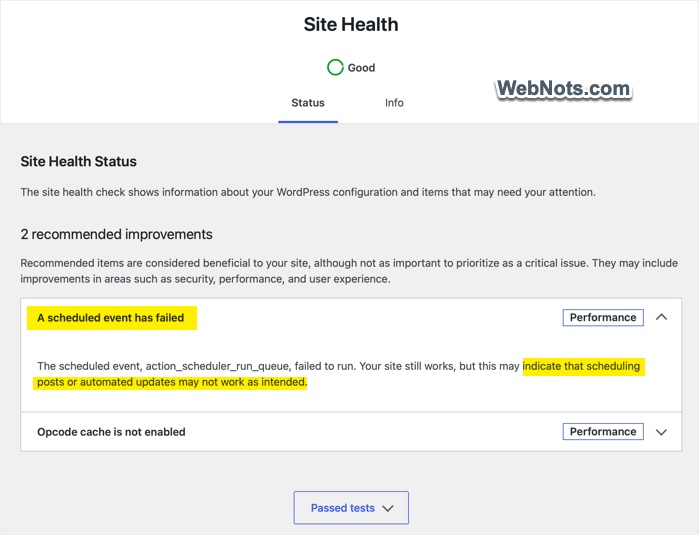
If you’re in doubt, go to “Tools > Site Health > Status” in your WordPress dashboard and check if any scheduled events have failed. This will give you an idea of the impact of disabling WP-Cron, even if you have a manual server-level cron job.
2. Check if WP-Cron is Blocked
This continues from the first step, especially if you use Cloudflare security rules (WAF) or security plugins like Wordfence. In many cases, a broad rule (like blocking direct traffic) will also block WP-Cron. The default WP-Cron jobs run from the WordPress user agent with a blank referrer, so generic security rules block them.
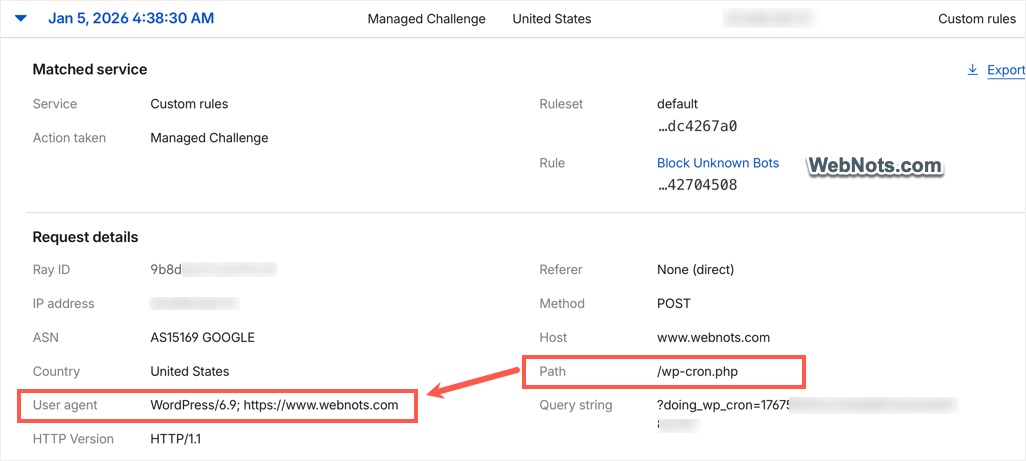
Check our article on how to avoid WP-Cron being blocked in a Cloudflare setup. For other security setups, allow your server’s IP or the WordPress user agent (generally with a version number like WordPress/7.0) to ensure default cron jobs can run without being blocked.
3. Verify Your Timezone Settings
If you haven’t touched the default WP-Cron setup, the next common cause is a simple timezone mismatch. For example, your site might use UTC but you schedule based on Eastern Time, then the post won’t publish when you expect.
- Go to “Settings > General” in your WordPress dashboard.
- Locate the “Timezone” dropdown.
- Instead of selecting a UTC offset, select a city within your actual timezone.
- Verify that the displayed local time is correct.
- Click “Save Changes”.
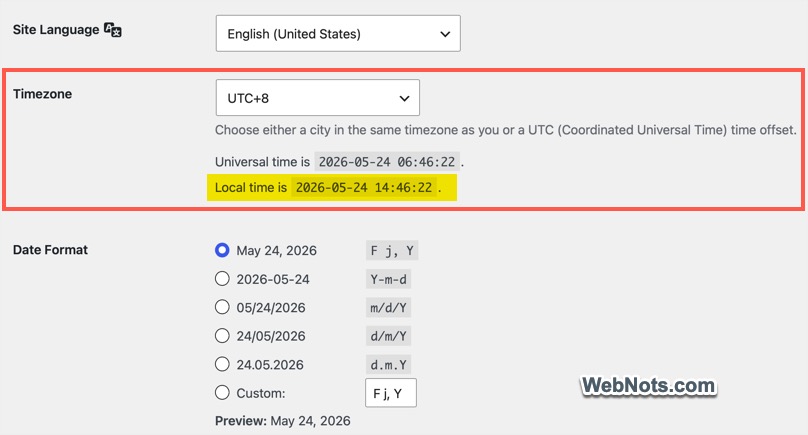
After correcting the timezone, create a test post scheduled a few minutes into the future to confirm the fix works.
Note: If the local time still looks wrong, contact your hosting provider to check the server’s PHP timezone setting.
4. Check for Plugin Conflicts
Sometimes another plugin interferes with the WordPress scheduling system. To rule this out:
- Install and activate the free “Health Check & Troubleshooting” plugin from the WordPress repository. This is an official plugin from WordPress community for finding themes/plugins conflict.
- Go to “Tools > Site Health” and click the “Troubleshooting” tab.
- Click “Enable Troubleshooting Mode” button. Note that “Troubleshooting” and “Tools” tabs will be shown only when the plugin is activated.
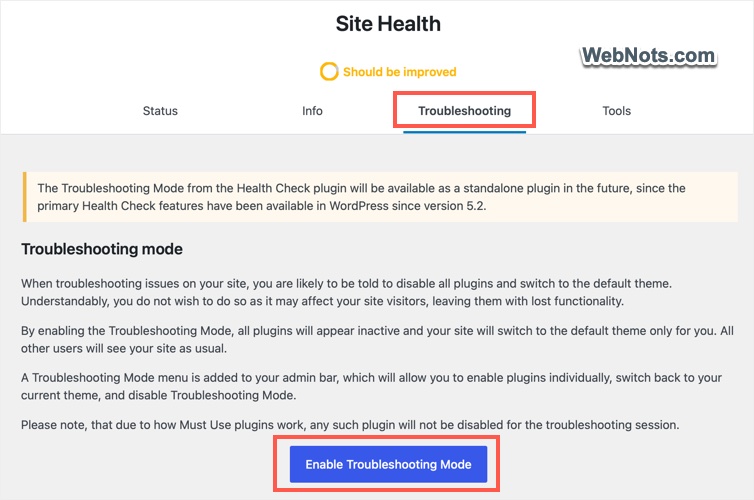
- This disables all plugins and switches to a default theme only for your logged-in session, which means your visitors won’t see any difference.
- Create a test scheduled post and see if it publishes correctly.
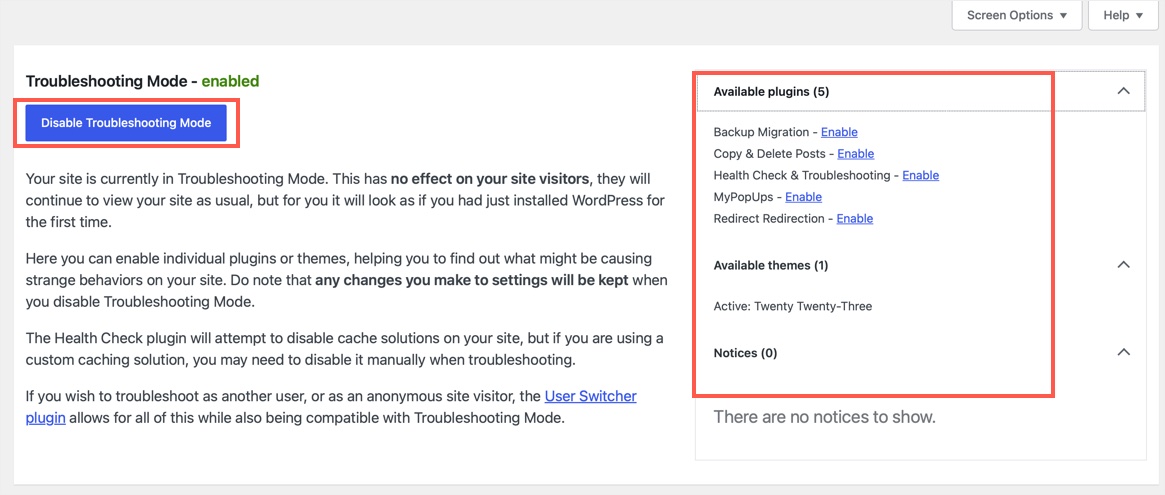
- If it does, reactivate your plugins one by one, testing after each, until you identify the conflicting plugin.
- Once the troubleshooting is done, go to “Dashboard” menu and click “Disable Troubleshooting Mode” button.
5. Clear All Levels of Caching
Sometimes, full-page caching can prevent WP-Cron from executing. When pages are served entirely from cache, PHP may never run, so cron tasks never trigger. Below is the error message shown by popular WP Rocket plugin when WP-Cron is not running on the site.

Clean up the caching done at all the levels:
- Caching plugins: Check your caching plugin’s settings and purge all the cached content. Some plugins allow you to exclude specific URLs, use this to exclude wp-cron.php.
- Server-level caching: Hosts like SiteGround offer multiple caching levels and you can purge cache from your WordPress dashboard or hosting panel. Otherwise, contact the hosting support to ensure wp-cron.php bypasses the cache layer.
- CDN: Make sure your CDN (like Cloudflare as explained above) isn’t blocking requests to wp-cron.php and delete the CDN cache.
After clearing all caches, reschedule a test post to verify the fix works.
6. Increase WordPress Memory Limit
If your server is low on PHP memory, cron tasks may fail silently before completing. Increasing the memory limit gives WordPress more headroom. In your wp-config.php file, add the following line before the “stop editing” comment:
define('WP_MEMORY_LIMIT', '256M');If 256M isn’t enough, you can try 512M but check with your host first to ensure your plan supports that allocation. Always stay within your host’s allowed limit to avoid resource abuse or account suspension.
7. Contact Your Hosting Provider
If you’ve tried the above steps and the issue persists, your hosting environment may have restrictions that prevent cron from functioning. Contact your host’s support team. Most quality hosts can diagnose and resolve cron-related issues within minutes.
Publishing Missed Posts
Unfortunately, fixing the problem will not automatically publish posts already marked “Missed Schedule”. You have two options: use a plugin to handle it automatically or manually change the status.
A dedicated plugin is the easiest path. These plugins monitor scheduled posts and automatically publish any that WordPress missed. Go to “Plugins > Add New” and search for one of these (all work immediately with no configuration required):
| Plugin | Key Feature | Best For |
|---|---|---|
| MWW Scheduled Post Trigger | Checks on every page load and publishes missed posts immediately | Sites that want instant catch-up |
| Missed Schedule Post Publisher | Customizable check intervals (5–60 minutes), zero bloat | Low-traffic sites needing reliable background checking |
| Snack Missed Schedule | Runs its own recurring cron task every 5 minutes | Performance-conscious site owners |
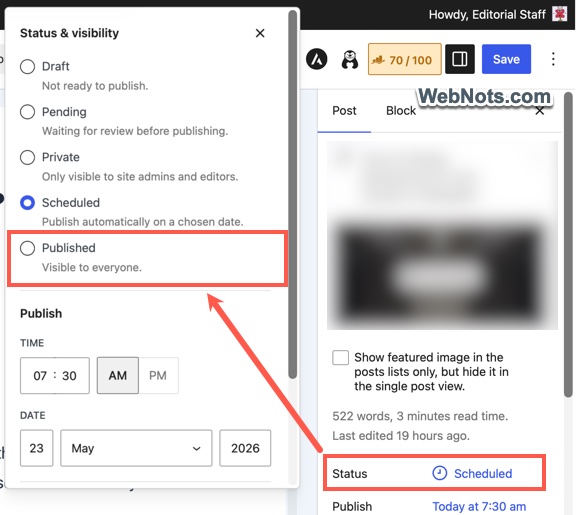
For a manual option, go to “Posts > All Posts”, find all posts with “Missed Schedule” status, and publish them immediately or reschedule to a future date / time.
Conclusion
The “Missed Schedule” error is almost always a symptom of WP-Cron failing to execute due to low traffic, caching, plugin conflicts, or configuration oversights. If you frequently schedule posts, we recommend the following:
- Monitor using the “Site Health” dashboard (Tools > Site Health) periodically to confirm there are no failures in scheduled events.
- Allow the default WP-Cron to run jobs and ensure your security setup does not block it.
- If you must disable the default WP-Cron, pair it with a proper server cron job and a dedicated missed-schedule plugin to automatically publish stuck posts.