Every website address (domain or hosts name) on the internet is connected to a numerical IP address. We use the site address since it is difficult to remember numbers. When you open a site address in browser, domain name system (or DNS) servers resolve the name to a hosting server’s IP address and help to retrieve the information from hosting server. DNS is a chain of servers aiming to speed up the IP resolution process. If you already know the IP address of a site, you can easily add it computer’s hosts file so that the entire IP resolving process can be eliminated.
Editing Hosts File in Windows
Other than normal domain to IP mapping, you can also use hosts file to block a site or do local testing by redirection. In our earlier article, we have explained how to edit hosts file in Windows using Notepad. However, that is a hassle process to use Notepad in administrator mode and edit the file. In some situations, system also will not allow you to save the hosts file thus preventing from making changes. You can easily overcome the problems by using Microsoft PowerToys app and edit hosts file without even opening it.
Installing Microsoft PowerToys App
PowerToys is a single app consists of bunch of tools and officially developed by Microsoft. The latest version includes a cool tool called Hosts File Editor which you can use to modify your hosts file’s content.
- Open Microsoft Store app in your computer.
- Type “powertoys” in the Store app’s search box and press enter.
- Click the “Install” button to download/install PowerToys app.

Alternatively, you can go to GitHub and download the latest executable file for x64 or ARM64 processor.

Enabling Hosts File Editor in PowerToys
After installing, open PowerToys app from “Start > All apps” list or by using Windows Search box.

Go to “Hosts File Editor” section from the left sidebar and turn on “Enable Hosts File Editor” option on the right pane.

Hosts File Editor Settings
There are few settings available under “Activation” and “Behavior” sections.
- Turn on “Launch as administrator” option as you need admin access for editing the file.
- Show or hide warning before editing the file.
- Change the comments in hosts file to top or bottom.
- Identify duplicate mapping like localhost address 127.0.0.1.
- Set the encoding as UTF-8.
Using Hosts File Editor
Click the “Launch Hosts File Editor” option showing under “Activation” section to launch the tool. If startup warning is enabled, you will see a pop-up mentioning changing hosts file can impact domain resolving process. Click “Accept” button to proceed further.

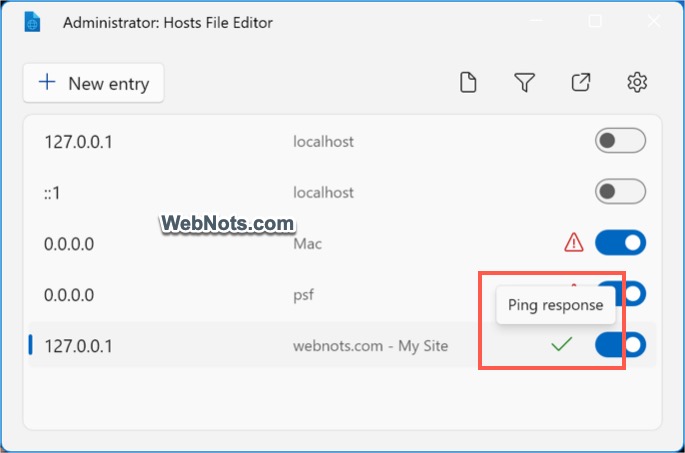
The editor will show all existing domain mappings. Commented items in the file are automatically turned off and the warning symbol indicates the entry is a duplicate.

Click on the “+ New Entry” button and add the following details:
- Address – type the IP address in IPv4 or IPv6 format. Learn more about IP addresses and formats.
- Hosts – enter your host name, you can add multiple host names separating each name with a space.
- Comment – add a comment to remember about the entry.
- Active – enable it to activate the entry.

After filling the details, click the “Add” button and you will see a new line item is added in the list.

Click the “Open hosts file” icon showing next to the gear icon on top right corner to open the file. You can find the new entry is added at the last with the comment provided.

Other Options in Hosts File Editor
You have few other options showing as icons on top right corner.
- Additional content – show the additional comment content in your hosts file. You can add more comments if needed and save the entries.
- Filters – when you have too many line items, use filters to quickly find the required entries in the file.
- Open hosts file – as mentioned, it will open the file’s latest content.
- Settings – click on this gear icon to open PowerToys Hosts File Editor settings.

For modifying existing IP mappings in the file, right-click on the line item and select necessary action.
- Edit – change the IP or host name.
- Ping – test the host by pinging and you will see the ping response.
- Move up / down – move the entry up or down in the file.
- Delete – click “Delete” and confirm your action to remove the entry from the file.

Quick Access Hosts File Editor
PowerToys app will add a system tray icon and click on it (normally hidden behind the up arrow icon). You will see a list of frequently accessed tools and select “Hosts File Editor” from the list. Click on “More” button to enable or disable the available tools quickly. In this way, you can quickly launch Hosts File Editor and enable/disable without every time going through PowerToys Settings panel.

Final Words
Now you know how to edit hosts file in Windows without even opening the file. PowerToys also has many other useful tools like Always On Top, Awake, Color Picker, FancyZones, etc. which you can make us of to improve the productivity.