
Many smartphone users continuously install lot of apps on their phone. Ideally apps should work only when you are opening them. However, some of the installed apps will always run in the background even though you are not using them. It will affect your phone, especially, if the app is resource intensive and consumes your phone’s power. The problem is that the apps running in the background will not ask your permission in Android. These apps will automatically use background app refresh feature and update their content without your knowledge. If this bothers you, here is how you can check the apps running in background and stop them in Android.
Why to Check Background Running Apps?
There are many good reasons for you to check the status of apps running in the background:
- Your smartphone is working too slow without any identifiable problems.
- Battery is draining too fast even though you are not using the phone.
- Cellular data consumption is high without your knowledge of usage.
You might have also completely forgotten many apps after few months of installing them on your phone. So, it’s a high time that you check their background usage and disable them as a housekeeping task. Remember, closing the apps from app switcher by swiping them up will not stop the background refresh. You need to follow the below process to disable the feature.
Check Apps Running in Background
The latest version of Android will show you certain apps in the notification area running in the background. To see the notification area, swipe down your finger from the top of your mobile screen in an unlocked state. Scroll down the notification menu and see if any app is running in the background. If there is a message like an app is running in the background, press the down arrow to see the app’s name and tap it to change that app’s notification settings.

If you want a detailed view of the apps running on your Android phone and the resources apps are consuming, go to “Developer options” in the “Settings > System” menu. However, “Developer options” option in Android is not available by default and you have to manually enable it from the “System” menu. Check out our article on disabling automatic OS and app update in Android to learn how to enable “Developer options.”
Once you enable the “Developer options” on your Android phone, open it through “Settings > System > Developer options” and open the “Running services” menu. The running services page will show the details of all the apps running on your phone along with the consumption of memory. You can use this detail to get an overall idea of the apps running in background and consuming more resources.

Note: Enabling “Developer options” and using its menu items may affect the functioning of your device. Therefore, do this at your own risk and disable the option if you notice any problem on your phone.
Stop Apps Running in Background
There are two main ways to stop the background apps on your Android mobile phone.
- On the running services page (Settings > System > Developer options > Running services), tap the name of the app. This will open a page where you can stop that app.
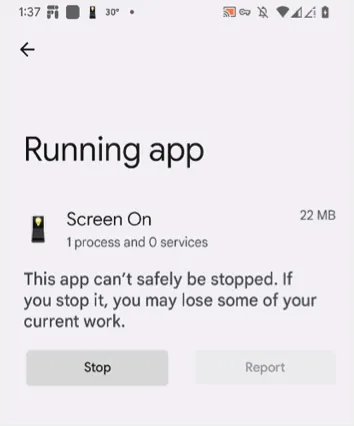
- Go to “Settings > Apps” and find the app running in background. On the App info page, choose “Force stop” to stop the app from running in background.

There is one problem in stopping the apps using the above methods. If you restart your phone, the app may run again in the background, and you have to force stop it again. If you don’t use that app anymore, then it is recommended to uninstall it by tapping on the “Uninstall” button on the App info page.
Delete Activities and Restrict Background Processes
It is also possible to restrict the number of background processes in Android.
- Go to “Settings > System > Developer options” section.
- Find “Don’t keep activities” option under “Apps” section.
- Toggle the button in front of it to turn it on.
With this, Android will destroy every activity as soon as you leave the app.

The other option in the Developer options menu is “Background process limit”. This will allow you to choose the number of processes that can run in the background. When you notice slowness in the phone, you can limit the simultaneous background processes using this feature to free up resources.
Note: Depending on your model, restricting battery consumption and cellular data usage for an app can also restrict background usage.
Final Words
Background app refresh is useful for getting updated content in apps like news, emails, etc. However, you may not need game and other apps to update its content. Therefore, check the list and stop unnecessary apps running in background to save your phone’s battery and improve the overall performance.


