Battery life is one of the primary improvements Apple makes in almost every new iPhone model. It is not limited to hardware; Apple also changes many battery related settings with each new iOS release. Unfortunately, these changes can create problems for older models and iPhones running older iOS versions. Therefore, do not get frustrated if your iPhone is experiencing charging issues. While some problems require battery replacement, most issues can be resolved by understanding or adjusting iOS settings.
Primary iPhone Charging Problems
Here are the three common battery problems with iPhones:
- iPhone charging very slow.
- Charging stopped at particular percentage.
- Not charging at all and stuck with screen showing charging cable or showing an Apple logo.
Before diving into troubleshooting, make sure your charging cable, adapter, and power outlet are working properly. Always use an official Apple Lightning or USB-C cable instead of low-quality cables purchased online.
1. Stopped Charging at Certain Percentage
The latest iOS version has a setting to choose the percentage of charging for your battery.
- While charging your iPhone, open Settings app and go to “Battery” section.
- If you see the charging level is set as 80% (or anything different than 100%), it indicates the charging is restricted.

- Scroll down on the same page and tap on “Charging” option.

- Check the “Charge Limit” slider and adjust to the necessary level.

You can set the charging limit between 80% to 100% with 5% increment (like 85%, 90%, 95%, or 100%) based on your need. Generally, you can keep it as 100% unless you see a recommendation to reduce the limit for improving battery performance. iPhone will automatically show any recommendations based on your usage and charging habits. So, if the battery is stopped at 80%, it’s not a problem – that’s the limit set in your iOS.
2. Optimized Battery Charging
When the charging limit is set as 100%, you have an option to turn on “Optimized Battery Charging” on the same settings page. If this is your setting, you will see the “Battery” section shows two parts in the charging slider.

- iPhone will charge faster up to 80%.
- After that, charging will be slowed down automatically by your iPhone based on the usage prediction.
So, if your iPhone takes hours to charge from 80% to 100%, then you are using optimized charging, which is not a problem.
3. Adaptive Power Mode
If you notice the iPhone’s performance is slowing down when the battery is low, it could be due to another iOS setting.
- Go to “Settings > Battery” page.
- Scroll down to bottom and tap on “Power Mode” option.
- Check “Adaptive Power” mode is turned on.

This will automatically adjust the iPhone’s performance when battery usage is higher than normal level. It will also turn on “Low Power Mode” when the battery reaches 20%, which will reduce background network activities like Wi-Fi connection, iCloud sync, etc.
4. Restart and Update iOS
As mentioned, sometimes charging problems stem from software glitches rather than hardware. Simply, shut down your iPhone (Settings > General > Shut Down), then restart (press and hold the side power button) and retry charging again.
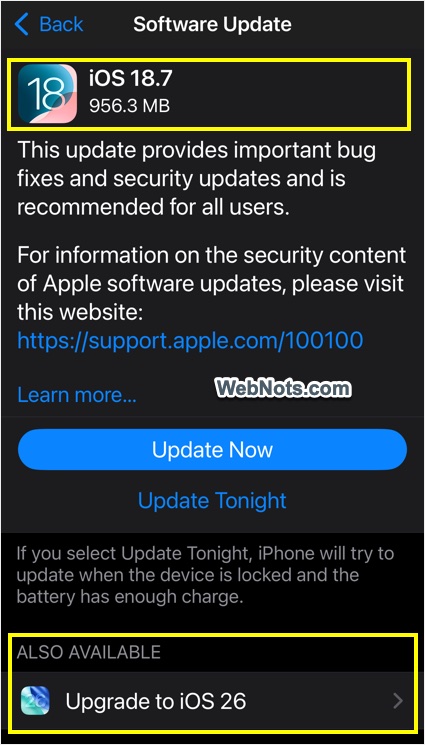
Also, check whether you need to update your iOS by navigating to “Settings > General > Software Update” section. This will help to fix any battery related bugs in iOS level.
Note: If your iPhone appears unresponsive during charging, a force restart could reset potential glitches. First, disconnect the phone from charging cable. Press and release the Volume Up button, then Volume Down button, then press and hold the Side button until you see the Apple logo.
5. Rule Out Environmental Factors
Charging may be interrupted if your iPhone is too hot or cold. As it is common for older iPhone models to get hotter quickly, iPhone will automatically hold the charging and show a notification on the lock screen. In this case, make sure your device at room temperature or disconnect the charger and allow the device to cool down before trying again.

6. Stuck with Charging Cable Screen
When the battery is completely drained, iPhone needs few minutes of time to reboot when you connect to the power source. During that time, you will see a charging cable image on the screen indicating the phone is preparing for booting. After that you will see an Apple logo screen and eventually your home screen. Sometimes, iPhone will stuck on the charging cable screen without moving further. This generally happens if you have not updated the iOS for very long time.
- Connect your iPhone with your desktop computer using the charging cable / adapter.
- Open Finder on Mac and iTunes or Apple Devices app on your Windows PC (you can install the app from Microsoft Store).
- You will see a notification that the iPhone needs to be updated or restored.
- First, try the “Update” option to check if the iOS can be updated. If not, you need to go for “Restore” option to use the “Recovery Mode” to reinstall iOS.
- If the update / restore is successful, you should see the iPhone is restarting with the Apple logo and the battery will start charging normally.
- Once the device is accessible, you can also find it in the sidebar and check its details.

Important Note: Restoring will not delete your data but reset your iPhone to factory settings. So, try this option only if you know what you are doing. If you can access the device, it is also possible to restore it from iOS settings without connecting to a desktop. Go to “Settings > General > Transfer or Reset iPhone > Reset” and choose “Reset All Settings” option.
Final Words
As you can see, though your battery works fine, it may charge differently based on your iOS settings. If your iPhone still won’t charge, it may require professional diagnosis. To confirm this:
- Go to “Settings > Battery > Battery Health” section.
- Check the “Maximum Capacity” and whether the screen shows any recommendations for battery service or replacement.

If your battery’s health is significantly degraded, consider scheduling a replacement at an Apple Store or authorized service provider.