You’re watching the final minutes of a football match. The winger crosses the ball. The striker leaps. And just as the ball hits the net… a block of white text slams down over the goal post: [Crowd cheers] [Announcer yells]
You missed the goal because you were reading a sound effect. Captions are essential for accessibility, but when they go rogue, they ruin the experience. Whether you’re streaming a movie, watching highlights, or casting to a big TV, here’s how to remove those intrusive overlays on iOS and what to do when you can’t turn them off.
Closed and Open Captions
Before we fix them, let’s define the problem. A caption is text on screen that transcribes audio or describes important sounds.
- Closed Captions (CC) – You can turn these on/off. They include dialogue and background sounds like [ball thuds] or [whistle blows].
- Open Captions – Permanently burned into the video. You cannot remove these.
On iPhone, captions come from two places – the video app itself (YouTube, Netflix) or Apple’s iOS system and each requires a different fix.
1. Easy Fix for YouTube
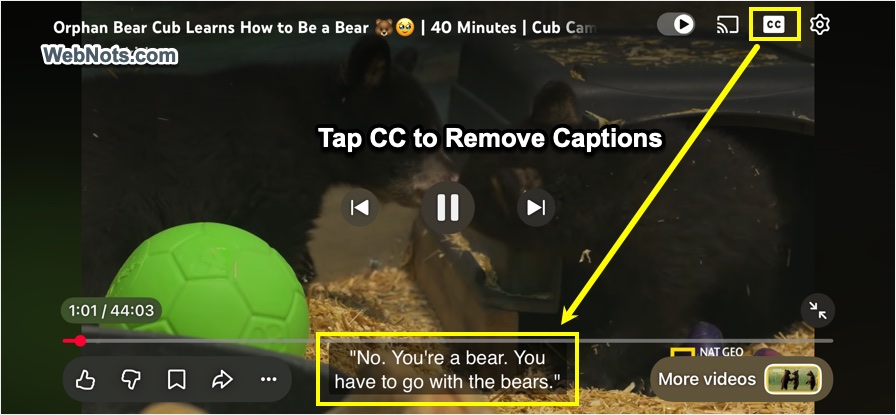
For standard YouTube videos, the solution takes one second. While a video is playing, simply tap the CC button to remove the caption.
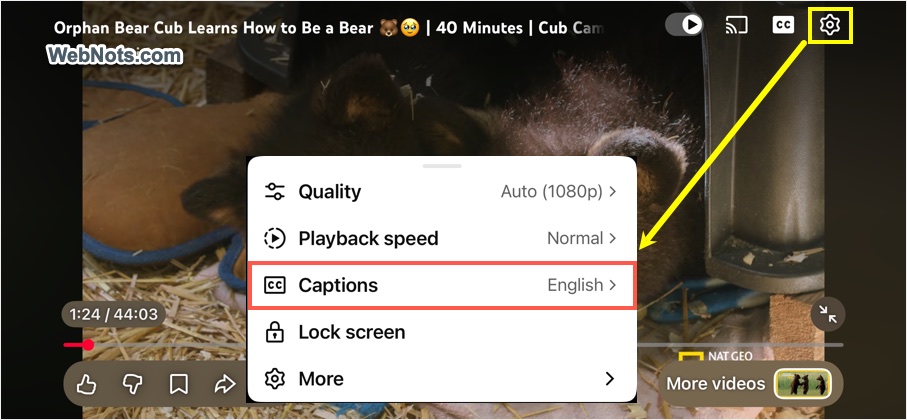
Alternatively, tap the gear settings icon and then select “Captions”. Select “Turn off captions” and turn off the “Show when muted” option.
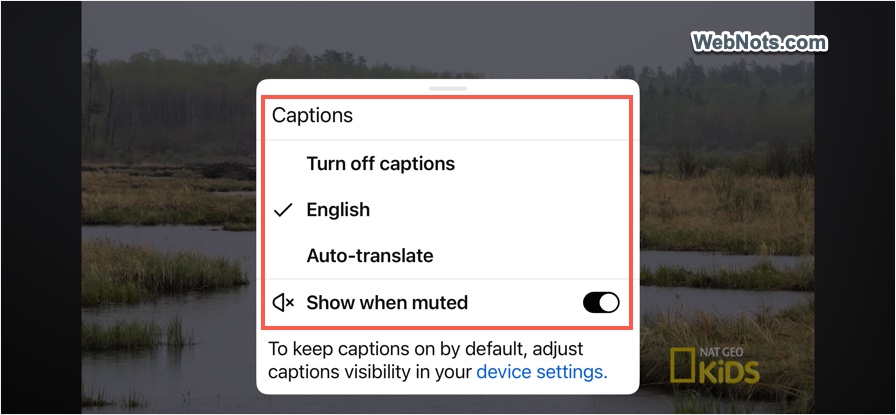
That’s it. But that only fixes the app. It does nothing for Apple’s system-level captions.
2. iOS Subtitles and Captioning
iOS has a separate setting to turn off the closed captions. So, if your app does not have CC or subtitle option like YouTube, try this:
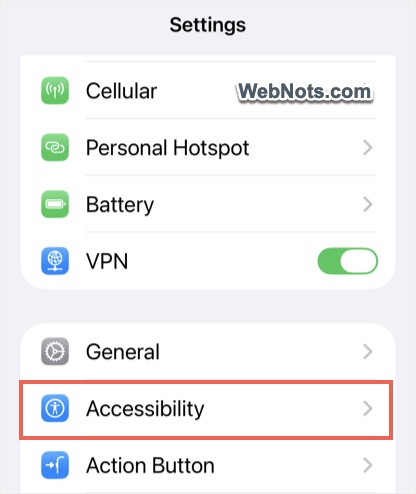
- Open the Settings app and go to “Accessibility” section.
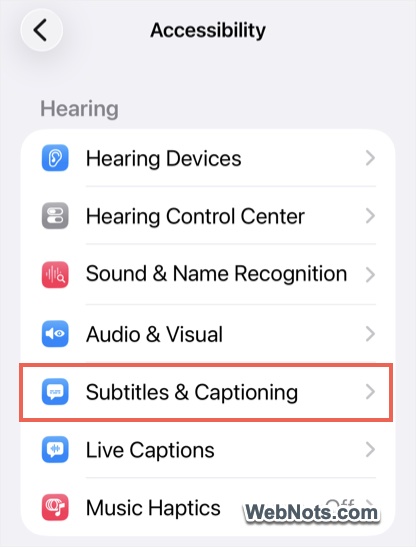
- Scroll down to “Hearing” section and tap “Subtitles & Captioning”.
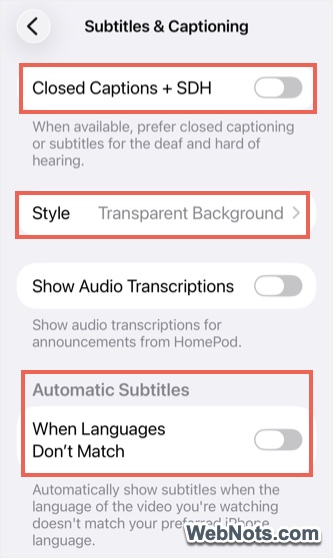
- Turn off “Closed Captions + SDH” option.
- Also, turn off “When Languages Don’t Match” under “Automatic Subtitles” heading. This will help to remove the subtitles when you are watching videos in a language different than the default iPhone language.
Hiding Closed Captions
If turning off does not fix the issue, you can hide the caption by customizing the appearance.
- When you are in “Subtitles & Captioning” settings page, tap on “Style” option and select “Create New Style…”.
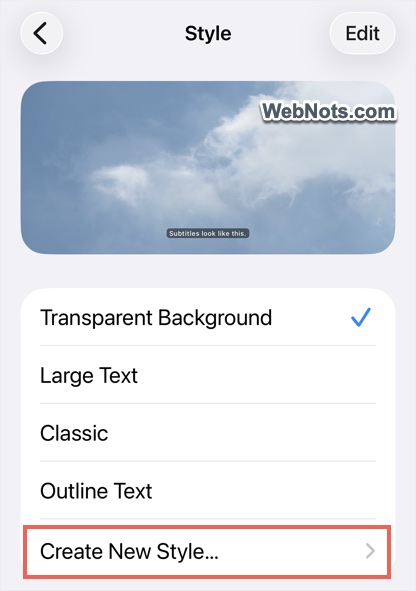
- Provide a name and tap “Size” option.
- Set the size to “Small” and turn on “Video Override”.
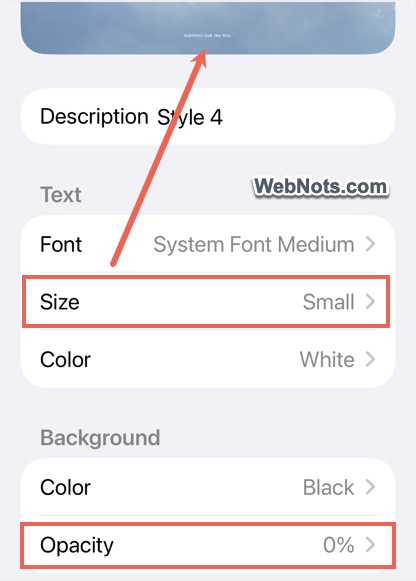
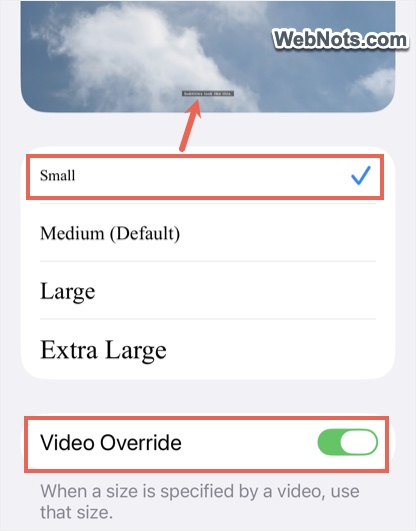
- Similarly, set the background “Opacity” to 0% and “Text Opacity” to “Transparent”.
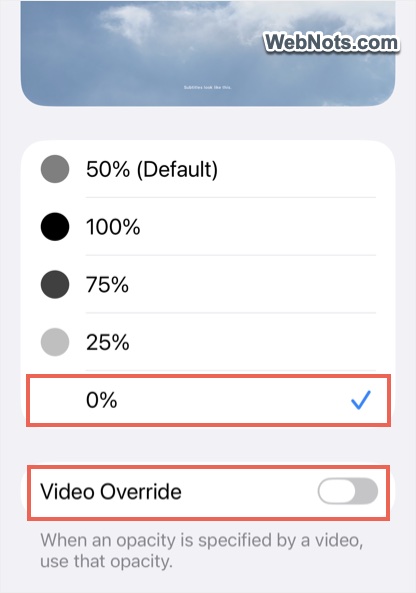
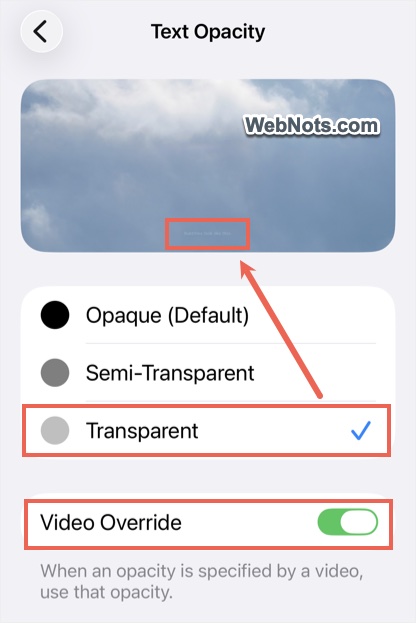
- If required, adjust the text and background colors and check the preview.
This will make the caption’s size very small and almost invisible especially when the iPhone is mirrored to TV.
3. Live Captions on iOS
Live Captions is a powerful accessibility tool for deaf or hard-of-hearing users. It generates real-time transcripts using on-device speech recognition. But for regular viewers, it’s a nuisance because it overlays everything especially when you’re mirroring to a TV and you can’t turn it off with a tap on the video. In addition, if an app already has captions, Live Captions may add a second, overlapping block.
Follow the below steps to turn off Live Captions:
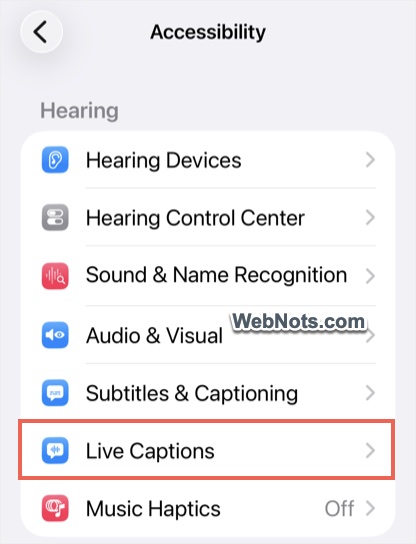
- Go to “Settings > Accessibility” section.
- Scroll down and tap on “Live Captions” option under “Hearing” section.
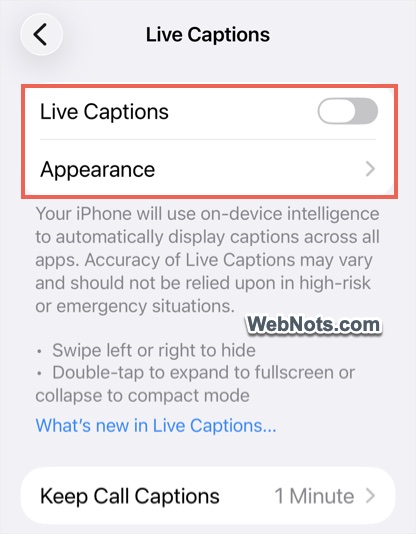
- Turn off “Live Captions” option.
Hiding Live Captions
If that toggle is grayed out or the captions keep coming back, you can customize the style to make them tiny and invisible (similar to Closed Captions as explained above).
- When you are in “Settings > Accessibility > Live Caption” section, tap on “Appearance” option.
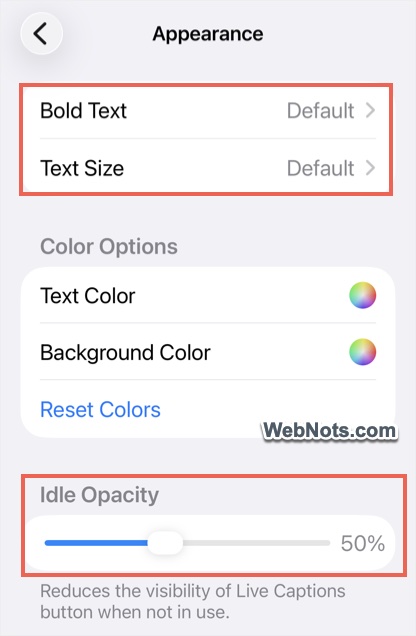
- Tap “Bold Text” and turn it off and adjust the “Idle Opacity” slider to 0% (completely transparent).
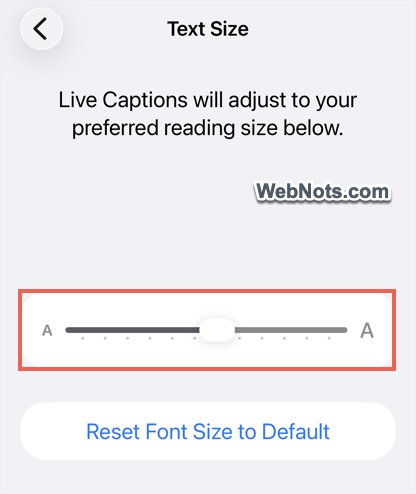
- Tap “Text Size” and move the slider to the initial position (smallest size).
- Adjust the “Text Color” and “Background Color” in a way it’s kind of hiding the caption.
Now, when Live Captions appear, they will be a barely visible, tiny line of text – pushed to the edge of the screen instead of a large text placed centrally.
The Bottom Line
Captions should help you understand a video, not hide the most important part of it. For most apps, a simple tap on the CC button is enough. For Apple’s stubborn Live Captions and subtitles, either disable them in Settings or shrink them into oblivion with a custom style.