By default, Windows will show a system clock at the right end of taskbar and Mac will show a clock on right end of top menu bar. It will be a digital clock with time in hours and minutes format along with the current date. Sometimes you may want to check the seconds in clock like when doing testing. Though you can setup timer, it is a tedious task and the easiest option is to show seconds in system clock.
Add Seconds in System Clock
Good thing is that both Windows and Mac offer default setting to add or remove the seconds in your system clock. So, you do not need any third-party apps for this purpose.
Show Seconds in Windows Taskbar System Clock
- Press “Windows Logo + I” keys to open Windows Settings app. Navigate to “Personalization” section and open “Taskbar” settings. Alternatively, right-click on the Taskbar and select “Taskbar settings” from the context menu.

- Scroll down to bottom of the settings page and expand “Taskbar behaviors” section.
- Enable “Show seconds in system tray clock (uses more power)” option.

- Windows will automatically save the changes and you will see the seconds appear instantly in your system clock.

As the option mentions, Windows will consume more power for showing seconds in system tray clock. However, you may not notice this is as it is negligible and you can disable the option when not needed especially when running on battery.
Show Seconds in Mac System Clock
- Click on the Apple logo and select “System Settings…” from the menu list.
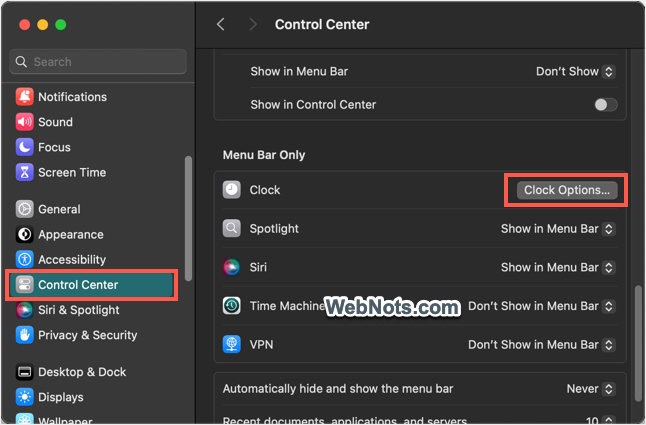
- Navigate to “Control Center” section and scroll down to bottom of the settings.
- Check under “Menu Bar Only” section and click on the “Clock Options…” button showing against “Clock” heading.
- In the pop-up that appears, check under “Time” section and turn on “Display the time with seconds” option.

- Click “Done” button and Mac will show the seconds in system clock.
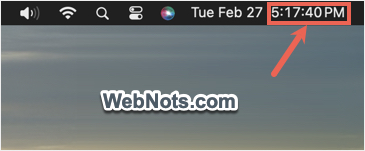
You can make the colon separators to blink by enabling “Flash the time separators” option.