It’s fine if a website asks you to sign in when you visit its login or account page. But it becomes annoying when a “Sign in with Google” pop‑up suddenly appears on the homepage or any other page you land on. Even more frustrating is when the pop‑up shows on every page load across a site. It asks you to log into a service you didn’t intend to use, interrupts your flow, and sometimes raises privacy concerns. These prompts appear prominently on Safari, Firefox, and Edge, and the same websites normally don’t show the pop-up in Google Chrome.
Sign in with Google Example
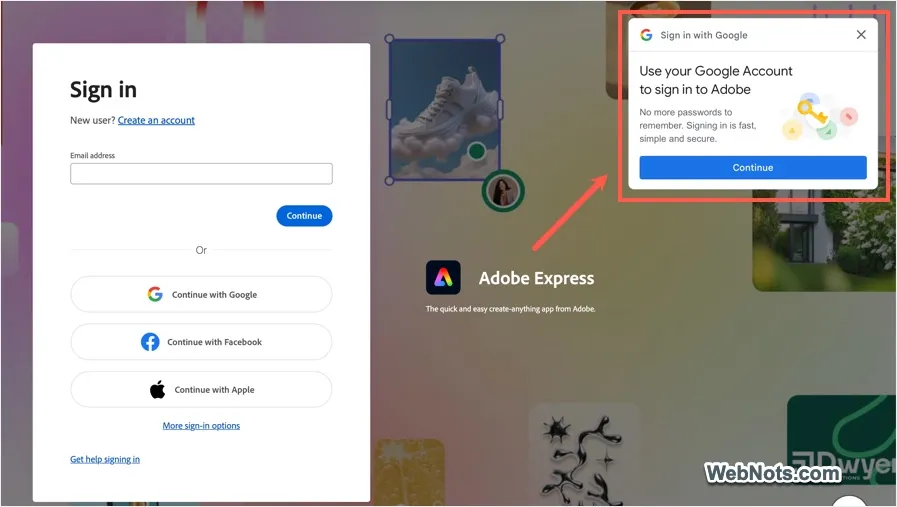
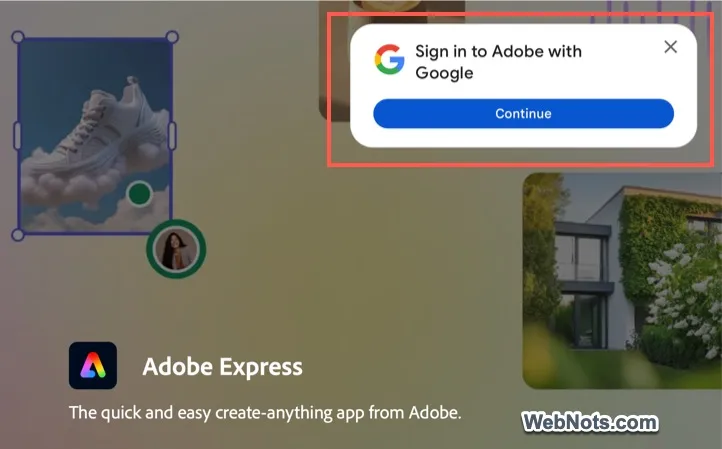
Popular websites like Adobe, LinkedIn, and Pixabay show this pop‑up as shown below. These pop‑ups are often powered by Google’s identity service, One Tap login feature, or third‑party sign‑in scripts.
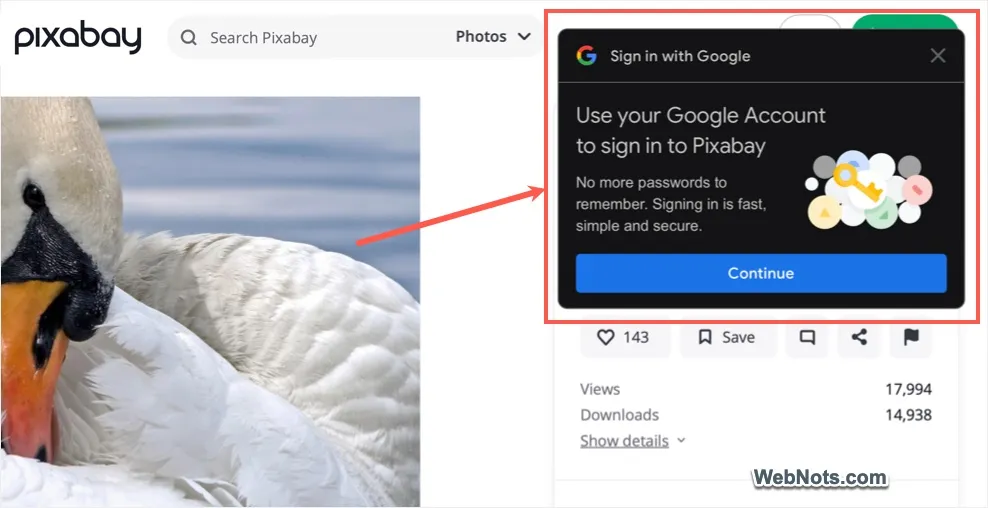
It seems Google also simplified the pop-up showing only “Sing in to website with Google” message and the “Continue” button as shown below.
Fortunately, you can disable them in several ways, depending on your browser and how persistent they are. Although the screenshots shown in this article are from Chrome and Edge, you can follow similar steps in other popular browsers like Firefox and Safari Mac.
1. Use an Ad Blocker with Filter Lists
In most cases, a content‑blocking extension (ad blocker) can remove them entirely.
- Install your preferred ad blocker from your browser’s extension store.
- We recommend AdBlock for Chrome and Edge, uBlock Origin Lite for Safari, and AdGuard AdBlocker for Firefox.
- By default, these extensions should block the “Sign in with Google” pop‑up.
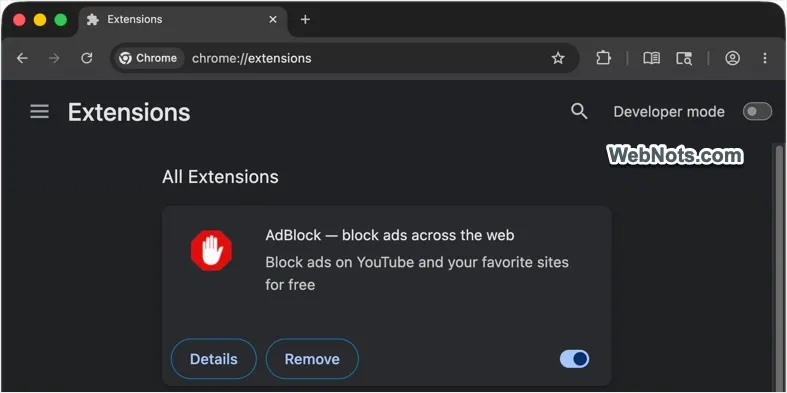
- If you still see it, go to the extension’s settings and enable all available “Filter Lists”. Make sure to include lists for all the languages you use.
- Apply the changes and refresh any site that shows the pop‑up.
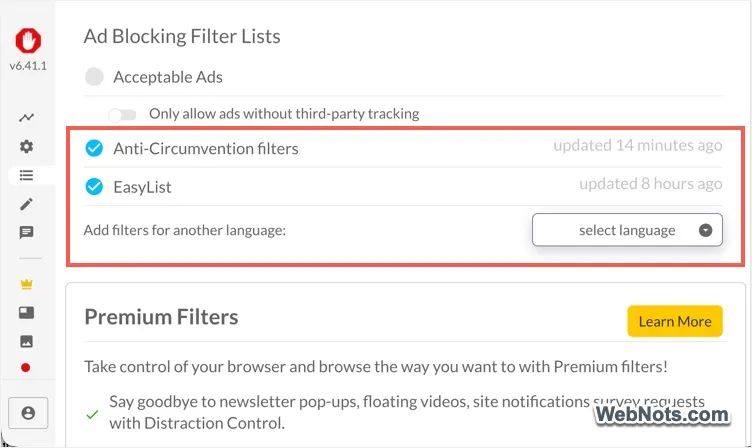
Most “Sign in with Google” overlays will disappear without breaking normal site functions.
2. Block Pop‑ups and Redirects in Your Browser
Modern browsers have built‑in tools to block pop‑ups and annoying overlays. This won’t stop every “Sign in with Google” prompt, but it catches many of them. Here’s how to do it in Google Chrome (other browsers have similar settings):
- Go to chrome://settings/ and navigate to “Privacy and security”.
- Click “Site settings” in the right pane.
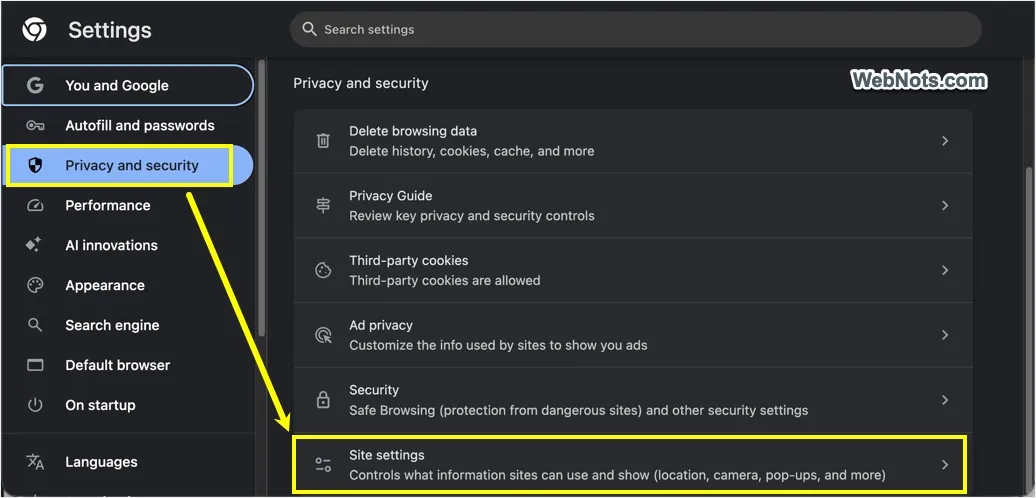
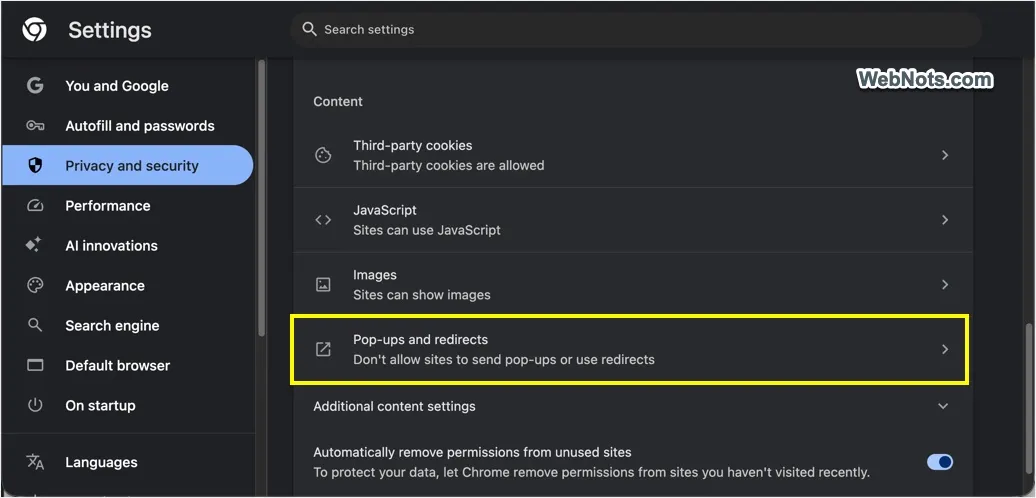
- Scroll down to the “Content” section and click “Pop‑ups and redirects”.
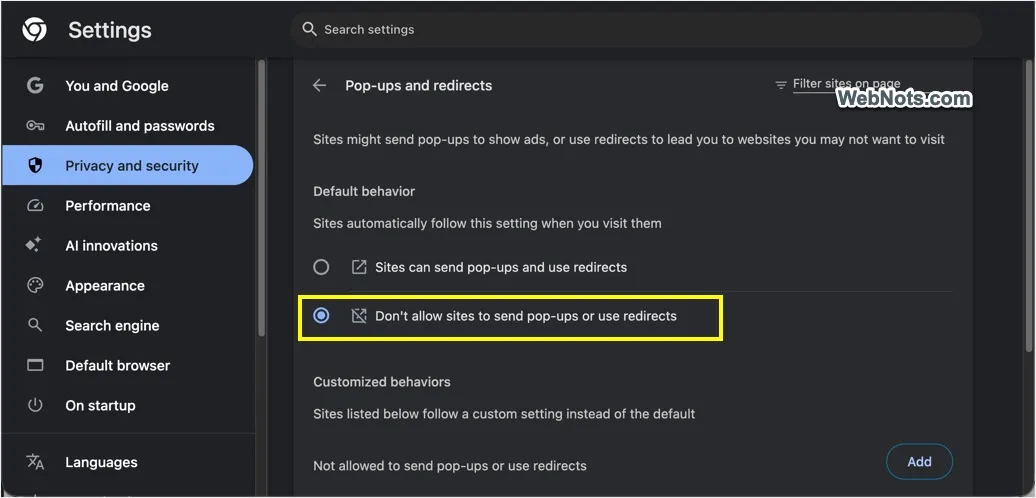
- Under “Default behavior”, select “Don’t allow sites to send pop‑ups or use redirects”.
3. Block Third‑Party Sign‑in Prompts
Chrome and Edge offer an additional option to block sites from showing sign‑in prompts.
On Chrome:
- Go to “Settings > Privacy and security > Site settings”.
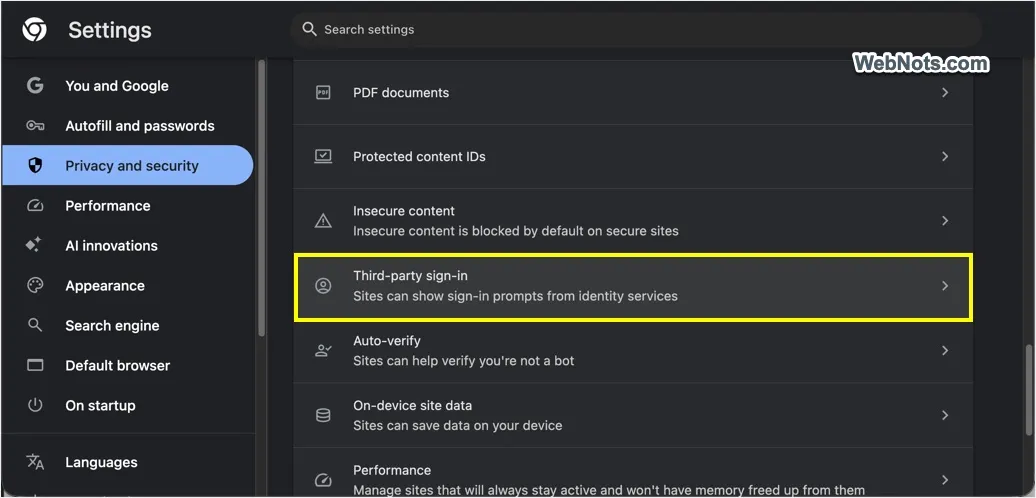
- Scroll to the bottom, expand “Additional content settings”, and click “Third‑party sign‑in”.
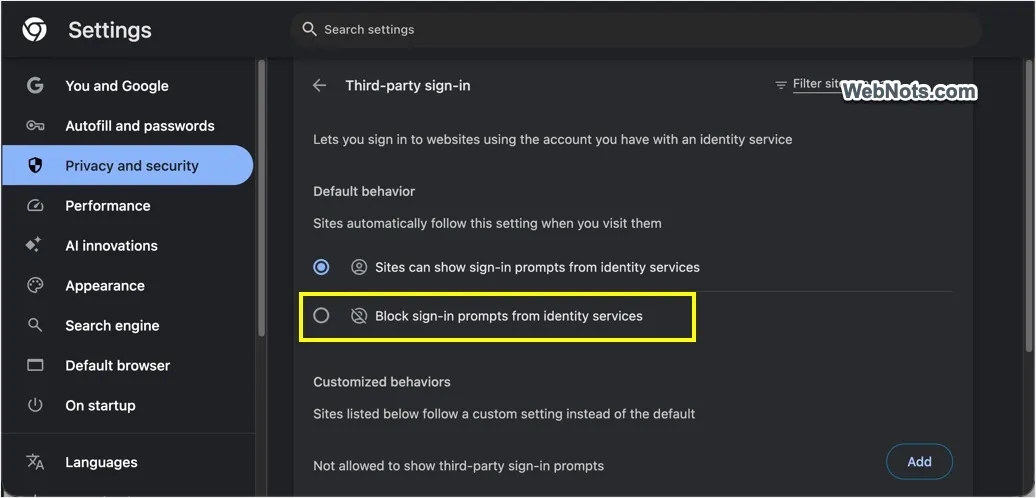
- Under “Default behavior”, select “Block sign-in prompts from identity services”.
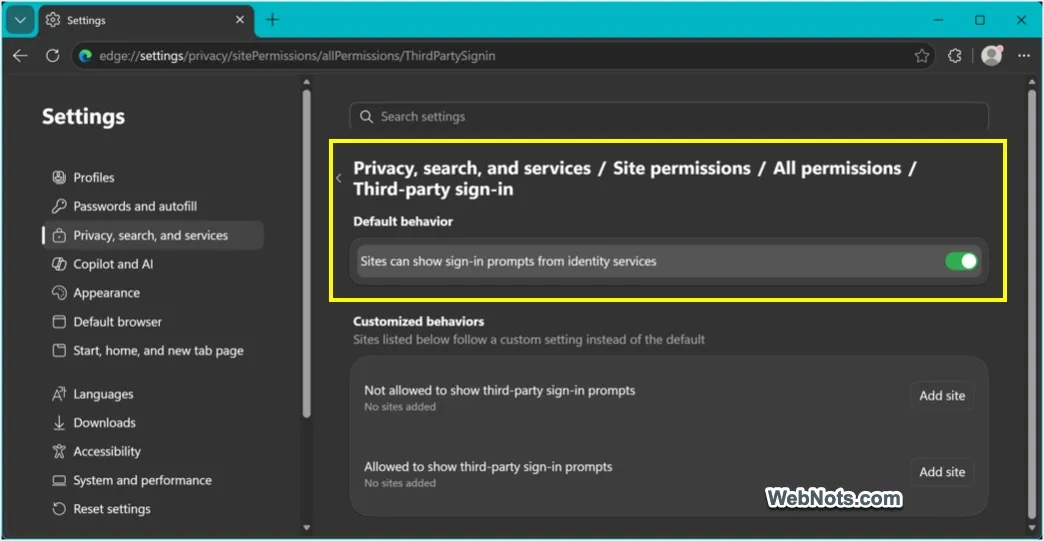
On Edge:
- Go to “Settings > Privacy, search, and services > Site permissions”.
- Navigate to “All permissions” section and click “Third‑party sign‑in”.
- Turn off “Sites can show sign-in prompts from identity services” under “Default behavior”.
4. Manually Block the Google Identity Script
If none of the above works, you can manually block the pop‑up’s source.
- Some premium ad blockers (like AdBlock Plus on Chrome) let you right‑click on the pop‑up and select Block element. This removes the element without affecting other parts of the site.
- Otherwise, you can use the extension like HTML Content Blocker on Chrome to block accounts.google.com/gsi/ (the Google Identity script) either on the offending site only or on all domains.
Caution: Blocking this script may break other Google services on that site like embedded maps or login buttons. So, use this only as a last resort, and ideally restrict it to the specific site causing trouble.
Final Thoughts
“Sign in with Google” pop‑ups are designed to make login convenient, but when they appear unsolicited, they become a nuisance. By combining built‑in pop‑up blocking with a good ad blocker, you can browse without being constantly asked to authenticate.