Quick Look is an in-built tool in Mac that allows you to view any type of file without even opening it. Most files will show a preview in Finder though you need an associated app to view its content in a separate window. Quick Look removes the hassle of having a separate app to open a filetype. In this article, we will explore how to use Quick Look and its features in Mac. Also learn how to add Quick Look like feature in Windows PC.
Necessity of Quick Look
Let’s take an example where Quick Look can be of more useful. Sometimes you may want to view the content of app’s Property list with .plist extension. These .plist files by default uses Apple’s Xcode app or you can use third-party apps like BBEdit. However, you can use Quick Look to view plist files in full screen window without having any additional apps. Whether is a PDF, presentation or Word document, you can quickly have a look without having the required apps.
In addition, there are options to edit images and trim video/audio files using Quick Look tool without additional apps.
Open Quick Look in Mac
Simply highlight the file and press space key to open its content in Quick Look window. Yes, it is that easy and you can use this feature anywhere in Finder or Desktop. You can scroll down on Quick Look window or drag and resize the edges to see full content of the document.

Again, press the spacebar to close the Quick Look window and return to the file name.
Note: Do not confuse Quick Look with Quick Action icons showing below the file preview in Finder app.
Quick Look Features
Quick Look window shows options depending upon the file type you have selected (like image, PDF or video). The Quick Look window of an image will look something like below in Mac.

You can select the text, right-click and use the default content menu items like lookup, translate, search, etc. As you can see, the title bar shows few icons and buttons to view or edit the file’s content.
- You have close and enter full screen icons left to file name.
- If you have an associated app installed on your Mac, the tool will show an option to open the file with that default app (a button on right corner of Quick Look window).
- Click the “Share” icon and select the app to share the file.
- Mark up icon allows you to add content on the file.
- Rotate option allows you to turn the image with 90 degrees.
- Live text icon showing on bottom right corner of the image helps to extract text content from image.
Note that mark up and rotate icons will be shown when you Quick Look a document file. Here are some of the useful tips for effectively using Quick Look feature on Mac.
1. Using Quick Look in Full Screen Mode
As mentioned, you can click on the full screen icon to enlarge the window to fit your screen size. After highlighting a file, you can also simply press “Option + Space” keys to open Quick Look window directly in full screen mode.

Full screen mode will show share, quit full screen and close icons. You will not have other options as explained above.
2. Extracting or Copying Text and Objects from Image
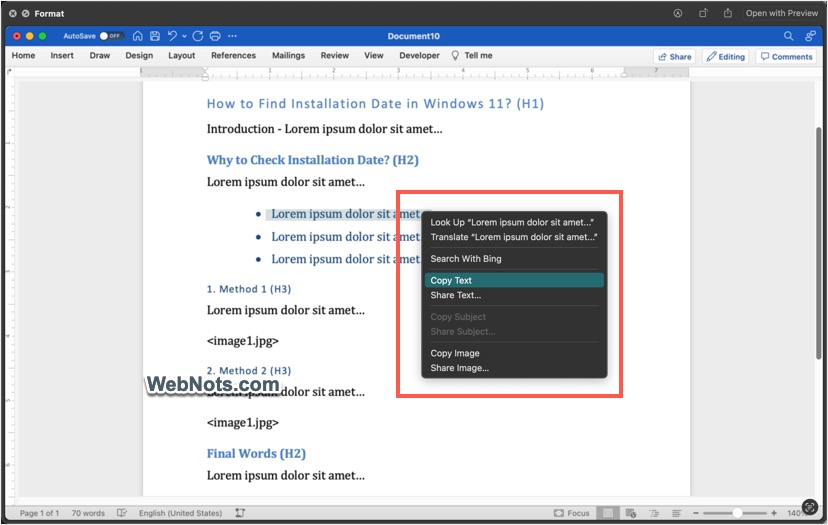
The tool will automatically detect text and objects in your image and you have two ways to copy object and text right from the Quick Look window.
- Select text or object in your picture, right-click on it and then select “Copy Text” or “Copy Subject” option.
- Now, you can paste the copied item anywhere in email or message.
For extracting all text content from an image, click the Live Text icon showing on bottom right corner. Now, click the “Copy All” bottom on bottom left corner to get the text in your clipboard. Again, press the Live Text icon to return to image view.

3. Annotating on Mac and from iPhone
As mentioned, mark up tool allows you to add text or draw on your image. However, the hidden feature that you can also annotate on your image from iPhone or other connected devices.
- Click on the “Markup” icon in Quick Look window and use the annotation tools to add text, bubbles or draw on the image. In addition, you can also insert signature and crop the image to resize. Click on “Done” button after finishing your changes.
- For editing the image from your iPhone, make sure both devices are available nearby. You will see a phone symbol on the markup window’s toolbar and click on that.

- The image will instantly appear on your iPhone in edit mode with similar set of markup tools. Add your content from the phone and tap “Done” link to finish the task.
- All changes will reflect on the Mac’ Quick Look window lively. You can accept the changes by clicking on “Done” button or reject by clicking on “Revert” button.

4. Selecting Multiple Files to View
Quick Look also allows you to select and view multiple files at once. You can select same or different file types and press “Space” to open Quick Look window. This time, there will be two additional options in the toolbar.

- Navigational arrows – use them to surf through the selected files.
- Grid – click on the grid icon to view all selected items as a grid. This helps you to quickly select any item for viewing without going through navigational arrows.

5. Trimming Audio and Video Files
When you preview an audio or video file in Quick Look window, the tool will show additional options to trim and play the file. Click on the double arrow icon showing at the end of play control to set the playback video’s speed.

Click the “Trim” icon on top toolbar and adjust the slider to trim your video.

You can also extract all text from the video using Live Text icon by pausing the play.
6. Jumping to Specific Page in PDF
PDF preview in Quick Look will show page thumbnails which you can click to quickly jump to that page. In addition, the hyperlinks will also work in PDF and text documents.

Final Words
Quick Look is a very useful tool to preview files and save your time. If you are not using Quick Look in Mac, probably it’s a time for you to try it out. Perhaps you may find it as a best option to annotate images on multiple devices at the same time.