Whenever you do changes in system files or settings, it is necessary to restart the system for the changes to take effect. However, this is not the case with Mac and in most situations, you can simply relaunch Finder app to find the changes are already available. For example, you can run a Terminal command to view hidden files in Mac and relaunch Finder app to see the files immediately. In addition, Finder is slow or not working properly then a restart can help to fix the issue. In this article, we will explain various ways to restart or relaunch Finder app in Mac.
Relaunching and Reopening Finder App
If you have noticed, macOS does not have “Quit Finder” menu in Finder app. This means the app will be always running in background (you can always see a dot below the app icon in Dock). So, simply closing/minimizing the app and reopening again will not have any impact as the app always runs in the background.
On other hand, relaunching will kill all Finder processes and launch the app afresh. You can notice a flicker or refresh on desktop when you relaunch as Finder is necessary to show desktop icons and desktop right-click context menu in Mac. Before relaunching, make sure to review all your open Finder windows and close them so that you will lose track of your work.
1. Relaunch Finder from Dock
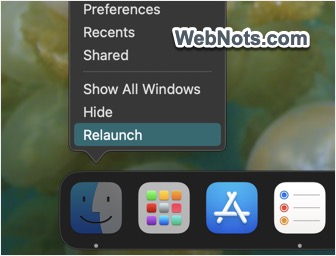
- Press and hold the option key (also called alt key).
- Control-click on the Finder icon in your Dock.
- Select “Relaunch” option from the context menu that appears.
- Open windows if any will be closed and Finder will relaunch again with the default folder.
- If the app does not open automatically, click the icon in Dock to launch it.
2. Relaunch Finder from Force Quit
- Click the Apple logo on top left corner of the screen and select “Force Quit” menu. Alternatively, press “Option + Command + Escape” keys to open Force Quit pop-up.
- While all other open apps show “Force Quit” button, selecting Finder will show “Relaunch” button.
- Click on the “Relaunch” button to restart Finder app.

3. Use Force Quit Finder Menu
This is same as the above option to use “Force Quit” in a different manner.
- Open a new Finder window.
- Click the Apple logo menu and press “Shift” key.
- Select “Force Quit Finder” menu.

4. Relaunch Finder from Terminal
This option is handy when you have executed a command in Terminal and wanted to relaunch Finder directly from there.
- Press “Command + Space” to open Spotlight Search.
- Type “terminal” in the search box to find and open Terminal app.
- Type the following command and press enter key.
Killall Finder
This will relaunch any open windows of Finder app or click on Dock icon to relaunch the app.