
Sticky notes are useful to note down important tasks and keep them on your screen for reminder. However, you do not those colorful physical papers anymore and a digital app can help you in that. Sticky Notes app is in Windows for that purpose while you have Stickies app on macOS. In this article, we will explore how you can manage sticky notes on Mac using Stickies app like a pro.
Open Stickies App in Mac
Stickies is one of the default apps supplied with macOS operating system. You can open Stickies by:
- Press, “Command + Space” to open the Spotlight Search box.
- Type “stickies” and open Stickies app from the results.
The app is located under “Applications” folder in Finder or you can open it from “Other” folder from Launchpad.
Creating Your Sticky Note
The app will launch with a yellow color sticky note by default where you can enter the notes and keep it as a reminder.

You can open as many as sticky notes to write down different tasks. Press “Command + N” or go to “File > New Note” menu for creating a new note. You can collapse, close or zoom the note from its title bar menu icons.
Note: Double-click on a note’s title bar to minimize or maximize the content area.
Customize Stickies App in Mac
You can go through the top menu options to change the color, keep the sticky note on top and export the content. Alternatively, right-click on the Stickies to view various options for changing orientation, sharing the notes, changing color, etc.

Changing Sticky Note Color
If you want to change the background color of the note, go to “Color” menu and select from one of the available colors from the list.

Unfortunately, there are only six colors and it is not possible to choose your custom color from the picker. Good thing is that you can use “Command + 1” through “Command + 6” keyboard shortcuts to choose these colors without going through the menu items every time.
Save Sticky Note as Text File
If you are familiar with Windows Sticky Notes app, it is easy to save and keep your notes forever within the app. However, that is not possible in Mac with Stickies. All you can do is to convert the note to a text file (plain or rich) and then import back when needed.
- Go to “File” menu and choose “Export Text…” option. Alternatively, close the note and click on “Save…” button.
- Save the file in plain text, RTF or RTFD format.

- When you want to open a note, go to “File > Import Text…” menu.
- Select the previously exported text file and open as a new sticky note.
Alternate options include sending Stickies to Notes, Reminders or share in Mail / Message apps. For sharing a sticky note, right-click on a note and select “Share” option. After that, choose the app where you want to send / share.

Adjust Font Settings
If you see the default text size is too small, select the text in your note, then right-click and go to “Font” option. From here, you can adjust the basic text formatting with bold, italic, underline and outline options.
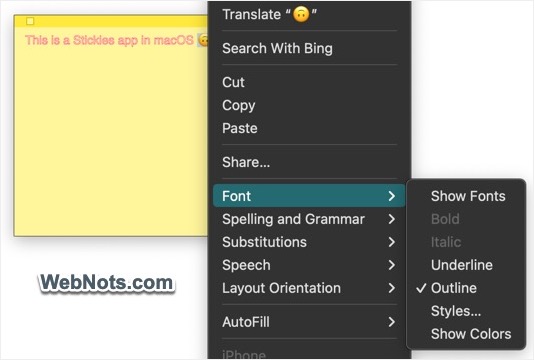
For additional customizations, select “Show Fonts” option to open the default macOS Fonts customizer. Using the tool, you can change the size, family, color and style of your text.

Keep Stickies on Top and Translucent
By default, Stickies app will not keep the notes on top of other apps. If you want to keep any note in floating state, go to “Window” menu and select “Float on Top”. Alternatively, press “Option + Command + F” keys to toggle sticky floating option.
If the sticky note is disturbing when floating, you can make it as translucent by pressing “option + Command + T” keys (“Window > Translucent” menu).

Using Templates in Stickies App
Let’s say, you want to always open a new note in floating and translucent state with custom font size. It will be annoying to apply these changes each time from menu or using keyboard shortcuts. What you can do is to use your customized note as a default template so that all new items will open exactly like the current note’s style. Simply select the required options and customize the fonts you need, then go to “Window” and click “Use as Default” option.

Press “Command + N” and you will see the new note is created with the custom styles.
Insert Image and PDF Attachments in Stickies
The cool part with Stickies app in Mac is that it supports inserting all type of files within a note. Simply copy an image or a PDF file using “Command + C” keys and paste in your note using “Command + V” keys. The file will be embedded and show the preview. Image will show additional option to markup. Click on the small down arrow icon showing on top right corner of the inserted image and select “Markup” from the menu. This will open in-built markup editor using which you can add text or draw on the image.

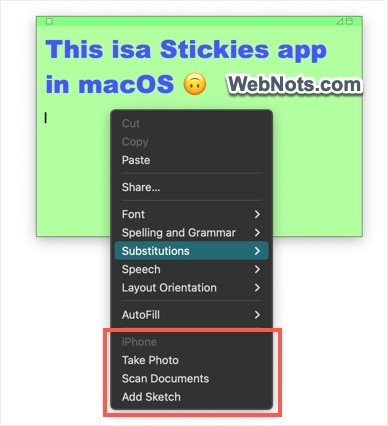
If you want to insert an attachment from iPhone to your note, make sure both devices are using same Apple account and available nearby. Right-click and select “Take Photo”, “Scan Documents” or “Add Sketch” option under iPhone section. This will trigger corresponding action on your iPhone (for example, open Camera app for taking photo). Finish the action on iPhone to insert the content in your note.
Note: When saving sticky note with attachments, make sure to select RFTD format. You can restore RTFD notes with embedded attachments from “File > Import Text”. Though the menu shows “Import Text”, it includes the embedded files in your note. Otherwise, the attachments will be permanently lost if you save in plain text (.TXT) or RTF format.


