
If you’ve built a WordPress site in the last few years, you’ve felt the shift. The classic “Customize” panel with its navigation menus and widgets is slowly being replaced by the Site Editor and blocks. So, when starting a new website, should you stick with a Classic Theme or go all-in on a Block Theme? Here is the honest breakdown.
A Brief History: From TinyMCE to Gutenberg
Before getting started, it is important to understand the evolution of editors in WordPress and the current landscape.
WordPress launched in 2003 with the Classic Editor, which was essentially a simple text area powered by the TinyMCE toolbar. Users could write HTML directly or use basic formatting buttons such as “Bold” and “Italic.” However, creating more complex layouts like image positioning or multi-column designs required custom code or shortcodes. For more than a decade, this remained the standard editing experience. While widget areas such as sidebars and footers supported a drag-and-drop interface, they still relied on the classic system.
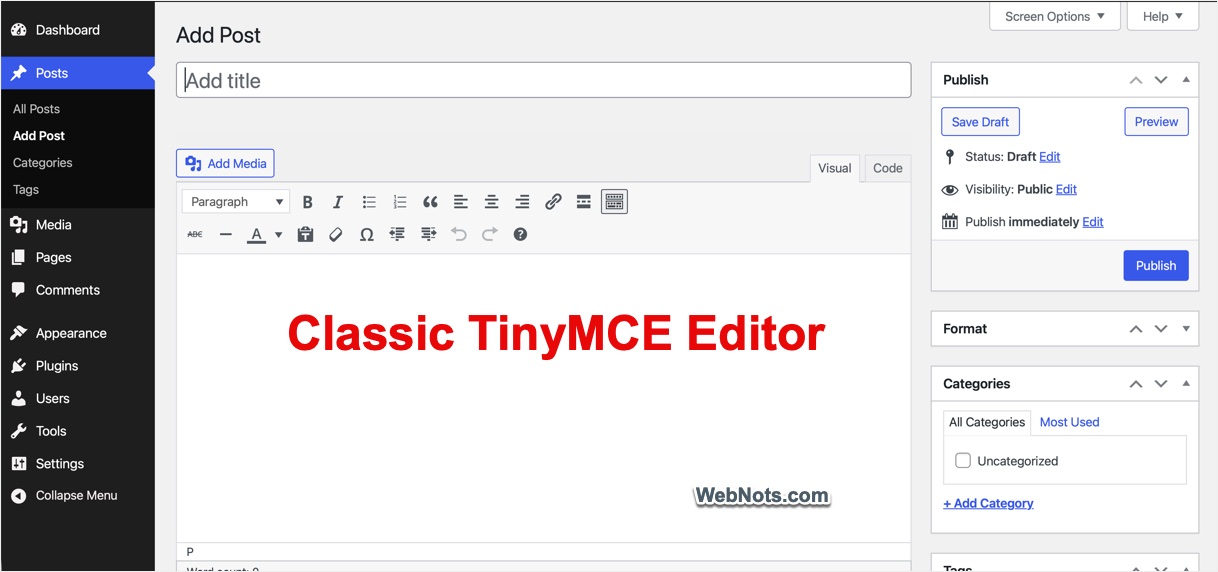
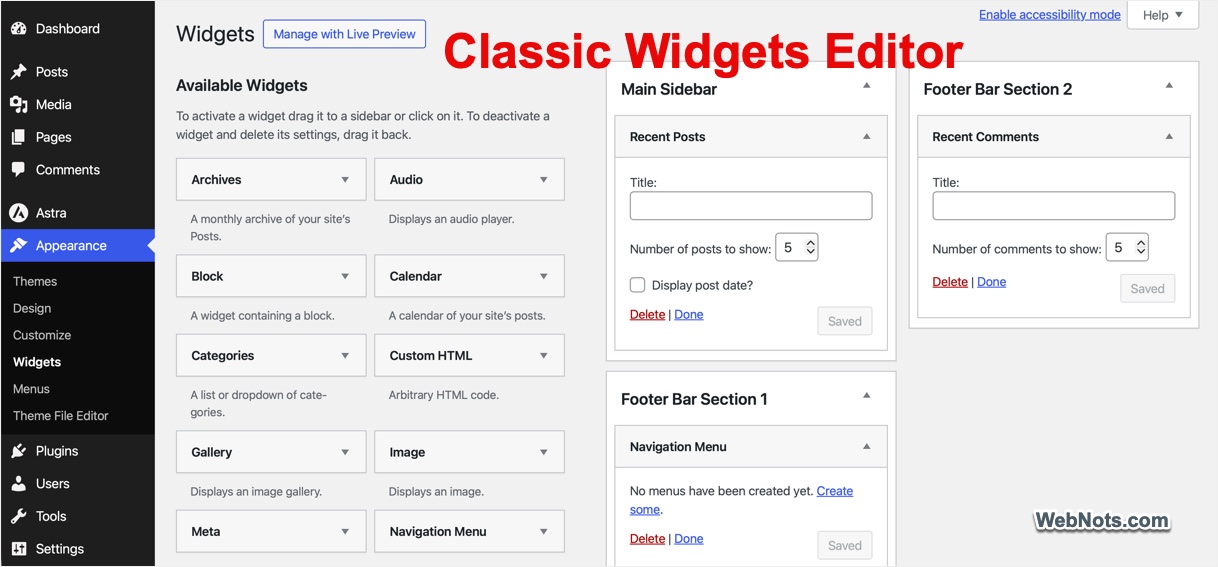
By 2017, competitors like Wix and Squarespace had made drag-and-drop website builders mainstream, pushing WordPress to modernize. In December 2018, WordPress 5.0 introduced Gutenberg, also known as the Block Editor. This replaced the Classic Editor with a block-based system, where content is built using modular blocks for paragraphs, images, galleries, buttons, and more. This approach enabled users to create rich layouts without needing to write code.
Following this shift, the traditional widget editor was also replaced with a block-based interface, and Full Site Editing (FSE) was introduced. With FSE, users can edit entire site layouts, insert elements like tables and columns, and customize design aspects without relying on shortcodes or third-party page builder plugins.
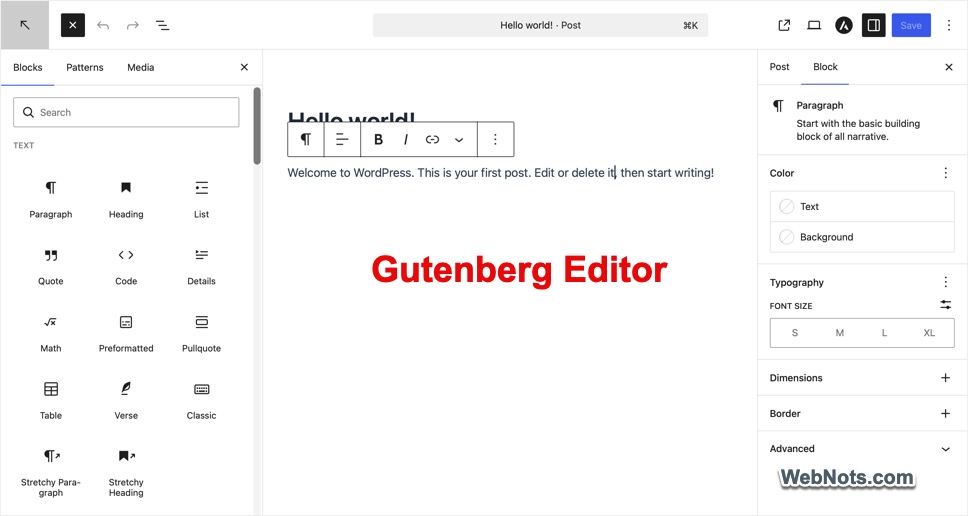
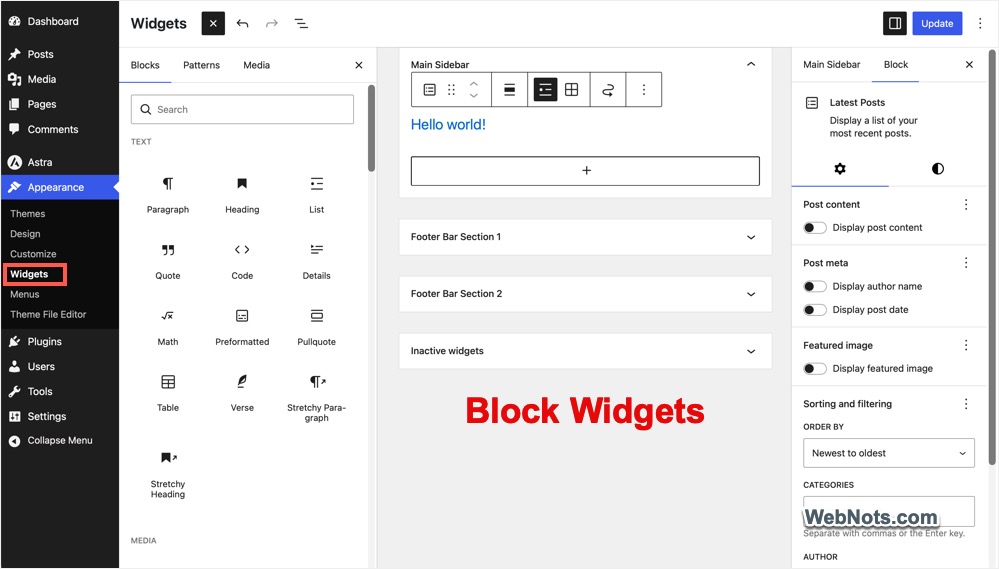
Although many new users and developers appreciated the flexibility of Gutenberg, long-time users often found it disruptive and initially unstable for established workflows. As a result, the Classic Editor and Classic Widgets plugins were introduced, allowing users to retain the legacy editing experience that continues to be used on millions of sites today.
In summary, the default WordPress setup now includes the Block Editor and Full Site Editing (FSE), with the Classic Editor available as an optional plugin. However, some plugins such as WooCommerce and bbPress still rely on the Classic Editor and do not support the block-based system.
Classic vs Hybrid vs Block Themes
Due to the shift in the editor interface, which serves as the foundation for theme architecture, WordPress themes can be categorized into three main types:
- Pure Classic: These themes rely entirely on the Classic Editor for content creation (posts and pages) and use the traditional widget system. Many themes built for plugins like bbPress, BuddyPress, and WooCommerce follow this approach.
- Classic (Hybrid): These themes use the Block Editor (Gutenberg) for content and often support block-based widgets but still depend on the WordPress Customizer for editing global design elements such as headers, footers, and layouts. Popular examples include Astra, Genesis Framework, and GeneratePress.
- Block Themes: These themes are fully built for Full Site Editing (FSE). They use blocks for both content creation and site structure, allowing users to design layouts, templates, and global styles directly within the editor. Examples include the default Twenty Twenty-Four and Twenty Twenty-Five themes.
Since pure Classic themes are now uncommon, the choice typically comes down to hybrid (classic-based) themes and block themes. To better understand the differences, let’s look at examples using Astra and Twenty Twenty-Five and compare how they work in practice.
Note: Go to “Appearance > Themes > Add Theme” to find and install a theme from WordPress repository. Otherwise, you can upload a theme’s ZIP file to install a custom theme. This does not change whether you use a Classic or Block theme.
The Classic Theme
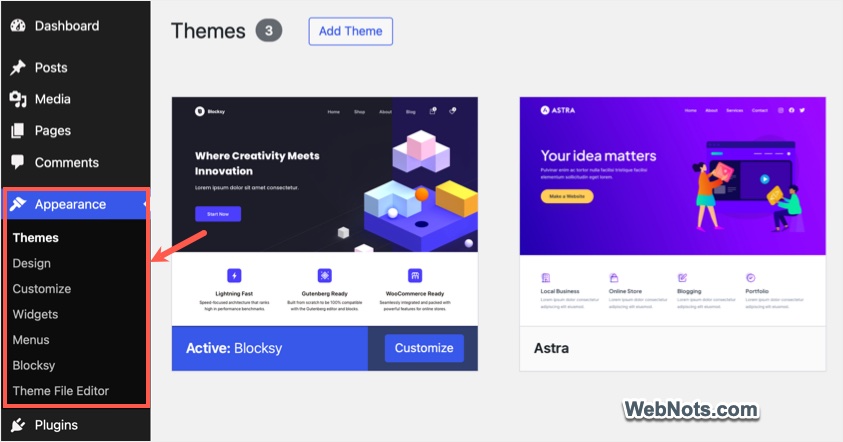
After installing a classic or hybrid theme such as Astra, the “Appearance” menu typically includes options like “Customize”, “Menus”, and “Widgets” as shown below.
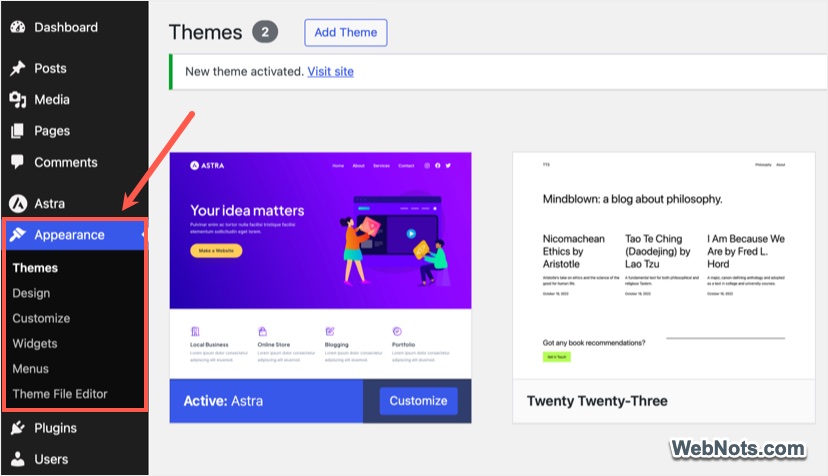
Go to “Appearance > Customize” to open the Customizer, where you can modify colors, typography, layout settings, and other design elements. The available options vary by theme, and many themes offer basic features for free while reserving advanced customization options for a Pro add-on plugin.
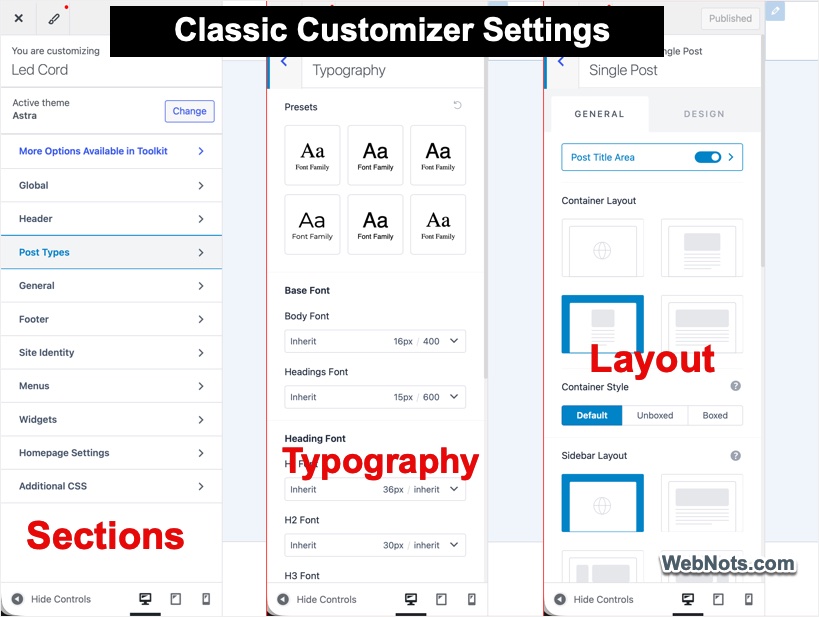
Content is created using the Block Editor (Gutenberg), while menus can be managed under “Appearance > Menus”. For sidebars and footer areas, go to “Appearance > Widgets”. These widget areas are generally applied sitewide, although many themes provide Customizer settings to control sidebar visibility for specific content types such as posts or pages.
Note: As you can in the above screenshots, themes like Astra now include partial Full Site Editing features (“Appearance > Design”), which is why they are considered hybrid rather than purely classic. You can also extend block functionality using plugins like Spectra for additional patterns and design controls within the editor.
The Block Theme
After installing a block theme such as Twenty Twenty-Five, the “Appearance” menu changes significantly. Instead of separate options like Customizer, Widgets, and Menus, you will primarily see “Editor”, which opens the Full Site Editor (FSE).
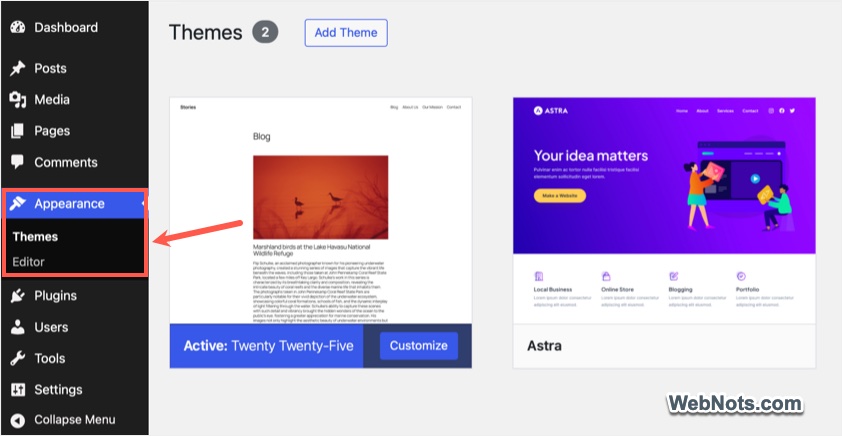
Go to “Appearance > Editor” to manage global styles, navigation, templates, pages, and patterns. For example, the “Styles” section allows you to control typography and colors for elements like headings, text, links, and captions. The “Templates” section lets you design layouts for pages, posts, and archives.
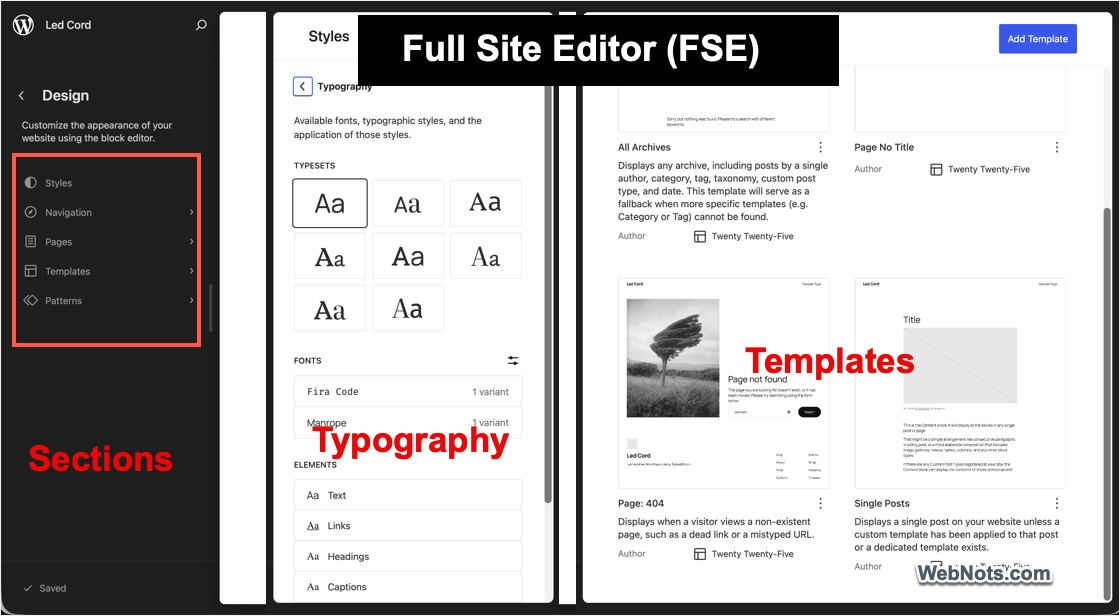
In block themes, headers, footers, and navigation menus are built using blocks and edited visually within the Site Editor. Many block themes avoid traditional sidebars in favor of a more flexible, mobile-first layout approach. Content creation for posts and pages still uses the same Block Editor interface as in classic themes.
Note: Some themes such as Blocksy blur the line by offering both Customizer and FSE capabilities (similar to Astra or GeneratePress). These are better described as hybrid themes, even if they are marketed as block themes. A true block theme typically does not include separate Customizer, Widgets, or Menus sections.
Head-to-Head Comparison
Let’s compare the features of Classic and Block themes based on the example we have tested:
| Criteria | Classic Theme | Block Theme | Winner |
|---|---|---|---|
| Design | Moderate (requires code or page builders for advanced layouts) | High (visual, block-based layout control across the entire site) | Block |
| Performance | Excellent (lean and PHP-driven) | Good (can include additional CSS and block assets) | Classic |
| Usability | Moderate (split between Customizer and editor interfaces) | High (unified, visual editing experience) | Block |
| Compatibility | Excellent (broad compatibility with legacy plugins) | Improving (some older plugins have limited FSE support) | Classic |
| Support | Extensive (large ecosystem of tutorials and documentation) | Growing (fewer mature learning resources) | Classic |
Note: Switching between classic and block themes is relatively straightforward for content, since both use the Block Editor. However, menus, widgets, and template-specific customizations often need to be recreated. Using plugins for creating custom layouts and reusable elements can reduce friction during theme changes.
Which Should You Choose?
There’s no single “best” answer as it depends on your technical comfort, long-term goals, and design needs.
Choose a block theme such as Twenty Twenty-Five if:
- You want full visual control over headers, footers, and layouts without relying on external builders.
- You are starting a new site and want alignment with WordPress’s future direction.
- You prefer minimizing dependency on third-party plugins for layout control.
Choose a classic or hybrid theme such as Astra or GeneratePress if:
- You rely on established tutorials, documentation, or support resources.
- You prefer the Customizer workflow or already use page builders.
- Your site depends on legacy plugins or custom PHP functionality not fully compatible with FSE.
For existing sites or complex implementations, staying with a classic theme is often the safer choice. For new builds, especially those prioritizing design flexibility and future compatibility, block themes are the more strategic option.





Helpful comparison! Block themes offer more flexibility and modern customization, while classic themes are great for users who prefer simplicity and familiar design controls.