Windows 11 introduced a host of new features including a modernized File Explorer with tabs, rounded corners, new icons, and shortened context menus. While the new design is appealing to many, some users miss the simplicity and familiarity of the classic File Explorer interface found in previous versions of Windows, such as Windows 10 and even earlier. If you’re one of those who misses the old setup, here are various methods – both built-in and third-party – for opening the classic File Explorer in Windows 11.

Why Seek the Classic File Explorer?
There are several reasons why users may want to revert to or access the classic File Explorer in Windows 11:
- Long-time Windows users are accustomed to the layout and behavior of the classic File Explorer.
- Some features work better in the classic version like the right-click context menu shows full list of menu items.
- Old interface often supports legacy features and third-party add-ons.
- The classic File Explorer can sometimes feel snappier, especially on older hardware.
Methods to Open Classic File Explorer in Windows 11
There isn’t an official “classic mode” toggle in Windows 11, but there are several workarounds and tools that allow you to access the traditional experience.
1. Using Windows Tools App
Many users do not know that Windows has plenty of hidden tools and administrative apps.
- Search for “Windows Tools” and open that app.
- This will show the old File Explorer with ribbon items.
- Go to “This PC” or use the pinned items to navigate through your files.
- Right-click on any file and you will see the old Windows 10 style context menu.

Pinning to Taskbar
If you like to use it permanently, select “Pin to taskbar” option while searching and add it to your taskbar for quick access.

- If the default File Explorer is currently pinned to your taskbar, right-click its icon and select the “Unpin from taskbar” option to remove it.

Changing Taskbar Icon
The pinned icon in taskbar will show as a gear settings icon. If that is confusing, you can easily change to the typical folder icon.
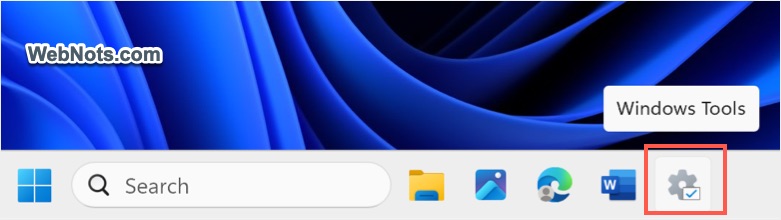
- First, right-click on the pinned gear icon and select “Unpin from taskbar” to remove that icon.
- Again, search for “Windows Tools” and select “Open file location” option.
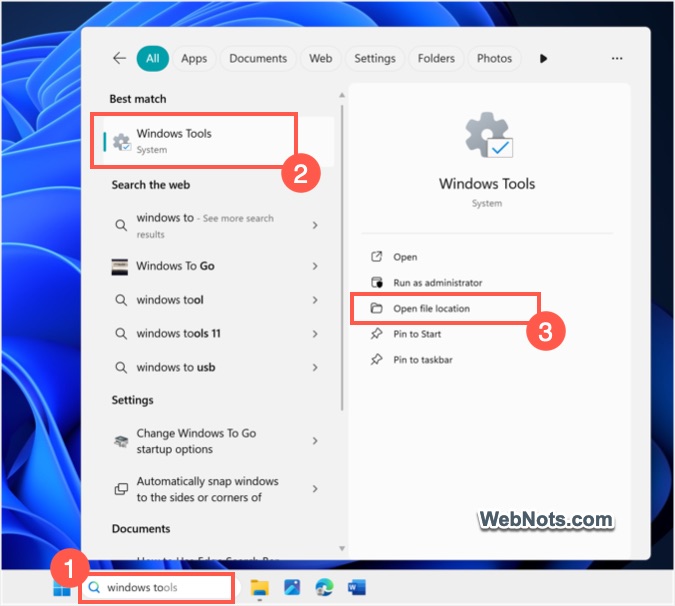
- This will show the “Windows Tools” shortcut in File Explorer, right-click on the item and select “Properties” option (or press “Alt + Enter” keys).
- Go to “Shortcut” tab in Windows Tools Properties dialog box and click on the “Change Icon…” button.
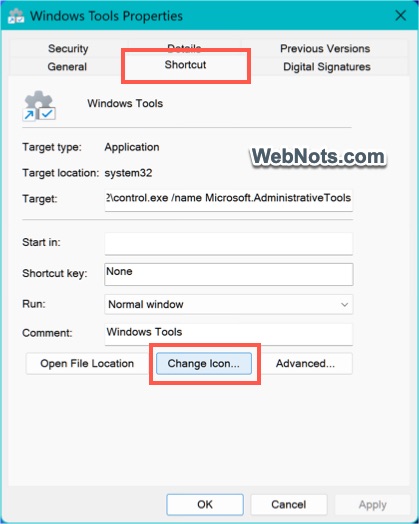
- Browse through and select the same File Explore folder icon (yellow folder with blue portion at the bottom) or select your favorite icon from the list. Click “OK” button to close the “Change Icon” pop-up.
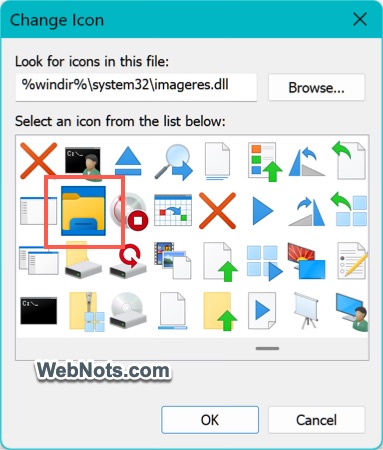
- Finally, search for “Windows Tools” again and select “Pin to taskbar” option.
- Now, you will see the Windows 11 File Explorer icon in taskbar. However, clicking on it will open Windows Tools which will allow you to use the classic File Explorer interface.
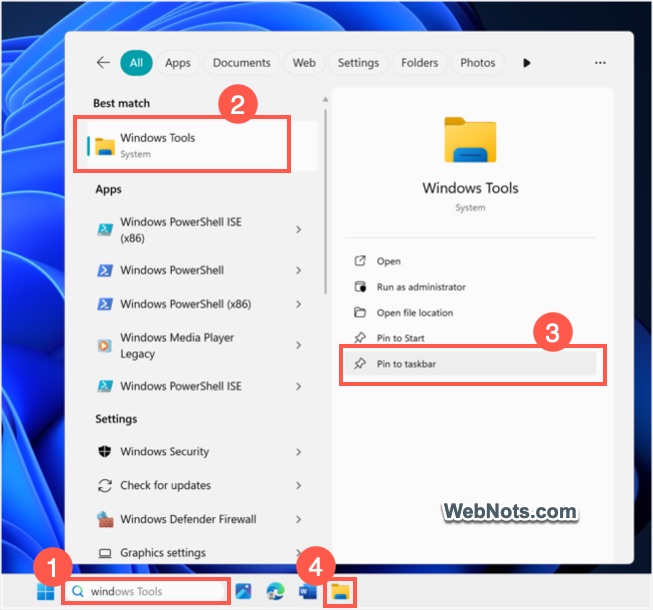
In this way, you can forget the new interface and continue to work with the classic File Explorer.
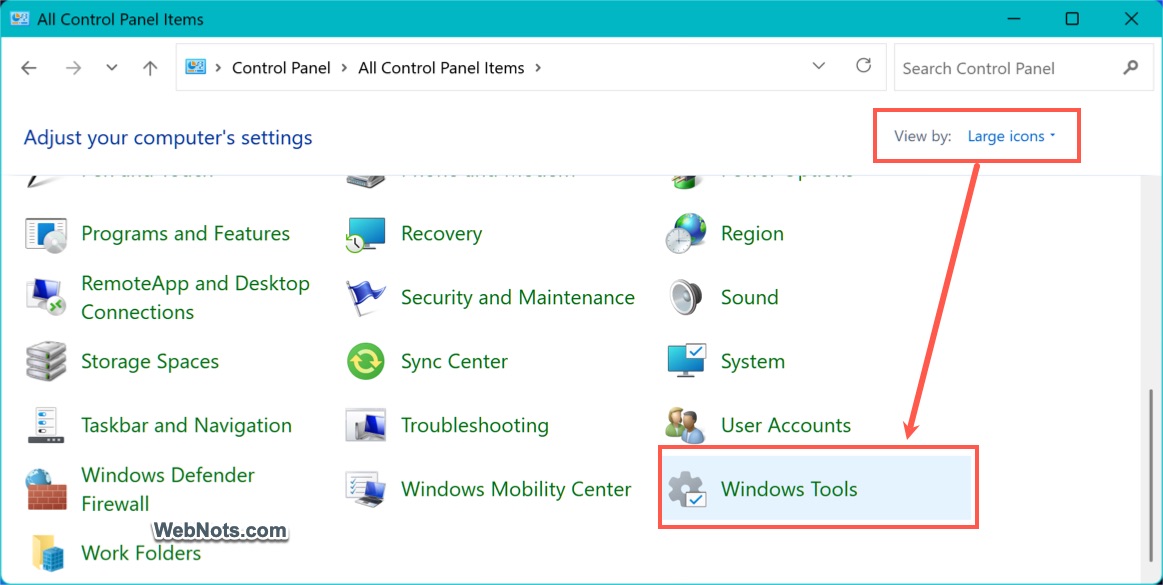
Note: Windows Tools can also be opened from the Control Panel app. Open the app, change the “View by” option to large or small icons and click on the “Windows Tool” option showing on the bottom.
Note: Similar to taskbar shortcut, you can add Windows Tools to Start menu as well as in desktop.
2. Third-Party Tools and File Managers
There are lot of third-party apps available if you don’t like the above method. However, make sure to download third-party apps from reputed sources to protect your system.
- OldNewExplorer: A popular tool that restores the classic look to File Explorer, including the Ribbon, status bar, and more.
- Classic Shell / Open-Shell: While mainly known for restoring the classic Start menu, these utilities can be used to tweak File Explorer as well.
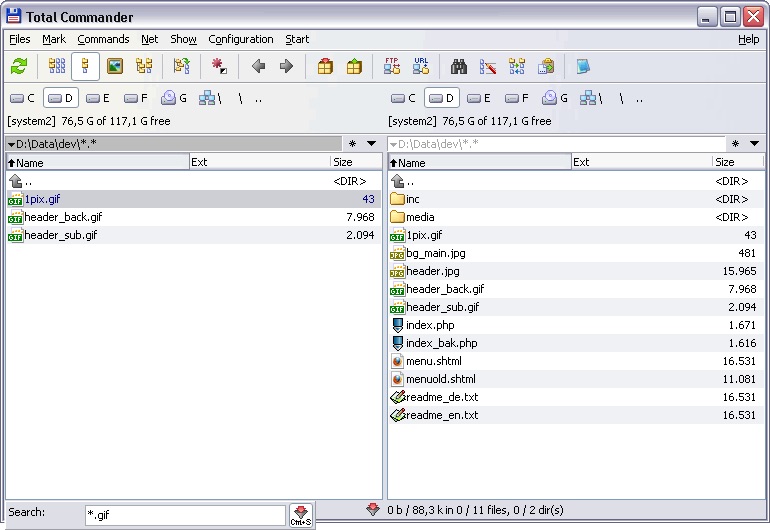
There are also programs available for complete alternate to File Managers. For example, Directory Opus or Total Commander offer highly customizable file management experiences that can mimic or even surpass the classic Windows Explorer.
Frequently Asked Questions
No, most of these methods temporarily open windows in the classic style or provide alternative interfaces. They do not override the default File Explorer permanently unless you opt for more invasive third-party tools or registry edits.
Third-party tools can be safe if downloaded from reputable sources, but always ensure you have reliable antivirus protection and backups before making significant changes.
Yes. Simply remove the Windows Tool taskbar icon and re-add Windows 11 File Explorer icon (click on Start button, right-click on the pinned File Explorer icon and select “Pin to taskbar” option). Third-party programs can be uninstalled if you no longer wish to use them.
Microsoft is unlikely to officially restore the classic File Explorer in future updates, as the company continues to modernize the Windows interface.