In our earlier article, we have explained how to view hidden files on various Windows versions to check your system files in File Explorer and from command-line. Windows hide system and important files by default. However, sometimes you may also want to hide your personal files / folders to prevent others from viewing them. In this article, we will explain how to do that on Windows 11, 10, 8 and 7 using various methods.
Hiding and Password Protection
Whether it is a system file or your personal file, you can hide them. But it is very easy for anyone having access to your system to unhide and view them. So, if you don’t want others to view your content, then consider protecting folders with password instead of simply hiding.
1. Hiding System Files and Folders
System folders if not hidden will show with a dimmed icons in File Explorer. These folders can distract you and lead to accidental deletion or modifications of content thus affecting your system.

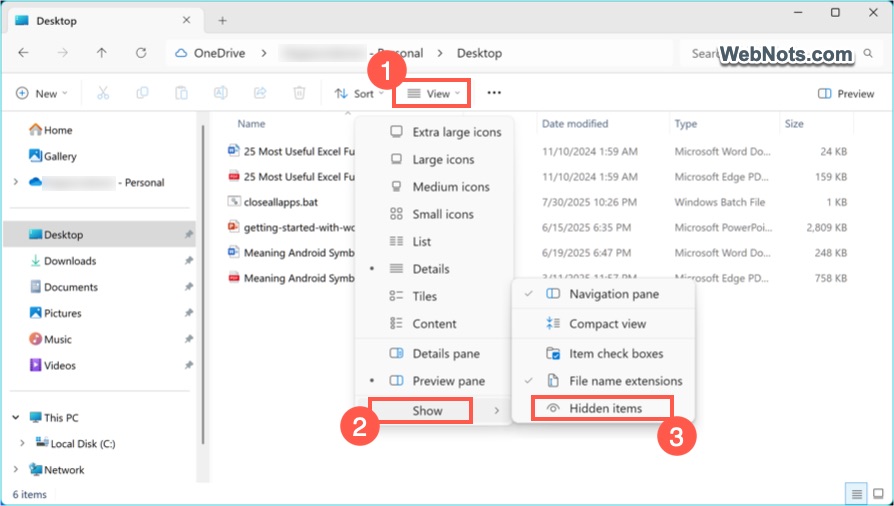
On Windows 11:
- Press “Windows Logo + E” keys to open File Explorer.
- Click the “View” tab and navigate to “Show” menu.
- Uncheck “Hidden items” option.
On Windows 10 & 8:
- Go to “View” tab in File Explorer and uncheck “Hidden items” option under “Show/hide” group.

On Windows 7:
- Go to “Organize > Folder and search options” menu in Windows Explorer.
- Navigate to “View” tab in “Folder Options” dialog box.
- Select “Don’t show hidden files, folders and drives” under “Hidden files and folders” heading.
- Click “Apply” and then “OK” buttons.

2. Hiding Personal Files and Folders
If you want to hide your personal folders, first make sure system files / folders are hidden as explained above and follow the below steps.
- Open File Explorer and navigate to the file / folder you want to hide.
- Right-click on the file or folder and select “Properties” option. You can also highlight the file / folder and press “Alt + Enter” shortcut keys to open “Properties” dialog.

- Go to “General” tab and enable the “Hidden” checkbox against “Attributes” heading.

- Click on the “Apply” button and then “OK” to save your changes.
- Now the file / folder will disappear and hide from your view.
2.1. Hiding Personal Folders with Files and Subfolders
If the folder you want to hide contains many files and subfolders, then you need to also hide all the files / subfolders inside.
- Right-click on the required folder and choose “Properties” option.
- Select “Hidden” attribute and click on “Apply” button.
- Now, Windows will prompt you to confirm whether you want to hide only the folder or all files and subfolders inside the folder as well.

- Choose “Apply changes to this folder, subfolder and files” option to hide the entire content inside the folder.
3. Using Command Prompt to Hide Files / Folders
For those comfortable with command-line tools, Command Prompt offers more control and options for hiding files and folders.
- Press “Windows Key + R” to open Run dialog. Type cmd in the box and press enter to open Command Prompt app.
- Navigate to the folder containing the file/folder you wish to hide using the cd command. (for example: cd C:\Users\<Useraccount>\Documents to change the prompt to Documents folder).
- To hide a file or folder, type attrib +h filename and press enter (replace filename with the actual name of your file or folder).
- This will set the “Hidden” attribute in properties as explained in method 2 above. To unhide the file, simply type attrib -h filename and press enter. This will remove the hidden attribute and make it visible again.

3.1. Use System and Hidden Attributes
For even greater concealment, you can combine the hidden attribute with the system attribute.
- Type attrib +h +s filename and press enter.
- This command makes the file or folder attribute as hidden as well as system file which is hidden by default.

Remember that files set with system and hidden attributes will not be visible even if “Show > Hidden items” is enabled in File Explorer as explained in method 1. Since system attribute is also not visible in properties dialog, the only option for you is to unhide the file using attrib -h -s filename from the Command Prompt. So, use system attribute only if you really need it and make sure to remember the file’s / folder’s location.
Also, these commands will not show any confirmation after executing but the file will be hidden or shown immediately.
Frequently Asked Questions
Yes – anyone who knows how to reveal hidden items in Windows can access them. Hiding is best for discouraging casual snooping rather than providing genuine security.
Yes – Windows treats hidden files as regular files, just not visible. However, deleting the parent folder will also delete its hidden contents.
Yes – most antivirus programs scan all files, including hidden ones.
By default, Windows Search does not display hidden files unless you adjust the search options to include them. In the “Properties” dialog, click the “Advanced” button under “Attributes” section. Check or uncheck “Allow files in this folder to have contents indexed in addition to file properties” option.
Final Words
Hope this article helped you to understand how to hide important system and personal files / folders on different Windows versions. However, as mentioned, simply hiding your confidential files is not secure and good idea. Find a proper password management tool and set a complex password for the data you want to protect from other users on your computer.