All latest MacBook Pro and MacBook Air laptop models come with an in-built Touch ID on the keyboard layout. If you are purchasing an iMac, Magic Keyboard with Touch ID is supplied along with the package. Otherwise, you can purchase the Magic Keyboard separately to use with your device as an accessory. The beauty of the Magic Keyboard or keyboard layouts with Touch ID is that you can unlock your Mac with a simple touch of your finger. This article provides a step-by-step walkthrough on how to setup Touch ID on your Mac Magic Keyboard. You can follow the same steps on MacBook laptops with Touch ID enabled keyboard.


Understanding Touch ID and the Mac Magic Keyboard
Before diving into setup instructions, it is important to understand what Touch ID is and what makes the Magic Keyboard with Touch ID special.
- Touch ID is Apple’s fingerprint recognition feature, initially introduced on the iPhone and iPad, and now available on certain Mac models.
- The Magic Keyboard with Touch ID places the sensor in the upper right-hand corner key, making authentication as simple as laying your finger on the sensor.
- Using Touch ID, you can access system settings, use Apple Pay and autofill passwords thus eliminating the need of manually entering admin password.
Compatibility Requirements
If you are planning to purchase a Magic Keyboard, make sure your system is compatible and support the Touch ID feature.
- Touch ID is supported only on Macs with Apple silicon (M1, M2, or later). Older Intel-based Macs do not support this function, even if the keyboard is connected.
- Only the Magic Keyboard with Touch ID (typically released from 2021 onwards) supports fingerprint authentication. Standard Magic Keyboards without the sensor do not offer this feature.
- Your Mac must be running macOS Big Sur 11.4 or later to use Touch ID on an external keyboard. It’s always recommended to update to the latest version available for security and performance improvements.
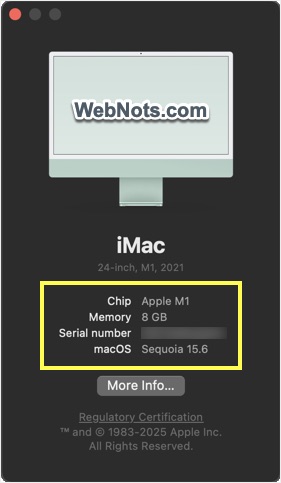
Click the Apple Menu on top left corner and select “About This Mac” option. It will show a pop-up where you can find the type of chip and macOS version to confirm the compatibility.
Setting Up Touch ID on Your Magic Keyboard
Magic Keyboard will be automatically connected to your Mac using Bluetooth. Otherwise, you can connect with USB-C to Lightning cable which is supplied with the keyboard. Once the keyboard is connected, follow these steps to set up Touch ID:
- Click the Apple Menu and select “System Settings…” option.

- Navigate to “Touch ID & Password” section from the left sidebar.
- Under “Touch ID” section, you will see an “Add Fingerprint” option and click on it.
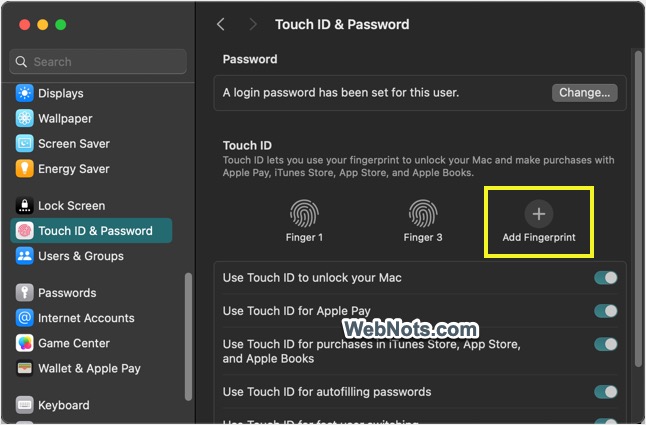
- You will be prompted to enter your password, type your admin password to unlock the setting.
- Place your finger (you can use any finger) gently on the Touch ID key on the upper right corner of your Magic Keyboard. Repeatedly lift and reposition your finger, ensuring each placement captures a different section of your fingerprint.

- Your Mac will show progress and preview as it records your fingerprint. When setup is complete, you will see a confirmation message.
- You can find the fingerprint is added in the list.
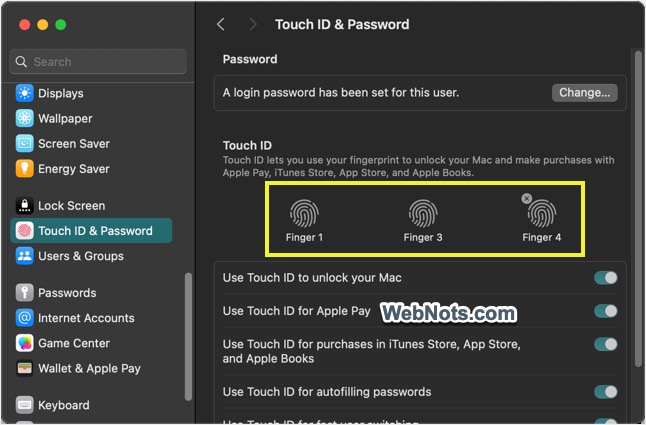
It is possible to add up to three fingerprints per user account and up to five fingerprints per Mac across all user accounts. Though three is the maximum, you can leave the setup with one or two fingerprints as per your convenience. If the Mac has multiple user accounts, only the current user can use his or her Touch ID fingerprints. Each user must enroll their own fingerprints while logged into their account. Also, if you reset your Mac, all Touch ID credentials will be erased and must be re-added.
Important: Touch ID cannot substitute for your Mac password in all cases. You may be asked for your password after a restart or when making significant changes to system settings.
Removing and Changing Fingerprints
After adding three fingers, sometimes you may want to change the fingerprint.
- Simply hover over one of the added fingerprints and click on the close icon that appears.
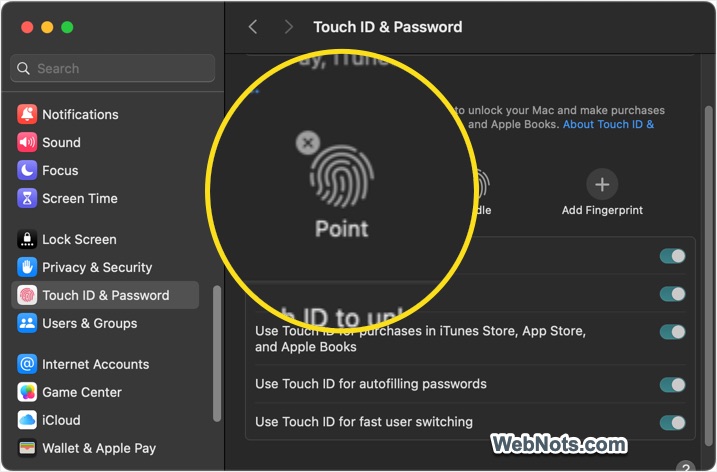
- Unlock the setting by entering your admin password.
- Click on the “Delete” button to confirm your action.

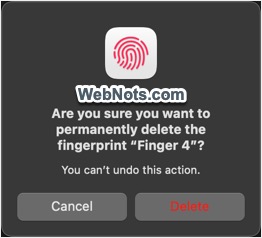
Now, you can add a new finger if required. By default, Mac will assign the names to fingerprints like Point, Middle, etc. If you want to change the name, simply click on the name and edit it as per your preference.
Configure Touch ID Preferences
After adding your fingerprint(s), you can choose what Touch ID will be used for (below the list of fingerprints).
- Unlocking your Mac.
- Making purchases with Apple Pay.
- Authorizing App Store, iTunes Store and Apple Books purchases.
- Using AutoFill for passwords and sensitive information.
- Switching users.

Turn on or off the options according to your preferences in the Touch ID settings panel.
Test Touch ID
Lock your Mac or put it to sleep. Wake it up and place your registered finger on the Touch ID sensor. If set up correctly, your Mac should unlock instantly. Try using Touch ID for Apple Pay or to approve a system change for further confirmation. As mentioned, you can also use Touch ID for autofilling password for login to websites in Safari.
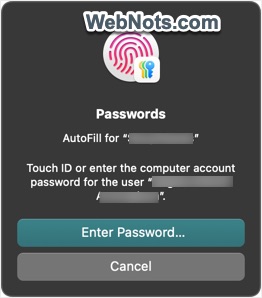
If your fingers are wet, oily or dirty, Touch ID key may not recognize them. In case if you encounter repeated failures, make sure to keep your fingers as well as the Touch ID key clean. Also, register more than one finger so you can use either hand with ease.
Frequently Asked Questions
No, it only works for Touch ID on Macs with Apple silicon (M1, M2, or later). On Intel-based Macs, the keyboard works as a standard keyboard but the Touch ID sensor is disabled.
Yes. Fingerprint data never leaves your Mac and is encrypted within the Secure Enclave. It is not sent to Apple or third parties.
Try reconnecting via cable, restarting your Mac or re-pairing the device via Bluetooth. If issues persist, check our article on how to fix it.
Yes, but each user must enroll their fingerprints when logged into their own account. If you remove a user account, the associated fingerprints are deleted automatically.