
In our earlier article, we have listed 100 popular commands used in Windows OS (from command line). However, Windows also provides a powerful set of built-in network commands that can help you analyze, monitor, and troubleshoot all kinds of network problems. Understanding these commands not only help you to solve day-to-day connectivity issues but also deepens your grasp of how networks operate. In this article, we will explain 18 most useful network commands every Windows user should know along with their functions and simple examples.
Using Windows Network Commands
Before we explain, here are some of the points to remember:
- You can run all these commands in Command Prompt in administrator mode. You can either open Command Prompt app independent or use it through Terminal app.
- We have only given some important examples used frequently. You can use
/?at the end of any command to get the complete help. For example,ipconfig /?to get all details and attributes that can be used withipconfigcommand.
1. ipconfig
The ipconfig command is an essential utility for Windows networking that displays all current TCP/IP network configuration values and facilitates the renewal of DHCP and DNS settings. Run this command to get your computer’s IP address, subnet mask and default gateway.

Here are some additional parameters you can use with the base ipconfig command:
To renew your IP address: ipconfig /release and ipconfig /renew.
To clear and reset the DNS resolver cache: ipconfig /flushdns.
2. ping
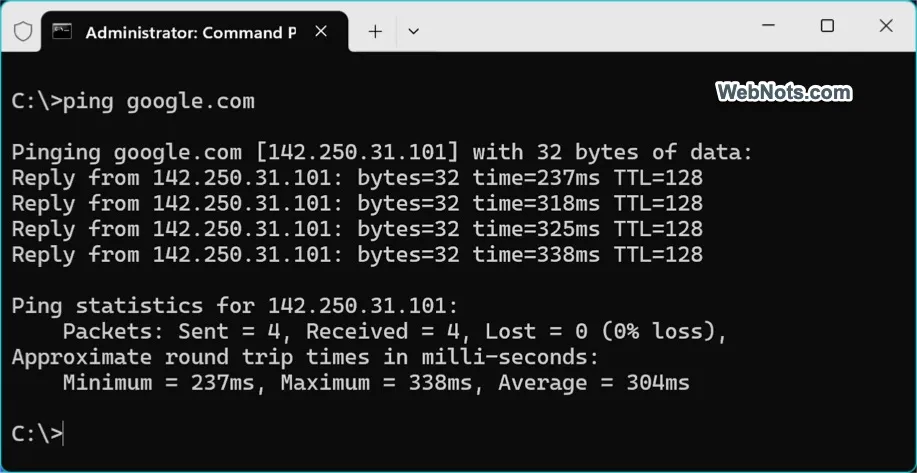
Ping command helps you to check the connectivity status between your computer and another device (like a website or another PC). It is a basic tool for diagnosing network or internet outages.
Example: ping google.com.
3. tracert
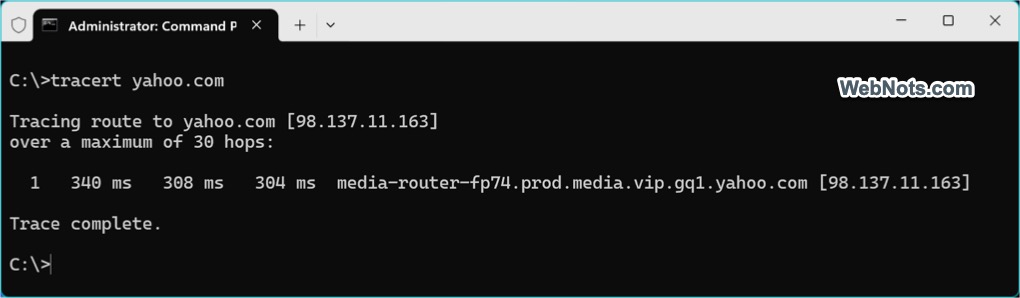
Short for “trace route”, this command shows the route that packets take from your system to a destination host, displaying each hop along the way. It is invaluable for pinpointing where data is delayed or lost.
Example: tracert yahoo.com.
4. nslookup
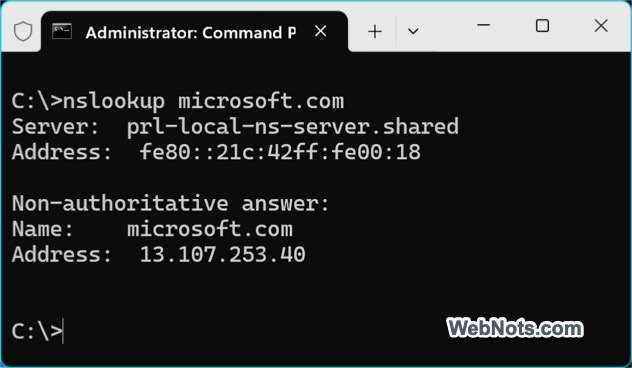
This diagnostic tool queries DNS servers to obtain domain name or IP address mapping information. It is often used to check if DNS resolution is working correctly.
Example: nslookup microsoft.com.
5. netstat
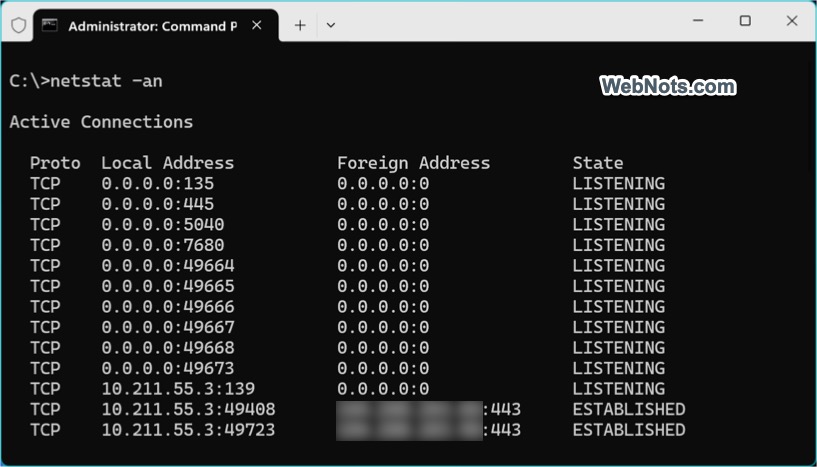
netstat command shows active TCP connections, listening ports, and network stats. Use it to find out which applications are using your network.
Example: netstat -an command displays a list of all connections and listening ports in numerical format.
6. arp
The Address Resolution Protocol (arp) command allows users to view and modify the ARP cache, which contains mappings between IP addresses and MAC addresses. It is a vital tool for network diagnostics, helping you understand and troubleshoot network communications at the hardware level.
Example: arp -a displays current ARP entries.

7. route
This command is useful for viewing and manipulating the IP routing table. It can help redirect traffic or troubleshoot routing problems.
Example: route print.

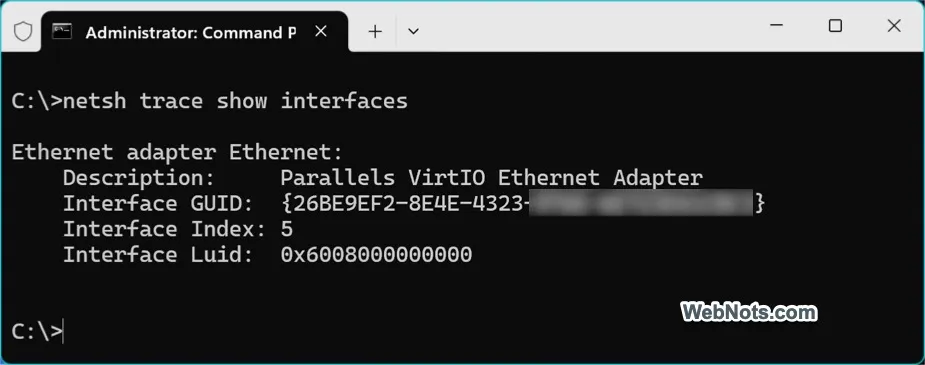
8. netsh
A versatile command-line scripting utility for displaying or modifying the network configuration of your computer. You can view network interfaces, firewall settings and more.
Example: netsh trace show interfaces will show your network adapter details.
9. getmac
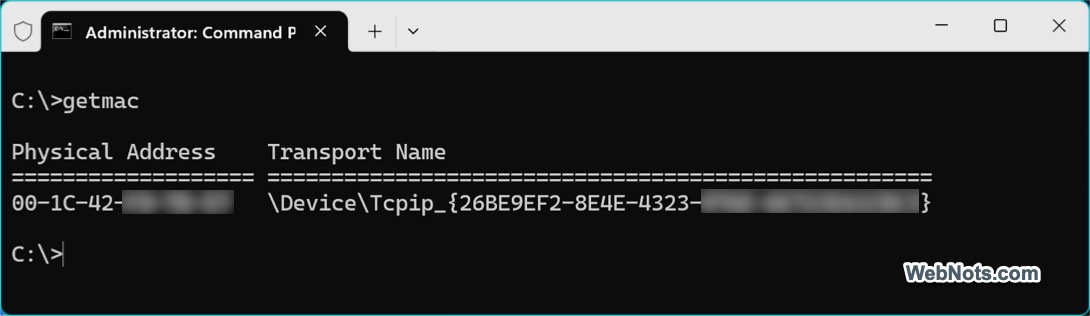
Quickly retrieves the MAC (Media Access Control) addresses of all network adapters on your computer.
10. hostname
Displays the name of the current system. This is useful when you’re remotely connected to multiple machines.
11. net
This command, along with its various switches, facilitates the management of a range of network-related tasks. Here are some of the examples:
- net user: Used for managing user accounts on your system. It can display user account info and used to create / modify accounts.
- net view: Displays a list of computers and resources on your network.
- net use: Maps, disconnects, and manages network drives and printers. Essential for accessing shared resources on a network.
12. pathping
Combines the functionality of ping and tracert commands, providing detailed information about packet loss at each hop between source and destination.
Example: pathping google.com.

13. ftp
This command-line File Transfer Protocol client can connect to FTP servers for uploading and downloading files.
Example: ftp ftp.example.com.
14. wmic
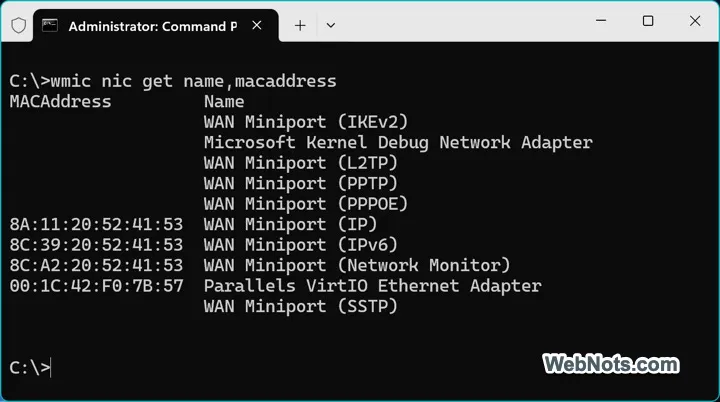
Windows Management Instrumentation Command-line (WMIC) utility lets you retrieve detailed system information, including about your network configuration.
Example: wmic nic get name,macaddress.
15. tasklist
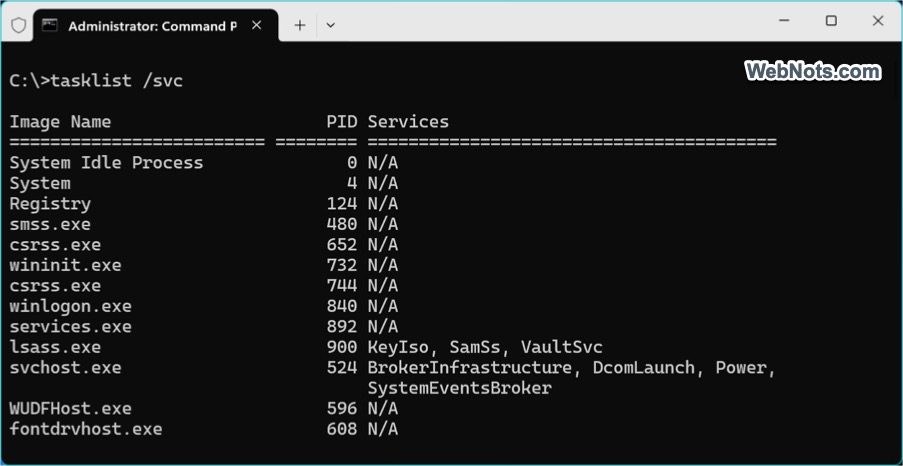
This command displays a list of currently running processes. When used with the /svc switch, it also shows services hosted in each process and can help to identify which process is using a network port.
Example: tasklist /svc.
16. taskkill
This command allows you to terminate one or more running processes on your computer by process ID (PID) or image name. It is particularly useful for ending unresponsive or problematic processes directly from the command line.
Example: taskkill /PID 1234 /F.
17. nbtstat
nbtstat is used for troubleshooting NetBIOS name resolution issues, displaying protocol statistics and current TCP/IP connections using NetBIOS over TCP/IP. It is helpful for diagnosing problems in networks using Windows file and printer sharing.
Example: nbtstat -n.
18. systeminfo
This command displays detailed configuration information about your computer and its operating system – including system architecture, installed memory, hotfixes and networking details. It is helpful for both troubleshooting and auditing system setups.
Conclusion
Mastering these 18 Windows network commands equips you with powerful tools for maintaining, troubleshooting and optimizing network connections. Whether resolving a stubborn DNS issue, tracing the route of a slow connection or simply gathering information about your machine, these commands provide a solid foundation for both beginners and seasoned IT professionals.


