Nowadays, using YouTube can be frustrating due to repeated problems. The algorithm pushes irrelevant AI-generated content, the mobile app crashes frequently, website loads slow, you encounter constant robot verification checks, and you see the annoying “Content Not Available” error. Generally, content-related issues stem from location, network problems, or privacy settings. However, fixing this error is difficult because the message isn’t specific. Below are some of the common suggestions to resolve the “This content isn’t available” issue on YouTube.
Content Not Available Error on YouTube
The error appears in various formats:
- The content isn’t available. Try again later.
- This video is unavailable.
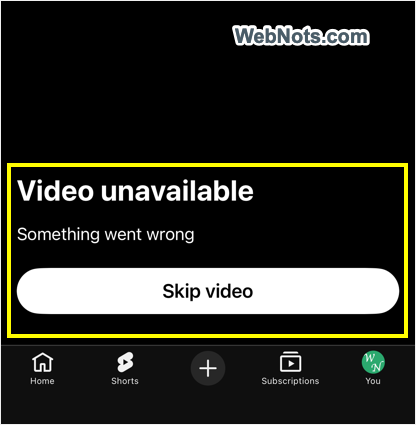
- Video unavailable” with a “Skip video” button.
- The following content is not available on this app.
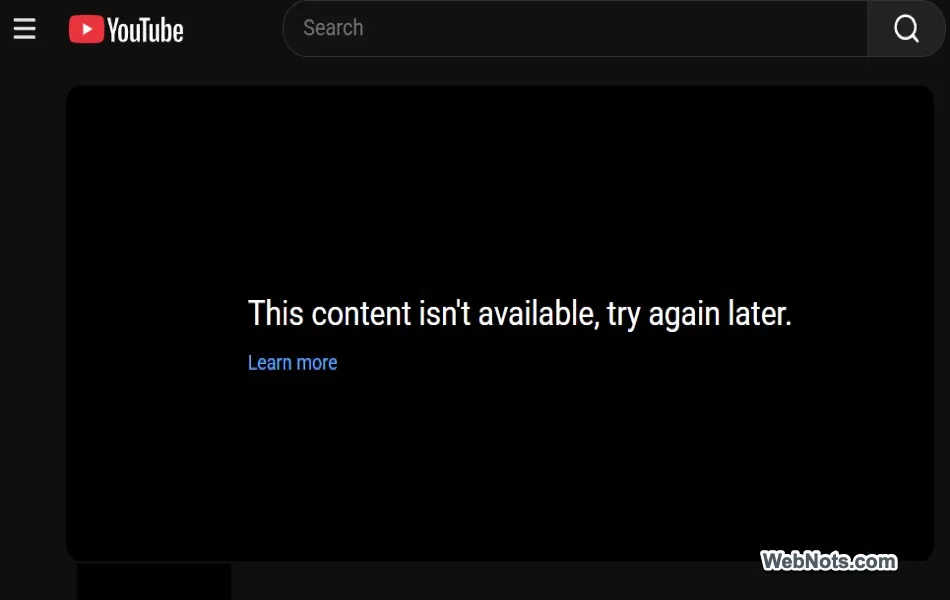
As mentioned, this error provides no additional code or information. Sometimes it lets you skip the video, but most of the time you can’t watch any videos in the app or browser. Importantly, the “Content not available” error implies the video still exists but is blocked specifically for you. If the message says “Deleted” (or similar), the video is gone forever (removed by the creator).
1. Logged In vs. Logged Out
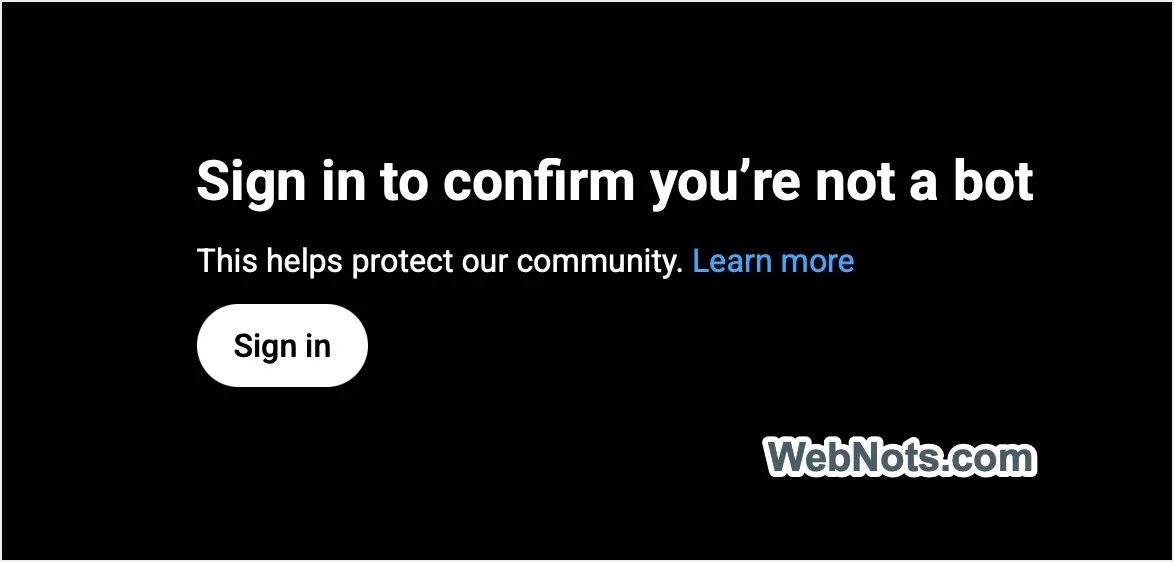
In the past, the issue usually happened when you were logged into a specific account. However, it now happens even when you’re logged out. Try testing with and without signing into your account. Since Google often blocks logged-out users with the “Sign in to confirm you’re not a bot” message, try using the app or website while logged into your Google account.
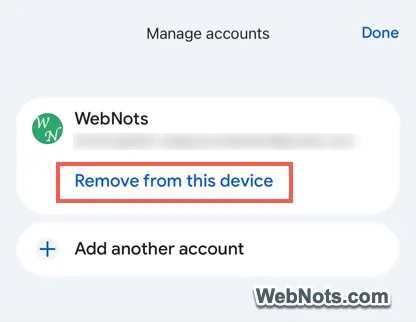
If the issue happens only on mobile apps, go to “Manage accounts on this device” from YouTube app’s settings page. Remove your account from the device and then add it again. Now, try to open videos and check if they are playing.
2. Disable VPN or Proxy
Google is struggling to control automated bots, and VPNs are a primary source of such traffic. If a VPN server’s IP address is blocklisted by popular DNS providers, there’s a high chance that YouTube and other websites will block your access. Simply disable your VPN and check if you can watch videos on YouTube again.
3. Disable Ad Blockers
Google is also imposing more restrictions on ad blockers because they directly hit its revenue. If you always watch free videos, consider changing your mindset and disabling your ad blocker. The era of “I pay for my internet, so I have the right to view everything online for free” is over. You should allow content creators and Google to earn money from your viewing. Otherwise, purchase YouTube premium and watch without hassle.
4. Check Your DNS Settings
By default, browsers and apps use the DNS provided by your ISP. This can create a lot of problems, such as slowing down internet speed or blocking content. The best option is to use Google Public DNS or another provider to speed up access. If you’re using “DNS over HTTPS” in your browser or device, try changing the service provider to see if that helps. For example, in Chrome, go to “Privacy and Security > Security > Use secure DNS”, and select a different provider from the list.

5. Disable Restricted Mode or Parental Controls
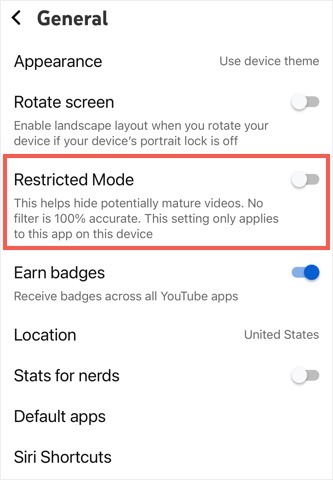
YouTube requires you to sign in to watch age-restricted content. However, if your Google account has an incorrect birthdate or if Restricted Mode is on, you’ll see the “content not available” error. Try after turning off the Restricted Mode. If you’re on a family account, make sure your parent or guardian hasn’t locked the “Mature Content” setting.
Note: Videos marked “Made for Kids” cannot be saved to playlists or watched in mini-player mode.
6. Try Incognito Mode or Delete Cache on Browser
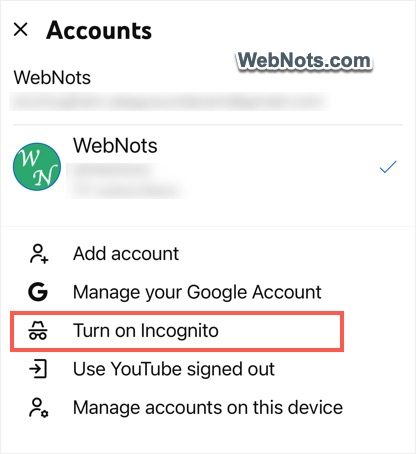
Open the video in a private or incognito browser window or turn on the incognito mode in YouTube mobile app. If it works there but not in your regular app or browser, cookies tied to your device are likely the culprit.
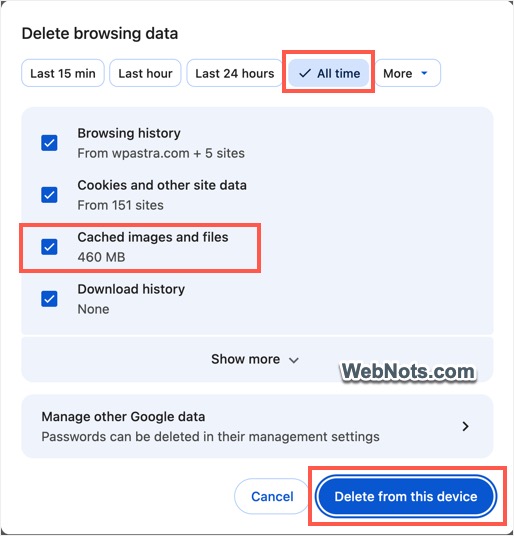
- On desktop browsers, press Control + Shift + Delete on Windows or Command + Shift + Delete on Mac (works on all popular browsers). Check “Cookies and other site data” or a similar option and delete the data from your device.
- Similarly, delete the cookies and browsing data on your mobile browser.
- You can also delete the app cache on your mobile, if such setting is available.
7. Video Blocked Due to Copyright
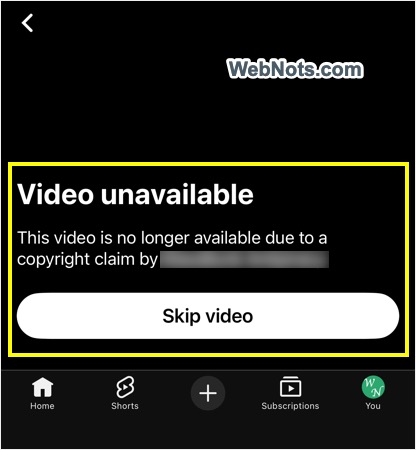
If the video you’re trying to watch infringes on copyright, it may have been taken down by Google. This happens automatically by YouTube or following a DMCA complaint from the original creator. You can’t do anything about stolen or pirated content. In such cases, YouTube will show, “Video unavailable. This video is no longer available due to a copyright claim by <user name>”.
8. Video Available Only in Certain Locations
Not all videos are available for viewing in all countries. A creator may block videos in specific countries due to music licensing or copyright laws. So, it’s common that some videos or channels are blocked in your geographical location. As mentioned, using a VPN or proxy may help sometimes, but not always, because Google can detect your original location using other methods.
Changing your public IP address with a VPN or proxy does not fully hide your geolocation, especially when using Chrome. Chrome uses multiple signals (like your Wi-Fi network) to detect your location. You can notice this when ads are shown based on your physical location even if your VPN location is different. In such a case, check your location in YouTube account settings or visit mylocation.org site to confirm that your public IP and geolocation are matching.
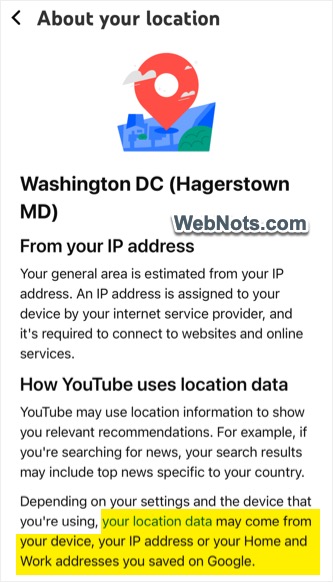
If they don’t, check our article on how to change your geolocation in Chrome before trying YouTube again. If the video is legally unavailable in your region, there’s little you can do about that.
Final Words
If the problem happens in the app, copy the video link and try watching it in your mobile / desktop web browser to see if the problem is a bug in the standalone app. In that case, updating or uninstalling and reinstalling the mobile app can help. It’s also a good idea to update your operating system to ensure compatibility with YouTube’s DRM (Digital Rights Management) licenses.