It is common for the Apple devices to stuck at Apple logo while updating or suddenly due to crashing. It is easy to fix that issue and boot your iPhone, iPad or Mac. However, what if the device is frozen showing iTunes icon with a power cable and not going to the startup screen. You also can’t force restart as the device will come back to the same iTunes with power cord screen. If you are stuck, here is how to fix the issue and start working with your iPad.

Why iPad Freeze at iTunes Logo?
There are two reasons for this:
- iPadOS is out of date and you should update it.
- The firmware needs to be updated on your iPad which is also part of iPadOS.
The problem happens primarily if you have not updated the system software for longer time. Since you can’t access Settings app, the only option is to use recovery mode and restore the iPad. Though existing apps will not be deleted, you may lose the settings as they will be reset back to factory defaults. For example, you need to connect back to Wi-Fi with password again, login to Apple account, activate the device.
Fixing iPad Stuck at iTunes Logo
The solution is to connect your iPad with Mac using a cable (different models have different cables). Since iTunes is no more part of macOS, you will see the iPad is mounted on the Finder app. If you do not have Mac, connect your iPad with Windows PC with iTunes app. Here, we will explain what happens when you connect with Mac.
- Connect iPad with Mac and Finder app will launch automatically showing your iPad.
- You will see a pop-up showing “There is a problem with iPad that requires it to be updated or restored”.
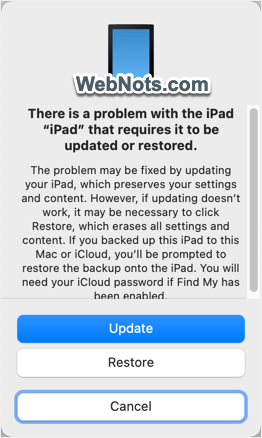
- First, click on the “Update” button and wait whether Mac can update the iPadOS. In most cases, this will not work and you will see another pop-up showing “If your iPad can’t be updated, you will need to restore it to its factory settings”. Click “Update” button allowing Mac to restore your iPad.

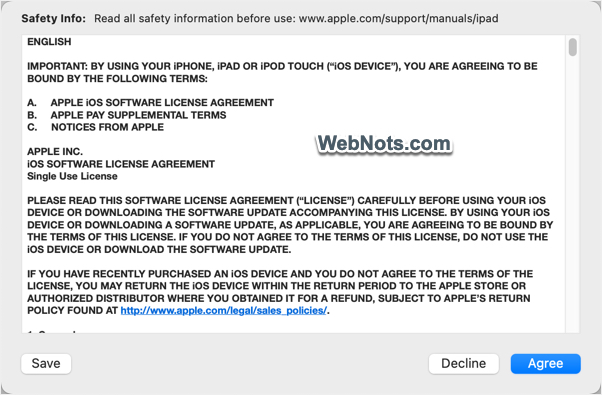
- Next screen will show the latest applicable iPadOS for your device and click on the “Next” button. Agree the terms to continue further.
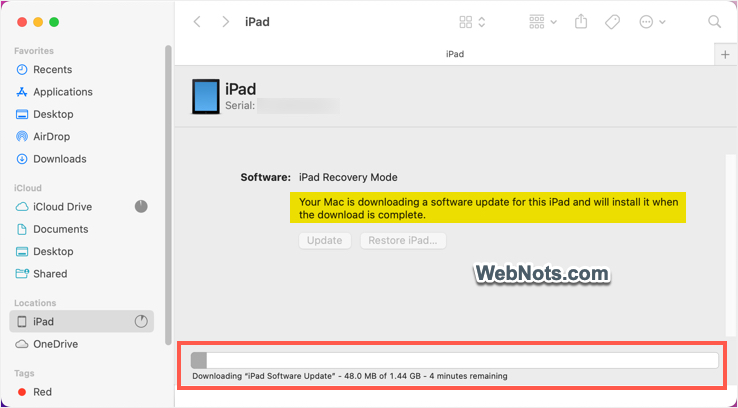
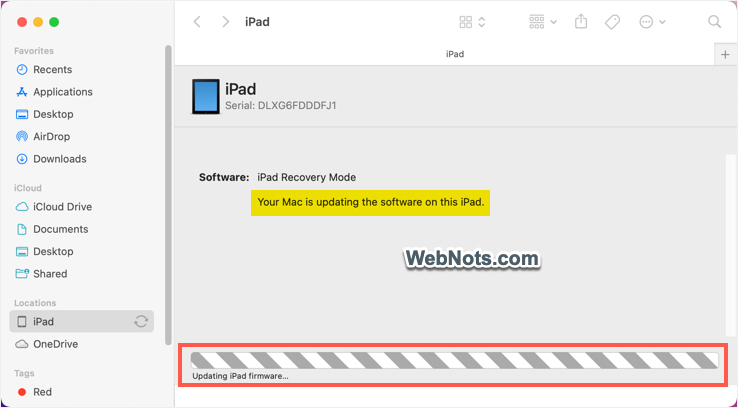
- Mac will start downloading the iPadOS and you can see the “iPad Recovery Mode” in “Finder > iPad” section.
- Wait till the time the software is downloaded, extracted and updated.
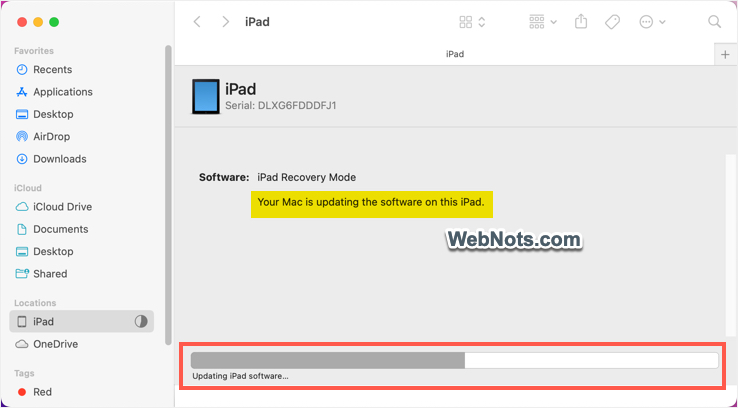
- You will also see “Updating iPad firmware…” indicating the firmware is also updated as part of OS update.
- Finally, you will see a message “Your iPad has been updated, and is restarting. Please leave your iPad connected. It will appear in the sidebar after it restarts” and click “OK” button.

- By this time, iTunes logo on your iPad will disappear and you should see the Apple logo indicating the device is restarting.
Setting Up After Restoring
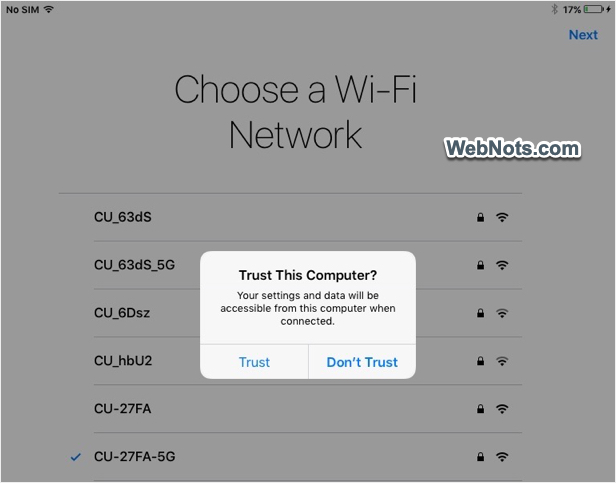
As mentioned, resetting to factory defaults will take your iPad to initial setting screens. Select your Wi-Fi network and login with your iCloud account to finish the setup. You will be prompted on both Mac as well as on your iPad whether you trust the other device. If it is your own Mac, tap “Trust on any of the device and connect your devices.
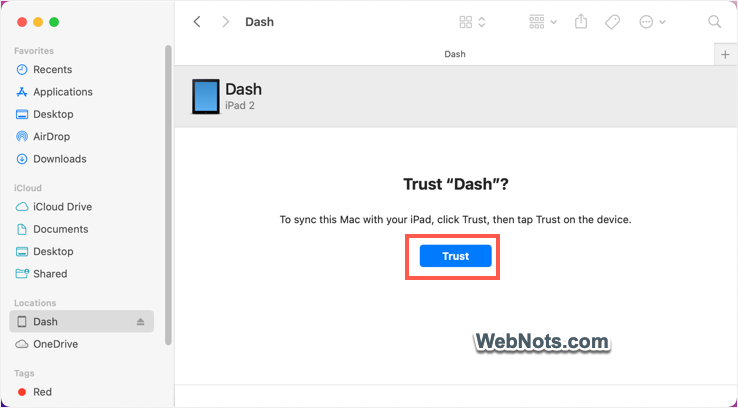
If you have borrowed Mac from someone for restoring your iPad, then tap “Don’t Trust” button on your iPad.
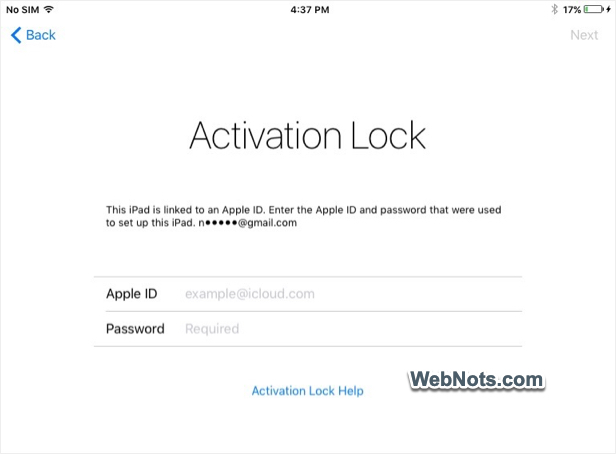
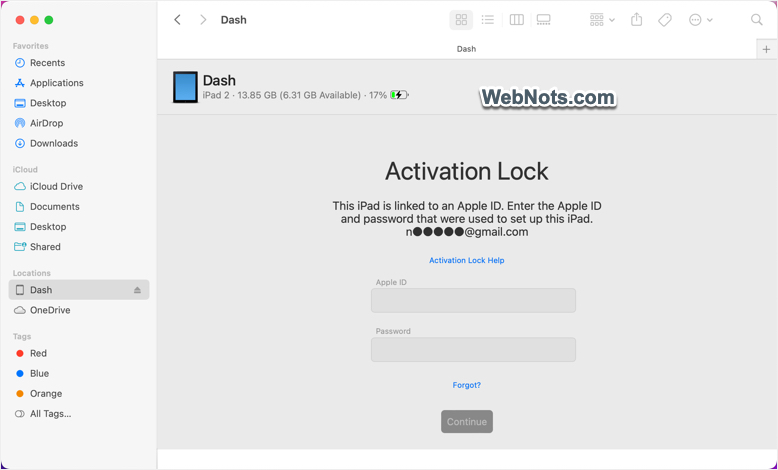
When restoring iPad in this manner, you need to activate with Apple ID. Enter the Apple ID and password (either on Mac or on iPad) and click/tap “Continue” button. This will activate the iPad and allow you to download and sync files across other devices.
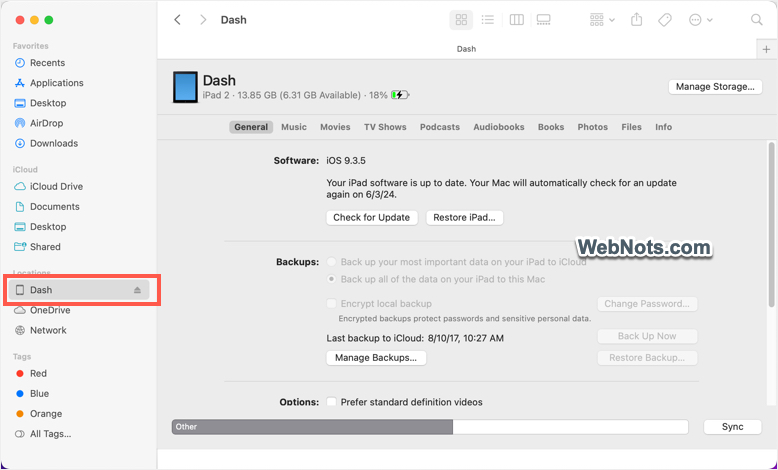
At this point, you should be able to see your iPad name in Finder sidebar showing all iTunes stuff. You can update, restore and do manage iPad files from Mac if you have trusted the device.
iPad will show a welcome message and you can start working with your device like before.
Final Words
If you are not able to fix the issue by restoring iPad or updating OS, then you will see an error code when trying to do so. If the error code is 9, 4005, 4013 or 4014 then check this support article from Apple to get more details. Otherwise, you may need to contact official Apple support for checking your hardware to fix the issue.