Google Analytics is the most popular way to monitor your site’s traffic statistics. However, your privacy will be at stake when using Google’s products as they will track and use your data. Since the data is collected by Google and stored on their servers, you do not have any control over how it is being used exactly. There is also a conspiracy theory that Google applies algorithms and penalizes all sites under same Analytics account. If you are looking for Google Analytics alternative for whatsoever reasons, here are three WordPress plugins that you can try.
Before Removing Google Analytics
Monetizing content through advertising and affiliate marketing are two major ways for WordPress bloggers to make money. When you apply for these programs, you should provide them access to your Google Analytics data for verifying traffic details of your site. This is especially the case with almost all publisher programs like Raptive, Mediavine, Freestar, BuySellAds, etc. It is not possible to apply for these programs if you do not have at least for past 3 to 6 months of Google Analytics data.
So, make sure to understand this before removing Analytics tracking code from your site.
1. WPStatistics
If you are mad with traditional process of account creation and tracking code insertion, then WPStatistics is a plugin for you. It does not need any account creation, GDPR compliant and hosts all data on your server. You can simply install the free “WPStatistics – The Most Popular Privacy-Friendly Analytics Plugin” from WordPress dashboard by navigating to “Plugins > Add New Plugin” section.
After activating the plugin, go to “WPStatistics > Settings” section where you can find numerous options to customize the usage. Frankly, the options are easier and better than Google Analytics 4 interface currently available. Here are some of the important settings you should enable:
- Basic Tracking – enable “Display Online Users” option and set the time frequency for checking. Select the visitor analytics parameters to track and the search engines you want to allow for reporting.
- IP Detection – select the methods you want to use.
- User Data Protection – anonymize and hash IP addresses and enable obeying “Do Not Track” requests from browsers.
- Enable GeoIP options under “Data Sources” section.
- Setup time to automatically cleanup the collected data from your server.
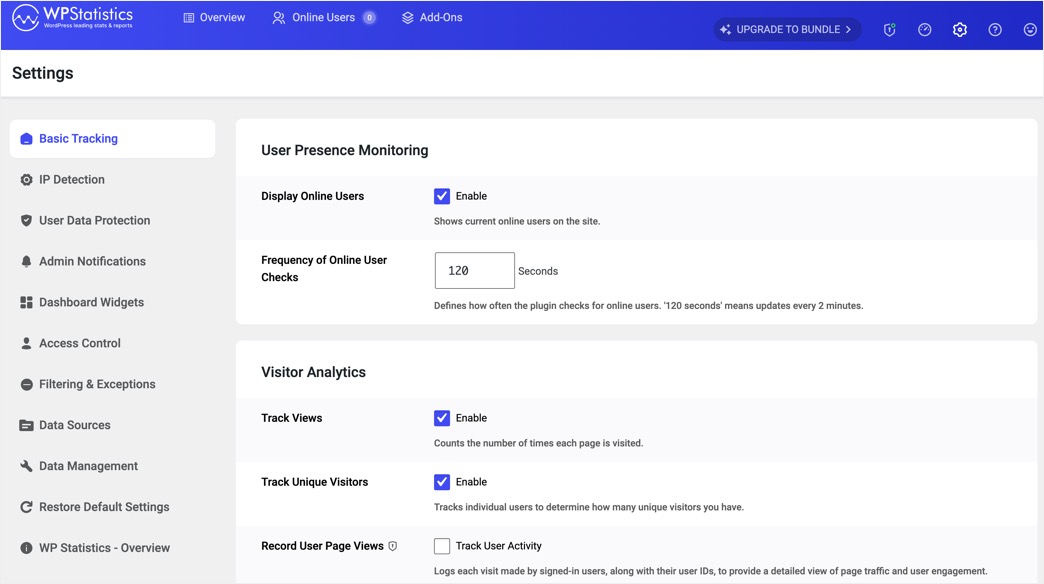
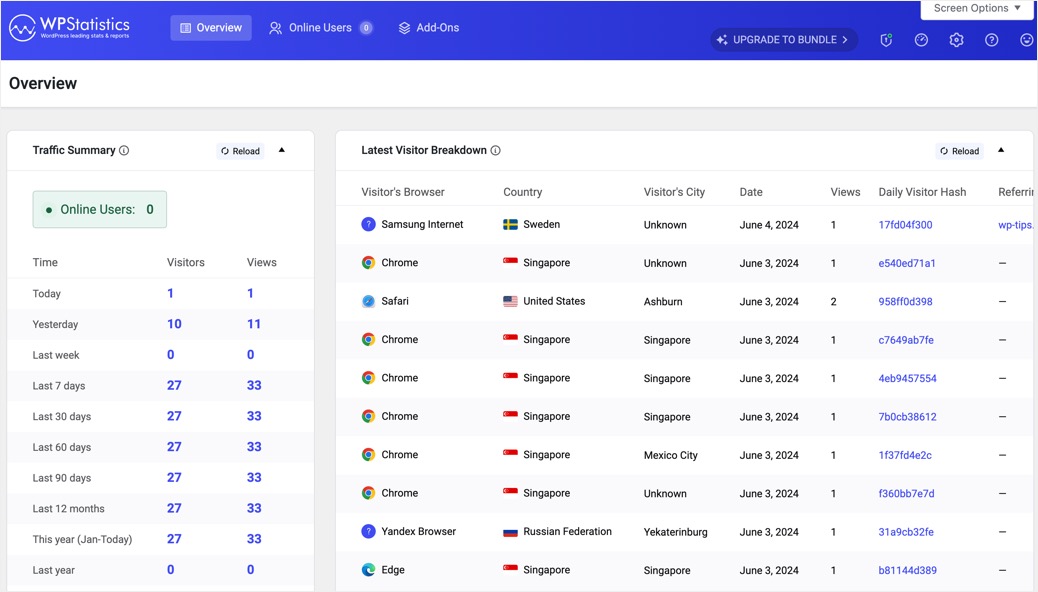
You can also customize admin notifications, widgets and user access from the corresponding settings sections. Once finishing the customization, navigate through different sub-menu options available under “Statistics” menu to view various reports. Primarily, go to “Statistics > Overview” section to view all widgets to monitor the traffic. You can drag and drop the widgets to rearrange them as per you convenient.
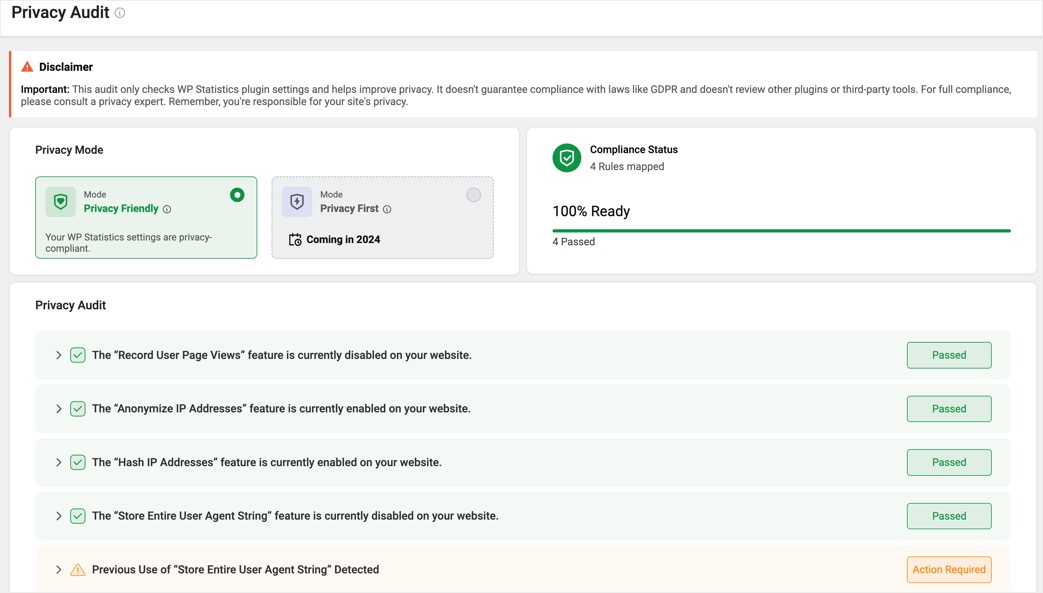
Go to “Statistics > Privacy Audit” section and make sure the complaint status is showing passed. If the plugin detects any issue, click on the “Action Required” button and fix the issue to keep your tracking complaint.
If you like WPStatistics then probably you can go for the premium add-on bundle. There are individual add-ons for real-time stats, advanced reporting, advanced widgets, etc. However, you can buy the bundle which includes all add-ons for $119 per year for a single site license.
2. Burst Statistics
This is the second traffic monitoring plugin you can try as an alternate to Google Analytics. It also does not need any account registration and will start working moment after activating the plugin. After installing and activating Burst Statistics – Privacy-Friendly Analytics for WordPress plugin, it will add a new “Statistics” sub-menu under “Dashboard” menu. The plugin offers three simple sections at this point:
- Dashboard – here you can find the live traffic details which will be refreshed automatically.
- Statistics – here you can find the graphical view of visitors and pageviews. You can also find the widgets showing comparison summary for the selected period, devices, top pages and referrers.

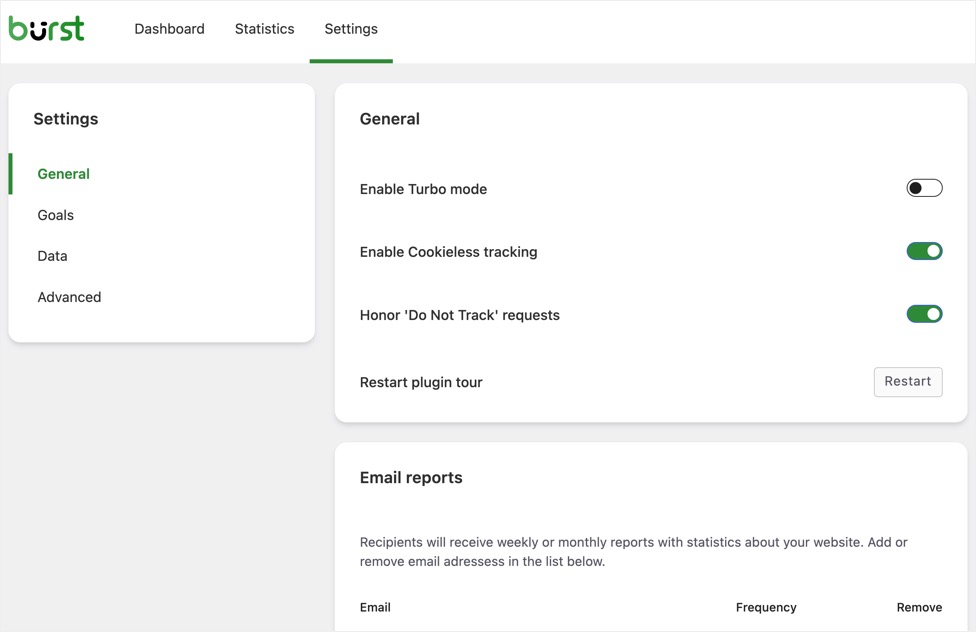
- Settings – there are few options available under “General” section to enable turbo mode for boosting page speed, enable cookiless tracking and respect do not track request from browsers. You can reset all data under “Data” section and exclude tracking of specific user roles (like administrators) under “Advanced” section.
There is also a pro version of this plugin available for $39 per single site license. You can get advanced UTM tracking, goals settings and filters with country level insights.
3. Jetpack Stats
If you are running a non-commercial website (without ads), then the free Jetpack Stats could be an alternate option for Google Analytics. This plugin offers various modules for stopping brute force attacks, adding recommended articles, advanced widgets, social sharing icons, newsletter subscription and many more. It will be a good odea to choose Jetpack only when you are interested in using other features.
Simply install Jetpack and the Stats module will be automatically activated on your site. Jetpack will add a widget to “Dashboard” section showing the traffic summary of your site. Go to “Jetpack > Jetpack Stats” menu where you can view the basic details for your traffic data. You can check page views, visitors, comments and likes for daily, weekly, monthly, yearly.
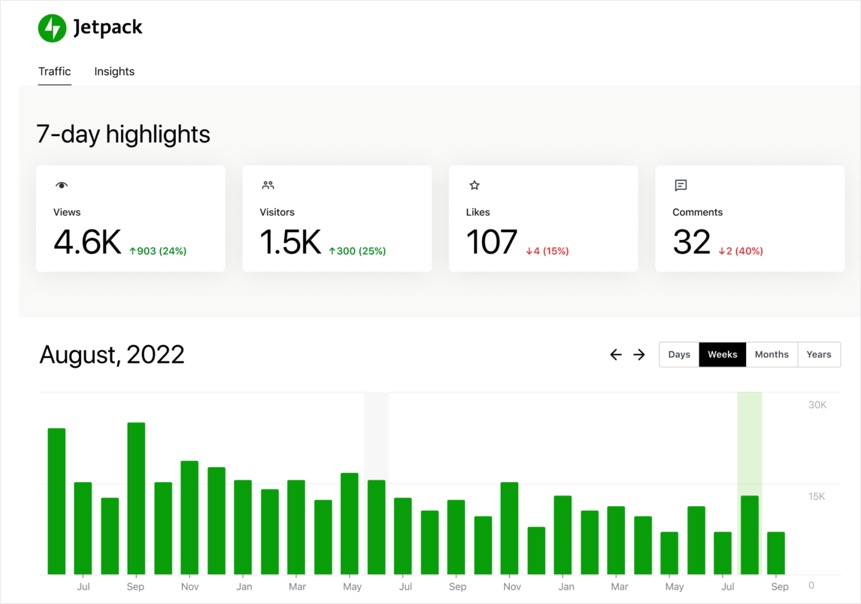
Real-time visitors are shown in the graphical view and you can find the referrer details easily on the same page. Though it is not exhaustive as WPStatistics, Jetpack is also GDPR complaint plugin and a good alternative for Google Analytics. Only problem with Jetpack is that you need to create an account and the data is stored on their servers and not on yours. You need to upgrade to premium version paying $100 per yearly or $9.95 per monthly to use Jetpack on commercial site (single site license).
Final Words
WPStatistics free version is more than sufficient to monitor and analyze your website traffic data for small websites. There are numerous reporting and features which is easier to use than the Google Analytics 4 version. Burst Statistics is another simpler option which you can try if you do not like WPStatistics plugin. Finally, Jetpack is a packaged plugin which is useful when you are also using other modules. Otherwise, avoid using Jetpack only for monitoring site’s statistics. Most importantly, Jetpack can’t be used on commercial sites showing display ads or affiliate links, while other two plugins will work.