
Apple Magic Keyboard and Mouse are sold separately as accessories or comes with iMac as part of the package. Recently Apple urged users to update the Magic Keyboard’s firmware due to a security vulnerability. Firmware is a type of software that is embedded into the keyboard and mouse to control their operation. If you are using Magic Keyboard and Mouse, here is how to check the firmware version and make sure you are using the latest firmware.
Check Firmware of Magic Keyboard
- Make sure your Magic Keyboard is connected to the system.
- Click the Apple logo and go to “System System…” menu.
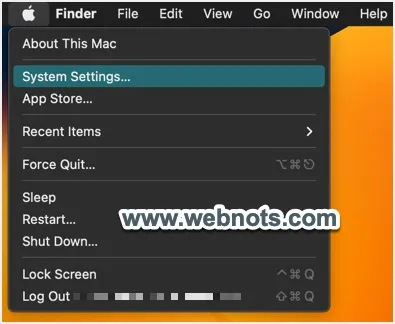
- Go to “Bluetooth” section and click on the information icon showing against “Magic Keyboard” option.

- In the pop-up that appears, you can find the model name and version.
- The version number showing is a firmware version you are using.

Check Firmware Version of Magic Mouse
It is the same process for Magic Mouse also. However, you can also do that from the Bluetooth icon from top bar.
- Make sure the Magic Mouse is connected to the system.
- Click the Bluetooth icon on top bar and select “Bluetooth Settings…” option.

- When you are in Bluetooth settings page, click the information icon showing against “Magic Mouse” option.

- Check the model name and version from the pop-up. The version number is the firmware version you are using for the Magic Mouse.

Apple Firmware Update
Now, you may wonder how to update the firmware version. Unlike other software applications, you do not need to update the firmware separately.
- Make sure the system is connected to internet.
- Simply connect Magic Keyboard or Mouse to your system using Bluetooth.
- The update will be done automatically in the background.
This means the update will happen as the keyboard and mouse are always connected to the Mac. All you need is to confirm whether the version you are using is the latest one recommended by Apple as explained above. If the recommended firmware version is not getting updated automatically, then it is a good idea to contact the Apple support and update the firmware to avoid any security problems.


